
1. Product Overview
The NPET S21PRO Wireless Gaming Keyboard and Mouse Combo offers a high-performance 2.4G wireless connection, designed for both gaming and productivity. This combo features dynamic RGB illumination, long-lasting rechargeable batteries, and a durable, ergonomic design for extended use.
- High-Performance 2.4G Wireless: Ensures zero-latency responsiveness for intense gaming sessions.
- Rechargeable Batteries: Keyboard with 3000mAh and mouse with 500mAh batteries provide extended continuous use.
- Dynamic RGB Illumination: Customizable rainbow backlight effects on the keyboard and a captivating 7-color cyclic gradient on the mouse.
- Military-Grade Durability: Keys designed to withstand 10 million keystrokes with fade-resistant double-shot ABS keycaps.
- Ergonomic Design: Mouse fits palms perfectly with an anti-sweat, non-slip grip for optimal control.

Figure 1.1: NPET S21PRO Wireless Gaming Keyboard and Mouse Combo, showing the keyboard, mouse, and USB receiver.
2. Setup Instructions
2.1 Initial Charging
Before initial use, fully charge both the keyboard and mouse for approximately 4 hours. Use a standard USB charging cable (not included) to connect the devices to a power source.
2.2 Connecting the Devices
The keyboard and mouse are pre-paired and connect instantly via a single 2.4G USB receiver. Follow these steps:
- Locate the USB receiver. It is conveniently stored in the base of the mouse. Gently slide open the compartment on the underside of the mouse to retrieve it.
- Plug the USB receiver into an available USB port on your computer (PC, laptop, or gaming console).
- Ensure both the keyboard and mouse are powered on. The devices should automatically connect to your computer.
- If the connection fails, refer to the Troubleshooting section for pairing reset instructions.

Figure 2.1: Location of the USB receiver in the mouse base.
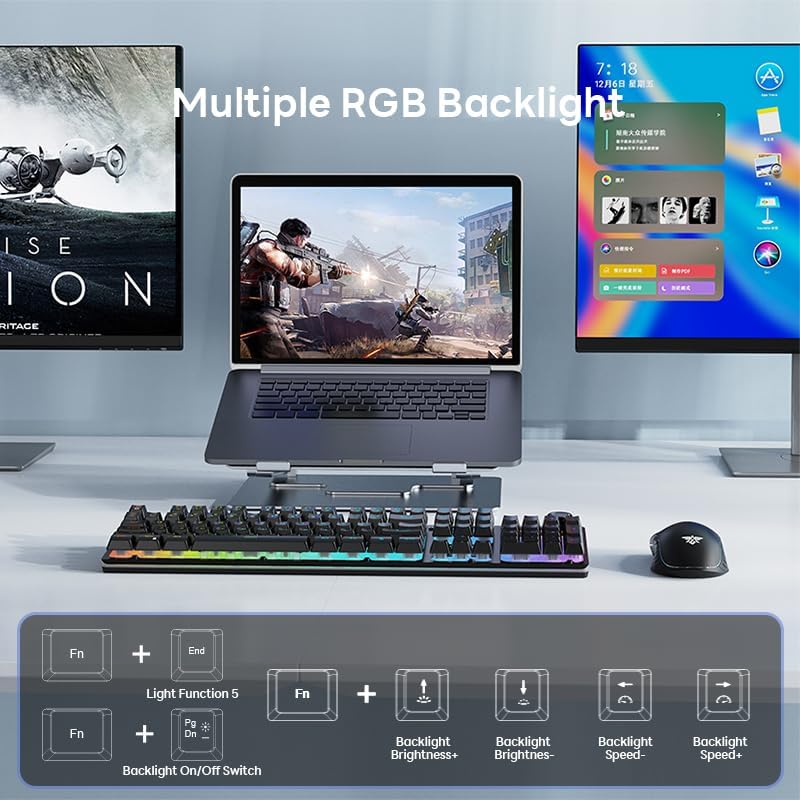
Figure 2.2: The keyboard and mouse connect via a single 2.4GHz USB receiver.
3. Operating Instructions
3.1 Keyboard Functions
The keyboard features various controls for lighting and multimedia:
- Multimedia Control Knob: Located on the top right of the keyboard.
- Click to switch between lighting effects (3 modes).
- Rotate to change backlight brightness (4 levels).
- Press and hold to mute/unmute audio (if applicable).
- Backlight Control (Fn Key Combinations):
- Fn + End: Cycles through 3 static lighting modes and 2 breathing modes.
- Fn + Pg Dn: Toggles backlight On/Off.
- Fn + Up Arrow: Increases backlight brightness.
- Fn + Down Arrow: Decreases backlight brightness.
- Fn + Left Arrow: Decreases backlight speed (for breathing modes).
- Fn + Right Arrow: Increases backlight speed (for breathing modes).

Figure 3.1: Multimedia Control Knob for lighting and volume adjustments.

Figure 3.2: Function key combinations for controlling RGB backlight effects and brightness.
3.2 Mouse Functions
The mouse features a 7-color cyclic gradient illumination and an ergonomic design for comfortable use.
- DPI Adjustment: The mouse typically has a DPI button (often located behind the scroll wheel) to cycle through different sensitivity levels (e.g., 800/1600/2400/3200 DPI).
- Ergonomic Design: The mouse is shaped to fit comfortably in the palm, reducing fatigue during long gaming or work sessions. It features an anti-sweat, non-slip grip.

Figure 3.3: Ergonomic design of the keyboard and mouse for comfortable use.
3.3 Power Saving Mode
To conserve battery life, the combo automatically enters sleep mode after 8 minutes of inactivity. Press any key on the keyboard or move the mouse to instantly wake the devices.
4. Maintenance
4.1 Cleaning
To maintain optimal performance and appearance, regularly clean your keyboard and mouse:
- Use a soft, dry cloth to wipe down the surfaces of the keyboard and mouse.
- For stubborn dirt, slightly dampen the cloth with water or a mild, non-abrasive cleaning solution. Ensure no liquid enters the device.
- Use compressed air to remove dust and debris from between the keyboard keys.
- Avoid using harsh chemicals, solvents, or abrasive materials, as these can damage the finish.
4.2 Battery Care
To prolong battery life:
- Charge the devices fully before initial use.
- Avoid completely draining the battery frequently.
- Store the devices in a cool, dry place when not in use for extended periods.
5. Troubleshooting
If you encounter issues with your NPET S21PRO combo, refer to the following common solutions:
| Problem | Possible Cause / Solution |
|---|---|
| Keyboard/Mouse not responding |
|
| Backlight not working or dim |
|
| Lag or intermittent connection |
|
If the problem persists after trying these solutions, please contact NPET customer support for further assistance.
6. Specifications
| Feature | Detail |
|---|---|
| Model Number | Wireless Keyboard and Mouse |
| Connectivity Technology | 2.4G Wireless |
| Keyboard Battery Capacity | 3000mAh |
| Mouse Battery Capacity | 500mAh |
| Keyboard Backlighting | RGB (3 modes, 2 breathing, 3 static, 4 brightness levels) |
| Mouse Backlighting | 7-color cyclic gradient |
| Key Durability | 10 million keystrokes |
| Keycap Material | ABS (Double-shot molding) |
| Compatible Devices | Laptop, Gaming Console, PC |
| Item Weight | 2.35 pounds |
| Package Dimensions | 17.5 x 8.5 x 2 inches |
| Water Resistance Level | Water Resistant |
7. Warranty and Support
7.1 Warranty Information
NPET products typically come with a limited warranty covering defects in materials and workmanship. Please refer to the warranty card included with your product or visit the official NPET website for detailed warranty terms and conditions specific to your region and purchase date. Keep your proof of purchase for warranty claims.
7.2 Customer Support
For technical support, troubleshooting assistance, or warranty inquiries, please contact NPET customer support through the following channels:
- Official Website: Visit the NPET Store on Amazon for product information and support resources.
- Email Support: Check the product packaging or the official website for the dedicated customer support email address.
- Online Contact Form: Many manufacturers provide an online contact form on their support page.
When contacting support, please have your product model number (Wireless Keyboard and Mouse) and purchase details ready to expedite the process.
