
1. Introduction
Welcome to the user manual for your new FOREVER Kids Look Me! 3 KW-520 Smartwatch. This guide provides essential information for setting up, operating, and maintaining your device. Please read it carefully to ensure proper use and to maximize the benefits of all its features.
The FOREVER Kids Look Me! 3 KW-520 is designed to provide communication and safety features for children, offering GPS tracking, two-way calling, video calls, and an SOS function, all within a durable and child-friendly design.
2. Safety Information
- Battery Safety: Do not attempt to replace the battery yourself. Use only the provided charging cable. Do not expose the watch to extreme temperatures or direct sunlight for prolonged periods.
- Water Resistance: The watch is IP65 rated, meaning it is splash-proof and resistant to dust. It is not suitable for swimming, showering, or submersion in water. Avoid exposing it to high-pressure water.
- Choking Hazard: Keep small parts, such as the SIM card, away from young children to prevent accidental ingestion.
- Disposal: Dispose of the device and its battery responsibly according to local regulations. Do not dispose of it with household waste.
- Supervision: Parental supervision is recommended during initial setup and to ensure safe usage of all features.
3. Package Contents
Please check the box for the following items:
- FOREVER Kids Look Me! 3 KW-520 Smartwatch
- USB Charging Cable
- User Manual (this document)
If any items are missing or damaged, please contact your retailer.
4. Device Overview
Familiarize yourself with the physical components of your smartwatch:

Figure 1: The FOREVER Kids Look Me! 3 KW-520 Smartwatch in pink, featuring a large display and a SIM card slot. A child is shown wearing the watch.

Figure 2: The smartwatch display showing the main interface with time, date, and feature icons.
- Display: 1.85-inch touchscreen for interaction.
- Power/SOS Button: Used to power on/off the device and activate the SOS function.
- SIM Card Slot: For inserting a Nano-SIM card.
- Camera: Integrated camera for photos and video calls.
- Microphone & Speaker: For calls and voice messages.
5. Setup
5.1 SIM Card Installation
- Ensure the smartwatch is powered off.
- Locate the SIM card slot on the side of the watch (refer to Figure 1).
- Carefully open the SIM card slot cover.
- Insert a Nano-SIM card with an active 4G data plan into the slot, ensuring the correct orientation.
- Close the SIM card slot cover securely to maintain water resistance.
- Power on the smartwatch. The network signal indicator should appear on the screen.
5.2 App Installation and Pairing
To manage the smartwatch and access its full features, you need to install the companion application on a parent's smartphone.
- Download the 'FOREVER Kids' application from your smartphone's app store (Google Play Store for Android or Apple App Store for iOS).
- Open the app and create a new account or log in if you already have one.
- In the app, select the option to add a new device.
- The app will prompt you to scan a QR code. On the smartwatch, navigate to the pairing menu to display its unique QR code.
- Scan the QR code with your smartphone.
- Follow the on-screen instructions in the app to complete the pairing process and set up parental controls, contacts, and other settings.

Figure 3: Overview of the companion mobile application interface for managing the smartwatch.
6. Operating the Smartwatch
6.1 Basic Navigation
- Touchscreen: Swipe left/right to navigate between main screens (e.g., clock, apps). Swipe up/down to access notifications or quick settings.
- Tap: Tap an icon to open an application or select an option.
- Power Button: A short press usually returns to the home screen. A long press powers the device on/off or activates the SOS function (if configured).
6.2 Making Calls
The smartwatch supports two-way voice calls with pre-approved contacts. Parents can manage the contact list through the companion app.
- From the main screen, tap the 'Phone' or 'Contacts' icon.
- Select the desired contact from the list.
- Tap the call icon to initiate the call.
- To answer an incoming call, tap the green answer icon. To reject, tap the red reject icon.
6.3 Video Calls
The smartwatch allows for video calls with approved contacts, providing a visual connection.
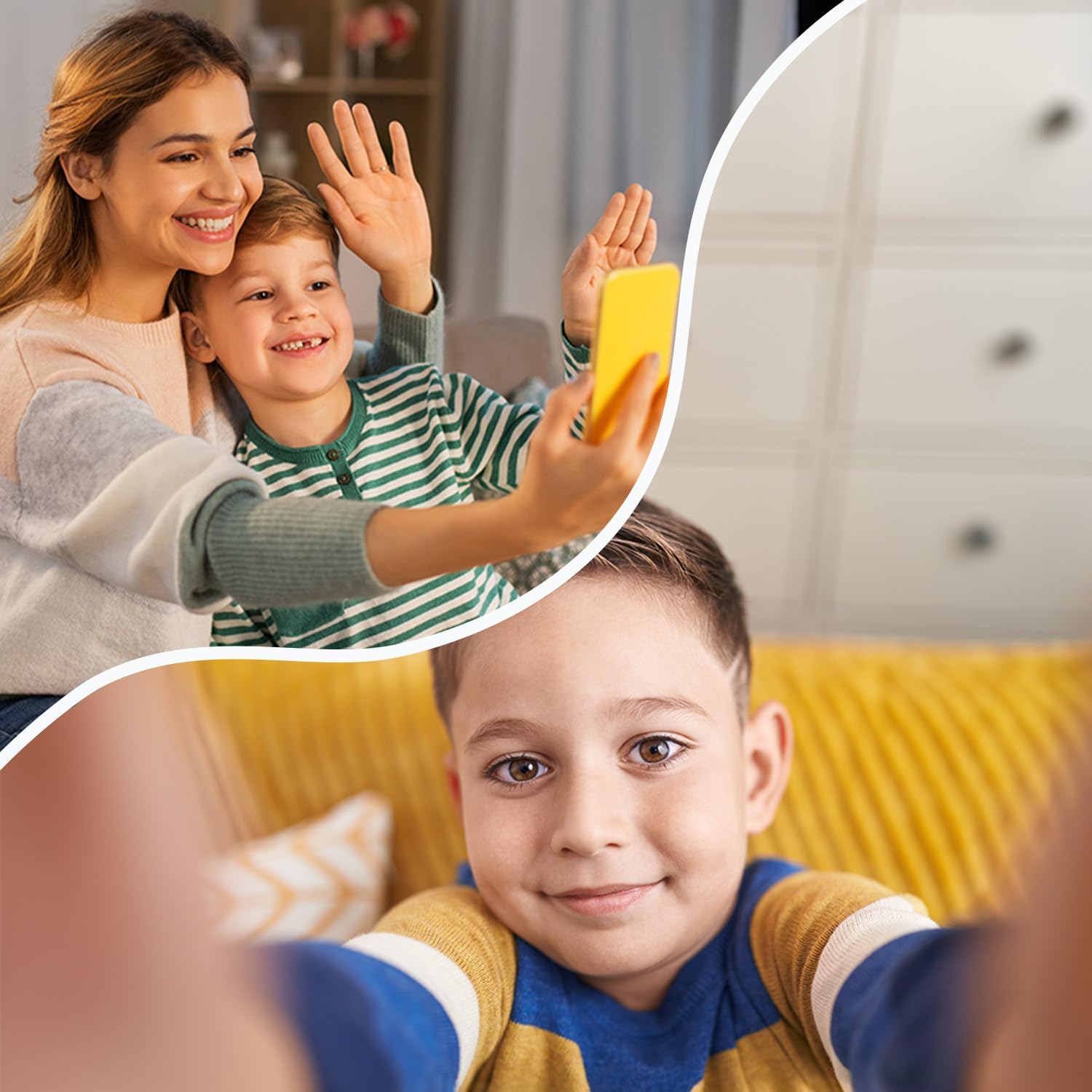
Figure 4: The video call feature allows children to connect visually with family members.
- Tap the 'Video Call' icon on the smartwatch.
- Select the contact you wish to video call.
- The call will connect, allowing for real-time video communication.
6.4 Messaging
Children can send and receive voice messages and text messages from approved contacts.
- Voice Messages: Tap the 'Chat' or 'Messages' icon, select a contact, and hold the microphone icon to record and send a voice message.
- Text Messages: The watch supports receiving text messages. Sending text messages may be limited to pre-defined quick replies or require a virtual keyboard, depending on the software version.
6.5 Location Tracking (GPS/LBS/Wi-Fi)
The smartwatch uses a combination of GPS, LBS (Location Based Service), and Wi-Fi positioning to provide accurate location tracking, visible through the companion app.
- GPS: Provides precise outdoor location data.
- LBS: Uses cellular network towers for location when GPS signal is weak or unavailable (e.g., indoors).
- Wi-Fi: Utilizes known Wi-Fi networks for improved indoor positioning accuracy.
6.6 SOS Function
In an emergency, the child can activate the SOS function to alert pre-set emergency contacts.
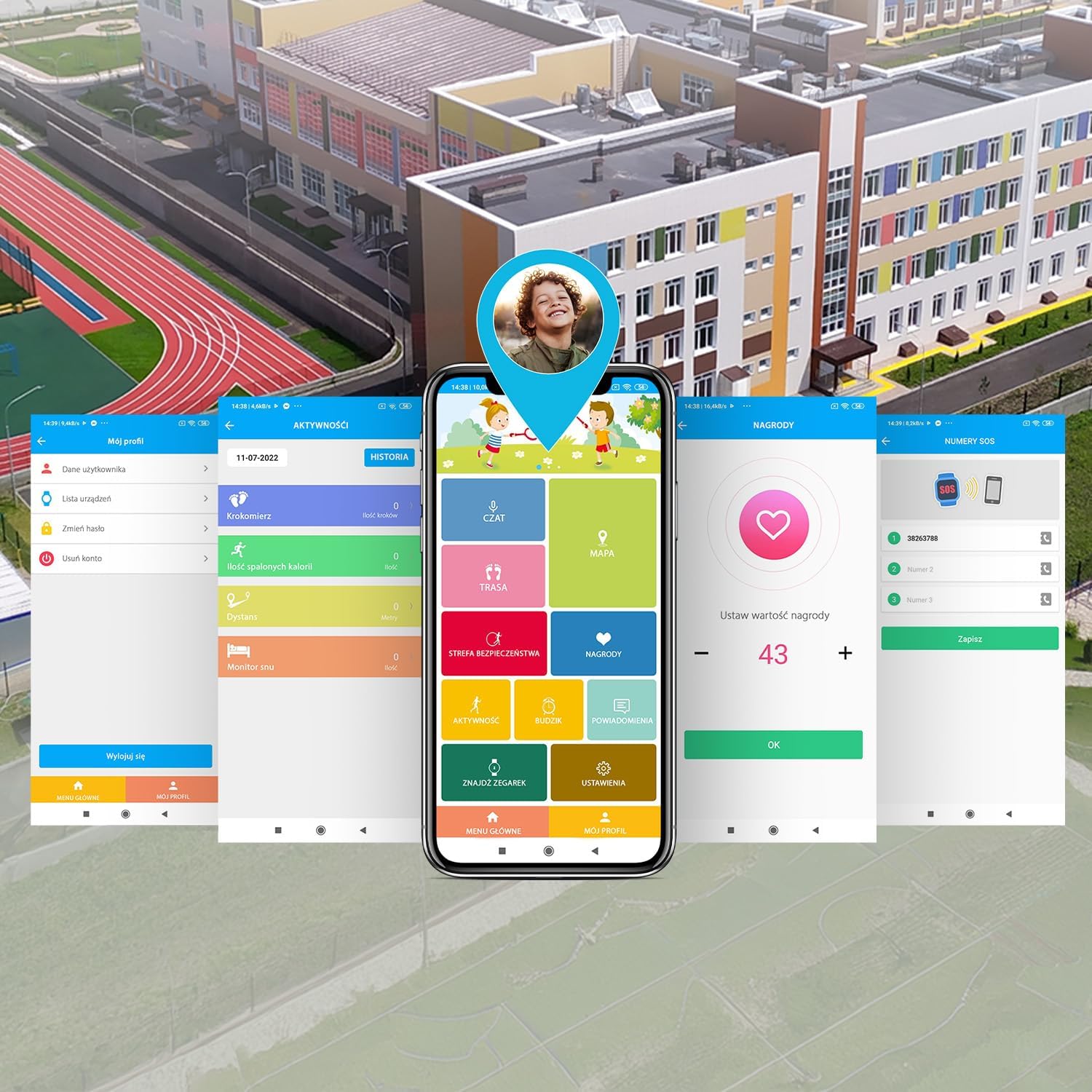
Figure 5: The SOS button provides a quick way for children to alert emergency contacts.
- To activate, press and hold the SOS button (usually the power button) for a few seconds.
- The watch will automatically call the emergency contacts in a pre-defined sequence until one answers.
- An alert message with the child's location will also be sent to the emergency contacts via the app.
6.7 Geofencing (Safety Zones)
Parents can set up virtual boundaries (geofences) in the companion app. You will receive notifications when the child enters or leaves these designated safe zones (e.g., home, school).
6.8 Games & Learning Apps
The smartwatch includes pre-installed games and learning applications to keep children engaged.

Figure 6: The smartwatch features educational and entertaining games.
- Tap the 'Games' icon on the watch screen.
- Select a game from the list to start playing.
6.9 Pedometer
The built-in pedometer tracks the child's steps throughout the day, promoting physical activity.
- Tap the 'Pedometer' or 'Activity' icon to view the daily step count.
- Activity data can also be viewed in the companion app.
6.10 Camera
The integrated camera allows children to take photos.
- Tap the 'Camera' icon.
- Tap the screen to take a photo.
- Photos can be viewed in the 'Gallery' and may be accessible via the companion app.
6.11 Face Unlock
The smartwatch supports face unlock for convenient and secure access.

Figure 7: The face unlock feature provides secure and easy access to the smartwatch.
- Navigate to 'Settings' on the smartwatch and find the 'Face Unlock' option.
- Follow the on-screen prompts to register the child's face.
- Once set up, the watch will unlock automatically when it recognizes the registered face.
7. Maintenance
7.1 Charging
To charge the smartwatch:
- Connect the provided USB charging cable to the charging port on the watch.
- Connect the other end of the USB cable to a standard USB power adapter (not included) or a computer's USB port.
- The watch screen will indicate that it is charging. A full charge typically takes approximately 2-3 hours.
- Disconnect the charger once the battery is full to prolong battery life.
7.2 Water Resistance (IP65)
The FOREVER Kids Look Me! 3 KW-520 Smartwatch has an IP65 rating, which means it is protected against dust ingress and low-pressure water jets from any direction. This makes it suitable for everyday use, such as splashes from handwashing or light rain.
- Do NOT immerse the watch in water.
- Do NOT wear the watch while swimming, showering, or bathing.
- Avoid exposing the watch to high-pressure water, such as from a faucet or hose.
- Ensure the SIM card slot cover is securely closed to maintain water resistance.
7.3 Cleaning
To clean your smartwatch:
- Wipe the screen and body with a soft, dry, lint-free cloth.
- For stubborn marks, slightly dampen the cloth with water. Do not use harsh chemicals or abrasive materials.
- Ensure the watch is completely dry before charging or using it again.
8. Troubleshooting
If you encounter issues with your smartwatch, refer to the following common problems and solutions:
| Problem | Possible Solution |
|---|---|
| Watch does not turn on | Ensure the watch is fully charged. Press and hold the power button for at least 10 seconds. |
| No network signal | Check if the SIM card is correctly inserted and activated. Ensure the SIM card has an active 4G data plan. Move to an area with better network coverage. |
| Cannot make/receive calls | Verify network signal. Check if the contact numbers are correctly saved in the companion app and synced to the watch. Ensure parental controls are not restricting calls. |
| Inaccurate location tracking | Ensure the watch has a clear view of the sky for GPS. Check if Wi-Fi is enabled on the watch for better indoor positioning. Update the location in the companion app. |
| Companion app cannot connect to watch | Ensure the watch has an active internet connection (via SIM card). Restart both the watch and the smartphone app. Re-pair the watch if necessary. |
| Battery drains quickly | Reduce screen brightness. Close unused applications. Limit frequent location updates in the app settings. |
If the problem persists, please contact customer support.
9. Specifications
Key technical specifications for the FOREVER Kids Look Me! 3 KW-520 Smartwatch:
| Feature | Specification |
|---|---|
| Brand | FOREVER |
| Model Number | KW-520 |
| Color | Rose |
| Operating System | Wear OS 3.0 |
| Screen Size | 1.85 Inches |
| Connectivity | Wi-Fi, Bluetooth, 4G (via SIM) |
| Special Features | Advanced GPS/LBS/Wi-Fi location functions, SOS button, Video calls, Geofencing |
| Compatible Devices | Smartphone |
| Battery Composition | Lithium-ion |
| Battery Capacity | 850 mAh (estimated from '850 Modificateur inconnu') |
| Memory Storage Capacity | 16 MB |
| Water Resistance | IP65 |
10. Warranty and Support
Your FOREVER Kids Look Me! 3 KW-520 Smartwatch is covered by a manufacturer's warranty. Please refer to the warranty card included in your package or visit the official FOREVER website for detailed warranty terms and conditions.
For technical support, troubleshooting assistance, or inquiries about your product, please contact the retailer where you purchased the device or visit the FOREVER customer support portal online.
Manufacturer: TelForceOne


