
1. Introduction
This manual provides instructions for the Inateck AceTouch Bluetooth Keyboard Case. This product combines a protective case with a detachable Bluetooth keyboard and touchpad, designed to enhance your iPad's functionality and portability. Please read this manual carefully before use to ensure proper operation and to maximize your experience.
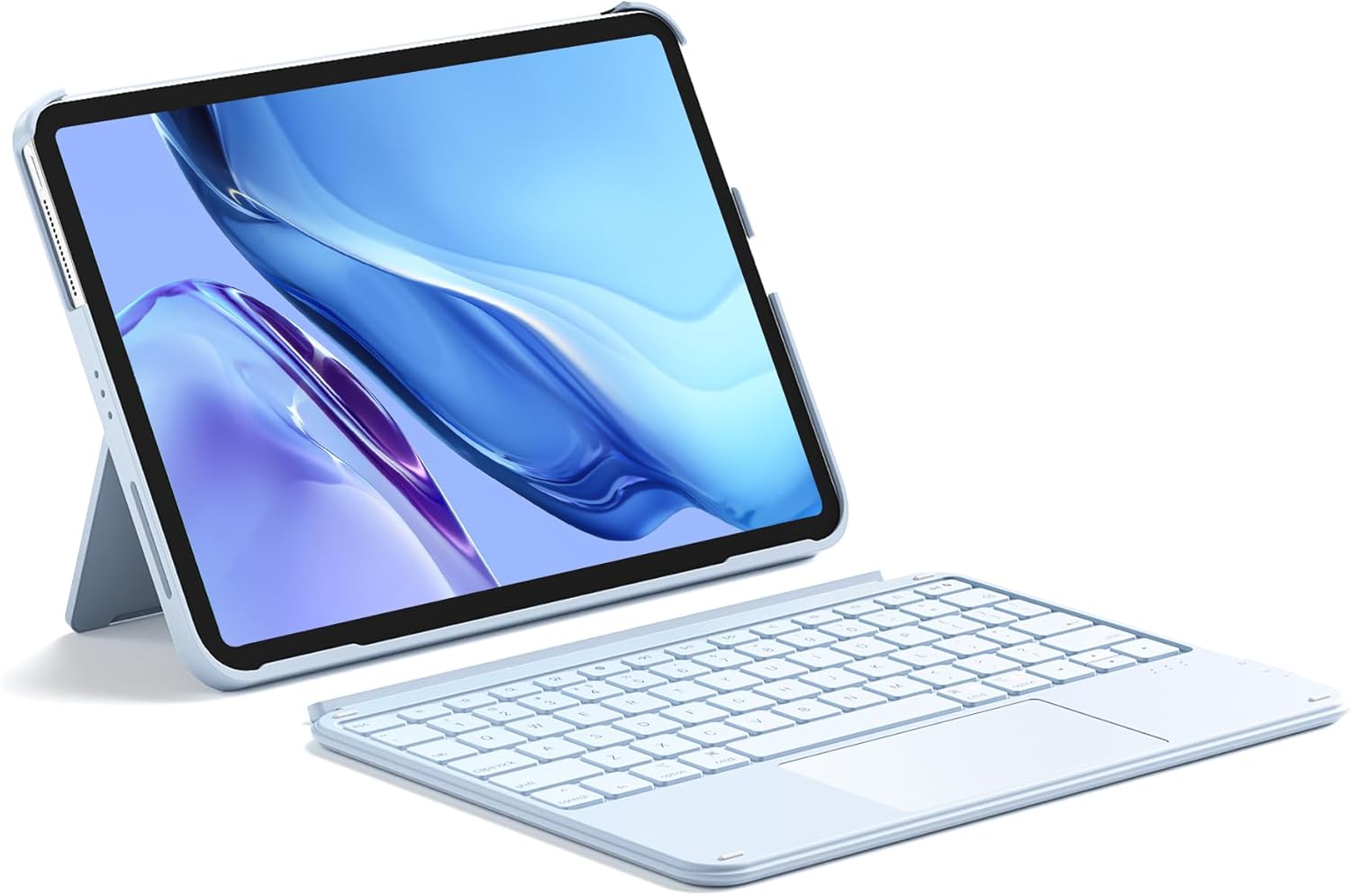
Image: The Inateck AceTouch Bluetooth Keyboard Case with an iPad in a stand position, showcasing the detachable keyboard.
2. Package Contents
- Inateck AceTouch Bluetooth Keyboard Case
- User Manual
3. Compatibility
The Inateck AceTouch Bluetooth Keyboard Case is designed for specific iPad models. Please verify your iPad model number to ensure compatibility.

Image: A detailed compatibility chart listing supported iPad models and their corresponding model numbers.
- iPad 11th Gen (2025 A16): A3354, A3355, A3356
- iPad 10th Gen (10.9", 2022): A2696, A2757, A2777, A3162
- iPad Air 11" (M3/M2, 2025): A3266, A3267, A3270
- iPad Air 6 (2024): A2902, A2903, A2904
- iPad Air 5 (2022): A2588, A2589, A2591
- iPad Air 4 (2020): A2316, A2324, A2325, A2072
- iPad Pro 11" 4th Gen (2022): A2435, A2759, A2761, A2762
- iPad Pro 11" 3rd Gen (2021): A2301, A2377, A2459, A2460
- iPad Pro 11" 2nd Gen (2020): A2228, A2068, A2230, A2231
- iPad Pro 11" 1st Gen (2018): A1980, A2013, A1934, A1979
Note: Not compatible with iPad Pro 11" M4 (2024).
4. Features
4.1. Ultralight Design
The keyboard case is designed to be lightweight, making it convenient for portability. It weighs approximately 450g (1 pound), which is significantly lighter than many other full-function keyboard cases.

Image: Illustration demonstrating the ultralight design, comparing the keyboard case's weight to a cup of coffee.
4.2. Magnetic Detachable Design
The keyboard and the iPad protective case are connected magnetically, allowing for quick and easy detachment. This design enables flexible usage, supporting both horizontal and vertical viewing angles.

Image: Depiction of the magnetic detachment, showing the keyboard separating from the iPad case, and the iPad case in a stand position.
4.3. Comfortable Typing Experience
The keyboard features a scissor switch structure with 1mm short key travel, providing a responsive and comfortable typing experience for extended use.

Image: Close-up view of a keyboard key, illustrating the scissor switch mechanism and short key travel for comfortable typing.
4.4. Precise Touchpad Control with iPadOS Support
The full-area multi-touch touchpad supports palm-rejection and offers precise, lag-free control. It is fully compatible with iPadOS gestures, allowing for intuitive navigation and interaction.
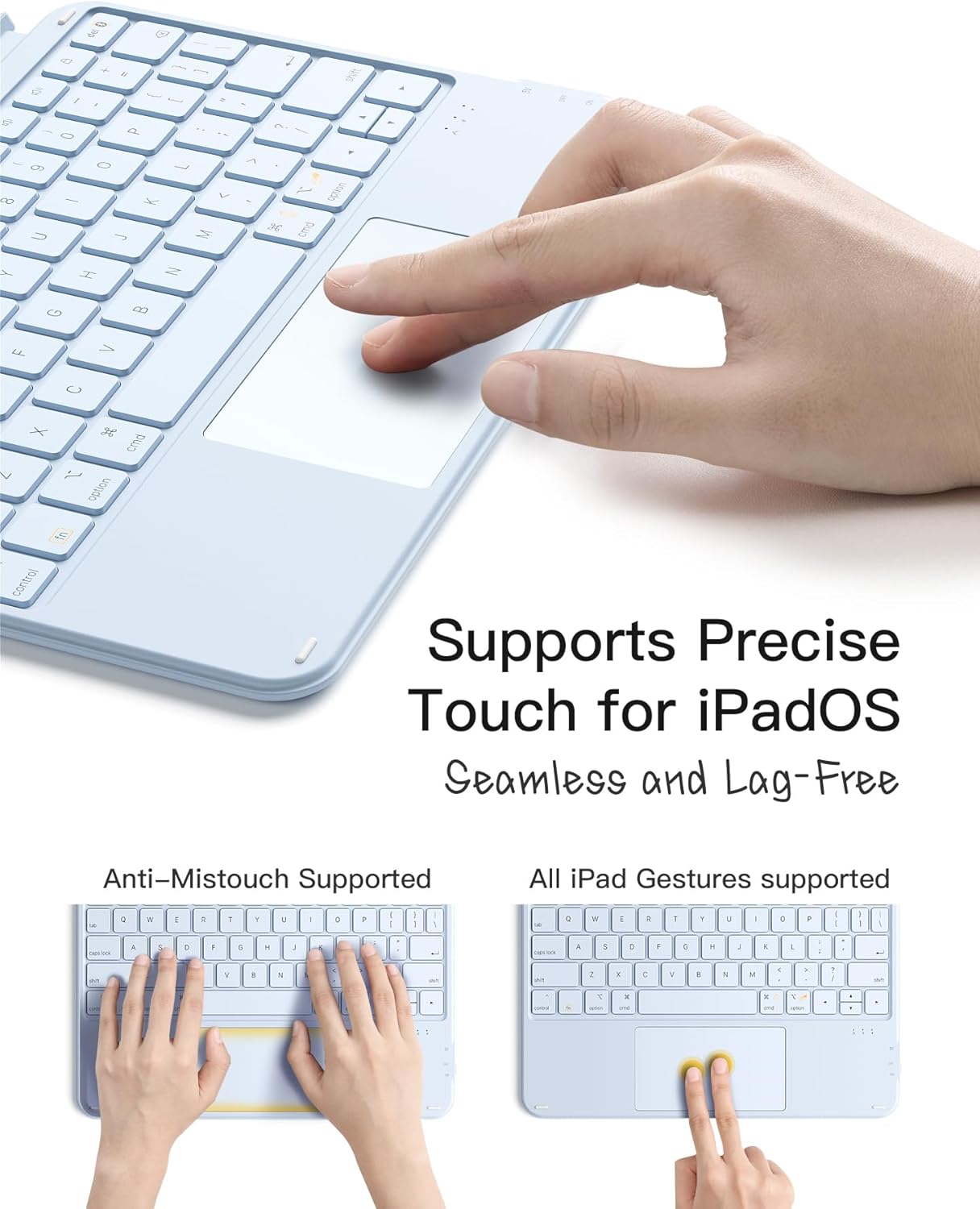
Image: Hands demonstrating touchpad use, highlighting palm rejection and multi-finger gestures for iPadOS.
5. Setup
5.1. Charging the Keyboard
- Locate the USB-C charging port on the side of the keyboard.
- Connect the provided USB-C cable to the keyboard and a power source (e.g., a USB wall adapter or computer USB port).
- The charging indicator light will illuminate during charging and turn off when fully charged.

Image: Close-up of the keyboard's side, showing the power switch and USB-C charging port.
5.2. Pairing via Bluetooth
- Ensure the keyboard is charged.
- Turn on the keyboard using the power switch located on the side.
- On your iPad, go to Settings > Bluetooth.
- Toggle Bluetooth On.
- The iPad will search for nearby Bluetooth devices. Look for "Inateck Keyboard" or a similar name in the list of devices.
- Tap on the keyboard name to initiate pairing.
- If prompted, enter the pairing code displayed on your iPad screen using the keyboard and press Enter.
- Once paired, the keyboard will show as "Connected" in your iPad's Bluetooth settings.
6. Operating Modes
The detachable design and adjustable stand allow for various operating modes to suit different tasks.
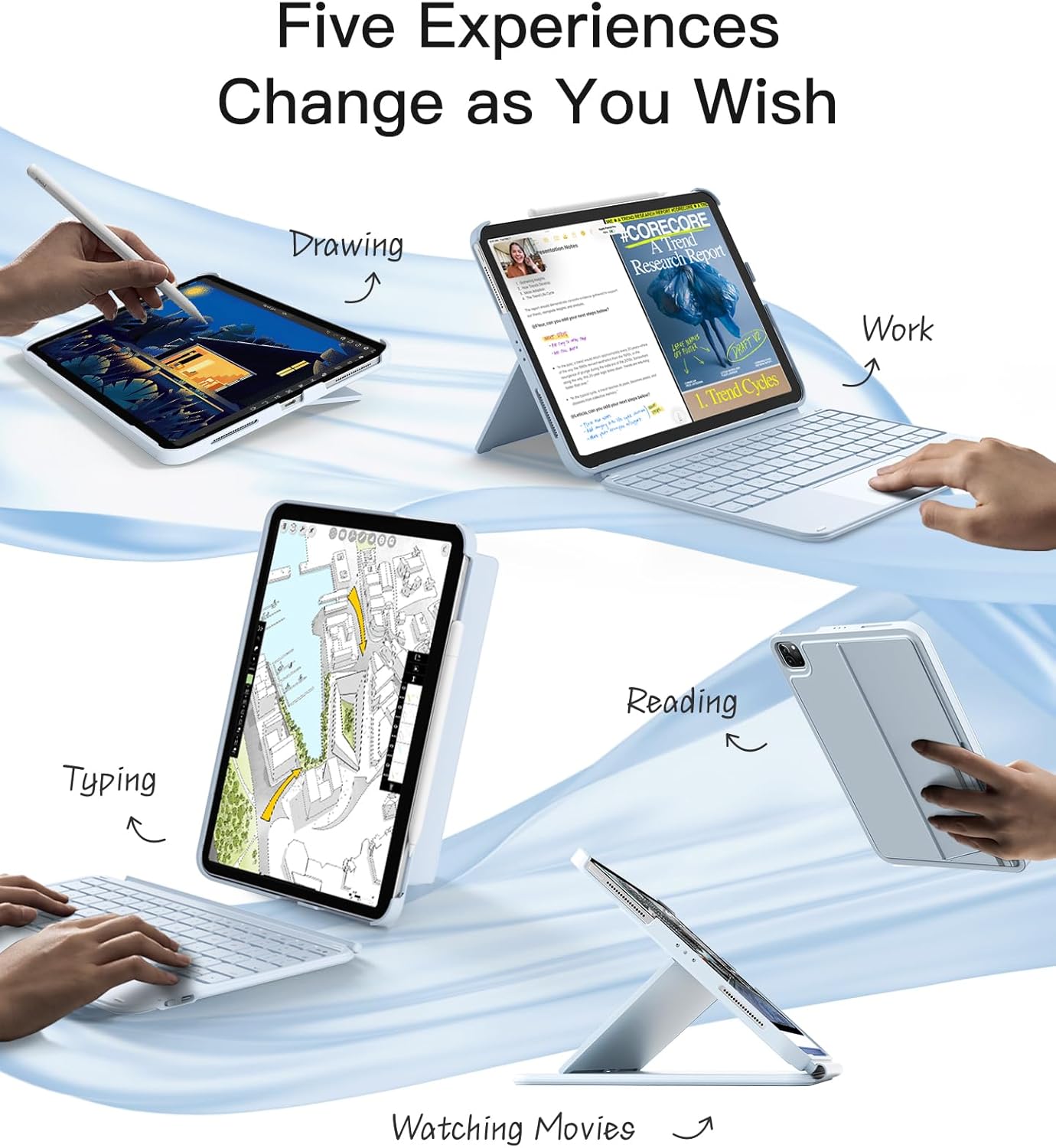
Image: Visual representation of five different ways to use the iPad with the keyboard case: Drawing, Work (typing), Reading, Watching Movies, and Typing (vertical view).
6.1. Typing Mode
Attach the keyboard to the case magnetically and adjust the iPad to a comfortable viewing angle for typing. This mode is ideal for productivity tasks such as writing documents or emails.
6.2. Drawing Mode
Detach the keyboard and lay the iPad flat or at a low angle using the case's stand. This provides a stable surface for drawing or writing with a stylus.
6.3. Reading Mode
Remove the keyboard entirely and hold the iPad in its protective case. The case offers protection while allowing for comfortable handheld reading.
6.4. Viewing Mode (Landscape/Portrait)
The case's back panel supports both horizontal (landscape) and vertical (portrait) orientations, allowing you to watch videos, browse content, or participate in video calls at optimal angles without the keyboard attached.
7. Touchpad Gestures
The touchpad supports various multi-touch gestures for efficient navigation within iPadOS.

Image: Visual guide illustrating various iPadOS touchpad gestures such as drag, scroll, swipe, zoom, secondary click, show desktop, App Exposé, and swipe between full-screen apps.
- Single Finger Tap: Click/Select
- Two Fingers Tap: Secondary click (right-click)
- Two Fingers Scroll: Scroll up/down or left/right
- Pinch In/Out: Zoom in/out
- Three Fingers Swipe Up: Go to Home Screen
- Three Fingers Swipe Up and Hold: Open App Switcher (App Exposé)
- Three Fingers Swipe Left/Right: Switch between open applications
- Four Fingers Swipe Up: Show desktop
8. Maintenance
- Keep the keyboard and case clean by wiping with a soft, damp cloth. Avoid harsh chemicals.
- Do not expose the product to extreme temperatures, direct sunlight, or moisture.
- Avoid dropping the product or subjecting it to strong impacts.
- When not in use for extended periods, turn off the keyboard to conserve battery life.
9. Troubleshooting
9.1. Keyboard Not Connecting
- Ensure the keyboard is powered on and fully charged.
- Check that Bluetooth is enabled on your iPad.
- Forget the device in your iPad's Bluetooth settings and attempt to re-pair.
- Restart both your iPad and the keyboard.
9.2. Touchpad Not Responding
- Ensure the keyboard is connected via Bluetooth.
- Check iPadOS settings for touchpad functionality.
- Restart the keyboard and iPad.
9.3. Keys Not Working
- Verify Bluetooth connection.
- Ensure the keyboard is charged.
- Clean any debris from under the keys.
10. Specifications
| Feature | Detail |
|---|---|
| Brand | Inateck |
| Model Number | KB04122-BU-US2 |
| Item Weight | 15.8 ounces (approx. 450g) |
| Product Dimensions | 9.92 x 7.52 x 0.55 inches |
| Color | Blue |
| Power Source | Battery Powered |
| Batteries | 1 Lithium Ion battery (included) |
| Connectivity Technology | Bluetooth |
| Keyboard Description | Ultralight, Scissor Switch |
| Special Features | Detachable keyboard with touchpad, Ultra-light, Portrait/Landscape use |
| Material | Plastic |
11. Warranty and Support
Inateck products are covered by a standard manufacturer's warranty. For detailed warranty information, technical support, or customer service inquiries, please refer to the official Inateck website or contact their customer support directly. Keep your purchase receipt for warranty claims.


