Introduction
This manual provides comprehensive instructions for the setup, operation, maintenance, and troubleshooting of your Bloody AT98 Alpha Optical Switch Performance Keyboard. Please read this manual thoroughly before using the product to ensure proper function and longevity.
Setup
Package Contents
- Bloody AT98 Alpha Optical Switch Performance Keyboard
- USB-C Cable
- Keycap Puller
- Dust Cover
- Additional Keycaps (for customization)
Connecting the Keyboard
- Locate the USB-C port on the back of the keyboard. The port is recessed for cable management.
- Connect the provided USB-C cable to the keyboard's USB-C port.
- Route the cable through the integrated cable management channels on the underside of the keyboard (left, right, or center) as desired.
- Connect the other end of the USB-C cable (USB-A) to an available USB port on your computer.
- The keyboard will be automatically recognized by your operating system.

Image: The Bloody AT98 keyboard with its USB-C cable connected, showcasing the cable management options on the underside.
Adjusting Keyboard Height
The keyboard features dual-height adjustable feet on the underside. Flip out the feet to achieve your preferred typing angle and ergonomic comfort.

Image: Underside view of the Bloody AT98 keyboard, illustrating the dual-height adjustable feet for ergonomic positioning.
Operation
Alpha Optical Switches
The Bloody AT98 keyboard is equipped with Alpha Optical Switches, which offer a fast response and high durability (up to 100 million keystrokes). These linear switches have a total travel distance of 3.8 mm ± 0.2 mm and an initial force of 48 ± 3 cN.

Image: Detailed diagram illustrating the specifications of the Alpha Optical Switch, including switch type, durability, initial force, total travel distance, and actuation point customization range.
Customizable Actuation Points
The keyboard allows for customization of actuation points, ranging from 0.8mm to 3.0mm. This feature enables users to fine-tune key responsiveness to their preference. There are 4 customizable variable speed profiles available.
To adjust actuation points, use the dedicated function keys (often marked 'LT' or similar, refer to keyboard layout) in combination with other keys as specified in the software or quick guide.

Image: Visual representation of the customizable actuation points and the eXact Reset System, detailing downward key travel, Z-Force Rapid Trigger, and X-Force Rapid Trigger.
eXact Reset System
The eXact Reset System provides enhanced key reset functionality:
- Hyper Z-Force Mode: Ultra-fast reset at 0.3mm for peak precision.
- Extreme X-Force Mode: Enhanced reset at 0.8mm for superior control.
- Classic Mode: Cancels out the eXact Reset and reverts to the default key reset point for a traditional response.
RGB Backlighting
The keyboard features 7 preset RGB backlit effects. These can be adjusted using function key combinations. Refer to the keyboard's quick start guide or software for specific key combinations to change lighting patterns and brightness.
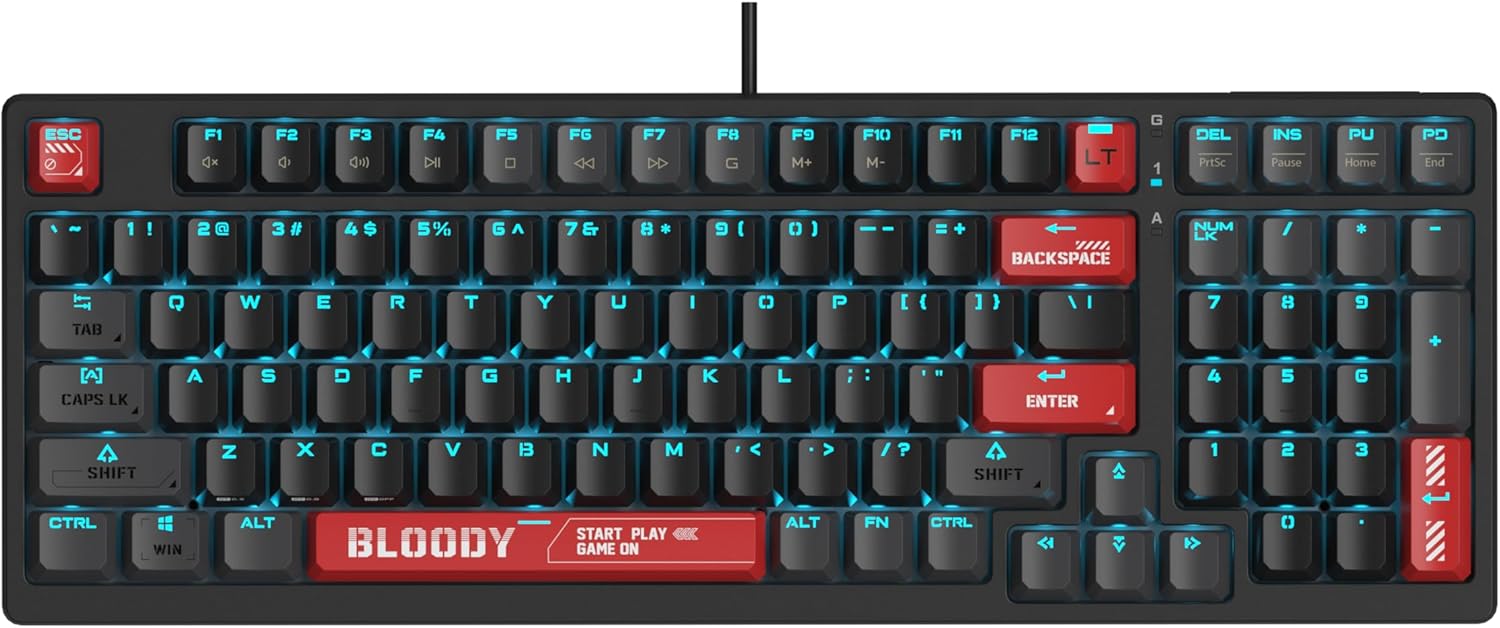
Image: The Bloody AT98 keyboard illuminated with its RGB backlighting, showcasing the key layout and design.
Multimedia Functions
Secondary multimedia functions are integrated into the F-key row. These functions are typically activated by pressing the FN key in combination with the corresponding F-key (e.g., FN + F1 for volume down, FN + F2 for volume up, FN + F3 for mute). Specific key assignments may vary; consult the keyboard's quick start guide for details.
Maintenance
Cleaning the Keyboard
- Disconnect the keyboard from your computer before cleaning.
- Use a soft, lint-free cloth slightly dampened with water or a mild cleaning solution to wipe the keycaps and surface.
- For dust and debris between keys, use compressed air.
- Avoid spraying liquids directly onto the keyboard.
- Do not use harsh chemicals or abrasive materials.
Keycap Replacement
The Bloody AT98 comes with additional keycaps and a keycap puller for customization. To replace keycaps:
- Gently attach the keycap puller to the keycap you wish to remove.
- Pull upwards with steady, even pressure until the keycap detaches from the switch.
- Align the new keycap with the switch stem and press down firmly until it clicks into place.
The PBT keycaps are designed for durability and a quick bounce-back feel.

Image: Close-up view of the Bloody AT98 keyboard highlighting the PBT keycaps, emphasizing their material and design.
Dust Cover Usage
Utilize the provided dust cover when the keyboard is not in use to protect it from dust and debris, which can affect performance and longevity.
Troubleshooting
Keyboard Not Responding
- Ensure the USB-C cable is securely connected to both the keyboard and the computer.
- Try connecting the keyboard to a different USB port on your computer.
- Test the keyboard on another computer to rule out a computer-specific issue.
- Restart your computer.
Backlighting Not Working or Incorrect
- Check if the backlighting is turned off. Use the designated FN key combinations to cycle through lighting effects and adjust brightness.
- Ensure any keyboard software is up to date and correctly configured.
Keys Not Registering or Double-Typing
- Clean the affected key(s) using compressed air to remove any debris.
- Verify that the keycap is properly seated on the switch.
- If using custom actuation points, try resetting them to default settings.
Software Issues
- Download the latest software and drivers from the official Bloody website.
- Ensure your operating system is up to date.
Specifications
| Model Name | AT98-BloodyRed |
| Brand | Bloody |
| Keyboard Description | Alpha Optical Switch |
| Switch Type | Linear Optical Switch |
| Key Count | 98 Keys |
| Actuation Point Customization | 0.8mm - 3.0mm (23 options) |
| Initial Force | 48 ± 3 cN |
| Total Travel Distance | 3.8 mm ± 0.2 mm |
| Durability | Up to 100 Million Keystrokes |
| Connectivity Technology | USB-C |
| Compatible Devices | PC |
| Product Dimensions | 5.43 x 15.16 x 1.61 inches (13.79 x 38.51 x 4.09 cm) |
| Item Weight | 1.65 pounds (0.75 kg) |
| Special Feature | eXact Reset System, RGB Backlit, PBT Keycaps, Dual-Height Feet |
Warranty and Support
Warranty Information
For detailed warranty information, please refer to the warranty card included with your product or visit the official Bloody website. Keep your proof of purchase for warranty claims.
Customer Support
If you encounter any issues not covered in this manual or require further assistance, please contact Bloody customer support through their official website or the contact information provided in your product packaging.
Official Bloody Website: www.bloody.com


