
1. Introduction
Thank you for choosing the TECKNET TK-MS007 Ergonomic Wireless Vertical Mouse. This manual provides detailed instructions for setting up, operating, and maintaining your mouse. This device is designed to enhance comfort and productivity with its ergonomic vertical design, multi-mode connectivity, adjustable DPI, and Jiggler function.
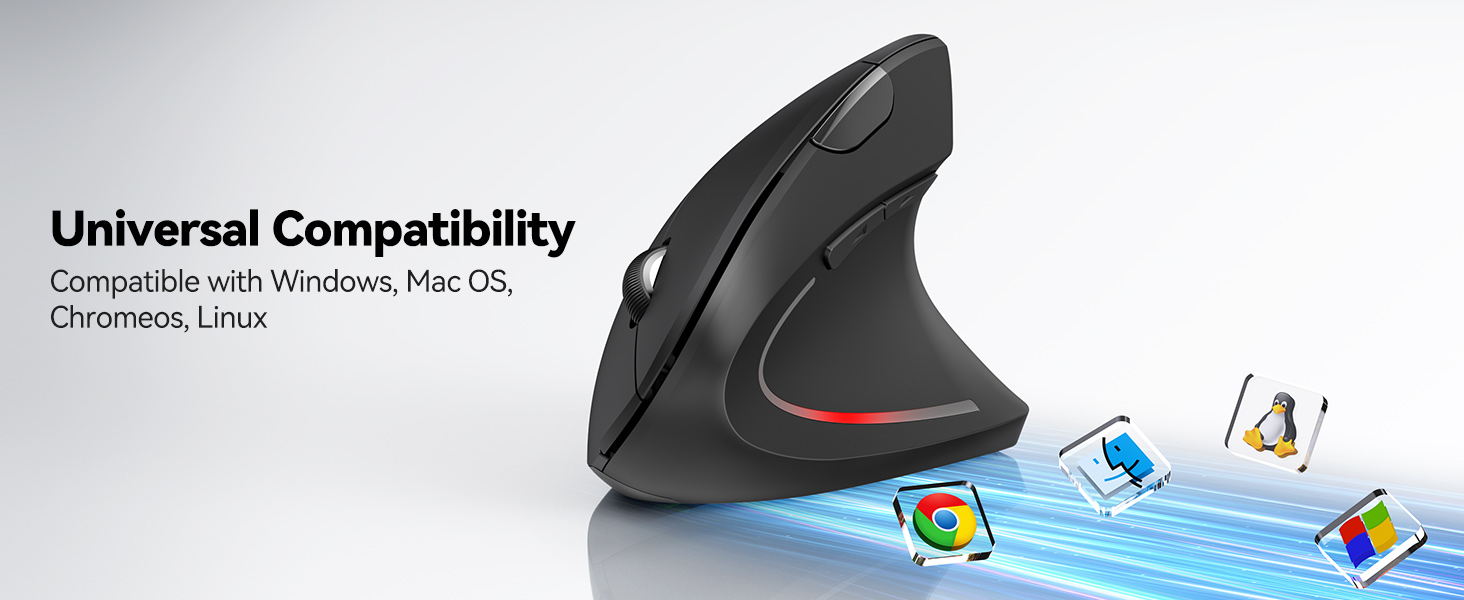
Image 1.1: Overview of the TECKNET Vertical Bluetooth Mouse with Jiggler feature.
2. Package Contents
Please check the package for the following items:
- TECKNET TK-MS007 Ergonomic Wireless Vertical Mouse
- USB-A Receiver (stored in the mouse battery compartment)
- USB-C Adapter
- User Manual
3. Product Overview
Familiarize yourself with the mouse components and their functions.

Image 3.1: Labeled components of the TECKNET TK-MS007 mouse, including DPI Switch, Scroll Wheel, Forward/Backward buttons, Bluetooth Pairing Button, ON/OFF switch, AAA Battery compartment, and USB Receiver storage.
- Left Click Button: Standard left-click function (silent).
- Right Click Button: Standard right-click function (silent).
- Scroll Wheel: For scrolling up and down.
- DPI Switch Button: Adjusts cursor sensitivity (DPI) and activates/deactivates Jiggler mode.
- Forward Button: Navigates forward in web browsers or file explorers (not functional on macOS).
- Backward Button: Navigates backward in web browsers or file explorers (not functional on macOS).
- Bluetooth Pairing Button: Initiates Bluetooth pairing.
- ON/OFF Switch: Powers the mouse on or off.
- Battery Compartment: Holds two AAA batteries.
- USB Receiver Storage: Securely stores the 2.4GHz USB-A receiver.
4. Setup and Installation
4.1. Battery Installation
- Open the battery compartment cover located on the bottom of the mouse.
- Insert two AAA batteries (not included), ensuring correct polarity (+/-).
- Close the battery compartment cover.
- Flip the ON/OFF switch to the "ON" position.
4.2. Connecting the Mouse
The mouse supports two connection modes: 2.4GHz Wireless (via USB receiver) and Bluetooth (5.0/3.0).
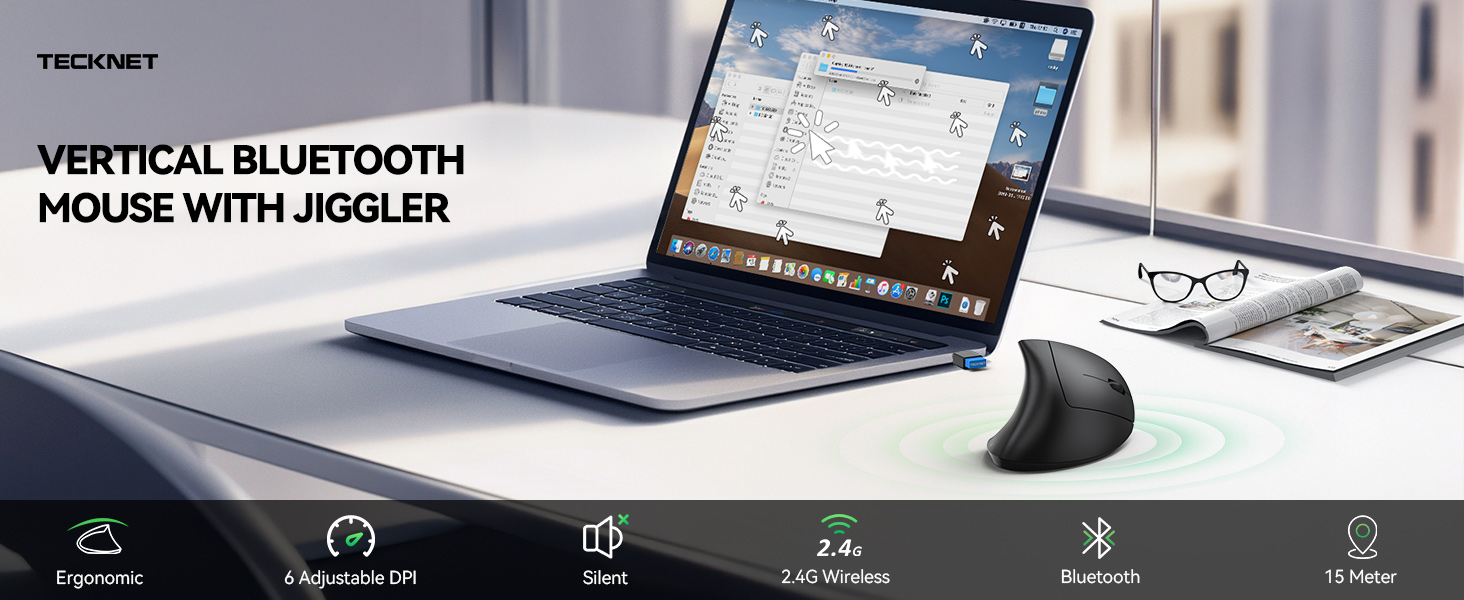
Image 4.1: The TECKNET TK-MS007 mouse offers versatile connectivity options for various devices and operating systems.
4.2.1. 2.4GHz Wireless Mode
- Remove the USB-A receiver from its storage slot on the bottom of the mouse.
- Plug the USB-A receiver directly into an available USB-A port on your computer. If your computer only has USB-C ports, use the provided USB-C adapter.
- The mouse should connect automatically. No additional software installation is required.
4.2.2. Bluetooth Mode (BT 5.0/3.0)
The mouse can connect to two Bluetooth devices simultaneously.
- Ensure the mouse is powered on.
- Press the Bluetooth Pairing Button on the bottom of the mouse. The indicator light will flash, indicating it's in pairing mode.
- On your device (computer, tablet, etc.), go to Bluetooth settings and search for new devices.
- Select "TECKNET Mouse" from the list of available devices to pair.
- Repeat steps 2-4 to pair a second Bluetooth device if desired.
5. Operating Instructions
5.1. DPI Adjustment
The mouse features 6 adjustable DPI levels (800/1200/1600/2400/3200/4800) for precise cursor control.
- Press the DPI Switch Button (Button 4 in Product Overview) to cycle through the DPI levels.
- The indicator light will flash to confirm the selected DPI level (e.g., one flash for 800 DPI, two flashes for 1200 DPI, etc.).
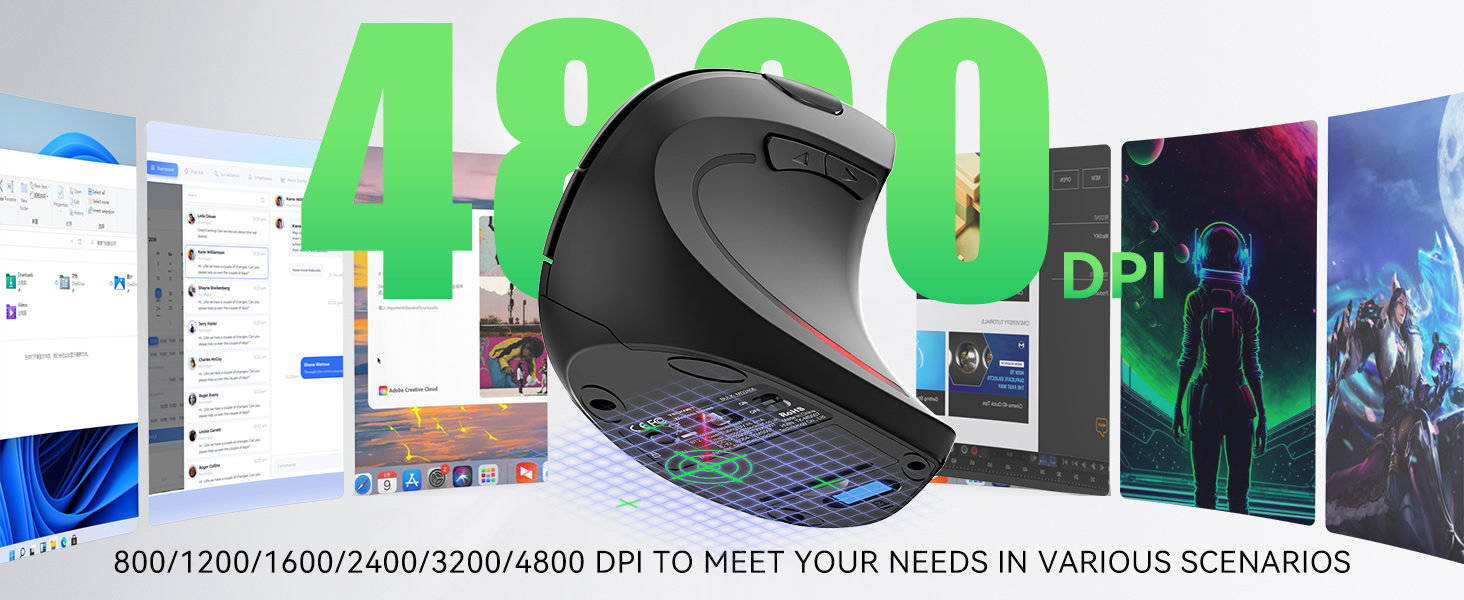
Image 5.1: Visual representation of the 6 adjustable DPI levels (800-4800) for varied usage scenarios.
5.2. Jiggler Mode
The Jiggler mode prevents your computer from going to sleep by simulating mouse movement.
- Activate Jiggler Mode: Press and hold the DPI Switch Button for 3 seconds. The mouse cursor will begin to move randomly on the screen.
- Interrupt Jiggler Mode: Move the mouse normally. The Jiggler mode will pause and resume after 10 seconds of inactivity.
- Deactivate Jiggler Mode: Press and hold the DPI Switch Button for 3 seconds again.
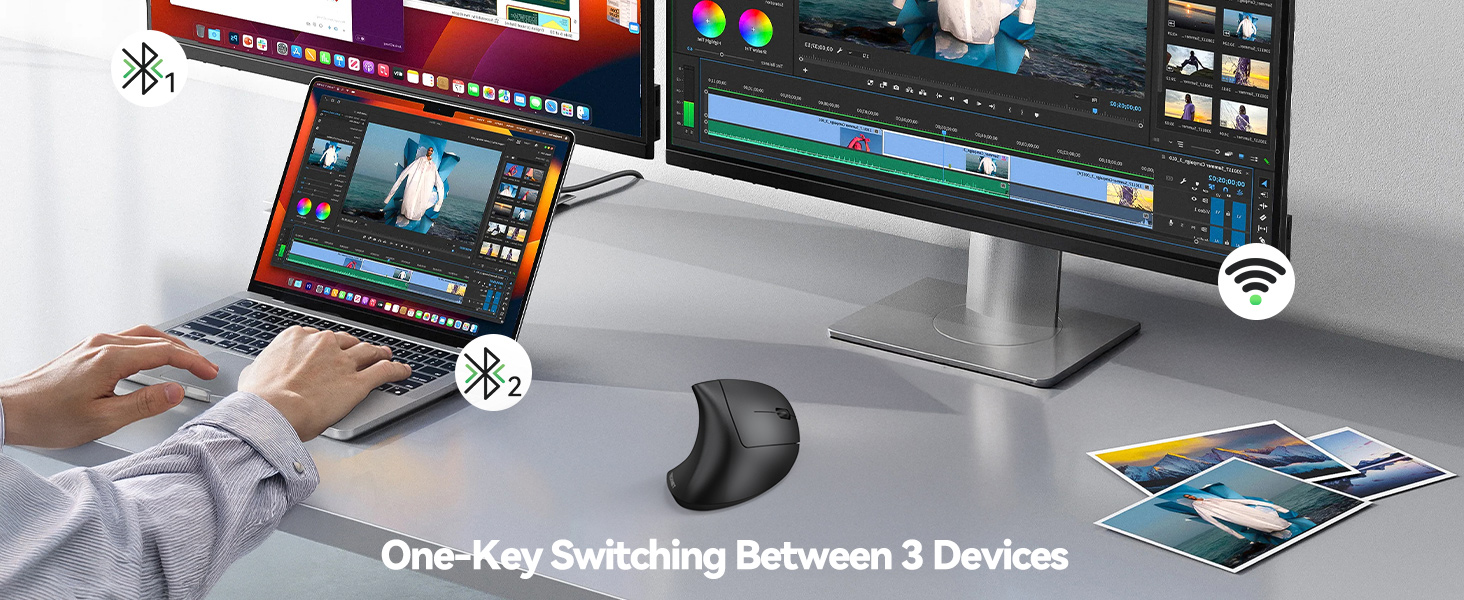
Image 5.2: The mouse's Jiggler mode keeps your screen active, preventing sleep or lockouts.
5.3. Multi-Device Switching
Easily switch between up to three connected devices (one 2.4GHz, two Bluetooth).
- Press the Bluetooth Pairing Button on the bottom of the mouse to cycle through the connected devices.
- The indicator light will show which channel is active.
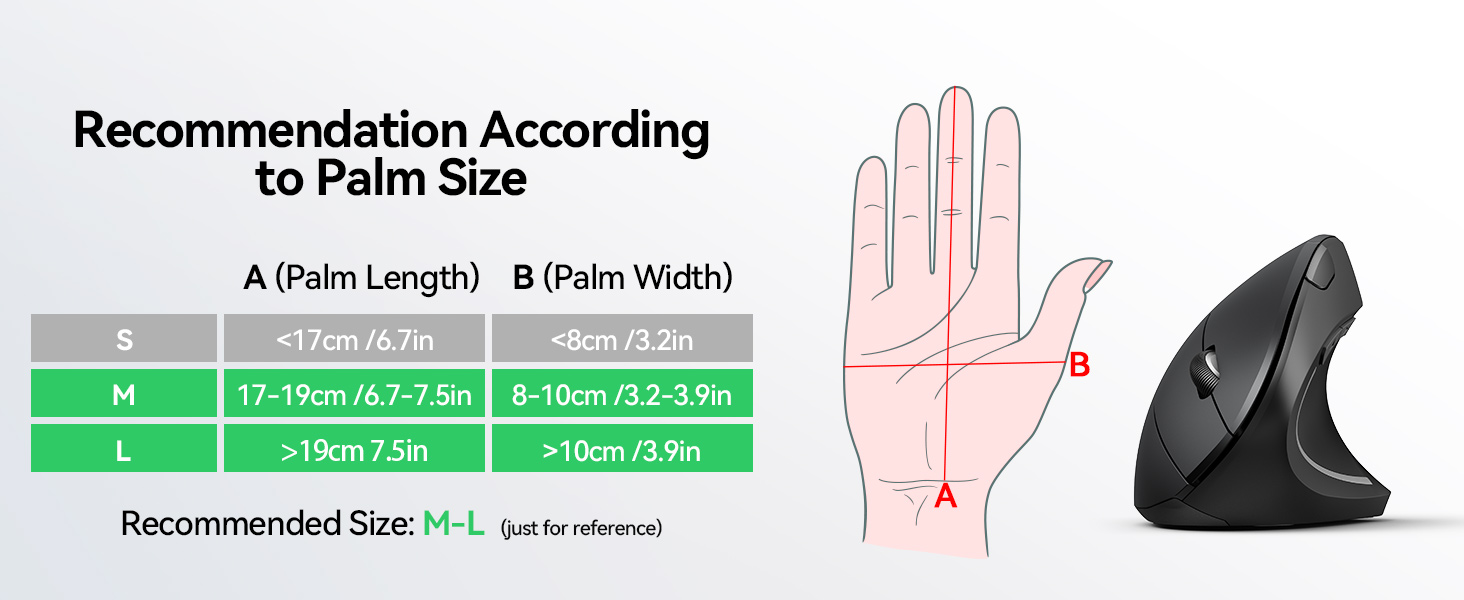
Image 5.3: The mouse allows seamless switching between three connected devices with a single button press.
5.4. Ergonomic Design
The vertical design positions your hand at a natural angle (approximately 52 degrees), reducing wrist strain and discomfort associated with prolonged mouse use.

Image 5.4: Comparison showing how the ergonomic vertical design reduces wrist pressure compared to a traditional mouse.
5.5. Silent Clicks
The left and right click buttons are designed for quiet operation, minimizing disturbance in quiet environments.
- Note: Only the left and right click buttons are silent. Other function buttons produce audible clicks.

Image 5.5: The mouse features whisper-quiet clicks for a peaceful work or leisure experience.
5.6. Compatibility
The mouse is compatible with a wide range of operating systems.
- Supported Operating Systems: Windows, Mac, Chrome OS, Linux.
- Note: The side buttons (Forward/Backward) are not functional on macOS.

Image 5.6: The mouse offers universal compatibility with Windows, Mac OS, Chrome OS, and Linux systems.
6. Maintenance
6.1. Cleaning
To maintain optimal performance, clean your mouse regularly:
- Turn off the mouse before cleaning.
- Use a soft, lint-free cloth slightly dampened with water or a mild cleaning solution.
- Avoid using harsh chemicals or abrasive materials.
- Clean the optical sensor on the bottom of the mouse with a dry cotton swab.
6.2. Battery Replacement and Low Battery Alert
The mouse is powered by two AAA batteries. For best performance, use quality branded batteries.
- When the battery is low, the LED indicator light on the mouse will blink to notify you.
- Replace both AAA batteries when the low battery alert appears to ensure uninterrupted operation.
- The mouse automatically enters power-saving mode after 8 minutes of inactivity. Press any button to wake it up.
7. Troubleshooting
If you encounter issues with your TECKNET TK-MS007 mouse, refer to the following common solutions:
| Problem | Solution |
|---|---|
| Mouse not responding (2.4GHz) |
|
| Mouse not responding (Bluetooth) |
|
| Cursor movement is erratic or slow |
|
| Side buttons not working on macOS | This is a known compatibility limitation. The Forward/Backward buttons are not supported on macOS. |
| Jiggler mode not activating/deactivating | Ensure you are pressing and holding the DPI Switch Button for exactly 3 seconds to toggle the mode. |
8. Specifications
| Feature | Detail |
|---|---|
| Model Number | TK-MS007 |
| Connectivity Technology | 2.4GHz Wireless (USB-A Receiver) & Bluetooth (5.0/3.0) |
| DPI Levels | 800 / 1200 / 1600 / 2400 / 3200 / 4800 (Adjustable) |
| Buttons | 6 (Left/Right Click, Scroll Wheel, DPI Switch, Forward, Backward) |
| Silent Clicks | Left and Right Click Buttons |
| Special Features | Ergonomic Design, Jiggler Mode, Multi-Device Switching, Low Battery Alert |
| Movement Detection | Optical |
| Power Source | 2 x AAA Batteries (not included) |
| Product Dimensions | 4.74 x 2.49 x 0.1 inches (12.04 x 6.32 x 0.25 cm) |
| Item Weight | 4.2 ounces (119 grams) |
| Compatibility | Windows, Mac, Chrome OS, Linux (side buttons not on macOS) |
9. Warranty and Support
TECKNET provides a 36 Months Warranty for this product.
If you encounter any problems during the use of your TECKNET TK-MS007 mouse, please do not hesitate to contact our professional customer service team. For support, please visit the official TECKNET website or refer to the contact information provided in your product packaging.


