
FASTWD L211-EEA
FASTWD Kids Tablet User Manual
Model: L211-EEA
Introduction
Welcome to the FASTWD Kids Tablet user manual. This guide provides detailed instructions on how to set up, operate, maintain, and troubleshoot your new tablet. Designed specifically for children, this tablet combines robust performance with essential child safety features, offering a secure and engaging learning and entertainment experience.
Please read this manual carefully before using the device to ensure proper operation and to maximize its lifespan.
1. Setup
1.1. Unboxing and Initial Charge
Carefully remove all components from the packaging. You should find the FASTWD Kids Tablet, a protective case, a USB-C charging cable, and a power adapter.
Before first use, fully charge the tablet. Connect the USB-C cable to the tablet's charging port and the other end to the power adapter. Plug the adapter into a wall outlet. The charging indicator will illuminate.

Image: The FASTWD Kids Tablet, showcasing its 10-inch screen, green protective case, and key specifications like 36GB RAM, 128GB ROM, and Android 14 operating system.
1.2. Powering On and Initial Configuration
- Press and hold the power button located on the side of the tablet until the FASTWD logo appears on the screen.
- Follow the on-screen prompts to select your preferred language, region, and connect to a Wi-Fi network.
- Sign in with your Google account or create a new one. This is necessary to access the Google Play Store and other Google services.
- Set up parental controls as desired. The tablet comes with pre-installed child safety features.

Image: The tablet's home screen displaying various educational and entertainment applications, highlighting features like privacy settings, customizable widgets, and access to the Google Play Store for app downloads.
2. Operating the Tablet
2.1. Basic Navigation
- Touch Gestures: Tap to select, swipe to scroll, pinch to zoom.
- Home Screen: Access your installed apps and widgets.
- Notification Panel: Swipe down from the top of the screen to access quick settings and notifications.
- App Drawer: Swipe up from the bottom of the screen to view all installed applications.
2.2. Parental Control Features
The FASTWD Kids Tablet includes a robust parental control system to ensure a safe digital environment for children. This system allows you to manage:
- Time Management: Set daily limits for tablet usage.
- App Management: Control which applications your child can access.
- Content Management: Filter inappropriate content from web browsing and app stores.
Access these settings through the dedicated "Kids Space" or "Parental Control" app on the tablet.

Image: A child and adult interacting with the tablet, illustrating the ease of use and the presence of child safety features. Icons below represent time management, app management, and content management, all part of the tablet's parental control system.
2.3. Installing and Managing Apps
Apps can be downloaded from the Google Play Store. Ensure parental controls are configured to approve app installations if desired.
- Open the Play Store app.
- Search for desired apps or browse categories.
- Tap Install to download and install an app.
- To uninstall an app, go to Settings > Apps & notifications > See all apps, select the app, and tap Uninstall.

Image: An infographic highlighting key features of the FASTWD 10-inch Kids Tablet, including WiFi connectivity, 36GB RAM, 128GB ROM, expandable storage via TF card (up to 256GB), Google Play access, and parental control capabilities.
2.4. Connectivity and Ports
The FASTWD Kids Tablet offers various connectivity options and ports for enhanced functionality:
- 3.5mm Audio Jack: For connecting headphones or external speakers.
- USB Type-C Port: Used for charging the tablet and for data transfer.
- OTG (On-The-Go) Support: Allows the tablet to act as a host, enabling connection of USB devices like flash drives, keyboards, or mice (requires an OTG adapter, sold separately).
- MicroSD Card Slot: Expand the tablet's storage capacity beyond the built-in 128GB.

Image: A collage showcasing various features and usage scenarios of the tablet, including its 3.5mm audio jack, OTG support, USB Type-C charging port (5V/2A), and its robust protective design. It also depicts children happily using the tablet, emphasizing its suitability as a gift.
3. Maintenance
3.1. Cleaning the Tablet
To clean the screen, use a soft, lint-free cloth. For stubborn smudges, slightly dampen the cloth with water or a screen cleaner. Avoid using harsh chemicals or abrasive materials.
The protective case can be wiped clean with a damp cloth and mild soap if necessary.

Image: A detailed view of the FASTWD Kids Tablet's integrated protective case, emphasizing its full protection, anti-drop, and anti-shock design. This case is designed to withstand typical child usage.
3.2. Battery Care
- Avoid completely draining the battery regularly.
- Do not expose the tablet to extreme temperatures.
- Use only the provided charger or a certified compatible charger.
3.3. Software Updates
Periodically check for software updates to ensure optimal performance and security. Go to Settings > System > System update to check for and install available updates.
4. Troubleshooting
| Problem | Possible Cause | Solution |
|---|---|---|
| Tablet does not power on. | Low battery; system crash. | Charge the tablet for at least 30 minutes. If still unresponsive, press and hold the power button for 10-15 seconds to force a restart. |
| Wi-Fi connection issues. | Incorrect password; router issue; tablet Wi-Fi disabled. | Check Wi-Fi password. Restart your router. Toggle Wi-Fi off and on in tablet settings. |
| Apps are crashing or freezing. | Insufficient memory; app bug; outdated software. | Close background apps. Clear app cache (Settings > Apps > [App Name] > Storage & cache > Clear cache). Update the app or tablet software. |
| Screen is unresponsive. | Temporary software glitch. | Force restart the tablet by holding the power button for 10-15 seconds. |
5. Specifications
| Feature | Detail |
|---|---|
| Brand | FASTWD |
| Model Number | L211-EEA |
| Series | L231-EEA |
| Color | Green |
| Screen Size | 10.1 Inches |
| Resolution | 1280x800 IPS |
| Installed RAM Size | 36 GB |
| Memory Storage Capacity | 128 GB (Expandable via SD card) |
| Connectivity Type | Wi-Fi (802.11ac), Bluetooth 5.0 |
| Operating System | Android 14 |
| Battery | 1 9V Battery (included) |
| Age Range (description) | Child |
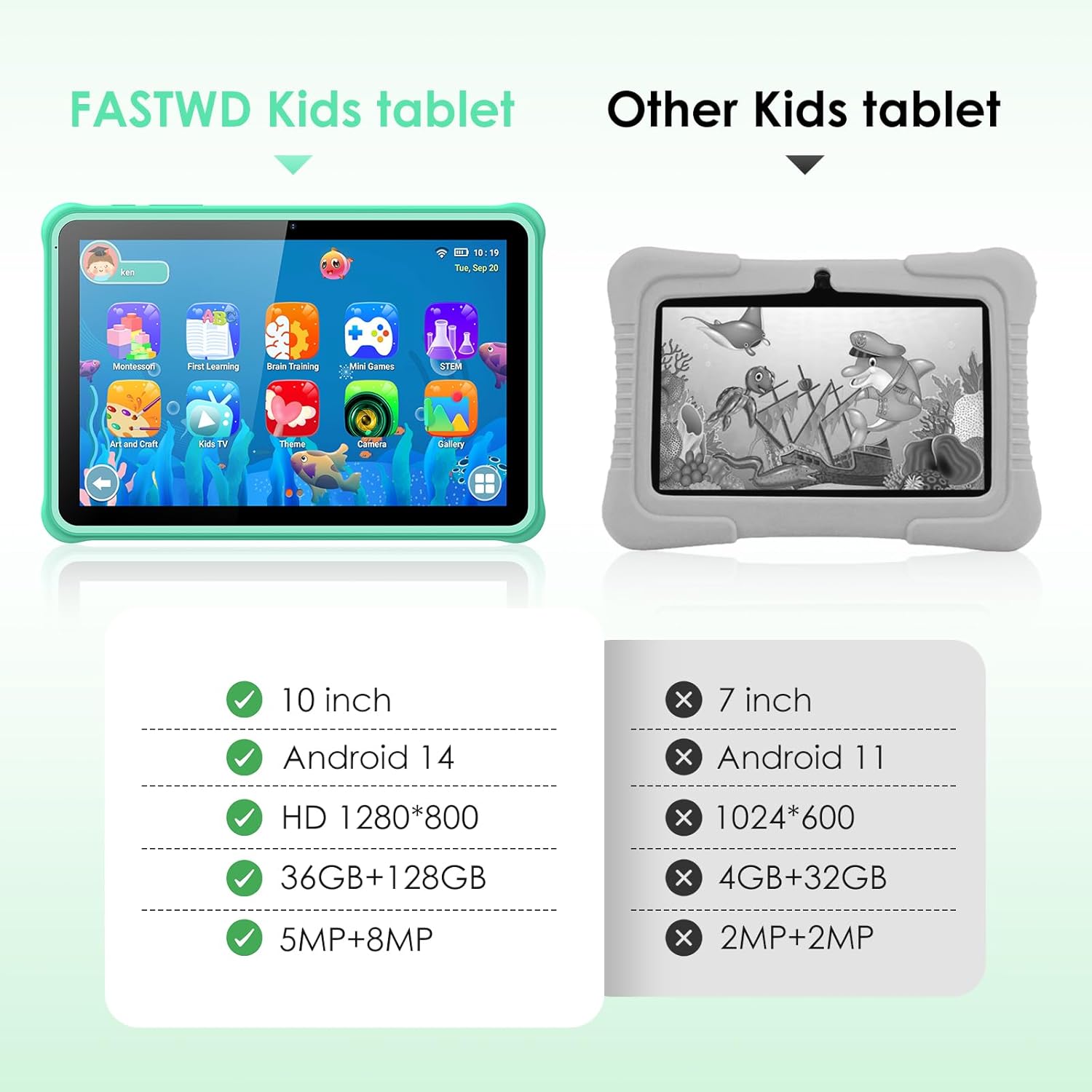
Image: A visual comparison highlighting the superior specifications of the FASTWD Kids Tablet (10-inch, Android 14, HD 1280x800, 36GB+128GB, 5MP+8MP cameras) against a generic "Other Kids tablet" with lower specs.
6. Warranty and Support
6.1. Warranty Information
The FASTWD Kids Tablet comes with a standard manufacturer's warranty. Please refer to the warranty card included in your product packaging for specific terms and conditions, including warranty period and coverage details. Keep your purchase receipt as proof of purchase for warranty claims.
6.2. Customer Support
For technical assistance, troubleshooting beyond this manual, or warranty inquiries, please contact FASTWD customer support. Contact information can typically be found on the product packaging, the official FASTWD website, or through your retailer's support channels.
When contacting support, please have your tablet's model number (L211-EEA) and purchase details ready.
Ask a question about this manual
Ask about setup, troubleshooting, compatibility, parts, safety, or missing instructions. Manuals+ will review the question and use this page’s manual context to help answer it.