
MageGee SKY87 75% Wireless Mechanical Keyboard (Gradient White Blue)
MageGee SKY87 75% Wireless Mechanical Keyboard User Manual
Model: SKY87 | Brand: MageGee
1. Introduction
Welcome to the user manual for your new MageGee SKY87 75% Wireless Mechanical Keyboard. This keyboard is designed for versatility and performance, offering multiple connectivity options, customizable features, and a comfortable typing experience. Please read this manual carefully to ensure proper setup and optimal use of your device.

This image displays the MageGee SKY87 75% Wireless Mechanical Keyboard in its Gradient White Blue color scheme, showcasing its compact layout and RGB backlighting.
2. Package Contents
Please verify that all items listed below are included in your package:
- MageGee SKY87 75% Wireless Mechanical Keyboard
- USB-C to USB-A Cable
- 2.4GHz USB Receiver (stored in the keyboard's base)
- Keycap Puller
- Switch Puller
- Spare Switches (quantity may vary)
- User Manual (this document)

This image shows the complete contents of the MageGee SKY87 keyboard package, including the keyboard, cables, tools, and documentation.
3. Features
The MageGee SKY87 keyboard boasts a range of features designed to enhance your typing and gaming experience:
- Multi-Device Connectivity: Supports BT5.0, 2.4GHz wireless, and USB wired modes, allowing connection to up to five devices simultaneously.
- Hot-Swappable Design: Easily replace 3-pin or 5-pin switches without soldering, enabling full customization of your typing feel. Comes with pre-lubed linear switches for smooth operation.
- RGB Backlighting: Features 18+ RGB backlight modes and a separate strip light, with N-key rollover for responsive gaming.
- Gasket Structure: Enhanced resilience and stability with an extended integrated silicone pad and PCB single key slotting, reducing hollow sounds.
- PBT Keycaps: Durable double-shot PBT keycaps ensure characters remain vibrant and do not fade over time.
- High Capacity Battery: Built-in 8000mAh rechargeable battery for extended wireless use.
- Compact 75% Layout: 87 keys layout saves desktop space while retaining essential arrow keys and a number area.

This image illustrates the internal gasket structure of the keyboard, highlighting its components that contribute to a softer and more elastic typing feel.

An exploded view detailing the various layers and components that form the keyboard's gasket structure, including the top case, keycaps, switches, foam pads, and PCB board.
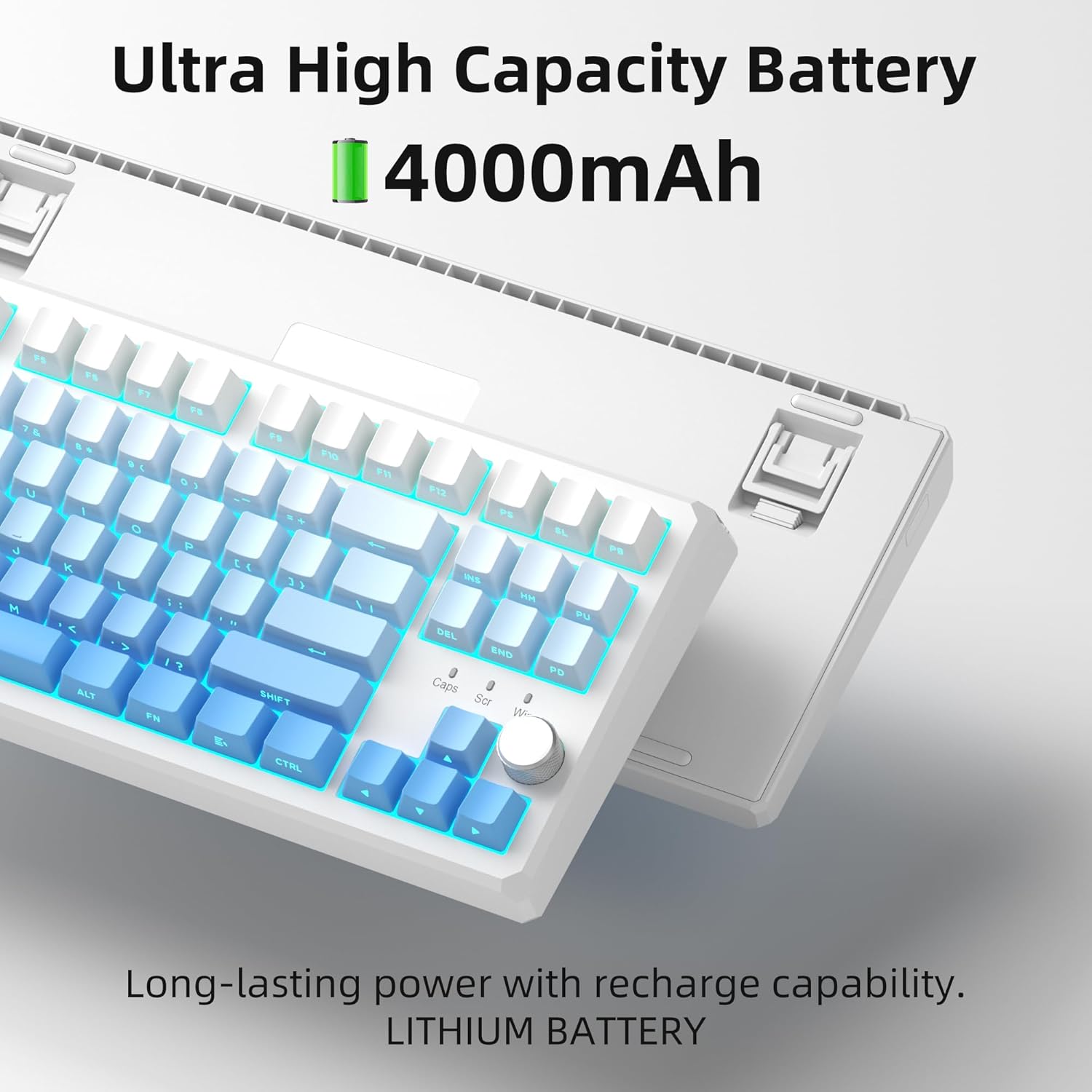
This image highlights the keyboard's internal battery, emphasizing its long-lasting power and rechargeable capability.
4. Setup
4.1 Connectivity Modes
The SKY87 keyboard supports three connection modes:
- 2.4GHz Wireless Mode: For a stable, low-latency connection.
- Bluetooth 5.0 Mode: For connecting to multiple devices (up to 5) and easy switching.
- USB Wired Mode: For direct connection and charging.

This image visually explains the three available connection modes for the keyboard: 2.4GHz wireless, Type-C wired, and Bluetooth 5.1, showing how it connects to different devices like a laptop, monitor, and tablet.
4.2 Connecting Your Keyboard
- 2.4GHz Wireless Connection:
- Locate the 2.4GHz USB receiver stored in the magnetic compartment on the back of the keyboard.
- Plug the receiver into an available USB port on your computer.
- Ensure the keyboard is in 2.4GHz mode (refer to keyboard's mode switch, usually on the back or side).
- The keyboard should automatically connect.
- Bluetooth Connection:
- Turn on the keyboard and switch it to Bluetooth mode.
- On your device (PC, Mac, Xbox, tablet), enable Bluetooth and search for new devices.
- Select 'MageGee SKY87' from the list of available devices to pair.
- You can pair up to 5 Bluetooth devices and switch between them using specific FN key combinations (refer to keyboard's keycap legends or quick guide).
- USB Wired Connection:
- Connect the provided USB-C cable to the keyboard's USB-C port (located on the top edge).
- Connect the other end of the cable to a USB-A port on your computer.
- The keyboard will function in wired mode and charge simultaneously.
4.3 Adjusting Keyboard Angle
The keyboard features two-stage adjustable feet on its underside, allowing you to set your preferred typing angle for ergonomic comfort.

This image shows the adjustable two-stage tripod feet on the underside of the keyboard, designed for ergonomic angle adjustment.
5. Operating Instructions
5.1 RGB Lighting Control
The keyboard features a multi-function knob and dedicated keys for controlling the RGB backlighting:
- Rotate Knob: Turn left/right to adjust backlight brightness.
- Short Press Knob: Press the knob to cycle through different RGB lighting modes (18+ modes available).
- FN Key Combinations: Use FN + specific keys (refer to keycap legends) to change lighting effects, speed, or color.

This image focuses on the multi-function knob located on the keyboard, indicating its role in controlling the brightness of the RGB lighting.
5.2 Hot-Swappable Switches
The SKY87 keyboard allows for easy replacement of switches without soldering:
- Use the provided switch puller to gently remove the existing switch.
- Align the pins of the new 3-pin or 5-pin switch with the holes on the PCB.
- Press firmly until the switch clicks into place.
- Use the keycap puller to remove and replace keycaps as desired.

This image illustrates the hot-swappable sockets on the keyboard's PCB, demonstrating how switches can be easily inserted and removed, supporting both 3-pin and 5-pin switch types.

This image provides detailed specifications for the 'Blue Whale Switch', including its linear type, pre-travel, end force, tactile position, and total travel, along with a force curve graph.
5.3 Multi-Device Switching
When in Bluetooth mode, you can quickly switch between paired devices using the designated FN key combinations (e.g., FN + 1, FN + 2, etc.). Refer to the keyboard's quick guide or keycap legends for specific combinations.
5.4 N-Key Rollover
The keyboard supports N-key rollover, meaning it can accurately register multiple simultaneous key presses. This feature is particularly beneficial for fast-paced gaming and touch typing.
5.5 Official Product Videos
Video 5.1: SKY87 Bluetooth Keyboard Overview
This video provides an overview of the SKY87 Bluetooth Keyboard, demonstrating its features, unboxing, and showcasing the typing sound and RGB lighting effects.
Video 5.2: SKY87 Side Printed PBT Keycaps Keyboard
This video offers a closer look at the SKY87 keyboard, focusing on its side-printed PBT keycaps and demonstrating the typing experience.
6. Maintenance
To ensure the longevity and optimal performance of your MageGee SKY87 keyboard, follow these maintenance guidelines:
- Cleaning: Regularly clean the keycaps and keyboard surface with a soft, dry cloth. For deeper cleaning, you can remove keycaps using the provided puller and use compressed air to clear debris from beneath.
- Switch Care: If replacing switches, handle them carefully to avoid bending the pins. Ensure switches are fully seated to prevent inconsistent key presses.
- Battery Care: Avoid fully discharging the battery frequently. For long-term storage, charge the keyboard to about 50% and store in a cool, dry place.
- Storage: When not in use, especially for extended periods, consider using a dust cover or the original packaging to protect the keyboard from dust and spills.
7. Troubleshooting
If you encounter any issues with your keyboard, please refer to the following common troubleshooting steps:
- Keyboard Not Responding:
- Ensure the keyboard is charged. Connect it via USB-C cable.
- Check the connection mode switch (2.4G/BT/Wired) on the keyboard and ensure it matches your intended connection.
- For 2.4GHz, ensure the USB receiver is securely plugged in. Try a different USB port.
- For Bluetooth, ensure Bluetooth is enabled on your device and the keyboard is paired. Try re-pairing the device.
- Restart your computer/device.
- RGB Lighting Not Working/Incorrect:
- Ensure the keyboard is powered on.
- Rotate or short press the knob to adjust brightness or change lighting modes.
- Check if any FN key combinations have disabled the lighting.
- Keys Not Registering:
- If specific keys are not working, the switch might be faulty or not properly seated. Use the switch puller to remove and re-insert the switch.
- Ensure no debris is lodged under the keycap or switch.
- Connectivity Issues (Lag/Disconnections):
- For wireless modes, ensure there are no strong interferences (e.g., other 2.4GHz devices, large metal objects) between the keyboard and receiver/device.
- Move closer to the receiver/device.
- Ensure the keyboard battery is not low.
If the issue persists after trying these steps, please contact MageGee customer support for further assistance.
8. Specifications
| Feature | Detail |
|---|---|
| Brand | MageGee |
| Model | SKY87 |
| Connectivity Technology | 2.4G Wireless, Bluetooth 5.0, USB-C Wired |
| Keyboard Layout | 75% (87 Keys), QWERTY |
| Switch Type | Linear (Hot-swappable 3-pin/5-pin) |
| Keycap Material | Double-shot PBT |
| Backlighting | RGB (18+ modes) |
| Battery Capacity | 8000mAh (rechargeable) |
| Compatible Devices | PC, Xbox, MAC |
| Item Weight | 2 pounds |
| Package Dimensions | 13 x 13 x 1 inches |
| Manufacturer | MAGEGEE |
| First Available | October 31, 2024 |
9. Warranty and Support
Your MageGee SKY87 Mechanical Keyboard comes with a 1-Year Warranty from the date of purchase.
This warranty covers manufacturing defects and issues arising from normal use. It does not cover damage caused by misuse, accidents, unauthorized modifications, or improper maintenance.
For warranty claims, technical support, or any questions regarding your product, please contact MageGee customer support. You can typically find contact information on the manufacturer's official website or through your point of purchase.
MageGee aims to respond to inquiries within 12 hours and provide satisfactory solutions.
Ask a question about this manual
Ask about setup, troubleshooting, compatibility, parts, safety, or missing instructions. Manuals+ will review the question and use this page’s manual context to help answer it.