1. Introduction
The Redragon K717 PRO is a 61-key compact mechanical gaming keyboard designed for versatility and performance. It features QMK/VIA programmability, multiple connection modes (wired, 2.4GHz wireless, and Bluetooth), and custom linear switches with 3-layer noise dampening. This manual provides detailed instructions for setup, operation, and maintenance of your keyboard.

Image 1.1: Front view of the Redragon K717 PRO Gaming Keyboard, showcasing its compact 61-key layout and RGB backlighting.
2. What's in the Box
Verify that all items are present in your package:
- Redragon K717 PRO Gaming Keyboard
- USB-C Cable
- Keycap/Switch Puller
- Spare Switches (4 pieces)
- Instruction Manual
3. Setup
3.1. Connection Modes
The Redragon K717 PRO supports three connection modes: USB-C wired, 2.4GHz wireless, and Bluetooth (BT 3.0/5.0).
3.1.1. Wired Connection
- Locate the USB-C port on the left side of the keyboard.
- Connect the provided USB-C cable to the keyboard and the other end to an available USB port on your computer.
- Ensure the mode switch on the keyboard's underside is set to the 'OFF' or 'Wired' position (refer to the diagram below).
- The keyboard will be automatically recognized by your system.

Image 3.1: Detail of the USB-C port on the side of the Redragon K717 PRO keyboard.
3.1.2. 2.4GHz Wireless Connection
- Locate the 2.4GHz USB dongle stored in the compartment on the underside of the keyboard.
- Plug the USB dongle into an available USB port on your computer.
- Set the mode switch on the keyboard's underside to the '2.4G' position.
- The keyboard should connect automatically.
3.1.3. Bluetooth Connection
- Set the mode switch on the keyboard's underside to the 'BT' position.
- On your computer or device, enable Bluetooth and search for new devices.
- Select 'Redragon K717 PRO' from the list of available devices to pair.
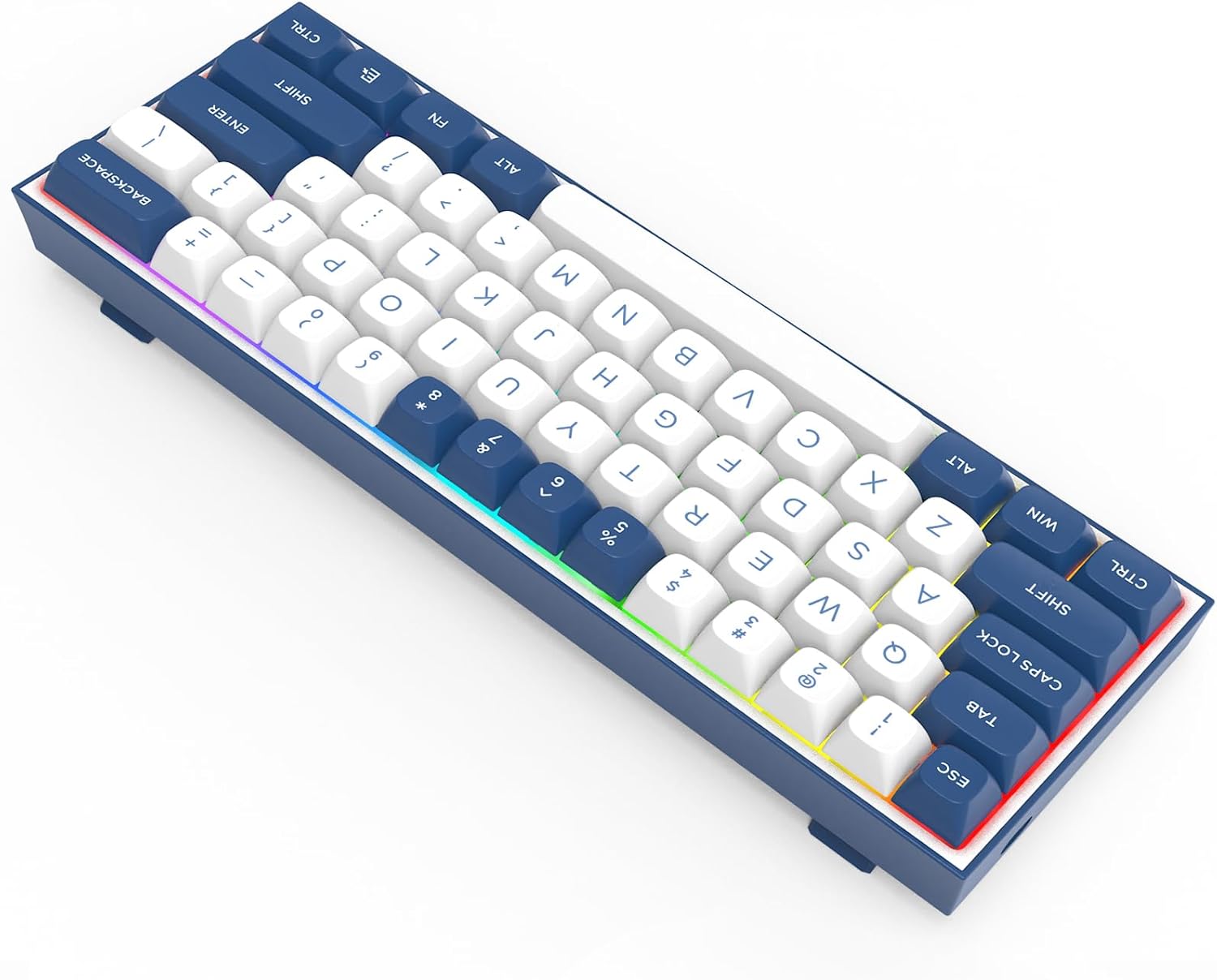
Image 3.2: Underside of the Redragon K717 PRO, highlighting the 2.4GHz dongle storage and the connection mode switch (Wired/2.4G/BT).
3.2. Operating System Switch
The keyboard features a switch on its underside to toggle between Windows and Mac layouts. Ensure this switch is set to your operating system for optimal key functionality.
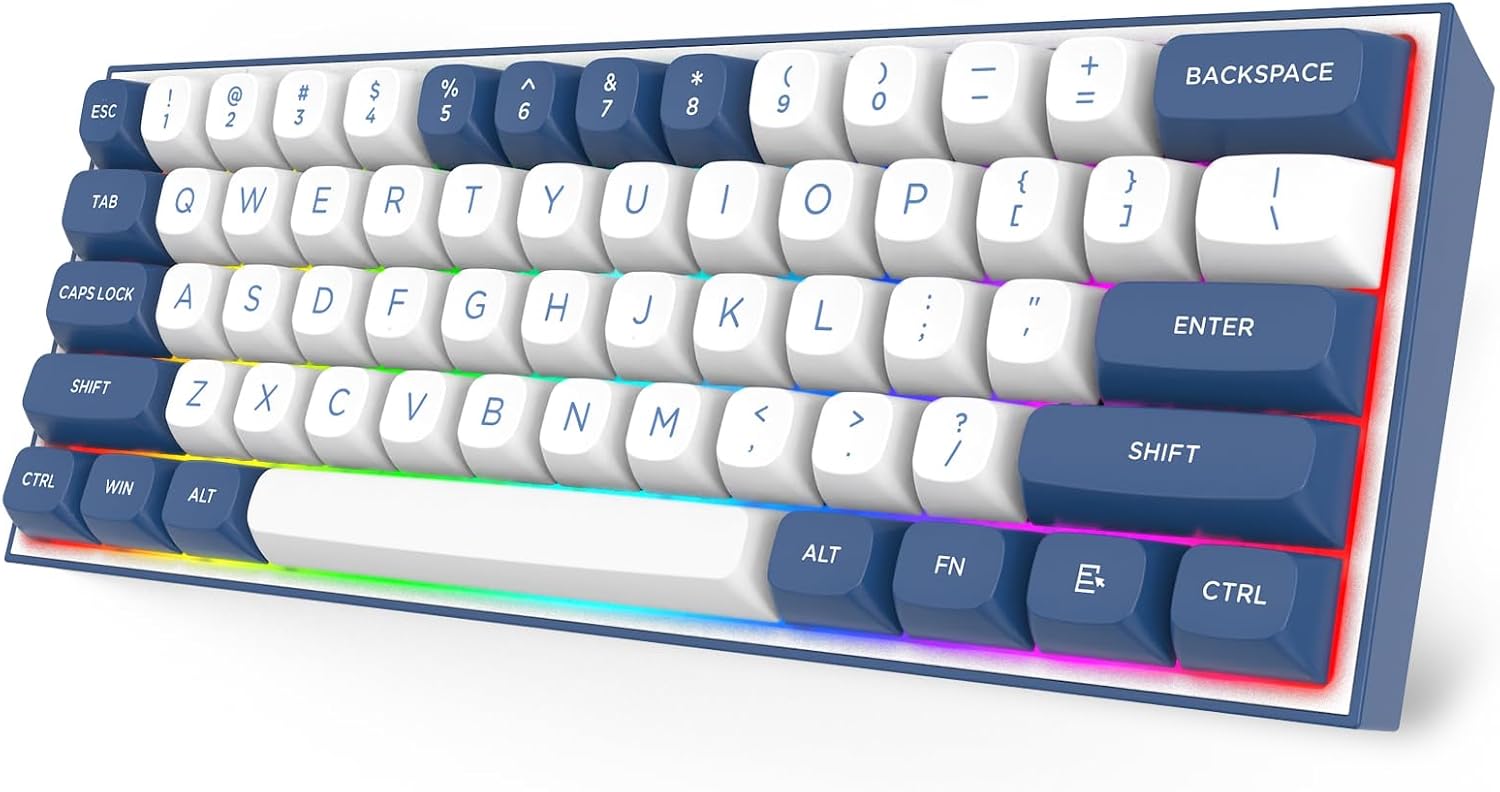
Image 3.3: Angled view of the Redragon K717 PRO keyboard, showing the keycap profile and vibrant RGB lighting.
4. Operating Instructions
4.1. Basic Key Functions
The K717 PRO features a 61-key compact layout. Many standard functions are accessed via the Function (FN) key combined with other keys. Refer to the keyboard's keycap legends for specific FN key combinations.
4.2. QMK/VIA Programmability
The Redragon K717 PRO supports QMK/VIA for advanced customization. This allows you to remap keys, create macros, and configure hotkeys. Note: Key remapping must be performed in wired mode. Once programmed, the custom keymap will function in both wired and wireless modes.
- Download the VIA software from the official Redragon website.
- Connect the keyboard via USB-C cable to your computer.
- Launch the VIA software to access the programming interface.
- Follow the on-screen instructions within VIA to customize your keymap.
4.3. RGB Backlighting Control
The keyboard features customizable RGB backlighting. Specific key combinations (usually involving the FN key) allow you to change lighting modes, adjust brightness, and modify colors. Consult the included quick start guide or the Redragon website for detailed RGB control instructions.
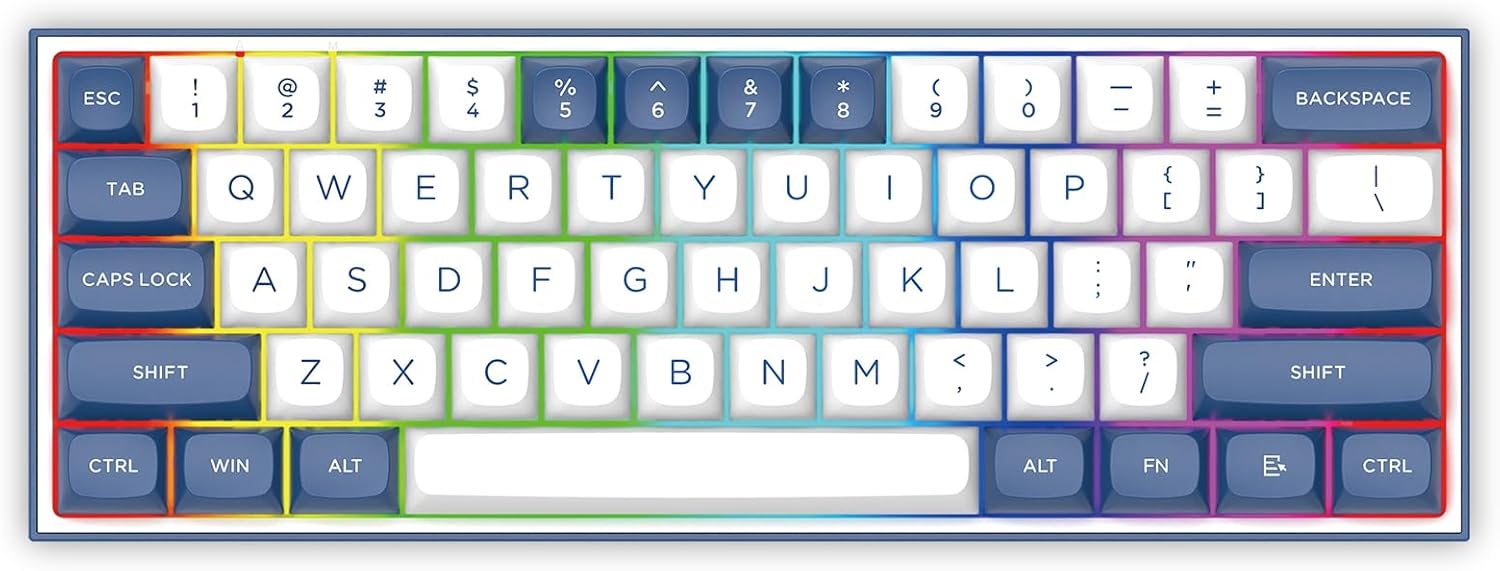
Image 4.1: Top-down view of the Redragon K717 PRO keyboard, illustrating the 60% layout and per-key RGB illumination.
5. Maintenance
5.1. Keycap and Switch Replacement
The K717 PRO features hot-swappable switches, allowing for easy replacement without soldering. Use the provided keycap/switch puller for these tasks.
- Removing Keycaps: Gently attach the keycap puller to the sides of the keycap and pull upwards until it detaches.
- Removing Switches: After removing the keycap, use the switch puller to grasp the two clips on the top and bottom of the switch. Squeeze gently and pull the switch upwards.
- Installing Switches: Align the new switch's pins with the holes on the PCB. Press down firmly until the switch clicks into place. Ensure pins are not bent.
- Installing Keycaps: Align the keycap over the switch stem and press down gently until it is seated.
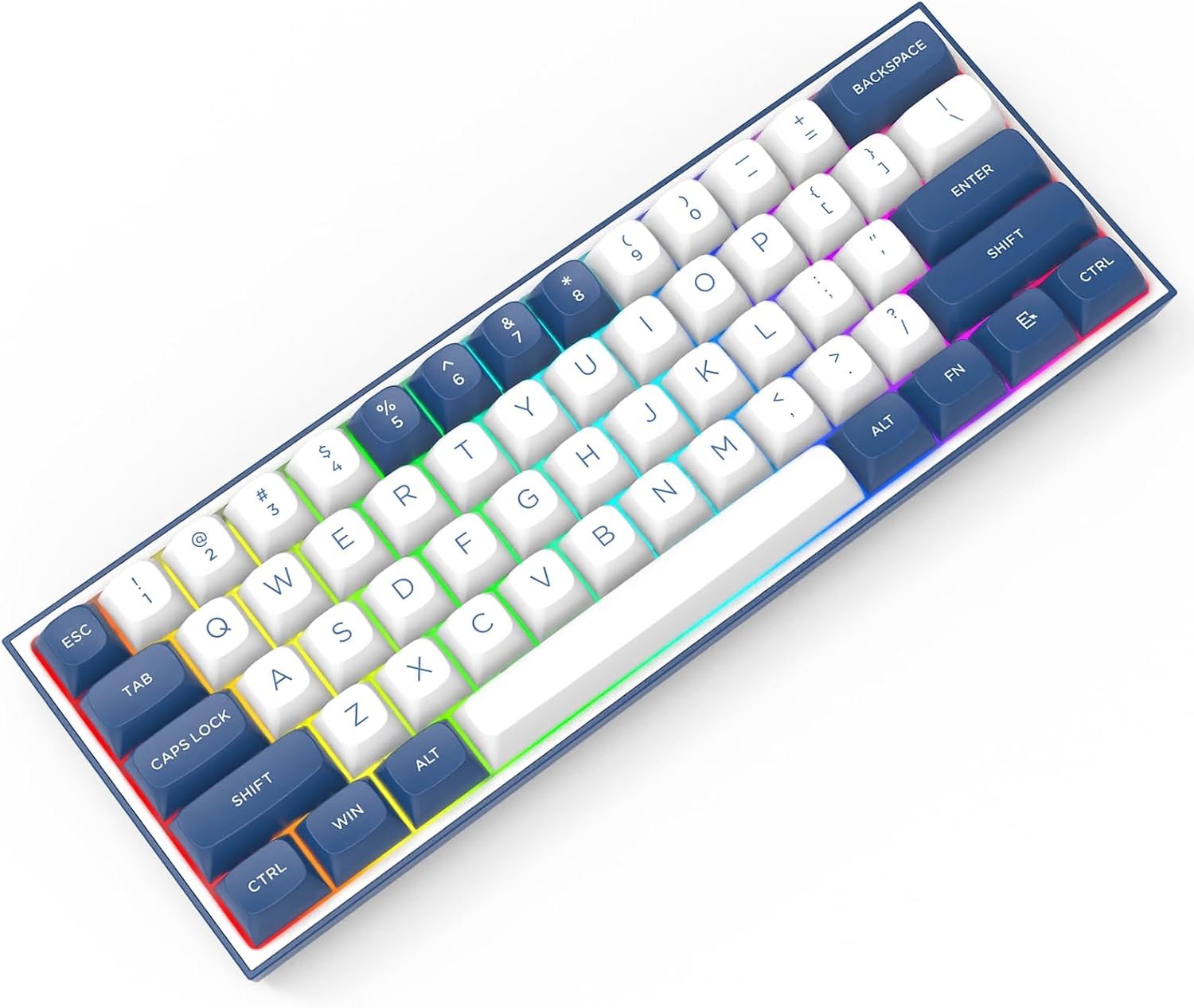
Image 5.1: Close-up view of the Redragon K717 PRO keyboard with keycaps and switches removed, demonstrating its hot-swappable design.
5.2. Cleaning
To clean your keyboard, disconnect it from your computer. Use a soft, dry cloth to wipe down the keycaps and chassis. For deeper cleaning, remove keycaps and use compressed air to clear debris from between switches. Avoid using harsh chemicals or abrasive materials.
6. Troubleshooting
6.1. Keyboard Not Responding
- Wired: Ensure the USB-C cable is securely connected to both the keyboard and the computer. Try a different USB port or cable.
- 2.4GHz Wireless: Verify the USB dongle is properly inserted into a USB port. Ensure the keyboard's mode switch is set to '2.4G'. Check battery level.
- Bluetooth: Confirm Bluetooth is enabled on your device and the keyboard's mode switch is set to 'BT'. Re-pair the keyboard if necessary. Check battery level.
6.2. Keys Not Registering or Double-Typing
- This can sometimes indicate a faulty switch. Use the provided switch puller to replace the problematic switch with one of the spare switches.
- Ensure the switch is fully seated in the PCB.
6.3. RGB Lighting Issues
- If RGB lighting is not working, ensure the keyboard is powered on and connected.
- Check the brightness settings using the FN key combinations.
- If using wireless mode, note that backlighting can significantly drain battery life.
6.4. Battery Life
- The keyboard uses 1 Lithium Polymer battery.
- Battery life will vary based on usage, especially with RGB lighting enabled.
- Connect the keyboard via USB-C cable to charge the battery.
7. Specifications
| Brand | Redragon |
| Model Number | K717 |
| Series | Alcor |
| Hardware Platform | Gaming Console, Laptop, PC |
| Item Weight | 1.43 pounds |
| Package Dimensions | 12.36 x 5.35 x 1.85 inches |
| Color | Baja Blue |
| Batteries | 1 Lithium Polymer battery required |
| First Available | October 28, 2024 |
8. Warranty and Support
For warranty information and technical support, please refer to the official Redragon website or contact their customer service directly. Details are typically provided in the product packaging or on the manufacturer's website.


