
1. Overview
The Blackview N6000SE is a compact and robust mini rugged smartphone designed for durability and performance. Featuring a 4.3-inch display, Android 13, and a powerful MediaTek P60 processor, it is built to withstand challenging environments while providing a smooth user experience. Its rugged design includes IP68, IP69K, and MIL-STD-810H certifications for water, dust, and drop resistance, along with Corning Gorilla Glass 5 for screen protection.

Figure 1.1: Blackview N6000SE Mini Rugged Smartphone

Figure 1.2: Compact size of the N6000SE, comparable to a credit card in width.
2. Package Contents
Please check the box for the following items:
- Blackview N6000SE Smartphone
- USB Cable
- SIM Tray Ejector
- User Manual (this document)
3. Physical Features
Familiarize yourself with the physical layout of your Blackview N6000SE smartphone.
3.1 Front View
- Display: 4.3-inch screen.
- Front Camera: Located at the top of the display.
- Earpiece: For calls, located above the display.
3.2 Rear View
- Main Camera: 13MP camera system.
- Flash: LED flash for low-light photography.
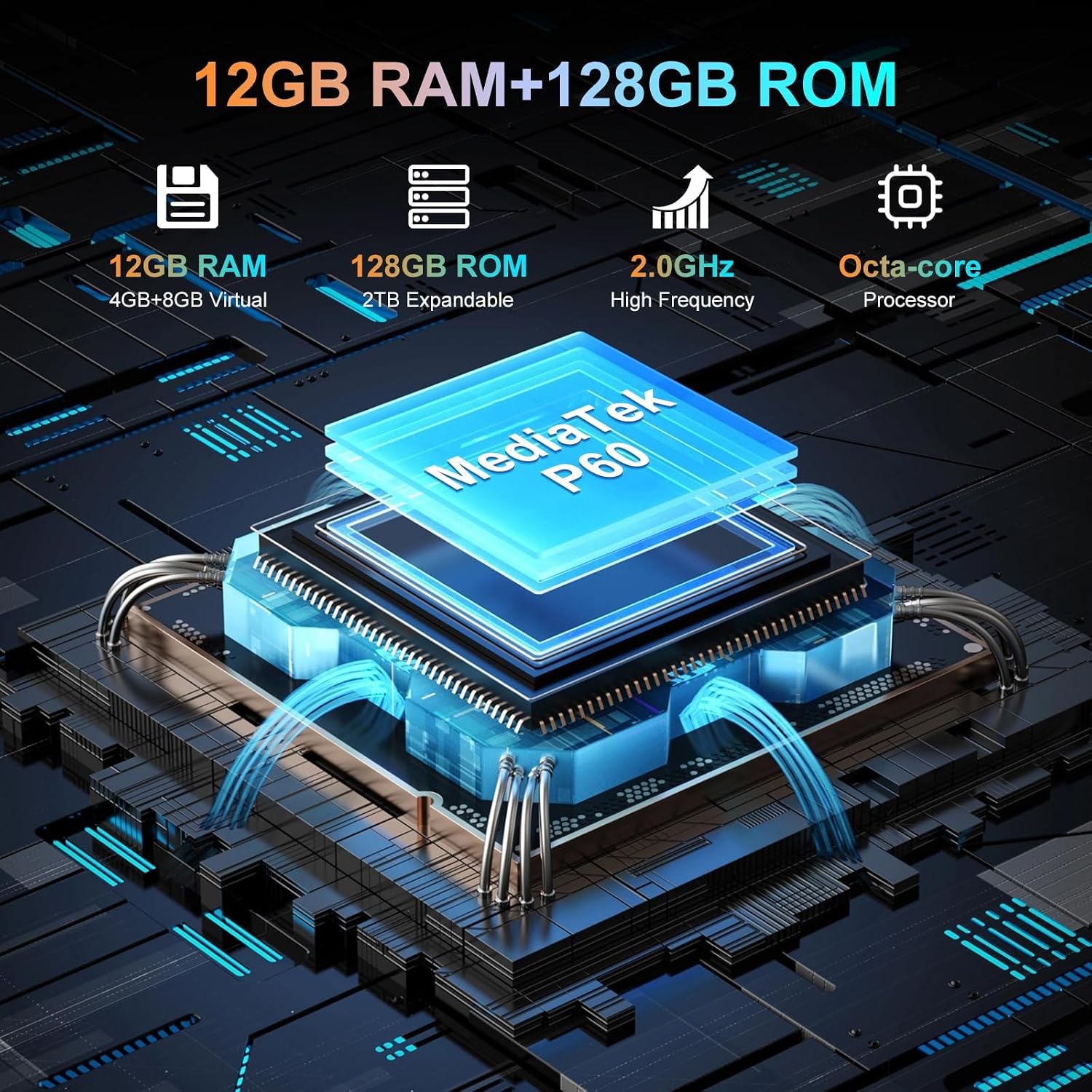
Figure 3.1: Rear view highlighting the camera and flash.
3.3 Side Views
- Power Button: On the right side.
- Volume Buttons: On the right side, above the power button.
- Customizable Button: On the left side, for quick access to selected functions.
- SIM/SD Card Tray: On the left side, accessible with the ejector tool.
- USB Type-C Port: At the bottom, for charging and data transfer.

Figure 3.2: Side view showing the SIM/SD card tray.
4. Setup
4.1 Installing SIM/SD Cards
- Locate the SIM/SD card tray on the left side of the phone.
- Insert the SIM tray ejector tool into the small hole next to the tray and push gently until the tray pops out.
- Place your Nano-SIM cards and/or microSD card into the designated slots on the tray. Ensure they are correctly oriented.
- Carefully push the tray back into the phone until it clicks into place.
4.2 Initial Power On
- Press and hold the Power button on the right side of the phone until the Blackview logo appears.
- Follow the on-screen prompts to complete the initial setup, including selecting your language, connecting to Wi-Fi, and setting up your Google account.
4.3 Charging the Battery
Connect the USB cable to the phone's Type-C port and the other end to a compatible power adapter. Plug the adapter into a wall outlet. The phone supports 10W fast charging.
5. Operating
5.1 Android 13 with Doke OS 4.0
Your Blackview N6000SE runs on Android 13 with Blackview's Doke OS 4.0 interface, offering enhanced privacy features, improved notifications, and a smooth user experience. Navigate using gestures or the traditional 3-button navigation (configurable in Settings > System > Gestures > System Navigation).

Figure 5.1: Overview of Android 13 and Doke OS 4.0 features.
5.2 Camera Functions
The N6000SE features a 13MP rear camera and an 8MP front camera, enhanced by ArcSoft 5.0 algorithms for improved photography. Access various modes like Panorama, HDR, Night Mode, Beauty Mode, Portrait Mode, and Underwater Mode.

Figure 5.2: Camera features and available shooting modes.
5.3 Key Features
- NFC: Supports Google Pay for contactless payments and quick data transfers.
- Glove Mode: Enables screen operation even when wearing gloves. Activate this feature in settings.
- Customizable Button: Assign up to 7 functions for quick access, improving efficiency.
- Fingerprint & Face Unlock: Securely unlock your device using your fingerprint or facial recognition.
- Smart Google Lens: Utilize Google Lens for translation, text extraction, object recognition, and more directly from your camera.
- OTG Function: Use your N6000SE as a power bank to charge other devices or connect USB peripherals.
- GPS & Navigation: Integrated with GPS, Beidou, GLONASS, and Galileo for accurate positioning.
- Ultra-linear Box Speaker: Provides loud, clear, and smooth audio output.

Figure 5.3: User interface and key feature icons.

Figure 5.4: OTG function for reverse charging and connecting peripherals.
6. Maintenance
6.1 Cleaning Your Device
To clean your Blackview N6000SE, use a soft, lint-free cloth. For stubborn dirt, dampen the cloth slightly with water. Avoid using harsh chemicals, abrasive cleaners, or compressed air, as these can damage the phone's surfaces and seals.
6.2 Battery Care
The N6000SE is equipped with a 3700mAh battery. To maximize battery life:
- Avoid extreme temperatures.
- Use the original charger and cable.
- Do not let the battery drain completely before recharging regularly.
6.3 Durability Features
The N6000SE is built to be rugged, featuring:
- IP68 & IP69K Certification: Provides resistance against dust and water immersion up to 1.5m for 30 minutes, and high-pressure, high-temperature water jets.
- MIL-STD-810H Certification: Military-grade drop protection, capable of withstanding drops from up to 1.5m.
- Corning Gorilla Glass 5: Enhanced screen protection against scratches and cracks.
While highly durable, avoid intentionally exposing the phone to extreme conditions or impacts beyond its certified limits to ensure longevity.

Figure 6.1: Durability certifications and features of the N6000SE.
7. Troubleshooting
This section addresses common issues you might encounter with your Blackview N6000SE.
7.1 Common Issues and Solutions
- Phone not turning on: Ensure the battery is charged. Press and hold the Power button for at least 10-15 seconds to force a restart.
- Apps crashing or freezing: Close the app and reopen it. Clear the app's cache (Settings > Apps > [App Name] > Storage > Clear cache). If the issue persists, try uninstalling and reinstalling the app.
- Wi-Fi connection issues: Turn Wi-Fi off and on again. Restart your phone and router. Forget the network and reconnect.
- Poor call quality: Check network signal strength. Move to an area with better reception. Ensure nothing is blocking the earpiece or microphone.
- Slow performance: Close unnecessary background apps. Clear cached data regularly. Consider freeing up storage space.
7.2 Factory Reset
If persistent issues cannot be resolved, a factory reset may be necessary. Warning: This will erase all data on your phone. Back up important data before proceeding.
- Go to Settings.
- Navigate to System > Reset options.
- Select Erase all data (factory reset).
- Confirm your decision and enter your PIN/pattern/password if prompted.
8. Specifications
Key technical specifications for the Blackview N6000SE:
| Feature | Specification |
|---|---|
| Model Name | Blackview N6000SE Rugged Phone |
| Operating System | Android 13.0 (Doke OS 4.0) |
| Display Size | 4.3 Inches |
| Resolution | 1920 x 1080 |
| Refresh Rate | 60 Hz |
| Processor | MediaTek P60 Octa-core (up to 2.0GHz) |
| RAM | 4 GB (expandable to 12 GB with virtual RAM) |
| Internal Storage | 128 GB |
| Expandable Storage | Up to 2 TB (microSD) |
| Rear Camera | 13 MP |
| Front Camera | 8 MP |
| Battery Capacity | 3700 mAh |
| Charging | 10W Fast Charge |
| Dimensions | 13.3 x 6.52 x 1.84 cm |
| Weight | 208 g |
| Durability | IP68, IP69K, MIL-STD-810H, Corning Gorilla Glass 5 |
| Connectivity | 4G, Dual SIM, Wi-Fi, Bluetooth, NFC |
| Navigation | GPS, GLONASS, Beidou, Galileo |
9. Warranty and Support
Blackview products undergo strict quality control. The Blackview N6000SE comes with comprehensive warranty and support services.
9.1 Warranty Information
Blackview offers a 24-month free repair warranty for smartphones purchased from the Blackview Official Flagship Store. This warranty covers manufacturing defects and ensures product reliability.

Figure 9.1: Blackview Two Year Warranty Support.
9.2 Technical Support
Lifetime technician support is available for Blackview products. For technical assistance, troubleshooting, or warranty claims, please contact Blackview customer service through their official channels or the retailer where you purchased the device.