
Blackview BV5300 Plus
Blackview BV5300 Plus Rugged Smartphone User Manual
Model: BV5300 Plus | Brand: Blackview
1. Introduction
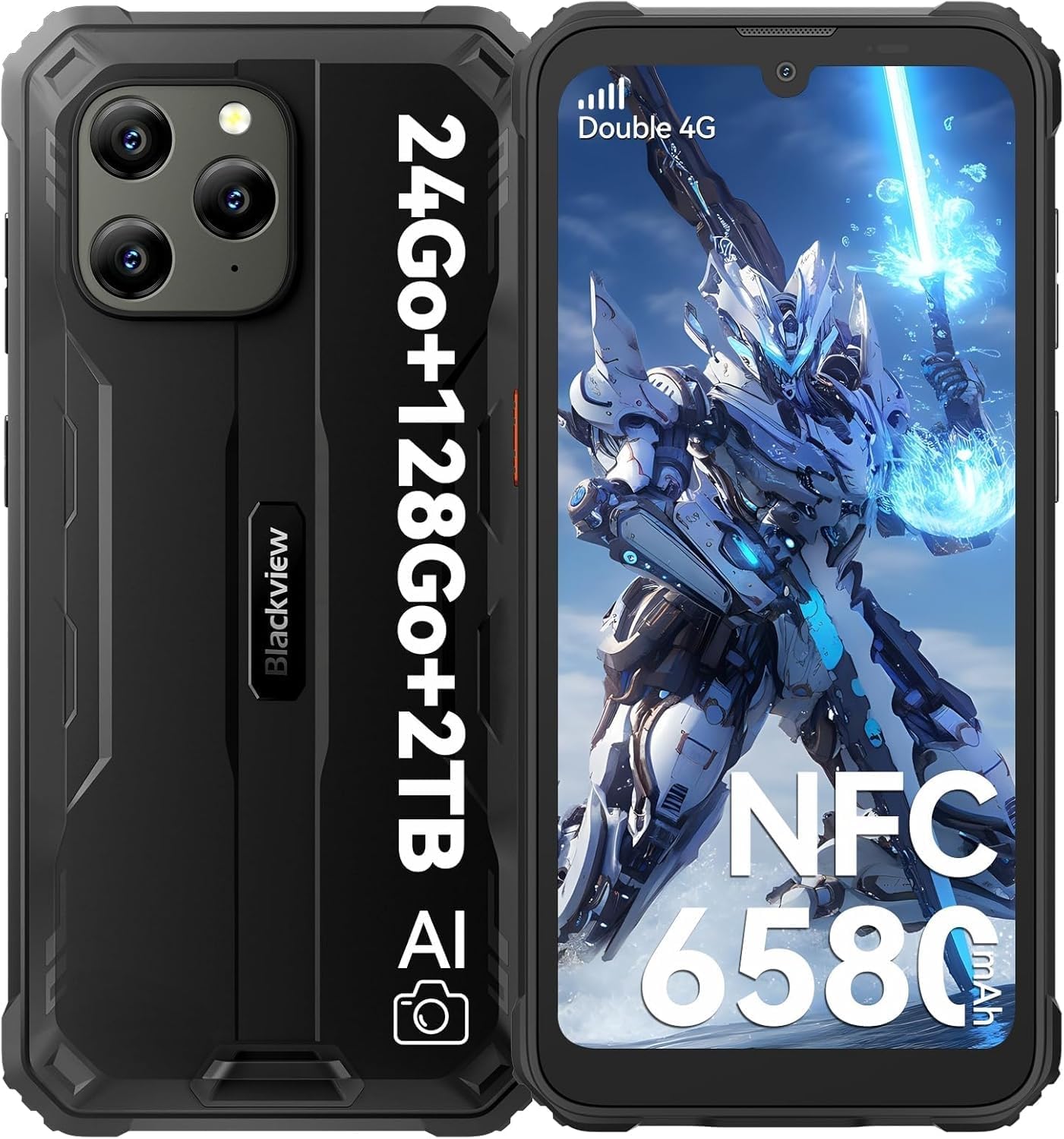
This manual provides essential information for the safe and effective use of your Blackview BV5300 Plus Rugged Smartphone. Please read it thoroughly before operating your device to ensure optimal performance and longevity. The Blackview BV5300 Plus is designed for durability and performance in challenging environments, featuring robust construction and advanced mobile technology.
2. What's in the Box
Upon unboxing your Blackview BV5300 Plus, please verify that all the following items are included:
- Blackview BV5300 Rugged Smartphone
- Power Adaptor
- USB Cable
- User Manual
3. Setup Guide
3.1. SIM Card and TF Card Installation
- Locate the SIM card tray on the side of the device.
- Insert the SIM ejector tool (or a small paperclip) into the small hole next to the tray and push gently until the tray pops out.
- Carefully place your Nano-SIM card(s) and/or TF (microSD) card into the designated slots on the tray. Ensure the gold contacts face downwards. The device supports dual 4G SIMs or one SIM and one TF card (up to 2TB).
- Gently push the tray back into the slot until it is flush with the phone's body. Ensure the tray is fully sealed to maintain water and dust resistance.
3.2. Initial Power On and Basic Setup
- Press and hold the Power button (located on the side) until the Blackview logo appears.
- Follow the on-screen prompts to complete the initial setup, including language selection, Wi-Fi connection, Google account sign-in, and security settings (PIN, pattern, fingerprint, or face unlock).
- The device runs on Android 13 with DokeOS 4.0, offering enhanced privacy, security, and optimized user experience.
4. Operating Your Device
4.1. Display Features
The BV5300 Plus features a 6.1-inch HD+ IPS display with a resolution of 720x1560 pixels and 500 nits brightness, protected by Corning Gorilla Glass. It offers various display modes for user comfort:
- Reading Mode: Optimizes the screen for reading, reducing eye strain.
- Night Light: Filters out blue light to promote better sleep.
- Dark Mode: Inverts colors for a darker interface, saving battery and reducing glare in low light.

4.2. Performance and Storage
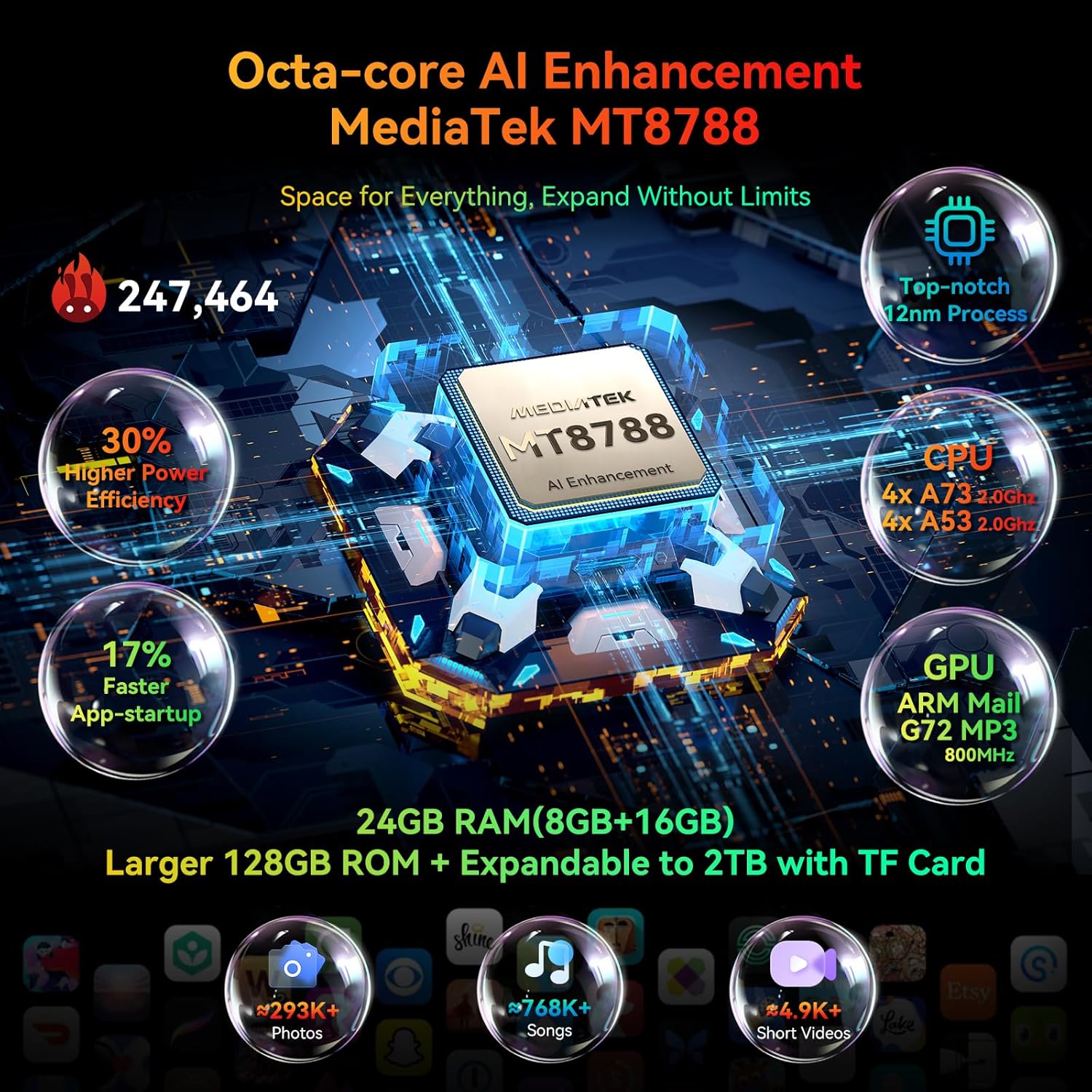
Equipped with an Octa-core Helio G72 processor, the BV5300 Plus ensures smooth multitasking and efficient performance. It comes with 24GB RAM (8GB physical + 16GB virtual expansion) and 128GB internal storage, expandable up to 2TB via a TF card.
4.3. Camera Features
The device features a 13MP triple rear camera and a 5MP front camera. It integrates ArcSoft imaging technology, providing various modes for enhanced photography:
- HDR Mode: Improves dynamic range in photos.
- Night Mode: Enhances low-light photography.
- Portrait Mode: Creates a depth-of-field effect.
- Beauty Mode: Applies enhancements for selfies.
- Panorama Mode: Captures wide-angle scenes.
- Underwater Mode: Allows photography while submerged (ensure all ports are sealed).
- Supports 2K video recording.

4.4. Battery and Charging
The BV5300 Plus is equipped with a large 6580mAh battery, providing extended usage time. It supports OTG (On-The-Go) reverse charging, allowing you to use your phone as a power bank to charge other compatible devices.

4.5. Durability and Rugged Features
Designed to withstand harsh conditions, the BV5300 Plus meets IP68/IP69K ratings for water and dust resistance, and the MIL-STD-810H military standard for drops, vibration, and extreme temperatures. Key durability features include:
- Waterproof: Submersible in 1.5 meters of water for up to 30 minutes (IP68).
- Dustproof: Fully protected against dust ingress (IP69K).
- Drop-proof: Certified to withstand drops from 1.5 meters (MIL-STD-810H).
- Reinforced Rubber Corners: Provide enhanced shock absorption.
- Operating Temperature: Functions reliably from -20°C to +60°C.


4.6. Connectivity and Other Features
- Dual 4G SIM: Supports simultaneous use of two 4G networks.
- NFC: For contactless payments and data transfer.
- Navigation: Integrated GPS, GLONASS, Galileo, and Beidou for accurate positioning.
- Smart-K Box Speaker: Delivers enhanced audio experience.
- Glove Mode: Allows touch screen operation while wearing gloves.
- Face Unlock: Convenient and secure facial recognition for unlocking the device.
5. Maintenance
5.1. Cleaning Your Device
To maintain the rugged features and appearance of your BV5300 Plus:
- Wipe the device with a soft, damp cloth. For stubborn dirt, a mild soap solution can be used.
- Ensure all port covers (USB, headphone jack if applicable) are securely closed before cleaning with liquids or exposing to water.
- Do not use harsh chemicals, abrasive cleaners, or compressed air, as these can damage the device's seals and finish.
5.2. Battery Care
To prolong battery life:
- Avoid exposing the device to extreme temperatures (above 60°C or below -20°C) for prolonged periods.
- Charge the battery using only the provided power adaptor and USB cable.
- Avoid completely draining the battery frequently. Optimal battery health is maintained by keeping the charge between 20% and 80%.
5.3. Software Updates
Regularly check for and install software updates to ensure your device has the latest features, security patches, and performance improvements. Updates are typically delivered over-the-air (OTA) and can be found in the device's settings menu under 'System' or 'About Phone'.
6. Troubleshooting
If you encounter issues with your Blackview BV5300 Plus, refer to the following common solutions:
| Problem | Possible Solution |
|---|---|
| Device does not power on or is unresponsive. | Ensure the battery is charged. Connect the charger and wait a few minutes before attempting to power on. If unresponsive, press and hold the Power button for 10-15 seconds to force a restart. |
| Poor network signal or no service. | Check if SIM card is correctly inserted. Restart the device. Verify network settings (APN, preferred network type). Contact your mobile carrier. |
| Water or dust ingress after exposure. | Ensure all port covers were securely closed before exposure. If water has entered, power off immediately and seek professional service. Do not attempt to dry with heat. |
| Touchscreen unresponsive or erratic. | Restart the device. Clean the screen. If Glove Mode is enabled, try disabling it if not wearing gloves. |
| Battery drains quickly. | Check background app usage. Reduce screen brightness. Disable unnecessary features like Wi-Fi, Bluetooth, GPS when not in use. Perform a software update. |
For issues not listed here or if solutions do not resolve the problem, please contact Blackview customer support or your retailer.
7. Technical Specifications
| Feature | Specification |
|---|---|
| Model Name | Blackview Phone BW2024UK-BV5300Plus(8+128)-Black |
| Operating System | Android 13.0 (DokeOS 4.0) |
| Processor | Octa-core Helio G72 (CPU speed: 2 GHz) |
| RAM | 24 GB (8GB physical + 16GB virtual) |
| Internal Storage | 128 GB |
| Expandable Storage | Up to 2 TB via TF card |
| Screen Size | 6.1 Inches |
| Resolution | 720 x 1560 |
| Battery Capacity | 6580mAh (1 Lithium Polymer battery included) |
| Cameras | 13MP Rear, 5MP Front |
| Durability Ratings | IP68, IP69K, MIL-STD-810H |
| Connectivity | 4G Dual SIM, NFC, GPS, GLONASS, Galileo, Beidou |
| Product Dimensions | 16.15 x 7.76 x 1.5 cm |
| Weight | 197 g |
| Manufacturer | Blackview |
8. Warranty and Support
Your Blackview BV5300 Plus Rugged Smartphone typically comes with a manufacturer's warranty. While specific terms may vary, a 2-year guarantee is often provided by the manufacturer. Please refer to the warranty card included with your product or visit the official Blackview website for detailed warranty information and terms and conditions.
For technical support, troubleshooting assistance, or warranty claims, please contact:
- Blackview Customer Service: Refer to the contact information provided in your product packaging or on the official Blackview support website.
- Your Retailer: If purchased from a retailer, they may also provide support or facilitate warranty claims.
Always retain your proof of purchase for warranty purposes.
Related documentsBV5300 Plus


Ask a question about this manual
Ask about setup, troubleshooting, compatibility, parts, safety, or missing instructions. Manuals+ will review the question and use this page’s manual context to help answer it.