
Introduction
The Portronics Glide 2 Stylus Pencil is designed to enhance your interaction with compatible iPad tablets. It offers features such as dual charging options, Bluetooth connectivity with gesture controls, magnetic attachment, palm rejection technology, and tilt sensitivity for a natural writing and drawing experience. This manual provides instructions for setup, operation, maintenance, and troubleshooting to ensure optimal performance of your stylus.
Setup
1. Charging the Stylus
The Portronics Glide 2 Stylus Pencil offers two charging methods: Type-C wired charging and magnetic wireless charging.
- Type-C Charging: Connect the provided Type-C cable to the charging port on the stylus and to a compatible USB power adapter or device.
- Magnetic Wireless Charging: For select iPad models that support wireless charging, attach the stylus magnetically to the side of your iPad. The stylus will begin charging automatically. Refer to the compatibility section for supported models.

The stylus supports both Type-C wired charging and magnetic wireless charging for convenience. Wireless charging is compatible with specific iPad models.
2. Bluetooth Connectivity and Pairing
To enable gesture controls and view the battery indicator on your iPad, connect the stylus via Bluetooth.
- Ensure your iPad's Bluetooth is turned on.
- Turn on the Portronics Glide 2 Stylus Pencil.
- On your iPad, go to Bluetooth settings and select the Portronics Glide 2 from the list of available devices to pair.
- Once paired, you can access touch shortcuts and monitor the stylus battery level directly on your iPad.

Bluetooth connectivity enables battery monitoring and touch shortcuts on your iPad.
3. Magnetic Attachment
The stylus can be magnetically attached to the side of your compatible iPad for secure storage and easy access. This also facilitates wireless charging on supported models.
Operating Instructions
1. Palm Rejection Technology
Rest your hand comfortably on the iPad screen while writing or drawing. The advanced palm rejection technology ensures that only the stylus input is registered, preventing accidental marks or interference from your palm.

Palm rejection allows for natural writing and drawing by ignoring accidental touches from your hand.
2. Tilt Sensitivity
The stylus features tilt sensitivity, allowing you to create varying line thicknesses and shading effects. By tilting the stylus, you can achieve different artistic results, similar to using a traditional pencil.

Adjust the stylus angle to create precise lines and shading for detailed artwork.
3. Shortcut Gestures
Utilize the integrated touch shortcuts for quick actions:
- Single Tap: Click a photo or increase volume.
- Double Tap: Return to the Home Screen.

Convenient shortcut gestures for quick navigation and control.
4. General Usage
The Portronics Glide 2 Stylus Pencil is suitable for various tasks including note-taking, doodling, sketching, and professional design work. Its ergonomic design provides a comfortable grip for extended use.

Enhance creativity and precision for seamless usage across various applications.
Maintenance
- Cleaning: Wipe the stylus body with a soft, dry, lint-free cloth. Do not use harsh chemicals or abrasive materials.
- Tip Care: Avoid applying excessive pressure to the stylus tip. If the tip becomes worn, replacement tips may be available from the manufacturer.
- Storage: Store the stylus in a cool, dry place, away from direct sunlight and extreme temperatures. Utilize the magnetic attachment feature on your iPad for secure storage when not in use.
Troubleshooting
| Problem | Possible Solution |
|---|---|
| Stylus not responding or lagging |
|
| Stylus not charging wirelessly |
|
| Inaccurate input or skipped strokes |
|
Specifications
| Feature | Detail |
|---|---|
| Brand | Portronics |
| Model Number | POR-2825 |
| Colour | White |
| Material | ABS Plastic |
| Product Dimensions | 21.2 x 6 x 1.6 cm |
| Item Weight | 75 g |
| Battery Type | Lithium Polymer |
| Battery Energy Content | 90 Milliampere Hour (mAh) |
| Charging Options | Type-C, Magnetic Wireless Charging (for compatible iPads) |
| Special Features | Bluetooth Connectivity, Touch Shortcuts, Angle Tilt Sensitivity, Palm Rejection, Magnetic Attachment |
Compatibility
The Portronics Glide 2 Stylus Pencil is compatible with specific Apple iPad models. Please confirm your iPad model number before use. The stylus supports wired Type-C charging for models listed in black font and both wired and wireless charging for models listed in red font.
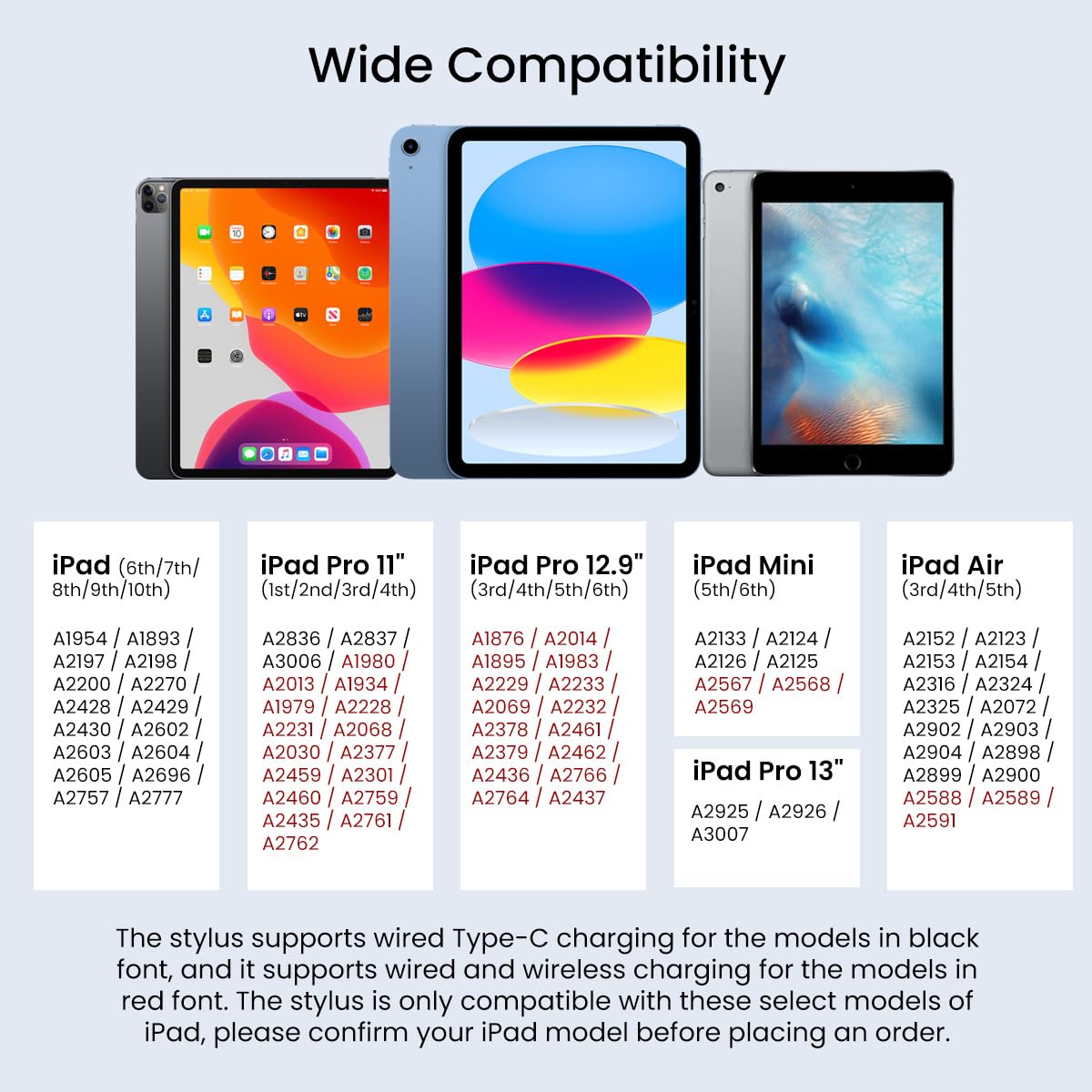
Refer to this chart to verify your iPad's compatibility with the Portronics Glide 2 Stylus Pencil, including charging methods.
Compatible iPad Models:
- iPad (6th/7th/8th/9th/10th Gen): A1954, A1893, A2197, A2198, A2200, A2270, A2428, A2429, A2430, A2602, A2603, A2604, A2605, A2696, A2757, A2777
- iPad Pro 11" (1st/2nd/3rd/4th Gen): A2836, A2837, A3006, A1980, A2013, A1934, A1979, A2228, A2231, A2068, A2030, A2377, A2459, A2301, A2460, A2759, A2435, A2761, A2762
- iPad Pro 12.9" (3rd/4th/5th/6th Gen): A1876, A2014, A1895, A1983, A2229, A2233, A2069, A2232, A2378, A2461, A2379, A2462, A2436, A2766, A2764, A2437
- iPad Mini (5th/6th Gen): A2133, A2124, A2126, A2125, A2567, A2568, A2569
- iPad Air (3rd/4th/5th Gen): A2152, A2123, A2153, A2154, A2316, A2324, A2325, A2072, A2902, A2903, A2904, A2898, A2899, A2900, A2588, A2589, A2591
- iPad Pro 13": A2925, A2926, A3007
Warranty and Support
Warranty Information
The Portronics Glide 2 Stylus Pencil comes with a 1-year warranty from the date of purchase. Please retain your purchase receipt for warranty claims. The warranty covers manufacturing defects but does not cover damage caused by misuse, accidents, or unauthorized repairs.
Customer Support
For any product-related queries, technical assistance, or warranty claims, please contact Portronics customer support:
- Email: help@portronics.com
- Phone: +91 9555-245-245
- Manufacturer Address: Portronics Digital Pvt ltd, First Floor Property No D 8 Upper Basement Sector 8 Noida Uttar Pradesh 201301, India.


