
1. Introduction
This manual provides essential instructions for the safe and efficient use of your Epson SureColor F170 Dye-Sublimation Printer. Please read this manual thoroughly before operating the printer and retain it for future reference. The Epson SureColor F170 is designed for high-quality dye-sublimation printing on compatible materials, offering vibrant and durable results.
2. Package Contents
Verify that all items listed below are included in your package. If any items are missing or damaged, please contact your vendor.
- Epson SureColor F170 Dye-Sublimation Printer
- 4 Sublimation Ink Bottles (Yellow, Magenta, Cyan, Black)
- User Guide (this document)
- AC Power Cable
- 1 Pack of Sublimation Multi-use Paper
- 1 Hot Tape
- 1 Tumbler (for practice)
- 1 Pair of Sublimation Socks (for practice)
- 1 Mouse Pad (for practice)
- 1 Sublimation Tote Bag (for practice)
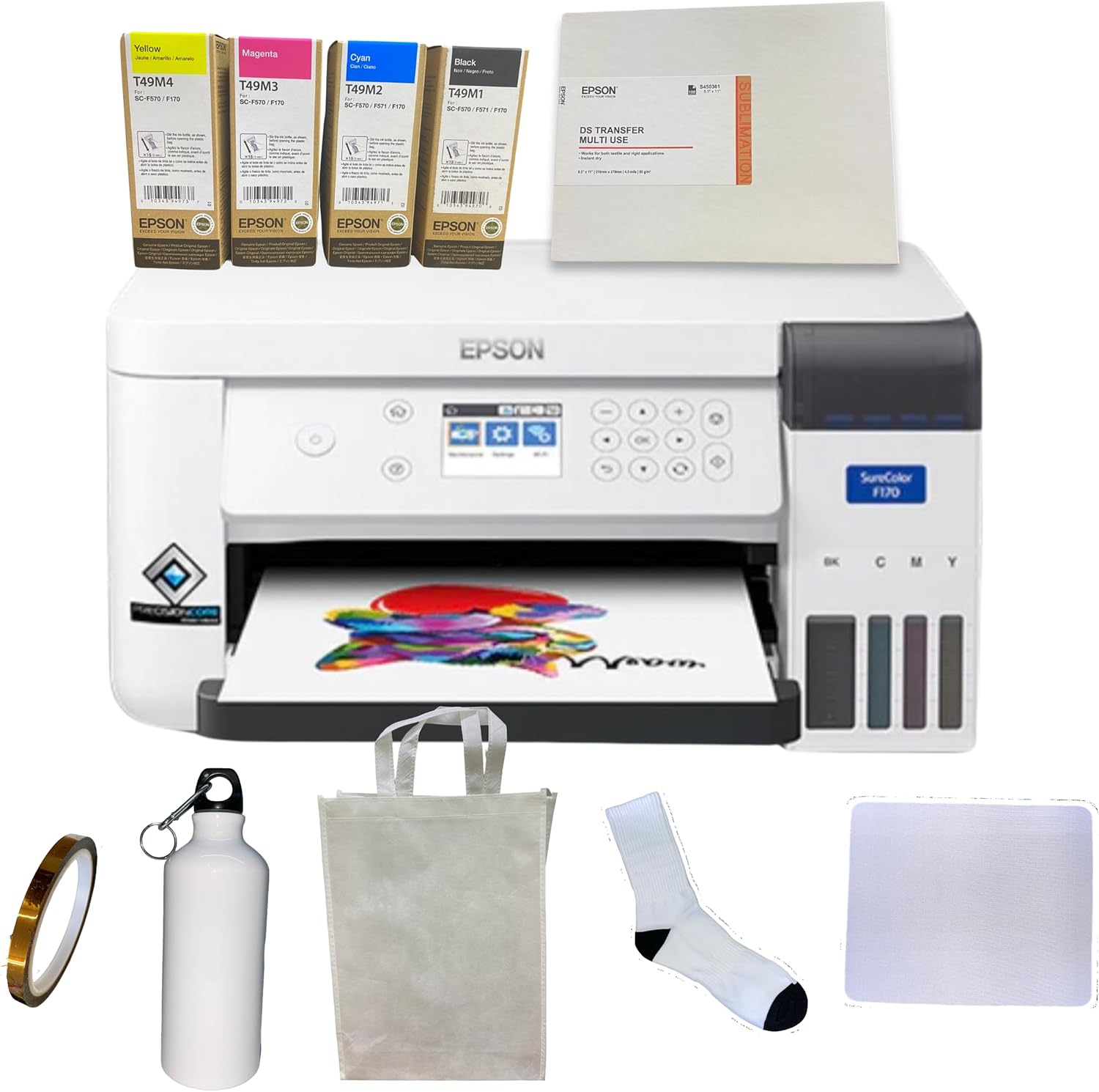
Figure 2.1: Epson SureColor F170 printer with ink bottles, sublimation paper, and various blank items included in the bundle.
3. Setup
3.1 Unpacking and Placement
- Carefully remove the printer and all accessories from the packaging.
- Remove all protective tapes and materials from the printer.
- Place the printer on a flat, stable surface with adequate space around it for ventilation and operation.
3.2 Filling Ink Tanks
The SureColor F170 uses an EcoTank system, requiring you to fill the ink tanks with the provided sublimation ink bottles.
- Open the ink tank unit cover on the right side of the printer.
- Uncap the ink bottle for the corresponding color (Yellow, Magenta, Cyan, Black).
- Align the bottle with the correct ink tank and insert it. The bottle is keyed to fit only the correct color tank.
- Allow the ink to drain into the tank. Do not squeeze the bottle.
- Once the tank is full, remove the bottle and securely close the ink tank cap.
- Repeat for all four colors.
- Close the ink tank unit cover.

Figure 3.2: Close-up view of the printer's control panel and visible ink tanks, indicating where ink is filled.
3.3 Power Connection
- Connect the AC power cable to the power input port on the back of the printer.
- Plug the other end of the power cable into a grounded electrical outlet.
- Press the power button on the printer's control panel to turn it on.

Figure 3.3: Rear view of the Epson SureColor F170, highlighting the power input, USB, and LAN ports for connectivity.
For more information on energy efficiency, scan the QR code on the energy label or visit https://ww6.sec.cl/qr/qr.do?a=prod&i=0000000359204.
3.4 Software Installation and Connectivity
Install the necessary printer drivers and software on your computer (PC or Mac) to enable printing functionality.
- Supported Operating Systems: Windows 10, Windows 8/8.1 (32-bit, 64-bit), Windows 7 (32-bit, 64-bit), Mac OS X 10.6 – macOS 10.15.x.
- USB Connection: Connect the printer to your computer using a USB cable (not included).
- Wi-Fi Connection: Follow the on-screen instructions on the printer's control panel to connect to your wireless network. Refer to the printer's display for network settings.
4. Operating Instructions
4.1 Loading Sublimation Paper
- Extend the paper output tray and open the rear paper feeder.
- Load sublimation paper into the rear feeder with the printable side facing up. Ensure the paper guides are adjusted to the width of the paper. The printer supports up to A3 size paper.
- The maximum input sheet capacity is 150 sheets.

Figure 4.1: Front view of the Epson SureColor F170 printer with the paper output tray extended, ready for paper loading and printing operations.
4.2 Printing Process
The Epson SureColor F170 is a dye-sublimation printer, meaning it transfers ink onto compatible materials (primarily polyester fabrics or polyester-coated items) using heat and pressure.
- Prepare your design on your computer using appropriate graphic software.
- Ensure your design is mirrored before printing, as sublimation transfers are reversed during the heat press process.
- Select the Epson SureColor F170 as your printer and choose the correct paper type and print quality settings in your printer driver.
- Print your design onto sublimation paper.
- Once printed, use a heat press (not included) to transfer the design from the sublimation paper onto your chosen blank item (e.g., fabric, tumbler, mouse pad). Follow the heat press manufacturer's instructions for temperature, time, and pressure.
4.3 Control Panel Overview
The printer features a touch control panel for easy navigation and settings adjustment.
Figure 4.3: Detailed view of the Epson SureColor F170 control panel, showing the LCD screen, power button, navigation buttons, and function keys for printer operation.
- Power Button: Turns the printer on or off.
- LCD Screen: Displays printer status, menu options, and error messages.
- Navigation Buttons (Up, Down, Left, Right, OK): Used to navigate through menus and confirm selections.
- Home Button: Returns to the main menu.
- Back Button: Returns to the previous screen.
- Wi-Fi Button: Accesses wireless network settings.
- Maintenance Button: Accesses maintenance options like nozzle checks and head cleaning.
5. Maintenance
5.1 Print Head Cleaning
If print quality declines (e.g., missing lines, incorrect colors), perform a print head cleaning.
- From the printer's control panel, navigate to the Maintenance menu.
- Select Head Cleaning.
- Follow the on-screen prompts. This process uses ink, so perform it only when necessary.
- After cleaning, print a nozzle check pattern to verify print quality.
5.2 Ink Level Management
Regularly check ink levels through the printer's control panel or the printer software on your computer. Refill tanks before they run completely empty to prevent air from entering the ink system.
5.3 Exterior Cleaning
Wipe the exterior of the printer with a soft, damp, lint-free cloth. Do not use abrasive cleaners or solvents.
6. Troubleshooting
- Printer Not Responding:
- Check power connection and ensure the printer is turned on.
- Verify USB or Wi-Fi connection.
- Restart the printer and your computer.
- Poor Print Quality:
- Perform a nozzle check and head cleaning (refer to Section 5.1).
- Ensure you are using genuine Epson sublimation inks and high-quality sublimation paper.
- Check ink levels.
- Paper Jams:
- Turn off the printer and carefully remove any jammed paper.
- Ensure paper is loaded correctly and not creased or bent.
- Do not overload the paper tray.
- Error Messages:
- Refer to the printer's LCD screen for specific error codes and follow the suggested solutions.
- Consult the Epson support website for detailed error message explanations.
7. Specifications
| Feature | Detail |
|---|---|
| Model Name | Surecolor F170 |
| Item Model Number | SC-F170 |
| Printing Technology | Dye Sublimation |
| Printer Output | Color |
| Maximum Color Print Resolution | 1200 x 1200 dpi |
| Maximum Black and White Print Resolution | 1200 x 1200 dpi |
| Ink Color | Yellow, Magenta, Cyan, Black |
| Printer Ink Type | Sublimation |
| Connectivity Technology | USB, Wi-Fi |
| Hardware Interface | USB |
| Compatible Devices | Laptops, PC |
| Maximum Media Size | A3 |
| Sheet Size | A3 NA |
| Max Input Sheet Capacity | 150 |
| Print Media | Fabric (via sublimation transfer) |
| Control Method | Touch |
| Product Dimensions | 13.7 x 13.7 x 7.4 inches |
| Special Feature | Network-Ready |
8. Warranty and Support
This product typically comes with an extended warranty. For specific warranty terms and conditions, please refer to the documentation provided with your purchase or visit the official Epson support website.
For technical assistance, driver downloads, or further troubleshooting, please visit the Epson support website or contact their customer service. Ensure you have your printer model (SC-F170) and serial number available when seeking support.


