
ZTE G5C
ZTE G5C 5G WiFi 6 Indoor Router User Manual
Model: G5C
1. Introduction
The ZTE G5C is a high-performance 5G WiFi 6 indoor router designed to provide fast and reliable internet connectivity for your home or small office. This device supports 5G high-speed networks and WiFi 6 technology, ensuring a stable and efficient wireless experience. It is unlocked, allowing flexibility with your choice of network provider via a nano SIM card.
This manual provides essential information on setting up, operating, maintaining, and troubleshooting your ZTE G5C router.
2. What's in the Box
Upon unboxing your ZTE G5C router, please verify that all the following components are included:
- 1 x ZTE G5C Router
- 1 x Power Socket (UK Plug)
- 1 x Quick Start Guide
- 1 x User Manual (this document)
- 1 x Warranty Card
3. Product Overview

Figure 3.1: Angled view of the ZTE G5C router, showcasing its sleek white design and ventilation grilles.
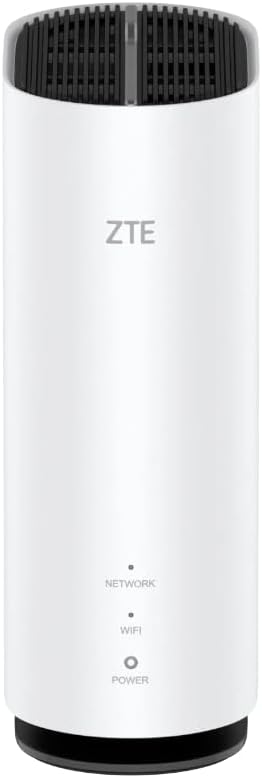
Figure 3.2: Front view of the ZTE G5C router, displaying the ZTE logo and indicator lights for Network, WiFi, and Power.

Figure 3.3: Rear view of the ZTE G5C router, showing the WPS button, RJ11 phone port, two WAN/LAN ports, and power input.
Key Features:
- 5G High-Speed Network: Experience ultra-fast internet speeds up to 3.4Gbps.
- WiFi 6 Technology: Enhanced efficiency, higher throughput, and better performance in congested environments.
- Unlocked & SIM Slot: Use with any nano SIM card from your preferred network provider.
- Connects up to 32 Devices: Share your connection with multiple laptops, tablets, gaming consoles, and smartphones.
- Versatile Ports: Includes 2 XGE WAN/LAN ports and an RJ11 port for VoLTE and VoIP.
- Easy Installation: No complex configuration required; simply insert SIM and power on.
- NFC Functionality: Android phone touch to access WiFi router and device diagnostics.
- Parental Control: Manage and secure your network with built-in parental control features.
- Multiple Security Modes: Ensures your network is secure.
- Dual-Band WiFi: Operates on both 2.4GHz and 5GHz frequencies with 2x2 MIMO and 1024 QAM.

Figure 3.4: Graphic highlighting key features: WiFi 6 Technology, Advanced Security, and connectivity via the ZTELink App.
4. Setup Guide
4.1. SIM Card Installation
- Locate the SIM card slot on your ZTE G5C router. This is typically found on the bottom or side of the device.
- Insert a nano SIM card into the designated slot. Ensure the SIM card is oriented correctly according to the diagram near the slot. Push gently until it clicks into place.
4.2. Power Connection
- Connect the provided power adapter to the power input port on the router.
- Plug the other end of the power adapter into a suitable electrical outlet.
- The router will automatically power on. Wait for the indicator lights (Network, WiFi, Power) on the front panel to stabilize. The Network light should indicate a successful connection to the mobile network.
4.3. Optimal Placement
For the best performance, place your ZTE G5C router in a central location within your home, away from obstructions, large metal objects, and other electronic devices that may cause interference. The preferred position function can assist in finding the best signal strength.
5. Operating Instructions
5.1. Connecting Devices via Wi-Fi
- On your Wi-Fi enabled device (smartphone, laptop, tablet, etc.), open the Wi-Fi settings.
- Search for available Wi-Fi networks. The default Wi-Fi network name (SSID) and password can be found on a label on the bottom or back of your router.
- Select your router's SSID from the list and enter the Wi-Fi password when prompted.
- Once connected, the Wi-Fi indicator light on the router should be solid.
5.2. Connecting Devices via Ethernet Cable
For wired connections, use an Ethernet cable to connect your device (e.g., desktop computer, gaming console) to one of the XGE WAN/LAN ports on the back of the router.
5.3. Using the RJ11 Port (VoLTE/VoIP)
The RJ11 port allows you to connect a standard telephone for VoLTE (Voice over LTE) or VoIP (Voice over IP) services, depending on your SIM card's capabilities and network provider's support. Connect your telephone to this port using a standard phone cable.
5.4. NFC Functionality (for Android Devices)
If your Android smartphone supports NFC, you can quickly connect to the router's Wi-Fi by simply tapping your phone against the NFC tag area on the router (refer to the Quick Start Guide for exact location). This will automatically configure your phone's Wi-Fi settings.
5.5. Web Management Interface
To access advanced settings, parental controls, and device diagnostics, open a web browser on a connected device and enter the router's default IP address (usually 192.168.1.1 or 192.168.0.1). The default login credentials can be found on the router's label or in the Quick Start Guide. From here, you can:
- Change Wi-Fi SSID and password.
- Configure parental control settings.
- Monitor connected devices.
- Run network diagnostics.
- Update firmware.
6. Maintenance
Proper maintenance ensures the longevity and optimal performance of your ZTE G5C router.
- Cleaning: Use a soft, dry cloth to clean the exterior of the router. Do not use liquid cleaners or aerosols.
- Ventilation: Ensure the router's ventilation slots are not blocked to prevent overheating. Do not place the router in an enclosed space.
- Firmware Updates: Regularly check for and install firmware updates via the web management interface. Updates often include performance improvements, security patches, and new features.
- Restarting: If you experience network issues, try restarting the router by unplugging the power adapter for 10 seconds and then plugging it back in.
7. Troubleshooting
This section addresses common issues you might encounter with your ZTE G5C router.
| Problem | Possible Cause | Solution |
|---|---|---|
| No Internet Connection | SIM card not inserted correctly, no mobile network signal, or network issue from provider. |
|
| Slow Wi-Fi Speed | Interference, too many connected devices, or router placement. |
|
| Cannot Access Web Management Interface | Incorrect IP address, device not connected to router, or browser issue. |
|
| Wi-Fi Signal Drops Frequently | Interference, outdated firmware, or channel congestion. |
|
If you continue to experience issues, please refer to the official ZTE support resources or contact customer service.
8. Specifications
| Feature | Detail |
|---|---|
| Brand | ZTE |
| Model Name | G5C |
| Connectivity Technology | 5G |
| Wireless Communication Standard | 802.11ax (WiFi 6) |
| Frequency Band Class | Dual-Band (2.4 GHz, 5 GHz) |
| Special Features | Parental Control, Easy Management, NFC, VoLTE, VoIP, RJ11, Multiple Security Modes |
| Compatible Devices | Gaming Console, Personal Computer, Tablet, Other Wi-Fi Enabled Devices, Smartphone |
| Recommended Uses | Home |
| Package Dimensions | 28.5 x 17 x 8.5 cm |
| Item Weight | 700 g |
9. Warranty and Support
Your ZTE G5C router comes with a warranty. Please refer to the included warranty card for specific terms and conditions, including the warranty period and coverage details.
Customer Support:
For technical assistance, troubleshooting beyond this manual, or warranty claims, please contact ZTE customer support. You can often find support contact information on the ZTE official website or through the retailer where you purchased the product.
You can also visit the official ZTE Store on Amazon for more product information and resources.
Related documentsG5C


Ask a question about this manual
Ask about setup, troubleshooting, compatibility, parts, safety, or missing instructions. Manuals+ will review the question and use this page’s manual context to help answer it.