
1. Introduction
Thank you for choosing the TITAN ARMY P2510HS 24.5 Inch 300Hz Gaming Monitor. This manual provides essential information for setting up, operating, and maintaining your new monitor. The P2510HS is designed for high-performance gaming, featuring a 24.5-inch Fast IPS panel with a 1920x1080p FHD resolution, a rapid 300Hz refresh rate, and a 1ms GTG response time. It supports HDR400, Adaptive Sync technology, and includes Low Blue Light features for comfortable viewing.

Image: Front view of the TITAN ARMY P2510HS 24.5 Inch 300Hz Gaming Monitor, showcasing its slim bezels and stand.
2. Package Contents
Please verify that all items are present in your package:
- 1 x 24.5 Inch Gaming Monitor
- 1 x Stand
- 1 x Power Cable
- 1 x DP Cable
3. Setup
3.1. Monitor Assembly
- Carefully remove the monitor and stand components from the packaging.
- Attach the stand base to the stand neck, securing it with the provided screw.
- Align the assembled stand with the mounting points on the back of the monitor. Gently push until it clicks into place or secure with screws if applicable.
- Place the monitor on a stable, flat surface.
VESA Mounting: The monitor supports VESA 100x100mm mounting standards, allowing for alternative wall or desk arm mounting solutions. Ensure the VESA mount is compatible and can support the monitor's weight (approximately 8.58 pounds).

Image: Illustration of the monitor's adjustable tilt stand and VESA mounting compatibility.
3.2. Connecting the Monitor
Connect the monitor to your computer or other devices using the appropriate cables.
- Power Connection: Connect the power cable to the monitor's power input and then to a power outlet.
- DisplayPort (DP): For optimal performance, including 300Hz refresh rate and Adaptive Sync, use the provided DisplayPort 1.4 cable to connect the monitor to your graphics card.
- HDMI: The monitor includes two HDMI 2.0 ports for connecting other devices.
- Audio Out: Connect external speakers or headphones to the 3.5mm audio output jack.
4. Operating the Monitor
4.1. Power On/Off
Press the power button, usually located on the back or bottom of the monitor, to turn the monitor on or off. The power indicator LED will illuminate when the monitor is active.
4.2. OSD Menu Navigation
The On-Screen Display (OSD) menu allows you to adjust various monitor settings. Navigate the menu using the joystick or buttons typically located on the back or bottom right of the monitor.
- Press the joystick/button to open the OSD menu.
- Move the joystick up/down or use the corresponding buttons to navigate through menu options.
- Move the joystick left/right or use the corresponding buttons to adjust values or enter sub-menus.
- Press the joystick/button again to confirm selections or exit menus.
4.3. Picture Settings
Adjust display characteristics for optimal viewing.
- Brightness & Contrast: Adjust the overall luminance and the difference between light and dark areas.
- Color Enhancement: Fine-tune image colors with up to 10 levels of enhancement for more vibrant and saturated colors.
- HDR400: Supports High Dynamic Range content, enhancing contrast and realism. Select from HDR Auto, HDR Gaming, and HDR Landscape modes.
- Low Blue Light: Reduces harmful blue light emissions to minimize eye strain during extended use.
- Super Resolution: Enhances image clarity, with adjustable levels.
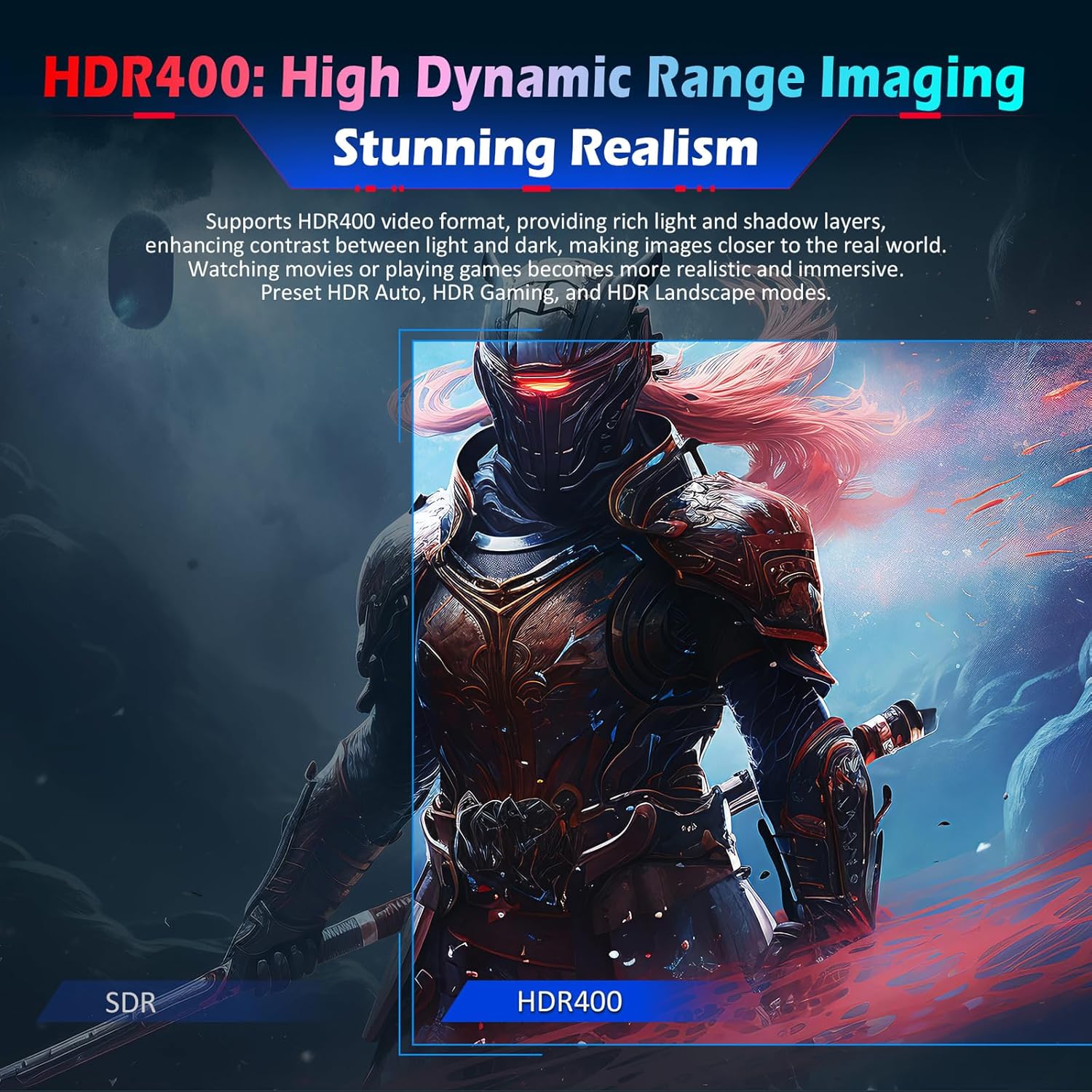
Image: Visual comparison demonstrating the enhanced contrast and realism provided by HDR400.

Image: Depiction of color and contrast enhancement options available in the monitor's settings.

Image: Illustration of the Super Resolution feature improving image sharpness.
4.4. Gaming Features
The P2510HS offers several features to enhance your gaming experience:
- 300Hz Refresh Rate & 1ms GTG: Provides ultra-smooth motion and minimizes input lag.
- Adaptive Sync: Synchronizes the monitor's refresh rate with your graphics card's frame rate to eliminate screen tearing and stuttering.
- Ultra-Fast Game Mode: Reduces signal delay for quicker response times in games.
- Dynamic OD (Overdrive): Dynamically adjusts acceleration levels based on refresh rate to reduce ghosting and trailing.
- Game Dark Boost: Enhances dark details in dark-themed games by adjusting monitor dark field brightness (0-100). Night Vision mode detects screen brightness in real-time to prevent overexposure while clarifying dark areas.
- Gaming Assist: Includes features like Game Crosshair (multiple styles, AI crosshair), Refresh Rate display, Stopwatch, Game Timer, Stitching Assist, and Eagle Eye Zoom.

Image: Visual demonstration of Adaptive Sync technology reducing screen tearing and stuttering.

Image: Comparison showing the effect of Game Dark Boost and Night Vision mode on dark game scenes.

Image: Visuals illustrating the benefits of Ultra-Fast Game Mode and Dynamic Overdrive for smoother gameplay.
4.5. Scenario Modes
The monitor offers 10 preset scenario modes optimized for various uses, including Standard, RTS/RPG Battle, FPS Competitive, MOBA Competitive, Reading, Night, Movie, Photo View, E-Book, and Eye Protection. These modes allow for flexible adjustment and independent saving of parameters.

Image: Display of various scenario modes, each optimized for specific applications like gaming, reading, or movie watching.
4.6. Dual Host Display (PIP/PBP)
The monitor supports Picture-in-Picture (PIP) and Picture-by-Picture (PBP) split-screen modes, allowing you to display two video signals simultaneously for enhanced multitasking.

Image: Illustration of the monitor displaying two separate video inputs simultaneously using PIP and PBP modes.
5. Maintenance
To ensure the longevity and optimal performance of your monitor, follow these maintenance guidelines:
- Cleaning the Screen: Gently wipe the screen with a soft, lint-free cloth. For stubborn marks, lightly dampen the cloth with water or a specialized screen cleaner. Avoid using harsh chemicals or abrasive materials.
- Cleaning the Casing: Use a soft, dry cloth to clean the monitor's casing.
- Ventilation: Ensure the monitor's ventilation openings are clear and not obstructed to prevent overheating.
- Power Off: Always turn off the monitor and unplug it from the power outlet before cleaning or if it will be unused for an extended period.
6. Troubleshooting
If you encounter issues with your monitor, refer to the following common problems and solutions:
| Problem | Possible Cause | Solution |
|---|---|---|
| No image on screen | Power cable disconnected; Video cable disconnected or loose; Incorrect input source selected; Monitor is off. | Ensure power cable is securely connected. Check video cable (DP/HDMI) connections. Select the correct input source via the OSD menu. Press the power button to turn on the monitor. |
| Image is flickering or unstable | Video cable loose or damaged; Graphics card driver issue; Refresh rate mismatch; Adaptive Sync not enabled. | Check video cable connections. Update graphics card drivers. Ensure refresh rate is set correctly in display settings. Enable Adaptive Sync in the OSD menu and graphics card control panel. |
| Colors appear incorrect | Color settings incorrect; HDR mode conflict. | Adjust color settings (brightness, contrast, color temperature) in the OSD menu. Ensure HDR settings are appropriate for the content being displayed. |
| Monitor does not turn on | Power cable disconnected; Power outlet not working. | Verify power cable is securely connected to both the monitor and a working power outlet. Test the outlet with another device. |
| Ghosting or motion blur | Overdrive setting too high or too low. | Adjust the Dynamic OD setting in the OSD menu to find the optimal balance for your content. |
If the problem persists after trying these solutions, please contact customer support.
7. Specifications
Detailed technical specifications for the TITAN ARMY P2510HS monitor:

Image: Diagram illustrating the physical dimensions and key specifications of the P2510HS monitor.
| Feature | Detail |
|---|---|
| Model | P2510HS |
| Screen Size | 24.5 Inches |
| Panel Type | Fast IPS |
| Aspect Ratio | 16:9 |
| Maximum Resolution | 1920 x 1080 (FHD) |
| Refresh Rate | 300Hz |
| Response Time | 1ms GTG |
| HDR Support | HDR400 |
| Color Gamut | 121% sRGB |
| Contrast Ratio (Static) | 1000:1 |
| Brightness (Typical) | 350nit |
| Viewing Angle | 89°(H), 89°(V) |
| Display Colors | 16.7 Million |
| Video Inputs | 2 x HDMI 2.0, 2 x DisplayPort 1.4 |
| Audio Output | 1 x Audio Out |
| VESA Mount Compatibility | 100 x 100 mm |
| Product Dimensions (W x H x D) | 557.7 x 422.6 x 218.5 mm (with stand) |
| Item Weight | 8.58 pounds |
8. Warranty and Support
For warranty information and technical support, please refer to the warranty card included with your product or visit the official TITAN ARMY website. Keep your purchase receipt as proof of purchase for warranty claims.


