
1. Introduction
Thank you for choosing the AULA S98 Pro Wireless Mechanical Keyboard. This keyboard features a smart LCD screen, multi-function knob, and supports tri-mode connectivity (Bluetooth 5.0, 2.4GHz wireless, and USB-C wired). It is designed for a superior typing and gaming experience with pre-lubed linear switches, hot-swappable sockets, and extensive RGB customization. This manual provides detailed instructions for setup, operation, maintenance, and troubleshooting to ensure optimal performance.

Figure 1: AULA S98 Pro Wireless Mechanical Keyboard Overview
2. Package Contents
Before proceeding with the setup, please ensure all items listed below are present in your package:
- AULA S98 Pro Mechanical Keyboard x1
- USB Cable x1
- 2.4GHz Receiver x1
- 2-in-1 Keycap & Switch Puller x1
- Extra Leobog Star Vector Switches x2
- English User Manual x1

Figure 2: Included Accessories
3. Setup Guide
3.1 Initial Charging
Before first use, it is recommended to fully charge the keyboard. Connect the provided USB-C cable to the keyboard's USB-C port and the other end to a power source (e.g., computer USB port, wall adapter). The LCD screen will indicate charging status.
3.2 Connection Modes
The AULA S98 Pro supports three connection modes: 2.4GHz Wireless, Bluetooth 5.0, and USB-C Wired. You can switch between modes using the multi-function knob.

Figure 3: Tri-Mode Connection Capabilities
3.2.1 2.4GHz Wireless Connection
- Locate the 2.4GHz USB receiver in the package.
- Plug the receiver into an available USB port on your computer.
- On the keyboard, use the multi-function knob to select the 2.4GHz wireless mode. The LCD screen will display the 2.4GHz icon.
- The keyboard should automatically connect.
3.2.2 Bluetooth 5.0 Connection
The keyboard can connect to up to three Bluetooth devices (BT1, BT2, BT3).
- On the keyboard, use the multi-function knob to select one of the Bluetooth modes (BT1, BT2, or BT3).
- Press and hold the knob for 3 seconds until the Bluetooth icon on the LCD screen starts blinking, indicating pairing mode.
- On your device (PC, laptop, tablet, smartphone), enable Bluetooth and search for new devices.
- Select "AULA S98 Pro" from the list of available devices to pair.
- Once connected, the Bluetooth icon on the LCD screen will stop blinking.
3.2.3 USB-C Wired Connection
- Connect the provided USB-C cable to the keyboard's USB-C port.
- Connect the other end of the cable to a USB port on your computer.
- The keyboard will automatically switch to wired mode.
3.3 Driver Installation (Windows Only)
For full customization, including screen image/GIF customization, date/time calibration, key mapping, and macro definitions, you need to download and install the official AULA S98 Pro driver. This driver only supports Windows operating systems and requires the keyboard to be in wired mode during setup.
- Download the driver from: bit.ly/m/AULA
- Ensure the keyboard is connected via USB-C wired mode.
- Install and run the software.

Figure 4: Programmable Software Interface
4. Operating Instructions
4.1 Smart LCD Screen & Multi-function Knob
The LCD screen displays essential information such as date, time, battery level, system, and connection mode. The multi-function knob allows for quick adjustments.

Figure 5: Smart LCD Screen and Knob Functions
- Press down the knob: Enters the menu.
- Rotate the knob: Navigates through menu options (System, Connection Mode, Volume, RGB Light Mode, Language, Screen Image/GIF).
- Press the knob to confirm: Selects the highlighted option.
To calibrate the date and time or customize GIF images on the screen, you must use the dedicated software under a Windows system while the keyboard is in wired mode.
Video: How to calibrate screen date/time and customize GIF image. This video demonstrates the process of setting the date and time and uploading custom GIF images to the keyboard's smart screen using the companion software.
4.2 RGB Backlight
The keyboard features 19 RGB lighting effects and over 16.8 million colors, including a front side light. You can switch and adjust the backlight via the multi-function knob or the programmable software.
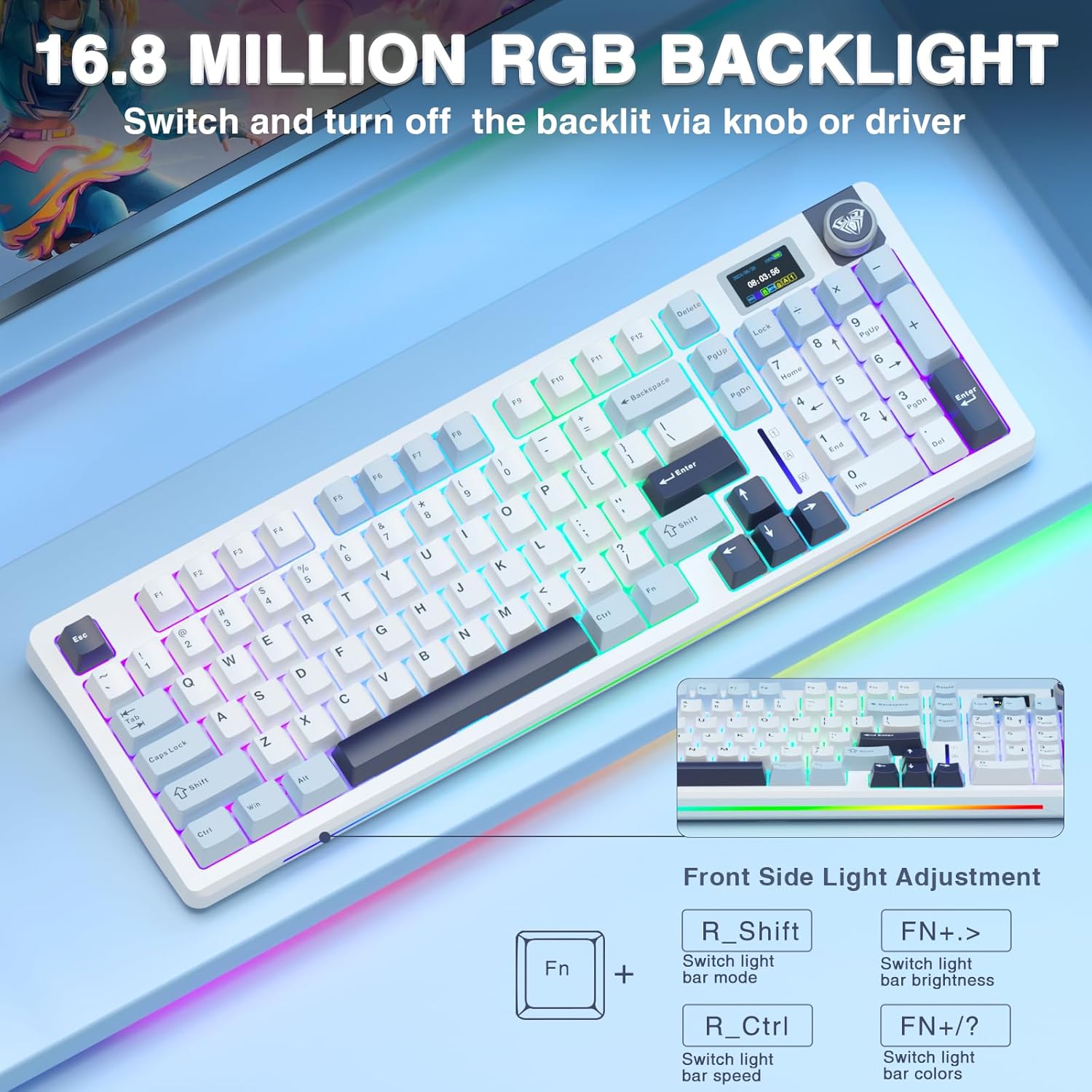
Figure 6: RGB Backlight Customization
4.3 Hot-Swappable Switches
The S98 Pro keyboard is equipped with a hot-swappable base, compatible with both 3-pin and 5-pin mechanical switches. This allows for easy replacement of switches without soldering, enabling customization of your typing experience.

Figure 7: Hot-Swappable Sockets and Components
4.4 PBT Keycaps
The keyboard features double injection molded PBT keycaps, known for their durability, sweat-proof properties, and colorfastness. The frosted surface provides a comfortable tactile feel.
4.5 Battery Life
The AULA S98 Pro is equipped with a 4000mAh high-capacity battery, providing approximately 16 hours of usage with backlighting on and up to 53 hours with backlighting off. Battery level is displayed on the LCD screen.

Figure 8: Battery Capacity and Life
5. Maintenance
5.1 Cleaning
To maintain the keyboard's appearance and functionality, regularly clean it. Use a soft, dry cloth to wipe down the keycaps and chassis. For deeper cleaning, you can use the provided keycap puller to remove keycaps and clean underneath with compressed air or a small brush. Avoid using harsh chemicals or abrasive materials.
5.2 Switch and Keycap Replacement
Utilize the included 2-in-1 keycap & switch puller for safe removal and installation. Gently pull keycaps straight up. For switches, align the switch puller with the clips on the switch and apply even pressure to release it from the PCB. When installing, ensure the pins are straight and align with the hot-swappable socket before pressing down firmly.
5.3 Battery Care
To prolong battery life, avoid fully discharging the keyboard frequently. If storing the keyboard for an extended period, charge it to about 50% and turn it off. Store in a cool, dry place.
6. Troubleshooting
This section addresses common issues you might encounter with your AULA S98 Pro keyboard.
| Problem | Possible Cause | Solution |
|---|---|---|
| Keyboard not connecting wirelessly (2.4GHz/BT) | Low battery, incorrect mode, pairing issue, receiver not plugged in (2.4GHz) | Charge keyboard. Ensure correct mode is selected. Re-pair Bluetooth (hold knob for 3s). Re-insert 2.4GHz receiver. |
| LCD screen display issues (incorrect time/GIF) | Time drift, software not used for customization | Connect keyboard via USB-C, download and use the AULA driver (Windows only) to calibrate time and upload GIFs. |
| RGB backlight not working or incorrect | Backlight turned off, incorrect mode, software conflict | Adjust using the multi-function knob or the AULA driver software. Ensure no conflicting software is running. |
| Keys not responding or double-typing | Faulty switch, debris under keycap | Remove keycap and clean. If issue persists, replace the switch using the included extra switches and puller. |
| Driver software not detecting keyboard | Not in wired mode, incorrect driver version, operating system incompatibility | Ensure keyboard is connected via USB-C and in wired mode. Verify you have the correct driver version from the official AULA website. Driver supports Windows only. |
Video: AULA S98 Pro Creamy Sounding Gasket Mechanical Keyboard. This video provides an overview of the keyboard's features, including its sound profile, which can be helpful for understanding normal operation.
7. Specifications
| Feature | Detail |
|---|---|
| Model Number | AULA S98 Pro |
| Connectivity | 2.4GHz Wireless, Bluetooth 5.0, USB-C Wired |
| Keyboard Type | Mechanical |
| Switches | Pre-lubed Linear Switches (Leobog Star Vector) |
| Hot-Swappable | Yes, supports 3-pin/5-pin switches |
| Keycaps | PBT Double Injection Molded |
| Backlighting | RGB (16.8 million colors, 19 effects) |
| Battery Capacity | 4000mAh |
| Battery Life | Approx. 16 hours (backlit ON), 53 hours (backlit OFF) |
| Product Dimensions | 16 x 5.43 x 1.78 inches |
| Item Weight | 1.98 pounds |
| Compatible OS | Windows, Mac, iOS, Android (Driver for Windows only) |
8. Warranty and Support
8.1 Warranty Information
The AULA S98 Pro Wireless Mechanical Keyboard comes with a manufacturer's warranty. Please refer to the warranty card included in your package or contact AULA customer support for specific terms and conditions regarding warranty coverage and duration.
8.2 Customer Support
For any technical assistance, product inquiries, or warranty claims, please contact AULA customer support through the following channels:
- Visit the official AULA website for support resources and contact information.
- Refer to the contact details provided on the product packaging or warranty card.


