
1. Introduction
Welcome to the world of Thomson Smart TVs. This manual provides essential information for setting up, operating, and maintaining your new Thomson 32-inch Full HD Google Smart TV, model 32FG2S14. This television combines a vibrant Full HD display with the intelligent features of Google TV, offering personalized content, voice control, and immersive Dolby Audio.
Please read this manual thoroughly before using your TV and keep it for future reference.
2. Safety Information
Important Safety Instructions
- Power Supply: Ensure the TV is connected to a power outlet with the correct voltage. Do not overload power strips.
- Ventilation: Allow adequate space around the TV for proper ventilation. Do not block ventilation openings.
- Water and Moisture: Do not expose the TV to rain or moisture. Do not place objects filled with liquids, such as vases, on the TV.
- Cleaning: Unplug the TV before cleaning. Use a soft, dry cloth. Do not use liquid cleaners or aerosol cleaners.
- Placement: Place the TV on a stable, level surface. Avoid placing it in direct sunlight or near heat sources.
- Servicing: Do not attempt to service the TV yourself. Refer all servicing to qualified service personnel.
3. Package Contents
Verify that all items are present in the box:
- Thomson 32-inch Full HD Google Smart TV
- Remote Control
- Power Cable
- TV Stands (2 pieces)
- Screws for Stands
- User Manual (this document)

Figure 3.1: Front view of the Thomson 32-inch Full HD Google Smart TV.

Figure 3.2: The included remote control for your Thomson Smart TV.
4. Setup
4.1 Attaching the Stands
- Carefully place the TV face down on a soft, flat surface to prevent screen damage.
- Align each stand with the corresponding slots on the bottom of the TV.
- Secure the stands using the provided screws. Ensure they are tightened firmly.

Figure 4.1: TV dimensions and stand placement for the 32-inch model.
4.2 Wall Mounting (Optional)
If you choose to wall mount your TV, ensure you use a VESA-compatible wall mount kit (not included) that supports the TV's weight and size. Follow the instructions provided with your wall mount kit. Always consult a professional for wall mounting to ensure safety.
4.3 Connecting Power
Connect the power cable to the TV's power input and then to a suitable wall outlet. The TV will enter standby mode.
4.4 Initial Power On and Configuration
Press the power button on the remote control or the TV. The TV will guide you through the initial setup process, which includes:
- Language selection
- Network connection (Wi-Fi or Ethernet)
- Google account sign-in (optional, but recommended for full Google TV features)
- Channel scanning for DVB-T2/C/S2

Figure 4.2: The Google TV home screen during initial setup or normal operation.
5. Connections
Connecting External Devices
Your Thomson TV offers various ports for connecting external devices:
- HDMI: Connect Blu-ray players, game consoles, or other HDMI-enabled devices. Your TV features HDMI 1.4 with ARC support.
- USB 2.0: For connecting USB storage devices to play media files.
- DVB-T2/C/S2 (Antenna/Satellite): Connect your terrestrial antenna or satellite dish for digital TV reception.
- CI+ Slot: Insert a CI+ module with a smart card for encrypted channels.
- LAN (Ethernet): For a wired internet connection.
- AV IN: For connecting older devices using composite video and stereo audio cables.
- Digital Optical Audio Out: For connecting to external audio systems or soundbars.

Figure 5.1: Rear view of the TV with labeled connection ports.
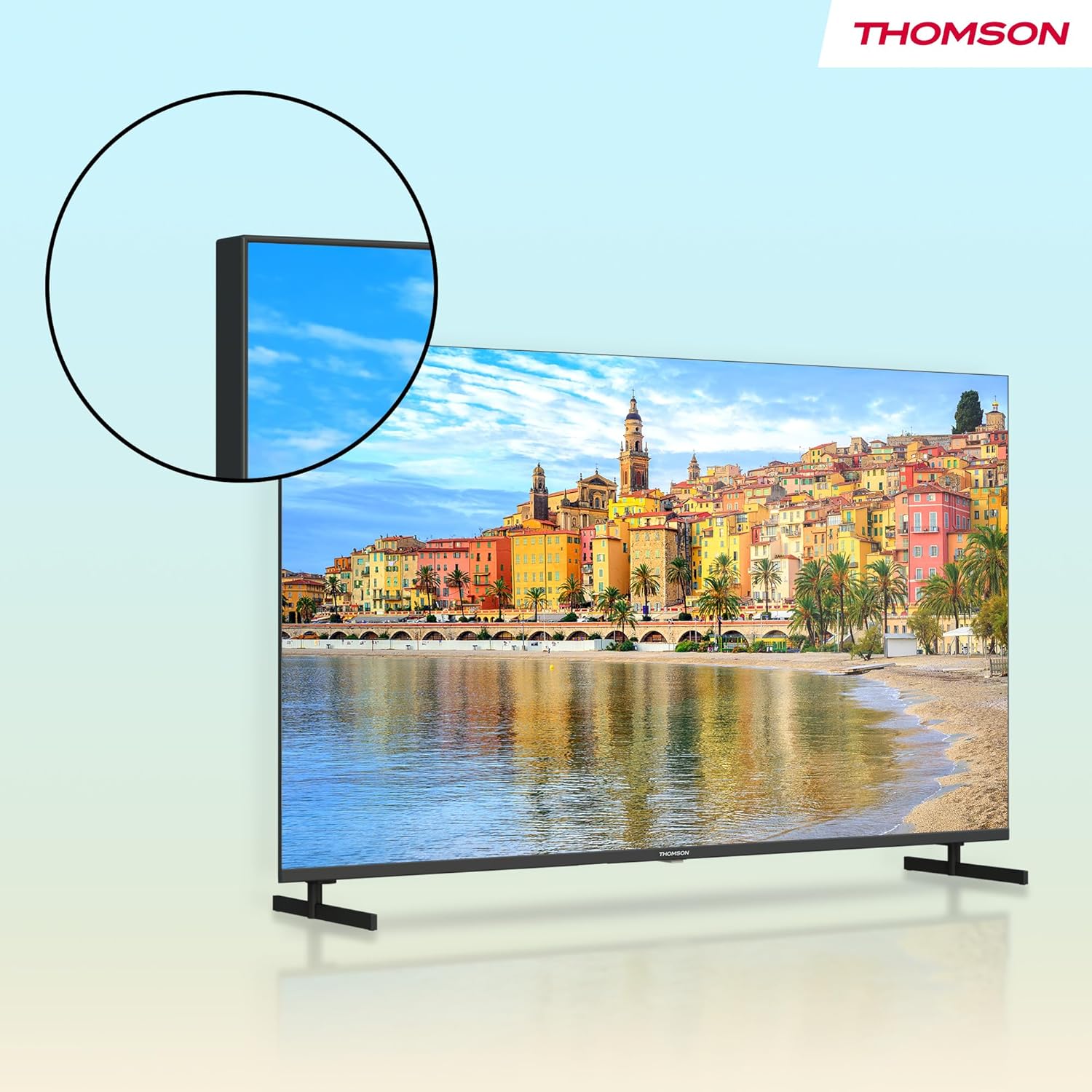
Figure 5.2: Detailed view of the TV's connectivity options.
6. Operating Your TV
6.1 Remote Control Functions
The remote control allows you to navigate the TV's features. Key functions include:
- Power Button: Turns the TV on/off or to standby.
- Numeric Buttons: Direct channel selection.
- Volume +/-: Adjusts the volume level.
- Channel +/-: Changes TV channels.
- Google Assistant Button: Activates voice control for searching content, controlling smart home devices, and more.
- Navigation Pad (Directional Buttons & OK): Navigates menus and selects options.
- Backlit Buttons: Allows for easy navigation in low-light conditions.
- App Shortcut Buttons: Quick access to popular streaming services like Netflix, Prime Video, YouTube, and Disney+.
- Star Button: Customizable shortcut to your favorite app or function.

Figure 6.1: Using the Google Assistant voice control on the remote.
6.2 Google TV Interface
Google TV organizes movies, shows, live TV, and more from your apps and subscriptions into one place. It provides personalized recommendations based on your viewing habits and allows for multiple user profiles.
- Home Screen: Access recommended content, installed apps, and settings.
- Apps: Download and manage applications from the Google Play Store.
- Library: Access your purchased or rented content.
6.3 Using Google Cast
Google Cast allows you to stream content (photos, videos, music) from your compatible smartphone, tablet, or computer directly to your TV screen. Ensure your device and TV are connected to the same Wi-Fi network, then tap the Cast icon in a compatible app.
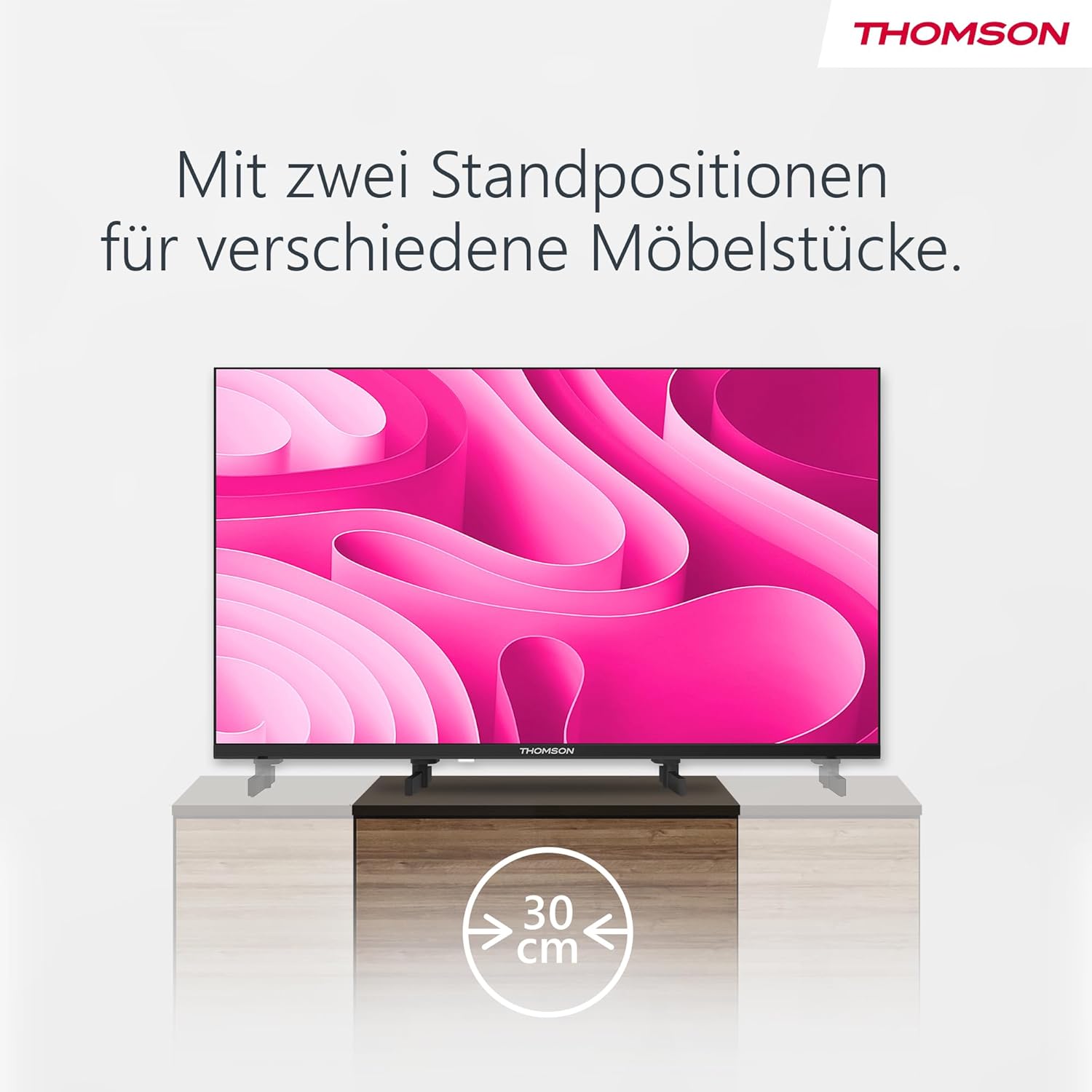
Figure 6.2: Google Cast allows seamless streaming from your devices.
6.4 Triple Tuner (DVB-T2/C/S2)
Your TV is equipped with a triple tuner, allowing reception of digital terrestrial (DVB-T2), cable (DVB-C), and satellite (DVB-S2) signals without an external set-top box. Use the channel scanning function in the settings menu to find available channels.
7. Audio and Video Settings
7.1 Picture Settings
Adjust picture settings to optimize your viewing experience:
- Picture Mode: Select from predefined modes (e.g., Standard, Vivid, Movie, Game) or customize your own.
- Brightness: Adjust the overall lightness or darkness of the image.
- Contrast: Controls the difference between the brightest and darkest parts of the image.
- Color: Adjusts the intensity of colors.
- Sharpness: Enhances the edges of objects in the picture.
7.2 Sound Settings
Enhance your audio experience with various sound settings:
- Dolby Audio: Experience dynamic and immersive sound with clear dialogue and rich details.
- Sound Mode: Choose from modes like Standard, Music, Movie, Speech, or customize with an equalizer.
- Balance: Adjust the volume balance between left and right speakers.
- Digital Audio Out: Configure the output format for external audio systems.

Figure 7.1: Enjoy enhanced audio with Dolby Audio technology.
8. Maintenance
Care and Cleaning
- Screen Cleaning: Gently wipe the screen with a soft, lint-free cloth. For stubborn marks, slightly dampen the cloth with water or a specialized screen cleaner (apply to cloth, not directly to screen).
- Cabinet Cleaning: Wipe the TV cabinet with a soft, dry cloth.
- Avoid Chemicals: Do not use strong detergents, abrasive cleaners, or solvents as they can damage the TV's finish.
- Unplug Before Cleaning: Always unplug the TV from the power outlet before cleaning.
9. Troubleshooting
Common Issues and Solutions
| Problem | Possible Solution |
|---|---|
| No power | Check if the power cable is securely connected to the TV and the wall outlet. Try a different outlet. |
| No picture, but sound is present | Ensure the correct input source is selected. Check cable connections to external devices. |
| No sound, but picture is present | Check volume level and mute status. Verify audio output settings if using external speakers. |
| Remote control not working | Replace batteries. Ensure there are no obstructions between the remote and the TV. Re-pair the Bluetooth remote if necessary. |
| Cannot connect to Wi-Fi | Check your router and modem. Ensure the Wi-Fi password is correct. Try restarting the TV and router. |
| Apps are slow or unresponsive | Close unused apps. Clear app cache in settings. Ensure a stable internet connection. Restart the TV. |
10. Specifications
Technical Specifications (Model: 32FG2S14)
- Screen Size: 32 Pollici (81 cm)
- Resolution: Full HD (1920x1080p)
- Display Technology: LED, Direct LED
- Refresh Rate: 60 Hz
- Aspect Ratio: 16:9
- Smart TV Platform: Google TV
- Special Features: Google TV, Voice Control, Streaming Services, Google Cast, HDR10
- Audio Technology: Dolby Audio
- Connectivity: Wi-Fi, Bluetooth 5.1, HDMI (multiple ports, including ARC), USB 2.0, Triple-Tuner (DVB-T2/C/S2), CI+, LAN, AV IN, Digital Optical Audio Out
- Product Dimensions (with stands): Approximately 72 cm (W) x 46 cm (H) x 15 cm (D)
- Weight: Approximately 4.5 kg

Figure 10.1: Product data sheet with detailed technical specifications.
11. Warranty and Support
Warranty Information
Thomson products are designed and manufactured to high-quality standards. This product is covered by a 3-year warranty from the date of purchase, covering manufacturing defects. Please retain your proof of purchase for warranty claims.
The warranty does not cover damage caused by misuse, accidents, unauthorized modifications, or normal wear and tear. For detailed warranty terms and conditions, please refer to the warranty card included with your product or visit the official Thomson support website.
Customer Support
If you encounter any issues that cannot be resolved using the troubleshooting guide in this manual, or if you require further assistance, please contact Thomson customer support. Contact details can typically be found on the official Thomson website or on your warranty card.


