
1. Introduction
This manual provides essential information for the proper setup, operation, and maintenance of your KTC H27F22 27-inch Full HD 180Hz Fast IPS Gaming Monitor. Please read this manual thoroughly before using the product to ensure optimal performance and safety.

Image: Front view of the KTC H27F22 monitor highlighting its key features: Fast IPS panel, 180Hz refresh rate, and 1ms response time.
2. Safety Information
Observe the following safety precautions to prevent damage to the monitor and ensure your safety:
- Do not expose the monitor to rain or moisture.
- Do not open the monitor casing; there are no user-serviceable parts inside.
- Place the monitor on a stable, flat surface to prevent it from falling.
- Ensure proper ventilation around the monitor to prevent overheating.
- Use only the power adapter supplied with the monitor.
- Disconnect the power cable during lightning storms or when unused for extended periods.
3. Package Contents
Verify that all items are present in your package:
- KTC H27F22 27-inch Gaming Monitor
- Monitor Stand (Base and Neck)
- Power Adapter and Cable
- HDMI Cable
- DisplayPort (DP) Cable
- User Manual
4. Setup
4.1 Stand Assembly
- Carefully remove the monitor from its packaging, keeping the screen protected.
- Attach the stand neck to the monitor panel.
- Secure the stand base to the stand neck using the provided screws.
- Place the assembled monitor on a stable desk.

Image: The KTC H27F22 monitor fully assembled with its stand.
4.2 Connecting the Monitor
Connect the necessary cables to your monitor and computer/device:
- Power Connection: Connect the power adapter to the monitor's DC input port, then plug the power cable into an electrical outlet.
- Video Connection: Connect one end of the HDMI or DisplayPort cable to the corresponding port on your computer's graphics card and the other end to the monitor's HDMI or DP input port. The monitor supports HDMI 2.1 and DisplayPort 1.4.
- Audio Output: For external audio, connect headphones or speakers to the 3.5mm earphone jack.

Image: A diagram illustrating the available input ports on the KTC H27F22 monitor, including DC power, HDMI 1, HDMI 2, DisplayPort, and earphone jack.
4.3 VESA Mounting
The monitor supports 100x100mm VESA mounting for alternative installation options (e.g., wall mount, monitor arm). Ensure the VESA mount is rated for the monitor's weight and size.

Image: A visual representation of the VESA mounting pattern (100x100mm) on the rear of the KTC H27F22 monitor.
5. Operating the Monitor
5.1 Power On/Off
Press the power button located on the monitor to turn it on or off. The power indicator light will illuminate when the monitor is active.
5.2 OSD Menu Navigation
The On-Screen Display (OSD) menu allows you to adjust various monitor settings. Use the joystick or buttons (depending on your model's design) typically located on the back or bottom of the monitor to navigate the menu.
5.3 Picture Settings
- Brightness: Adjusts the overall luminance of the screen.
- Contrast: Controls the difference between the brightest and darkest areas.
- Color Temperature: Selects predefined color settings (e.g., Warm, Cool, User).
- HDR: Enables or disables High Dynamic Range for enhanced contrast and color.

Image: The KTC H27F22 monitor showcasing its color capabilities, including 108% sRGB, HDR10 support, 300 nits brightness, and 1000:1 contrast ratio.
5.4 Gaming Settings
- Refresh Rate: The H27F22 supports up to 180Hz for smooth motion. Ensure your graphics card and cable support this rate.
- Response Time (MPRT): Adjusts the pixel response time to reduce motion blur. The monitor features a 1ms MPRT.
- Adaptive Sync (FreeSync): Enable this feature to synchronize the monitor's refresh rate with your graphics card's frame rate, eliminating screen tearing and stuttering.

Image: Visual representation of the 180Hz refresh rate, depicting smooth gameplay.

Image: Visual representation of the 1ms MPRT response time, ensuring clear motion.

Image: An illustration demonstrating how Adaptive-Sync technology eliminates screen tearing and stuttering for a smoother gaming experience.
5.5 Input Selection
Use the OSD menu to manually select the desired input source (HDMI 1, HDMI 2, or DisplayPort).
5.6 Visual Modes
The monitor offers various preset visual modes optimized for different content types, such as Game, Movie, Office, and sRGB. Select the mode that best suits your current activity.

Image: A collage illustrating different visual modes (Game, Movie, Office, sRGB) available on the monitor, each optimized for specific content.
6. Maintenance
6.1 Cleaning the Monitor
To clean the monitor screen, gently wipe it with a soft, lint-free cloth. For stubborn marks, dampen the cloth with a small amount of screen cleaner. Avoid using abrasive cleaners or spraying liquids directly onto the screen.
For the monitor casing, use a soft, dry cloth. Do not use strong detergents or solvents.
7. Troubleshooting
If you encounter issues with your monitor, refer to the following common problems and solutions:
- No Image/No Signal:
- Ensure the power cable is securely connected and the monitor is turned on.
- Verify that the video cable (HDMI/DP) is firmly connected to both the monitor and your computer.
- Check that the correct input source is selected in the monitor's OSD menu.
- Test with a different video cable or another device if possible.
- Flickering Screen:
- Ensure the video cable is properly connected.
- Adjust the refresh rate in your computer's display settings.
- Disable Adaptive Sync temporarily to see if the issue persists.
- Dead Pixels or Dim Areas:
- While rare, a small number of non-functioning pixels is inherent to LCD technology. If the issue is significant or affects usability, contact customer support.
- Image Distortion/Incorrect Colors:
- Reset the monitor to factory default settings via the OSD menu.
- Adjust color settings (brightness, contrast, color temperature) in the OSD.
If these steps do not resolve the issue, please contact KTC Customer Support.
8. Specifications
| Feature | Specification |
|---|---|
| Model Number | H27F22 |
| Screen Size | 27 Inches |
| Panel Type | Fast IPS |
| Resolution | 1920x1080 (Full HD) |
| Refresh Rate | 180Hz |
| Response Time | 1ms (MPRT) |
| Brightness | 300 cd/m² |
| Contrast Ratio | 1000:1 |
| Color Support | 16.7M colors, 108% sRGB |
| HDR Support | HDR10 |
| Adaptive Sync | Yes (FreeSync compatible) |
| Viewing Angle | 178° (H)/178° (V) |
| Connectivity | 2x HDMI 2.1, 1x DisplayPort 1.4, 1x Earphone Jack |
| VESA Mount | 100x100mm |
| Tilt Adjustment | -5° to 15° |
| Product Dimensions | 4 x 24 x 18 inches |
| Item Weight | 16.07 pounds |
9. Warranty Information
KTC monitors are covered by a manufacturer's warranty. Please refer to the warranty card included in your package or visit the official KTC website for detailed warranty terms and conditions specific to your region. Keep your proof of purchase for warranty claims.
10. Customer Support
For further assistance, technical support, or warranty inquiries, please contact KTC Customer Support. You can typically find contact information on the KTC official website or through the retailer where you purchased the product.
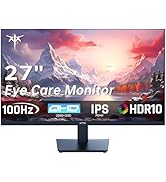
Image: Steps to access customer support, including purchasing from an official seller and using the seller messaging assistant for inquiries.


