
TP-Link Festa F52
TP-Link Festa F52 AC1350 Wireless Access Point User Manual
Model: Festa F52
1. Introduction
The TP-Link Festa F52 AC1350 Wireless MU-MIMO Gigabit Ceiling Mount WiFi 5 Access Point is designed to provide fast and reliable wireless connectivity for various environments, including businesses and large homes. It offers high-speed dual-band Wi-Fi, seamless mesh capabilities, and flexible management options through the Festa app and cloud platform.

Figure 1.1: TP-Link Festa F52 Wireless Access Point
2. Product Features
- Superior Speeds with MU-MIMO: Delivers dual-band Wi-Fi speeds up to 1350 Mbps (867 Mbps on 5GHz and 450 Mbps on 2.4GHz) to multiple devices simultaneously using 802.11ac Wave 2 MU-MIMO technology.
- Gigabit Ports: Equipped with a high-speed Gigabit Ethernet port for fast wired connections.
- Free Centralized Cloud Management: Remote cloud access via the Festa app or web provides essential features for small businesses, accessible at no cost from a single interface anywhere, anytime.
- Advanced Wireless Technologies: Supports Mesh WiFi, Seamless Roaming, Band Steering, Load Balancing, Airtime Fairness, and Beamforming.
- Multiple Powering Options: Supports 802.3af PoE and 24V Passive PoE, allowing power via a TP-Link PoE switch or the provided Passive PoE adapter for flexible deployment.
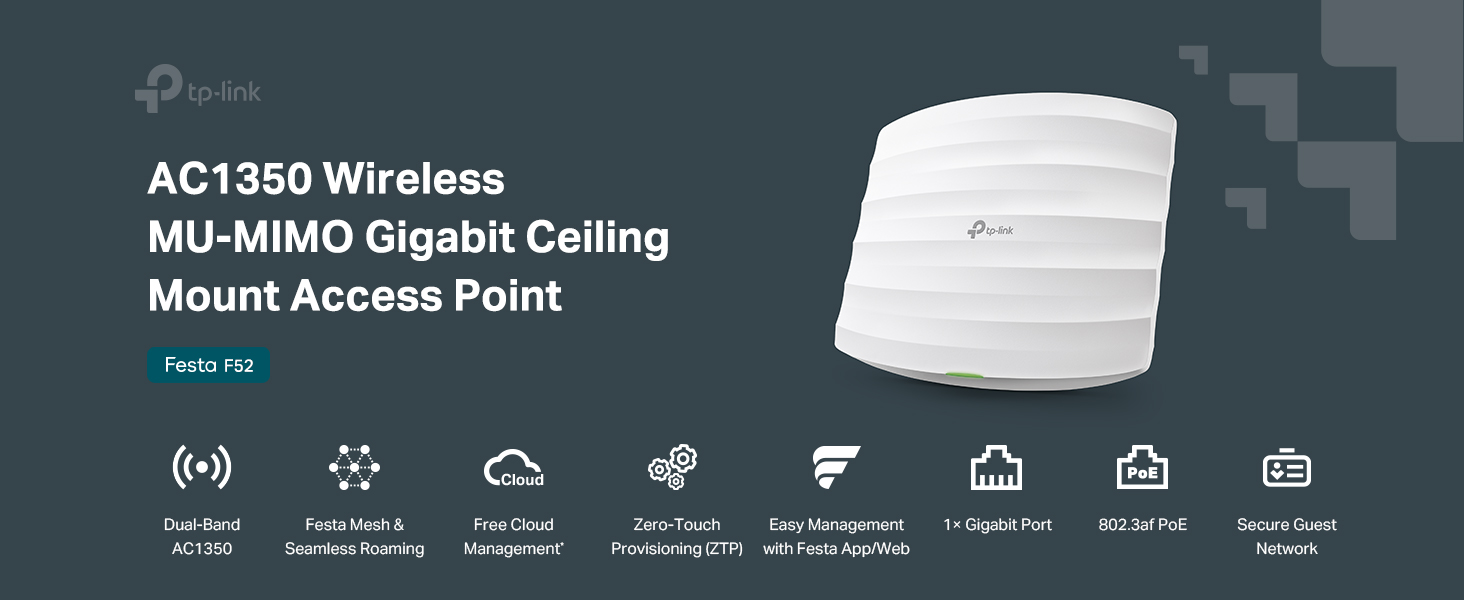
Figure 2.1: Key Features of Festa F52
3. What's in the Box
The following items are included in the Festa F52 package:
- Festa F52 Access Point
- PoE Adapter
- Ceiling/Wall Mounting Kit
- Installation Guide
- Power Cord

Figure 3.1: Festa F52 Product Packaging
4. Physical Overview
Familiarize yourself with the physical components and dimensions of the Festa F52 Access Point.

Figure 4.1: Bottom View with Gigabit Ethernet Port and Reset Button
- Gigabit Ethernet Port: Supports 802.3af PoE or 24V Passive PoE for power and data connection.
- Reset Button: Used to restore the device to factory default settings.
- Dimensions: Approximately 8.09 x 7.15 x 1.47 inches (LxWxH).
5. Setup Guide
The Festa F52 is designed for effortless deployment with Zero-Touch Provisioning and flexible powering options.
5.1 Powering the Device
The Festa F52 can be powered using either 802.3af PoE or 24V Passive PoE.
- Using a PoE Switch: Connect the Festa F52 to an 802.3af compliant PoE switch using a single Ethernet cable.
- Using the Provided Passive PoE Adapter: Connect the Festa F52 to the PoE adapter, and then connect the adapter to your network and a power source.
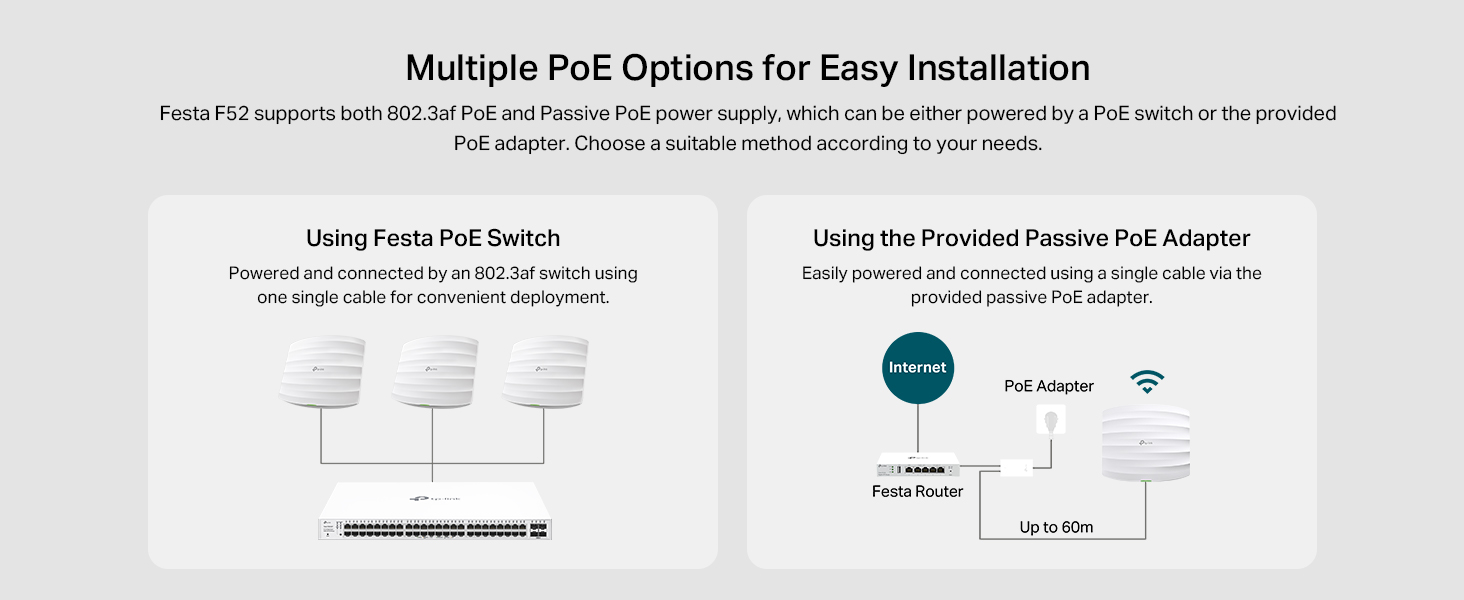
Figure 5.1: Powering Options for Festa F52
5.2 Network Deployment
The Festa F52 integrates seamlessly into a network, supporting mesh configurations for extended coverage.

Figure 5.2: Example Deployment Scenario
5.3 Management and Configuration
The Festa F52 can be easily set up and managed via the Festa app or a web interface.
- Festa App: For convenient setup and on-the-go network management. Features include Zero-Touch Provisioning, Topology View, Portal Authentication, Network Tools, Guest Network, VLAN Settings, Rate Limit, Fast Roaming, and Mesh. Download the app from https://download-app.tp-link.com?app=festa.
- Web Interface: For full onsite/remote management of your Festa network. Features include Unlimited Management Scale, Topology and Heat Map View, Portal Authentication (Password & Voucher & Form Auth), Batch Configuration, Network Security, VPN, and more.

Figure 5.3: Festa App and Web Management Interface
6. Operating Instructions
The Festa F52 is designed to provide a robust and seamless wireless experience.
6.1 Seamless Roaming
When multiple Festa F52 access points are deployed, they work together to create a seamless roaming experience. This allows users to move freely throughout the coverage area without experiencing dropped connections as their devices automatically switch between access points.

Figure 6.1: Seamless Roaming in Action
6.2 Advanced Wireless Technologies
The Festa F52 incorporates several advanced technologies to optimize wireless performance:
- MU-MIMO: Multi-User, Multiple-Input, Multiple-Output technology allows the access point to communicate with multiple devices simultaneously, improving overall network efficiency.
- Beamforming: Focuses Wi-Fi signals towards connected devices, improving signal strength and range.
- Band Steering: Automatically directs dual-band capable devices to the less congested 5GHz band for better performance.
- Load Balancing: Distributes client connections across multiple access points to prevent any single AP from becoming overloaded.
- Airtime Fairness: Ensures that slower devices do not monopolize airtime, allowing faster devices to transmit data more efficiently.
7. Maintenance
To ensure optimal performance and longevity of your Festa F52 Access Point, follow these general maintenance guidelines:
- Keep Clean: Regularly wipe the device with a soft, dry cloth to remove dust. Avoid using liquid cleaners or aerosols.
- Proper Ventilation: Ensure the device is placed in an area with adequate airflow to prevent overheating. Do not block ventilation openings.
- Firmware Updates: Check the TP-Link website or Festa app periodically for firmware updates. Keeping the firmware updated ensures the best performance and security.
- Environmental Conditions: Operate the device within its specified temperature and humidity ranges.
8. Troubleshooting
This section provides solutions to common issues you might encounter with your Festa F52 Access Point.
8.1 No Internet Connection / Wi-Fi Not Broadcasting
- Check Power: Ensure the Festa F52 is properly powered, either via PoE or the provided adapter. The LED indicator should be on.
- Check Ethernet Cable: Verify that the Ethernet cable connecting the access point to your network (router/switch) is securely plugged in and not damaged.
- Router/Switch Status: Confirm that your main router or network switch is functioning correctly and providing internet access.
- Restart Devices: Power cycle the Festa F52, your router/switch, and any connected devices.
8.2 Slow Wi-Fi Speed
- Interference: Move the access point away from potential sources of interference such as microwaves, cordless phones, or large metal objects.
- Channel Congestion: Use the Festa app or web interface to check for Wi-Fi channel congestion and switch to a less crowded channel.
- Device Compatibility: Ensure your client devices support 802.11ac and MU-MIMO for optimal performance.
- Signal Strength: Check the signal strength on your devices. If the signal is weak, consider adding more Festa F52 units for better coverage.
8.3 Cannot Access Management Interface
- Network Connection: Ensure your device (phone/computer) is connected to the same network as the Festa F52.
- App/Browser Issues: Try restarting the Festa app or clearing your web browser's cache and cookies.
- Cloud Connectivity: Management is primarily cloud-based via the Festa app or web portal. Ensure your network has internet access for cloud management. Direct local access for configuration of Wi-Fi security settings or SSID passwords is not the primary method; these are managed centrally through the cloud platform.
- Reset Device: As a last resort, press and hold the reset button on the Festa F52 for approximately 5-10 seconds until the LED behavior changes, then release. This will restore factory defaults, and you will need to reconfigure the device.
9. Specifications
Detailed technical specifications for the TP-Link Festa F52 Access Point.
| Feature | Description |
|---|---|
| Model Name | Festa F52 |
| Wireless Type | 802.11n, 802.11b, 802.11a, 802.11ac, 802.11g |
| Frequency Band Class | Dual-Band (2.4 GHz & 5 GHz) |
| Wireless Speed | Up to 1350 Mbps (450 Mbps on 2.4GHz, 867 Mbps on 5GHz) |
| Connectivity Technology | Ethernet |
| Ports | 1x Gigabit Ethernet Port |
| Powering Options | 802.3af PoE, 24V Passive PoE |
| Voltage | 24 Volts (DC) |
| Dimensions (LxWxH) | 8.09 x 7.15 x 1.47 inches |
| Item Weight | 12.6 ounces |
| Color | White |
| Manufacturer | TP-Link |
| Country of Origin | Vietnam |
| Compatible Devices | Security Camera, Personal Computer, Smartphone |
| Recommended Uses | Home, Business |
10. Warranty and Support
TP-Link provides comprehensive support for its products. For detailed warranty information, technical support, and additional resources, please visit the official TP-Link website or contact their customer service.
- Official Website: For the latest drivers, firmware, and support documentation, visit www.tp-link.com.
- TP-Link Store: Explore other TP-Link products and solutions at the official Amazon store: TP-Link Amazon Store.
- Customer Support: Refer to the contact information provided in your product packaging or on the TP-Link website for direct support.
Related documentsFesta F52


Ask a question about this manual
Ask about setup, troubleshooting, compatibility, parts, safety, or missing instructions. Manuals+ will review the question and use this page’s manual context to help answer it.