
1. Introduction
Thank you for choosing the LOFREE Zero ARTZ Mechanical Keyboard and Terrazzo Mouse combo. This manual provides essential information for setting up, operating, and maintaining your new devices. The Zero ARTZ keyboard features a 75% layout, hot-swappable switches, and versatile connectivity options including Bluetooth, 2.4GHz wireless, and USB-C. The accompanying Terrazzo Mouse offers dual-mode connectivity and adjustable DPI settings for enhanced productivity.

Image: The LOFREE Terrazzo Mouse, featuring its unique speckled design.
2. Package Contents
Please ensure all items are present in your package:
- LOFREE Zero ARTZ Mechanical Keyboard
- LOFREE Terrazzo Mouse
- USB-C to USB-A Cable
- 2.4GHz Wireless Receiver
- Keycap Puller (for hot-swappable switches)
- Switch Puller (for hot-swappable switches)
- User Manual (this document)
3. Setup
3.1 Charging the Devices
Both the keyboard and mouse are equipped with rechargeable batteries. Before first use, it is recommended to fully charge both devices.
- Connect the provided USB-C cable to the charging port on the keyboard and mouse.
- Connect the other end of the USB-C cable to a USB power adapter (not included) or a computer's USB port.
- The charging indicator light will illuminate during charging and turn off or change color when fully charged.
3.2 Keyboard Connectivity
The Zero ARTZ keyboard supports three connection modes: Bluetooth, 2.4GHz Wireless, and USB-C wired.
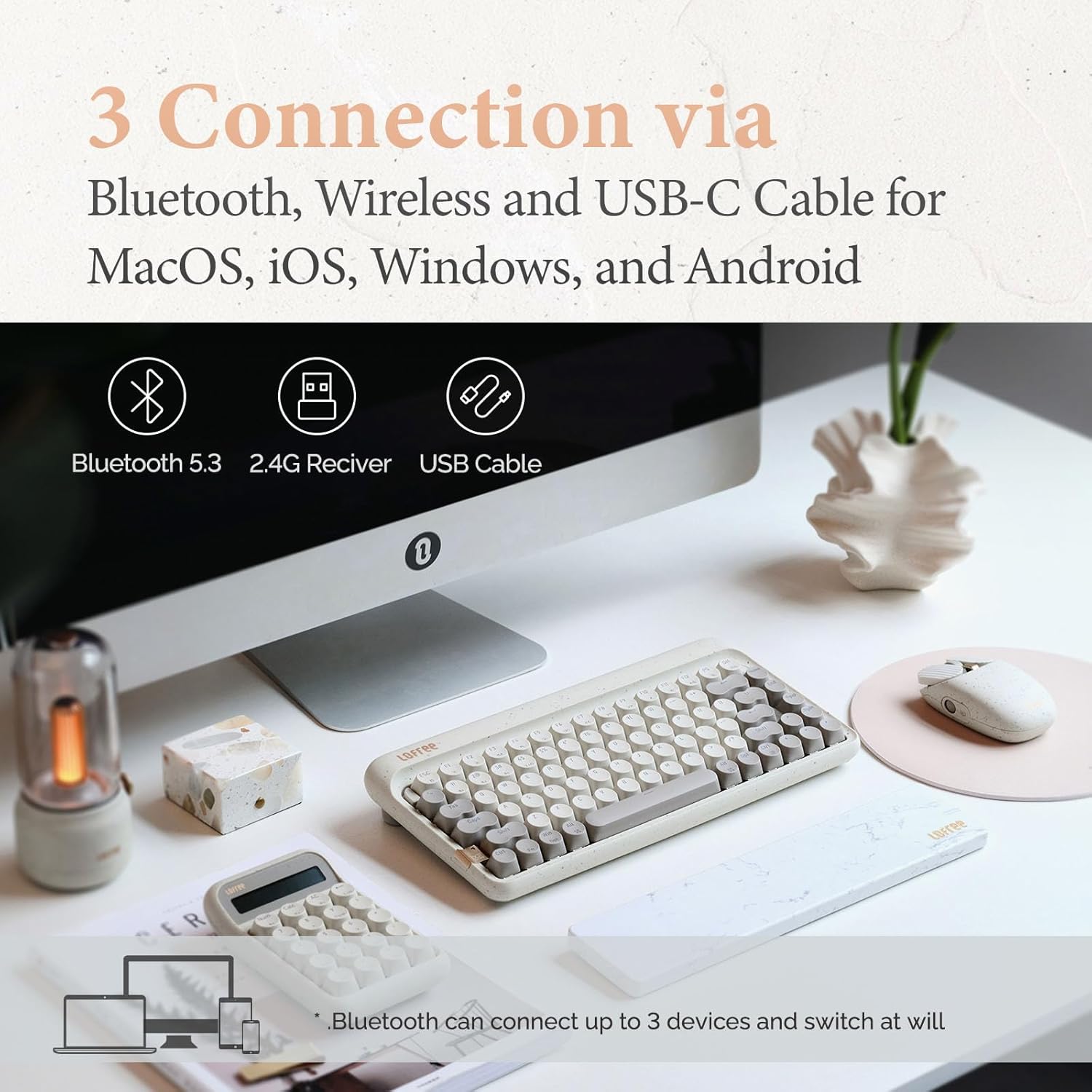
Image: Illustration showing the three connection methods: Bluetooth 5.3, 2.4G Receiver, and USB Cable, compatible with MacOS, iOS, Windows, and Android.
3.2.1 Bluetooth Connection
- Locate the mode switch on the keyboard and set it to 'BT' (Bluetooth).
- Press and hold Fn + 1, Fn + 2, or Fn + 3 for 3-5 seconds until the indicator light flashes rapidly, indicating pairing mode. The keyboard can store up to three Bluetooth devices.
- On your device (computer, tablet, smartphone), enable Bluetooth and search for 'LOFREE Zero ARTZ'.
- Select the keyboard to pair. The indicator light will stop flashing once connected.
- To switch between paired Bluetooth devices, press Fn + 1, Fn + 2, or Fn + 3 briefly.
3.2.2 2.4GHz Wireless Connection
- Locate the mode switch on the keyboard and set it to '2.4G'.
- Insert the 2.4GHz wireless receiver into an available USB port on your computer.
- The keyboard should automatically connect. If not, press Fn + 4 to initiate pairing.
3.2.3 USB-C Wired Connection
- Locate the mode switch on the keyboard and set it to 'USB'.
- Connect the provided USB-C cable from the keyboard to your computer's USB port.
- The keyboard will be recognized as a standard USB device and is ready for use.
3.3 Mouse Connectivity
The Terrazzo Mouse supports dual-mode connection: Bluetooth and 2.4GHz Wireless.
3.3.1 Bluetooth Connection
- Locate the mode switch on the bottom of the mouse and set it to 'BT'.
- Press and hold the Bluetooth pairing button (usually near the mode switch) for 3-5 seconds until the indicator light flashes.
- On your device, enable Bluetooth and search for 'LOFREE Terrazzo Mouse'.
- Select the mouse to pair. The indicator light will stop flashing once connected.
- The mouse can connect to 2 devices simultaneously. Use the pairing button to switch between them.
3.3.2 2.4GHz Wireless Connection
- Locate the mode switch on the bottom of the mouse and set it to '2.4G'.
- Insert the 2.4GHz wireless receiver into an available USB port on your computer.
- The mouse should automatically connect.
4. Operating Instructions
4.1 Keyboard Functions
The Zero ARTZ keyboard is designed for optimal typing experience with a gasket mount structure and 1000Hz polling rate.

Image: Exploded view of the LOFREE keyboard showing the Gasket Mount, Keycaps, Switches, Gasket Pad, Poron, PCBA IXPE Foam, EVA Foam, EVA Pad, Upper Case, and Bottom Case layers.
4.1.1 Function Key Combinations (Fn)
Use the Fn key in combination with other keys to access special functions:
- Fn + 1/2/3: Switch between Bluetooth devices.
- Fn + 4: Activate 2.4GHz wireless pairing.
- Fn + Q/W/E/R: (Specific to some models) Switch between operating system layouts (e.g., Mac/Windows). Refer to the keycap legends for specific OS modes.
- Fn + F1-F12: Multimedia and system control keys (e.g., volume, playback, screen brightness). The specific functions are indicated by icons on the keycaps.
4.1.2 Operating System Compatibility
The keyboard is compatible with MacOS, iOS, Windows, and Android. Ensure the correct operating system mode is selected if available, typically via a switch or Fn key combination, to ensure proper key mapping.

Image: A user typing on the LOFREE keyboard, highlighting the 1000Hz Polling Rate for responsive input.
4.2 Mouse Functions
The Terrazzo Mouse features an ergonomic design and adjustable sensitivity.

Image: A hand comfortably resting on the LOFREE Terrazzo Mouse, demonstrating its ergonomic design.
4.2.1 DPI Adjustment
The mouse offers 5 adjustable DPI levels to suit different preferences and tasks. Press the DPI button (usually located on the top or bottom of the mouse) to cycle through the available DPI settings. The indicator light may change color or flash to indicate the current DPI level.
4.2.2 Thumb Wheel and Button
The mouse includes a thumb wheel and an additional button for multi-gesture use, enhancing navigation and productivity. Refer to your operating system's mouse settings for customization options.
5. Maintenance
5.1 Cleaning
To maintain the appearance and functionality of your devices:
- Use a soft, dry, lint-free cloth to wipe the surfaces of the keyboard and mouse.
- For stubborn dirt, slightly dampen the cloth with water or a mild, non-abrasive cleaner. Avoid excessive moisture.
- To clean between keycaps, use compressed air or a small brush.
5.2 Hot-Swappable Switches
The Zero ARTZ keyboard features hot-swappable switches, allowing for easy replacement without soldering.
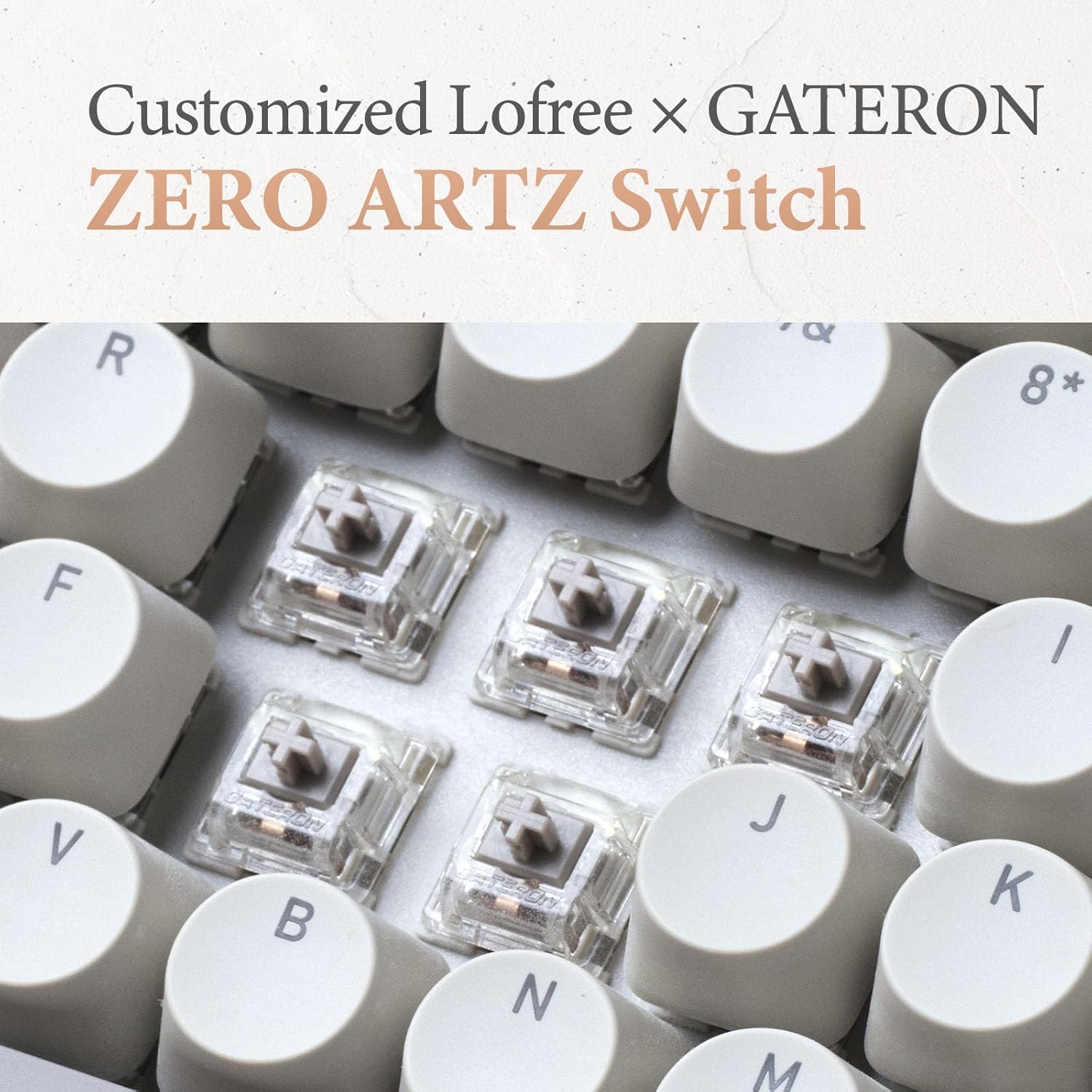
Image: Close-up of the customized LOFREE x GATERON ZERO ARTZ switches installed in the keyboard.
- Use the provided keycap puller to carefully remove the desired keycap.
- Use the provided switch puller to gently grip the switch from its top and bottom clips, then pull it straight up to remove.
- Align the pins of the new switch with the holes on the PCB and press it down firmly until it clicks into place. Ensure the pins are not bent.
- Replace the keycap.
5.3 Battery Care
To prolong battery life:
- Avoid fully discharging the battery frequently.
- Store the devices in a cool, dry place when not in use for extended periods.
- Recharge the devices when the low battery indicator appears. The mouse has an approximate 50-day battery life on a single charge, depending on usage.
6. Troubleshooting
6.1 Connectivity Issues
- Device not connecting via Bluetooth: Ensure the keyboard/mouse is in pairing mode. Check your device's Bluetooth settings and try re-pairing. Ensure no other devices are interfering.
- 2.4GHz wireless not working: Ensure the 2.4GHz receiver is securely plugged into a USB port. Try a different USB port. Ensure the keyboard/mouse is set to 2.4G mode.
- Wired connection issues: Ensure the USB-C cable is properly connected to both the keyboard and the computer. Try a different USB-C cable or port.
6.2 Keyboard/Mouse Not Responding
- Check battery levels and recharge if necessary.
- Ensure the correct connection mode (Bluetooth, 2.4G, USB) is selected on the device.
- Restart your computer or device.
- For the keyboard, ensure the correct operating system mode (Mac/Windows) is selected.
6.3 DPI Adjustment Not Working (Mouse)
- Ensure the mouse is powered on and connected.
- Press the DPI button firmly. If there's no visual indicator, try moving the mouse after each press to feel the change in sensitivity.
7. Specifications
| Feature | Detail |
|---|---|
| Brand | LOFREE |
| Model | Zero ARTZ |
| Keyboard Layout | 75% QWERTY |
| Connectivity Technology | Bluetooth 5.3, 2.4GHz Wireless, USB-C Wired |
| Compatible Devices | Laptop, Personal Computer, Smartphone, Tablet (Windows, Mac OS, iOS, Android) |
| Power Source | Battery Powered (Rechargeable) |
| Keyboard Polling Rate | 1000Hz |
| Keyboard Switches | Customized LOFREE x GATERON ZERO ARTZ (Linear) |
| Keyboard Keycaps | Dual Color PBT |
| Mouse DPI Levels | 5 Adjustable Levels |
| Mouse Battery Life | Approx. 50 days (depending on usage) |
| ASIN | B0DKJB48FR |
| Date First Available | October 22, 2024 |
8. Warranty and Support
LOFREE products are covered by a limited warranty. For detailed warranty information, please refer to the warranty card included with your product or visit the official LOFREE website. If you encounter any issues or require technical assistance, please contact LOFREE customer support through their official channels.
- Official LOFREE Website: www.lofree.co
- Customer Support Email: Refer to the product packaging or website for current contact information.

