
1. Introduction
This manual provides detailed instructions for the installation, operation, and maintenance of your AWESAFE 11.5-inch Touch Screen Car Radio Stereo. This unit is designed to enhance your driving experience with advanced features like Apple CarPlay, Android Auto, GPS navigation, and a user-friendly interface. Please read this manual thoroughly before installation and use to ensure proper functionality and safety.
2. Safety Information
- Professional Installation Recommended: Due to the complexity of vehicle electrical systems, professional installation is highly recommended.
- Disconnect Battery: Always disconnect the vehicle's battery before beginning any electrical installation to prevent short circuits and damage.
- Proper Wiring: Ensure all wiring connections are secure and correctly matched according to the wiring diagrams. Incorrect wiring can cause damage to the unit or vehicle.
- Driving Safety: Do not operate the unit in a way that distracts you from driving. Always prioritize road safety.
- Ventilation: Ensure the unit has adequate ventilation and is not obstructed by other components.
3. Package Contents
Verify that all items listed below are included in your package:
- AWESAFE 11.5-inch Car Radio Stereo Unit
- Power Cable
- Microphone
- GPS Module
- 4-pin USB Cable
- 6-pin USB Cable
- Can Bus Decoder
- RCA Cable Set
- Reversing Line (for optional reversing radar/camera)
- USB Cable (additional)
- Screwdriver
- Crowbar (Pry Tool)
- Antenna Adapter Cable

4. Setup & Installation
This unit is compatible with Chevy Silverado and GMC Sierra models from 2014-2018. Installation involves removing the factory radio, transferring climate controls, connecting wiring harnesses, and securing the new head unit.
4.1 Pre-Installation Checks
- Vehicle Compatibility: Confirm your vehicle is a Chevy Silverado or GMC Sierra (2014-2018).
- Factory Plug Verification: If your car's factory plug and interface differ from standard, an additional power harness may be required. Contact customer service for assistance.
- CAN Bus Connection: Ensure the CAN bus decoder is correctly connected to the 20-pin plug. The unit will not power on without this connection.

4.2 General Installation Steps
- Remove Factory Unit: Carefully remove the existing car radio and dashboard trim.
- Transfer Climate Controls: Detach the climate control module from the old unit and secure it into the new AWESAFE head unit's frame.
- Connect Wiring Harnesses: Connect the provided wiring harnesses to the vehicle's existing connectors. Ensure the green plug from the vehicle's original wiring is connected to the adapter provided with the new head unit.
- Connect Peripherals: Attach the GPS module, microphone, USB cables, and antenna adapter.
- Secure Head Unit: Carefully slide the new head unit into the dashboard opening and secure it with screws/bolts.
- Test Functionality: Before reassembling all trim pieces, reconnect the battery and test all functions of the new head unit (power, audio, climate controls, steering wheel controls, etc.).
- Reassemble Trim: Once all functions are verified, reattach the dashboard trim. Note: The trim piece must go behind the head unit.

4.3 Installation Video Guide
For a visual guide on the installation process, please refer to the official installation video:
5. Operating Instructions
5.1 User Interface & Navigation
The unit features an intuitive interface with a large 11.5-inch touchscreen. Navigate through functions, switch apps, and adjust settings effortlessly. Steering wheel controls are also supported for convenient operation while driving.
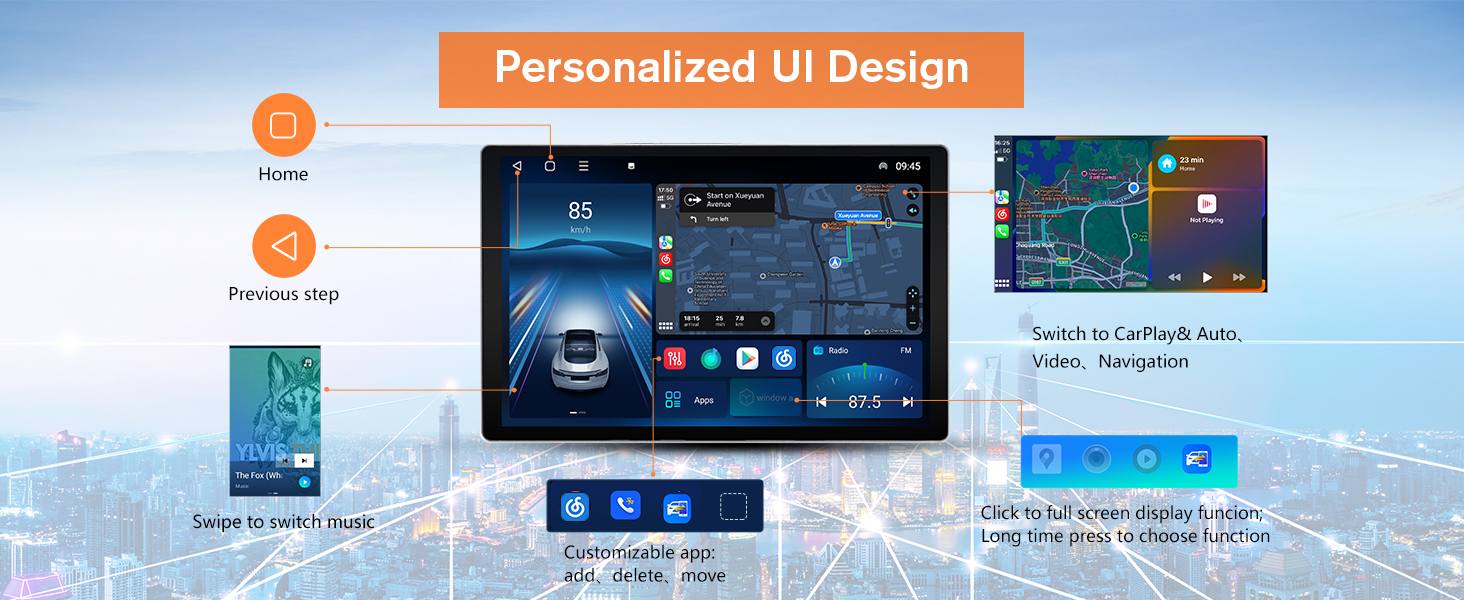
5.2 Apple CarPlay & Android Auto
Connect your smartphone to access Apple CarPlay or Android Auto for seamless integration of navigation, music, calls, and messages directly on the car's display.

5.3 GPS Navigation
The built-in GPS module supports both online and offline maps, providing precise turn-by-turn guidance. For offline map installation assistance, contact customer service.

5.4 Bluetooth Connectivity
Connect your phone via Bluetooth for hands-free calling and wireless audio streaming.

5.5 FM Radio
Tune into your favorite FM radio stations with clear reception.

5.6 Split Screen Functionality
Utilize the split-screen feature to run two applications simultaneously, such as navigation and music playback.

5.7 Day and Night Mode
The display automatically adjusts brightness and color schemes for optimal visibility during day and night driving conditions.

6. Features Overview
- 11.5-inch Touch Screen: Large display with 1920*2000 resolution for improved navigation and entertainment.
- Enhanced Smart-Driving Experience: Access various apps directly from the built-in app store.
- Powerful Processor: Equipped with a 4-Core CPU, 2GB RAM, and 64GB ROM for smooth performance.
- Built-in DSP & 48 EQ: Adjustable sound field, effects, and surround sound for richer bass, smoother treble, and clearer midrange.
- Steering Wheel Support: Seamless integration with your vehicle's original steering wheel controls.


7. Maintenance
- Screen Cleaning: Use a soft, lint-free cloth to clean the touchscreen. Avoid abrasive cleaners or solvents.
- Software Updates: Periodically check for software updates to ensure optimal performance and access to new features. Updates can typically be found through the unit's settings or the manufacturer's website.
- Cable Management: Ensure all cables are neatly tucked away and not pinched or exposed to excessive heat or moisture.
8. Troubleshooting
8.1 Common Issues and Solutions
- Unit Not Powering On:
- Check battery connection.
- Ensure the CAN bus is correctly connected to the 20-pin plug. - No Sound:
- Verify speaker wire connections.
- Check amplifier connections if an external amplifier is used.
- Ensure volume is not muted or set too low. - GPS Not Working:
- Ensure the GPS module is properly connected and has a clear view of the sky.
- Check map data installation. - CarPlay/Android Auto Connectivity Issues:
- Ensure your phone's operating system is up to date.
- Try a different USB cable if using a wired connection.
- Restart both the head unit and your phone. - Steering Wheel Controls Not Responding:
- Verify the CAN bus connection and settings within the head unit's interface.
If you encounter issues not covered here, please contact AWESAFE customer support.
9. Specifications
| Feature | Specification |
|---|---|
| Brand | AWESAFE |
| Model Name | B0DKFJZVLX |
| Applicable Car Models | Chevy Silverado 2014-2018; GMC Sierra 2014-2018 |
| Screen Size | 11.5 Inches |
| Display Type | Touch Screen (Capacitive) |
| Operating System | Android |
| Connectivity Technology | USB |
| Special Feature | Touchscreen |
| Map Type | North America (Supports online/offline maps) |
| Included Components | Car radio, wiring harnesses, GPS module, microphone, USB cables, tools |
10. Warranty and Support
AWESAFE is committed to providing excellent customer service and support for your product.
- Warranty: This product comes with a 12-month warranty from the date of purchase.
- Return Policy: Enjoy a 30-day hassle-free return and exchange policy.
- Customer Support: Dedicated one-on-one customer support and after-sales technical assistance are available for installation and operational issues.
For support, please visit the AWESAFE Store on Amazon or contact their customer service directly.
