
1. Introduction
This manual provides detailed instructions for the installation, operation, and maintenance of your TMEZON MZ-IP-V728TW 4-Wire WiFi Video Intercom System. Please read this manual thoroughly before installation and use to ensure proper function and safety. This system is designed to enhance security and communication for single or dual-family residences.

Image 1.1: Overview of the TMEZON MZ-IP-V728TW Video Intercom System components, including two indoor monitors, an outdoor doorbell camera, and RFID key fobs.
2. Product Overview
2.1 Key Features
- Single/Dual Family Configuration: Supports two indoor monitors and one doorbell with two buttons. Configurable for single-family use (second monitor as slave) or dual-family use (two independent master IP monitors).
- 1080P Outdoor Video Doorbell Camera: Features an IP65 waterproof outdoor camera with an integrated infrared sensor, 125° wide-angle view, and night vision capabilities. The camera is powered by the indoor monitor and supports connection to electronic locks.
- 7-inch IP Indoor Monitor: Provides a clear display for viewing visitors and managing system functions.
- WiFi Connectivity with TuyaSmart App: Connects to a 2.4 GHz Wi-Fi network, enabling remote viewing, two-way communication, and door unlocking via the TuyaSmart mobile application.
- Motion Detection and Automatic Recording: Automatically captures photos or records video when the doorbell is pressed or motion is detected. Recordings are saved to a Micro SD card (up to 128GB, FAT32 format required).
- 3-in-1 Unlocking Methods: Unlock the door using the indoor monitor, the mobile application, or the included RFID cards.
- Two-Way Audio and Voice Message Function: Facilitates clear two-way communication with visitors. If unanswered, the system automatically enters voice message mode.
- 4-Wire Wired Connection: Requires a 4-wire connection between the monitor and the doorbell. A 1-meter test cable is provided, with extension possible up to 80 meters (cable quality is critical).
2.2 Components
The TMEZON MZ-IP-V728TW system typically includes:
- Outdoor Doorbell Camera Unit
- Indoor Monitor Units (x2)
- Power Adapters for Monitors
- Mounting Brackets and Screws
- RFID Key Fobs (x8)
- 1-meter Test Cable
- User Manual
3. Setup and Installation
3.1 Wiring Diagram
The system requires a 4-wire connection between the indoor monitor(s) and the outdoor doorbell camera. Ensure all connections are secure and correctly aligned. The monitor uses a separate 2-wire power adapter.

Image 3.1: Illustration of connecting two electronic locks to the TMEZON video intercom system. This diagram shows the doorbell unit connected to an electronic gate lock and an electronic door lock, indicating the system's capability to control multiple access points.
3.2 Micro SD Card Installation
Before installing a Micro SD card (not included) for recording, format it to FAT32 on a computer. The system supports up to 128GB Micro SD cards.
3.3 TuyaSmart App Connection
- Download the TuyaSmart application from your mobile device's app store.
- Ensure your mobile device is connected to a 2.4 GHz Wi-Fi network.
- Follow the in-app instructions to add your TMEZON monitor to the application. This typically involves putting the monitor into pairing mode and scanning a QR code or entering a device ID.
4. Operating Instructions
4.1 Live View and Remote Unlocking via App
Once connected to the TuyaSmart app, you can remotely view the doorbell camera feed and unlock the door from your smartphone.

Image 4.1: The TuyaSmart app on a smartphone showing a live view from the doorbell camera and an option to remotely unlock the door. This feature allows users to manage access from anywhere.
4.2 Two-Way Audio Communication
The system supports two-way audio, allowing you to speak with visitors at your door through the indoor monitor or the TuyaSmart app.

Image 4.2: A user interacting with the indoor monitor, which displays a visitor. Speech bubbles illustrate the two-way audio feature, enabling conversation between the resident and the visitor.
4.3 Motion Detection and Recording
The doorbell camera features motion detection. When motion is detected or the doorbell is pressed, the system automatically records video or captures images to the installed Micro SD card.

Image 4.3: A visual representation of the motion detection feature. A delivery person is shown walking near the doorbell, triggering a notification on a smartphone, demonstrating the system's ability to alert users to activity.
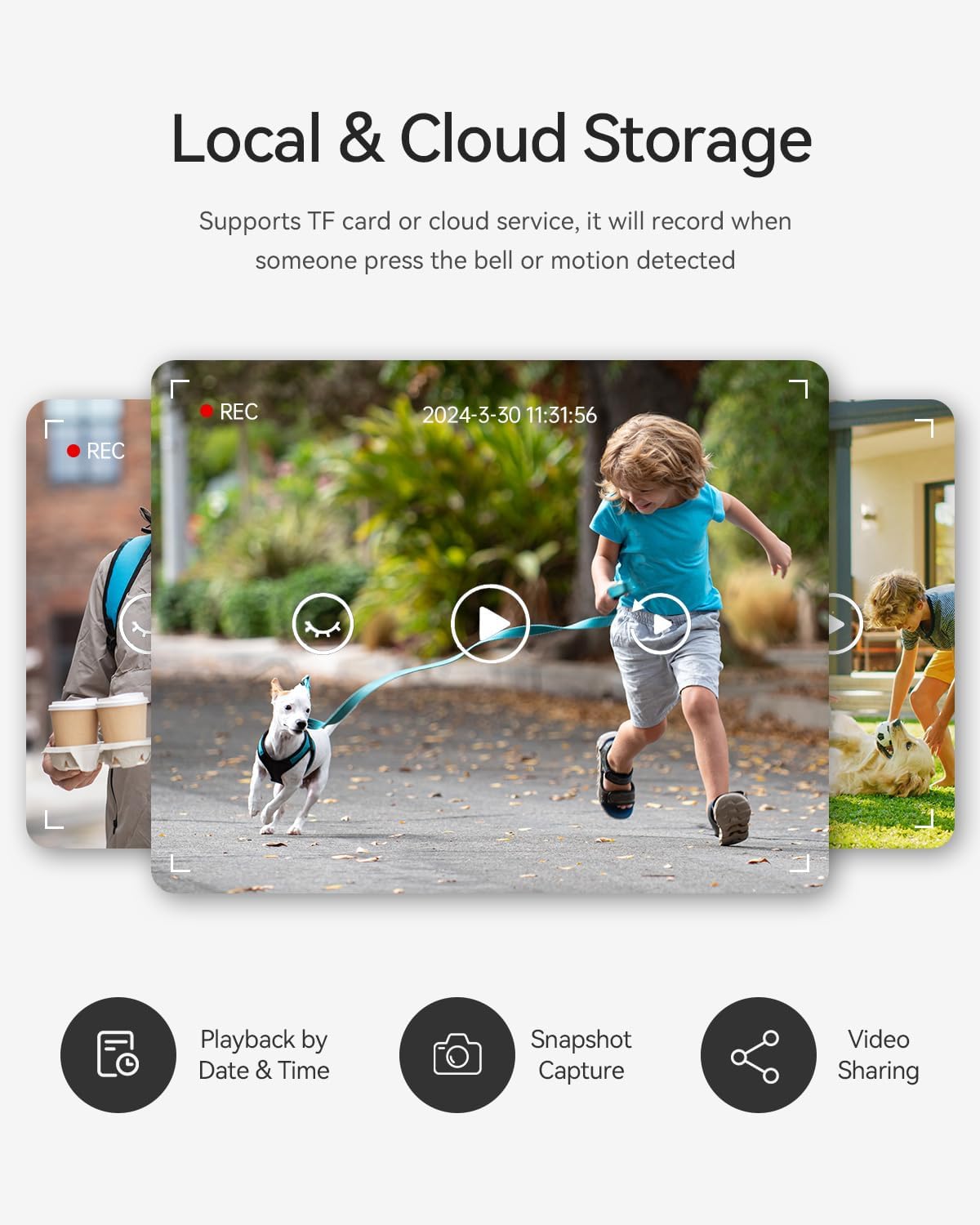
Image 4.4: A collage of images illustrating the local and cloud storage capabilities. It shows playback by date and time, snapshot capture, and video sharing options for recorded events, highlighting the system's recording management features.
4.4 RFID Card Unlocking
Use the provided RFID cards to unlock the door by tapping them against the designated area on the outdoor doorbell unit.

Image 4.5: A hand is shown using an RFID key fob to unlock the door via the outdoor doorbell unit. This demonstrates one of the convenient access methods provided by the system.
4.5 Voice Message Function
If a visitor presses the doorbell and no one answers within a set time, the system automatically enters voice message mode, allowing the visitor to leave a message.

Image 4.6: A person's finger is shown pressing the doorbell button. A speech bubble next to the doorbell indicates that a voice message is being left, illustrating the system's automatic voice message feature when a call goes unanswered.
4.6 Image Preview on Monitor
The indoor monitor supports image preview, allowing you to review captured images and recorded videos directly on the screen.

Image 4.7: A person is holding the indoor monitor, which displays a grid of thumbnail images and video previews. This demonstrates the monitor's capability to review recorded content directly.
5. Maintenance
- Cleaning: Use a soft, dry cloth to clean the monitor and doorbell camera. Avoid abrasive cleaners or solvents.
- Outdoor Unit: The outdoor unit is IP65 waterproof, but avoid directing high-pressure water jets directly at it. Regularly check for any obstructions to the camera lens or microphone.
- Software Updates: Periodically check the TuyaSmart app for any available firmware updates for your intercom system to ensure optimal performance and security.
- Cable Integrity: Inspect wiring periodically for any signs of wear or damage, especially for outdoor runs.
6. Troubleshooting
- No Video/Audio: If you experience issues with video or audio transmission, first check all 4-wire connections between the monitor and doorbell. Ensure the extension cable (if used) is of good quality, as poor cable quality can affect performance. Try replacing the extension cable if problems persist.
- Monitor Not Powering On: Verify that the power adapter is correctly connected to the monitor and a working power outlet.
- App Connection Issues: Ensure your mobile device is connected to a 2.4 GHz Wi-Fi network. Check that the monitor is within range of your Wi-Fi router. Restart both the monitor and your router, then attempt to reconnect via the TuyaSmart app.
- RFID Cards Not Working: Ensure the RFID card is correctly tapped against the sensor area on the doorbell. If issues persist, try re-registering the RFID cards through the monitor settings.
- Micro SD Card Not Recording: Confirm the Micro SD card is correctly inserted and formatted to FAT32. Check the storage settings on the monitor to ensure recording is enabled.
7. Specifications
| Feature | Specification |
|---|---|
| Manufacturer | TMEZON |
| Model Reference | MZ-IP-V728TW*2 |
| Configuration | Dual Family (2 Monitors) |
| Package Dimensions | 28.2 x 19.3 x 15.4 cm |
| Weight | 2.28 kilograms |
| ASIN | B0DK93ML1T |
| Batteries Included | No |
| Batteries Required | No |
| Outdoor Camera Rating | IP65 Waterproof |
| Camera Resolution | 1080P |
| Viewing Angle | 125° |
| Wi-Fi Frequency | 2.4 GHz |
| Max SD Card Capacity | 128GB (FAT32 format) |
8. Warranty and Support
For technical assistance, troubleshooting, or warranty inquiries, please contact TMEZON customer support. Refer to the product packaging or the official TMEZON website for the most current contact information.


