
MSI MAG 274CXF
MSI MAG 274CXF 27-inch Curved Monitor User Manual
Model: MAG 274CXF
Introduction
This manual provides detailed instructions for the setup, operation, maintenance, and troubleshooting of your MSI MAG 274CXF 27-inch Curved Monitor. Designed for an immersive viewing experience, this monitor features a 1920 x 1080 (FHD) resolution, a superfast 280Hz refresh rate, and an ultra-responsive 0.5ms GtG response time. Please read this manual thoroughly to ensure proper use and longevity of your device.

Front view of the MSI MAG 274CXF 27-inch Curved Monitor, showcasing its slim bezel and curved display.
Setup
1. Unboxing and Package Contents
Carefully remove all components from the packaging. Ensure all items listed below are present:
- MSI MAG 274CXF Monitor
- Monitor Stand (Base and Neck)
- Power Adapter and Cable
- HDMI Cable
- DisplayPort Cable
- User Manual (this document)
- Warranty Card (if applicable)
2. Assembly
Follow these steps to assemble the monitor stand:
- Place the monitor screen face down on a soft, clean surface to prevent scratches.
- Attach the stand neck to the back of the monitor, aligning the mounting holes. Secure with screws if provided.
- Attach the stand base to the neck, ensuring it clicks into place or is secured with a thumb screw.
- Alternatively, the monitor is VESA mountable (100x100mm) for use with compatible wall mounts or monitor arms.

Rear view of the monitor, highlighting the VESA mounting points and input ports.
3. Connecting to a Device
Connect the monitor to your computer or other devices using the appropriate cables:
- DisplayPort: For optimal performance, connect the DisplayPort cable from your computer's graphics card to the monitor's DisplayPort 1.2a input. This supports up to 280Hz refresh rate.
- HDMI: Connect an HDMI cable from your device to one of the monitor's HDMI 2.0b inputs. This supports up to 240Hz refresh rate at FHD.
- VGA: Connect a VGA cable from your device to the monitor's VGA port. Note that VGA may not support the monitor's full refresh rate capabilities.
- Audio Output: Connect headphones or external speakers to the 3.5mm earphone-out jack for audio.
- Power: Connect the power adapter to the monitor's DC-in port and then to a power outlet.
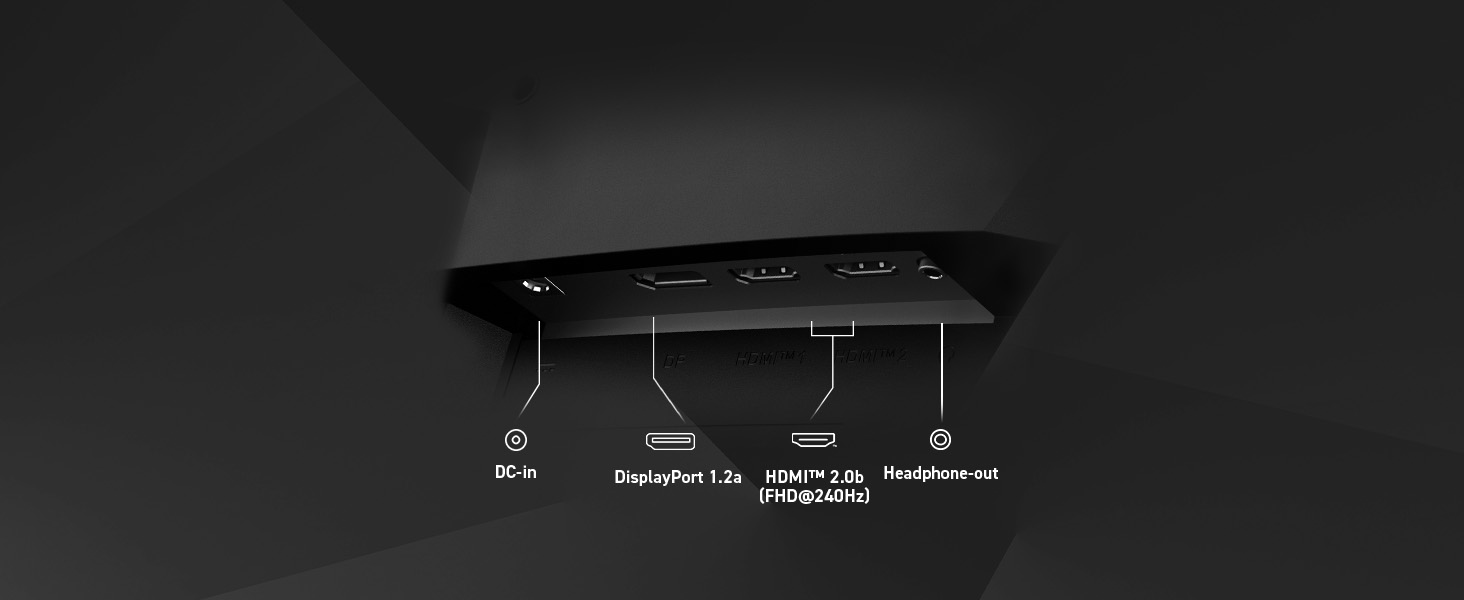
Detailed diagram showing the available input and output ports on the MSI MAG 274CXF monitor.
4. Initial Power On
Press the power button located on the monitor. The monitor should power on and display an image from your connected device. If no image appears, ensure all cables are securely connected and the input source is correctly selected (refer to the Operating section).
Operating the Monitor
1. On-Screen Display (OSD) Menu Navigation
The monitor features an OSD menu for adjusting various display settings. Typically, a joystick or set of buttons on the back or bottom of the monitor allows you to navigate the menu. Press the joystick/button to open the OSD menu, then move it to select options and confirm settings.
2. Display Settings and Features
Optimize your viewing experience by adjusting the following settings:
- Refresh Rate: The MAG 274CXF supports up to 280Hz. Ensure your computer's display settings are configured to utilize this high refresh rate for the smoothest motion.
- Resolution: The native resolution is 1920 x 1080 (FHD). For the sharpest image, set your device's output resolution to match.
- Response Time: With a 0.5ms GtG (Gray-to-Gray) response time, this monitor minimizes motion blur and ghosting, crucial for fast-paced gaming.
- Curvature (1500R): The 1500R curvature provides an immersive viewing experience, drawing you into the content.
- HDR Ready: This monitor is HDR-ready, delivering richer detail, a wider color range, and a more lifelike image compared to traditional monitors. Enable HDR in your operating system settings for compatible content.
- Less Blue Light: MSI's Less Blue Light technology reduces blue light emissions, which can help reduce eye strain during prolonged use. This setting can be adjusted via the OSD menu.
- Anti-Flicker: MSI Anti-Flicker technology provides a superior viewing experience by reducing the amount of screen flicker, further contributing to eye comfort.
- Color Gamut: The monitor offers a wide color gamut, including DCI-P3 92.2%, Adobe RGB 88.3%, and sRGB 123.3%, ensuring accurate and vibrant color reproduction.

The 1500R curvature of the 27-inch FHD display enhances immersion.

The monitor's HDR Ready capability provides enhanced color and contrast.

MSI Less Blue Light technology helps reduce eye fatigue.
Anti-Flicker technology ensures a stable and comfortable viewing experience.

Overview of monitor features, including wide color gamut support.
Maintenance
1. Cleaning the Monitor
To clean the monitor screen and casing:
- Always power off the monitor and unplug the power cable before cleaning.
- Use a soft, lint-free cloth slightly dampened with water or a non-abrasive screen cleaner.
- Do not spray cleaner directly onto the screen.
- Avoid using alcohol, ammonia, or abrasive cleaners, as they can damage the screen surface.
- Gently wipe the screen and casing to remove dust and smudges.
2. General Care
- Avoid placing heavy objects on the monitor or its cables.
- Do not expose the monitor to direct sunlight, high humidity, or extreme temperatures.
- Ensure adequate ventilation around the monitor to prevent overheating.
- If the monitor will not be used for an extended period, unplug it from the power outlet.
Troubleshooting
If you encounter issues with your monitor, refer to the following common problems and solutions:
| Problem | Possible Cause / Solution |
|---|---|
| No Power | Ensure the power cable is securely connected to the monitor and the power outlet. Check if the power outlet is functional. |
| No Signal / Blank Screen |
|
| Image is blurry or distorted |
|
| Colors are incorrect or washed out |
|
| Flickering screen |
|
If the problem persists after trying these solutions, please contact MSI customer support.
Specifications
| Feature | Detail |
|---|---|
| Brand | MSI |
| Model Number | MAG 274CXF |
| Screen Size | 27 Inches |
| Screen Resolution | 1920 x 1080 (FHD) |
| Max Refresh Rate | 280Hz |
| Response Time | 0.5ms GtG |
| Curvature | 1500R |
| Aspect Ratio | 16:9 |
| Screen Surface | Matte |
| Color | Black |
| Item Weight | 13.4 pounds |
| Product Dimensions (LxWxH) | 9.85 x 24.17 x 17.25 inches |
| Connectivity | DisplayPort 1.2a, HDMI 2.0b, VGA, Earphone-out, DC-in |
| VESA Mountable | Yes (Standard) |
Warranty and Support
For warranty information and technical support, please visit the official MSI website or contact their customer service department. Keep your purchase receipt for warranty claims.
MSI Official Website: www.msi.com
Related documentsMAG 274CXF


Ask a question about this manual
Ask about setup, troubleshooting, compatibility, parts, safety, or missing instructions. Manuals+ will review the question and use this page’s manual context to help answer it.