
1. Setup Guide
1.1 Unboxing and Package Contents
Carefully unpack your POLONO PM220S Label Maker. Ensure all items listed below are present:
- 1 X PM220S Label Maker
- 1 X Roll of white label paper (50x30mm)
- 1 X Type C cord
- 1 X User Manual
- 1 X Guide Card
1.2 Charging the Device
Before first use, fully charge the label maker using the provided Type-C cord and a compatible USB power adapter (not included). The LED screen will indicate the battery level.
1.3 Loading Label Tape
Follow these steps to load the label tape:
- Open the label compartment cover.
- Insert the label roll with the printing surface facing up.
- Ensure the label tape is properly aligned and secured in the paper slot. Adjust the paper slot according to the label size (supports 23-54mm width).
- Close the cover.
- Important: Do not tear or damage the green sticker on the back of the specialized label strip, as this may affect printing performance.

Figure 1: Loading label tape into the PM220S. The image shows the label maker with its cover open, illustrating the correct placement of a label roll, indicating support for 1-2 inch (20-50mm) wide labels.
1.4 App Installation and Connection
The PM220S is compatible with iOS, Android, and PC. Do not connect directly via Bluetooth through your device's system settings for any device.
For iOS & Android Mobile Phones:
- Download the "Labelnize" APP from the Apple App Store or Google Play Store.
- Open the Labelnize APP and connect to the PM220S via Bluetooth within the application.
For PC (Windows/Mac):
- Visit polono.com to download the necessary driver and application for your operating system.
- Install the driver and application, then follow the on-screen instructions to connect your printer.

Figure 2: Universal compatibility of the PM220S with smartphones and PCs. The image displays the label maker connected to both a mobile phone running the Labelnize app and a laptop, highlighting its versatile connectivity.
2. Operating Instructions
2.1 Power On/Off
- To power on, press and hold the power button until the LED screen illuminates.
- To power off, press and hold the power button again until the screen turns off.
2.2 Understanding the LED Screen Display
The PM220S features an LED screen that provides important status information:
- Connection Display: Indicates Bluetooth connection status.
- Content Presentation: Displays basic operational messages.
- Battery Reminder: Shows current battery level.
- Paper Shortage: Alerts when label paper is low or absent.
- Timed Shutdown: Can be set for automatic power off.
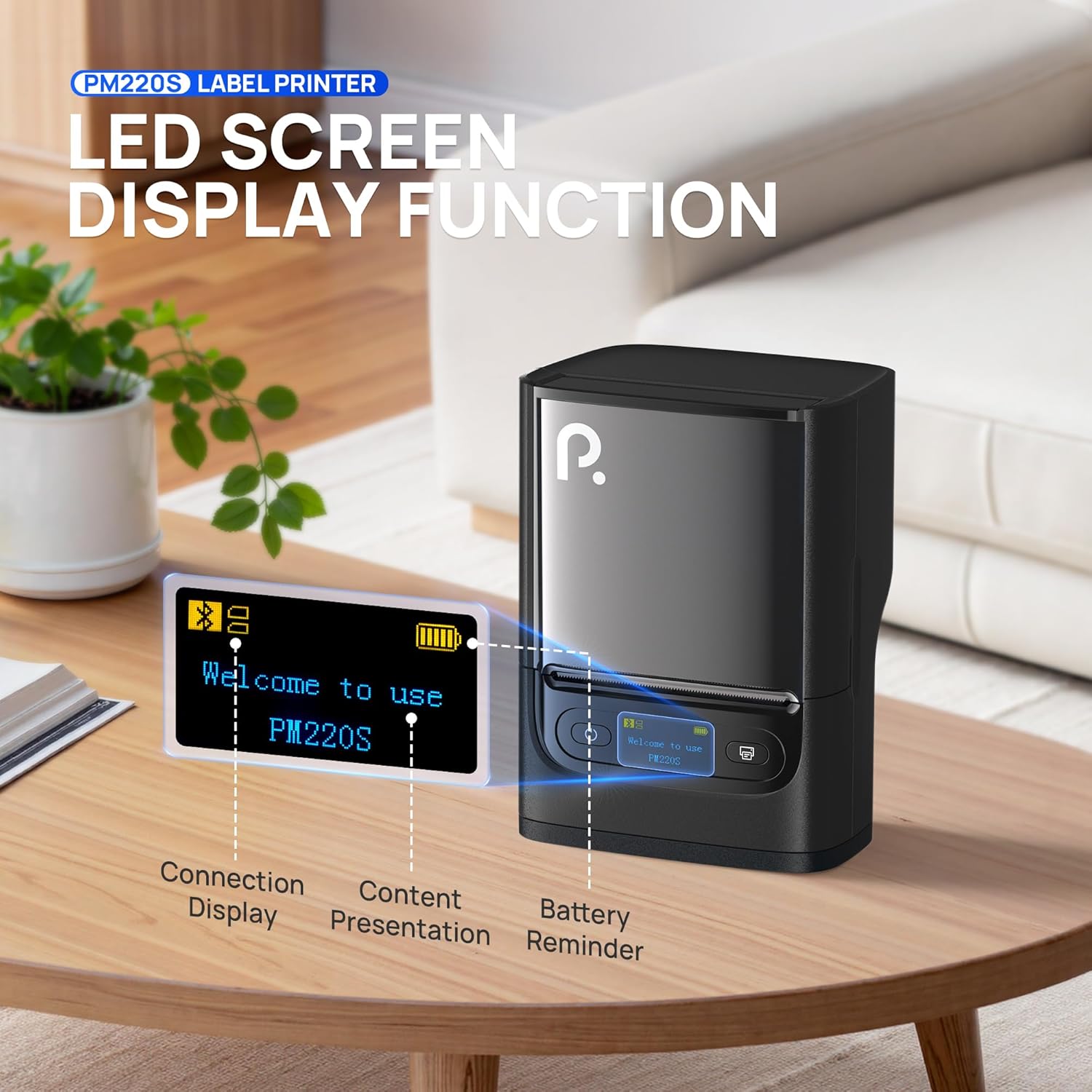
Figure 3: LED screen display functions. This image highlights the various indicators on the PM220S screen, including connection status, content display, and battery level.
2.3 Printing with the Labelnize App (Mobile)
The Labelnize app offers extensive customization options:
- Open the Labelnize app and ensure your PM220S is connected via Bluetooth within the app.
- Select from free label templates or create your own custom designs.
- Customize labels with various features including QR codes, Barcode Labels, Tables, Materials, Time, Figures, Text, and Icons.
- Utilize the app's library of over 90 fonts, 14+ languages, and 450+ materials.
- Preview your label and then tap the print button.
2.4 Printing from PC
After installing the driver and application from polono.com, you can print labels directly from your computer. Refer to the PC application's help section for detailed instructions on creating and printing labels.
3. Maintenance
3.1 Cleaning the Print Head
To ensure optimal print quality, regularly clean the print head. Use a soft, lint-free cloth lightly dampened with isopropyl alcohol. Gently wipe the print head surface. Allow it to dry completely before use.
3.2 Label Storage
Store thermal labels in a cool, dry place away from direct sunlight and heat to prevent premature fading or damage to the thermal coating.
3.3 Battery Care
To prolong battery life, avoid fully discharging the device frequently. If storing the device for an extended period, charge it to approximately 50% and recharge every few months.
4. Troubleshooting
| Problem | Possible Cause | Solution |
|---|---|---|
| Printer does not turn on. | Low battery. | Charge the device using the provided Type-C cable. |
| Cannot connect via Bluetooth. | Incorrect connection method. | Do not connect directly via your phone's or PC's Bluetooth settings. Connect through the Labelnize app (mobile) or the POLONO PC application. |
| Poor print quality or blank labels. | Incorrect label loading, dirty print head, or non-specialized labels. |
|
| "Paper Shortage" error. | Label roll is empty or improperly loaded. | Replace the label roll or re-adjust the existing roll to ensure it's correctly seated in the paper slot. |
5. Specifications
| Feature | Detail |
|---|---|
| Model Name | PM220S |
| Brand | POLONO |
| Printing Technology | Direct Thermal (BPA-Free) |
| Connectivity | Bluetooth, USB Type-C |
| Compatible Devices | Android, iOS, Mac, Windows |
| Print Resolution | 203 DPI |
| Supported Label Width | 23-54mm (0.91"-2.12") |
| Max Print Speed (Monochrome) | 45 mm/s |
| Product Dimensions | 3.3"D x 4.4"W x 2.5"H (8.38 x 11.18 x 6.35 cm) |
| Item Weight | 13.4 ounces (380g) |
| Included Components | Label Maker, Label Paper Roll, Type-C Cord, User Manual, Guide Card |
6. Warranty Information
The POLONO PM220S Label Maker comes with a limited warranty. For detailed information regarding warranty terms, conditions, and duration, please refer to the warranty card included in your package or visit the official POLONO website at polono.com.
7. Customer Support
If you encounter any issues or have questions not covered in this manual, please contact POLONO customer support. You can find contact information and additional resources, including drivers and software updates, on our official website:
Please have your model number (PM220S) and purchase details ready when contacting support.


