
intpw P9R
intpw 10-in-1 USB C Hub P9R Instruction Manual
Model: P9R
Introduction
This manual provides detailed instructions for the intpw 10-in-1 USB C Hub, Model P9R. This versatile hub expands the connectivity of your USB-C enabled devices, offering multiple ports for data transfer, video output, network connection, and power delivery. Please read this manual carefully before using the product to ensure optimal performance and safety.
Product Overview
The intpw P9R is a 10-in-1 USB C hub designed for enhanced connectivity. It features an ergonomic aluminum design with a 32° angled port layout for easy access. The hub includes the following ports:
- 1x HDMI Port (4K@30Hz)
- 1x Gigabit Ethernet Port (10/100/1000Mbps)
- 1x USB-C Power Delivery (PD) Port (up to 100W)
- 1x USB-C 3.0 Data Port (5Gbps)
- 2x USB-A 3.0 Data Ports (5Gbps)
- 2x USB-A 2.0 Data Ports (480Mbps)
- 1x SD Card Slot
- 1x TF (MicroSD) Card Slot

Image: Overview of the intpw 10-in-1 USB C Hub P9R, highlighting its various ports and their specifications, including USB-C PD 100W, USB-C 3.0 5Gbps, USB-A 3.0 5Gbps, USB-A 2.0 480Mbps, Ethernet 1000Mbps, SD/TF card slots, and HDMI 4K@30Hz.

Image: The intpw P9R USB C Hub, showcasing its ergonomic design with a 32° bevel, aluminum alloy construction, and rubber mats for stability.
Setup
The intpw P9R USB C Hub is designed for plug-and-play functionality. No drivers are typically required for most operating systems.
- Connect to Host Device: Plug the integrated USB-C cable from the hub into a compatible USB-C port on your laptop, tablet, or smartphone. Ensure your device's USB-C port supports data transfer, DisplayPort Alt Mode, and Power Delivery for full functionality.
- Power Connection (Optional but Recommended): For stable operation, especially when using multiple high-power devices or charging your host device, connect your original laptop power adapter (or a 65W+ USB-C PD adapter) to the USB-C PD port on the hub.
- Connect Peripherals: Connect your desired peripherals (monitor, Ethernet cable, USB devices, SD/TF cards) to the corresponding ports on the hub.

Image: Diagram illustrating the wide compatibility of the intpw USB C Hub with various USB devices (printer, keyboard, webcam, mouse, card reader, flash drive, hard drive) and host systems (Windows, macOS, Linux).

Image: A guide showing different types of USB-C ports and their functionalities (Thunderbolt 3/4, Data Displayport Alt, Data+PD Displayport Alt, Only Charging, Only Data Transfer, Only Data+Power Delivery) to ensure proper connection for full hub features.
Operating Instructions
HDMI Video Output
Connect an HDMI cable from the hub's HDMI port to your monitor, HDTV, or projector. The hub supports 4K resolution at 30Hz. Your host device must support DisplayPort Alt Mode over USB-C for video output.
- Mirror Mode: Duplicate your host device's screen on the external display.
- Extend Mode: Extend your desktop across multiple displays for increased workspace.
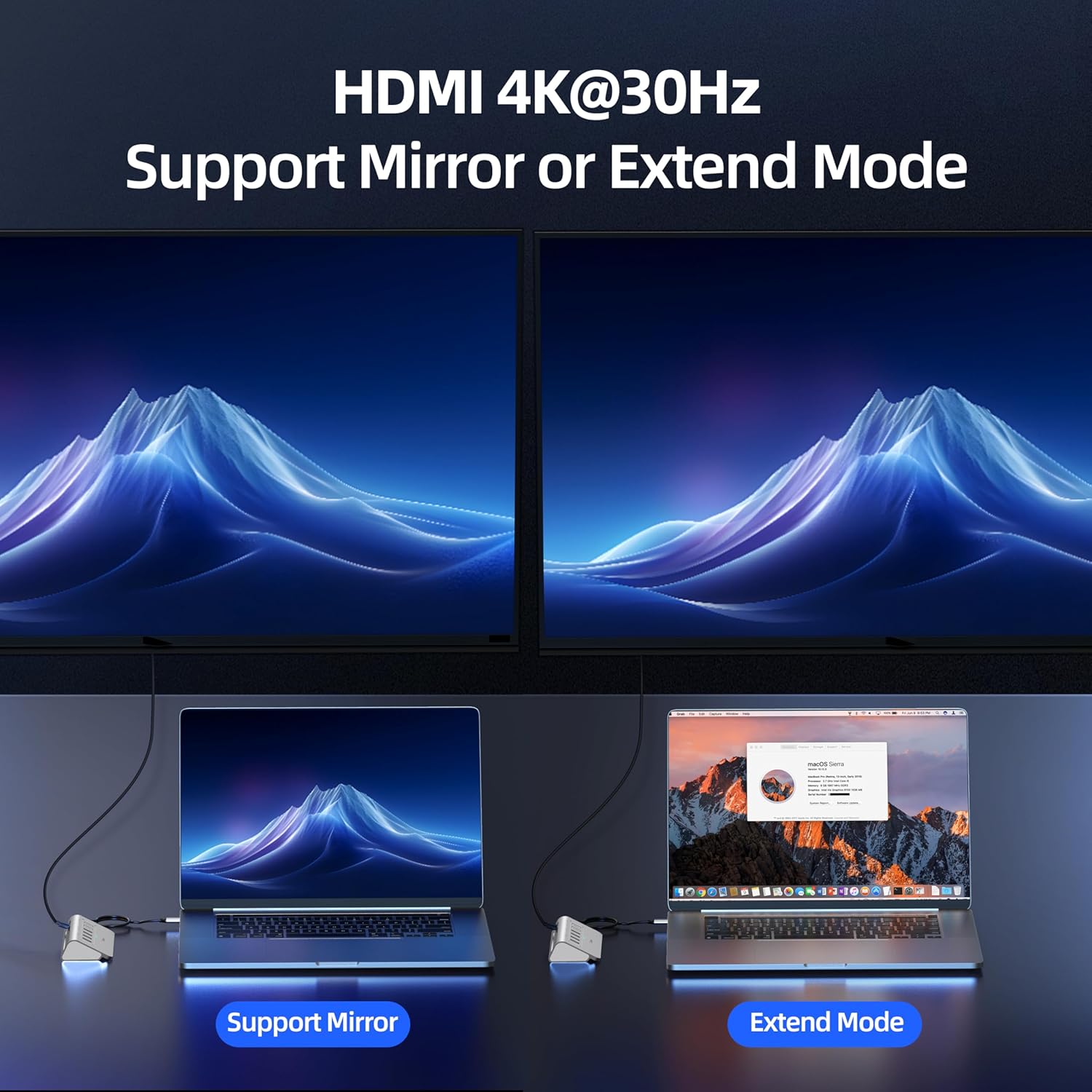
Image: Illustration of HDMI output supporting both Mirror Mode (duplicating the screen) and Extend Mode (extending the desktop) at 4K@30Hz.
Video: A short demonstration of the intpw 9-in-1 USB C Hub's features, including HDMI output. This video is provided by the seller, intpw.
USB Data Transfer
The hub provides 1x USB-C 3.0 (5Gbps), 2x USB-A 3.0 (5Gbps), and 2x USB-A 2.0 (480Mbps) ports for connecting various USB devices such as external hard drives, flash drives, keyboards, and mice. The USB 3.0 ports offer high-speed data transfer for large files.

Image: Illustration demonstrating the fast data transfer capabilities of the USB 3.0 ports (5Gbps) compared to USB 2.0 (480Mbps).
Ethernet Connection
Connect an Ethernet cable to the RJ45 port on the hub for a stable and fast wired network connection. It supports 10/100/1000Mbps speeds, ideal for online gaming, video conferencing, and large file downloads.

Image: The intpw USB C Hub connected to a laptop via Ethernet, showing a stable 1000Mbps connection.
Video: A demonstration of the intpw 10-in-1 USB C Hub's Ethernet capabilities, showing a stable network connection. This video is provided by the seller, intpw.
SD/TF Card Reader
Insert your SD or TF (MicroSD) card into the corresponding slot to access photos, videos, and other files. Note that SD and TF cards cannot be used simultaneously.

Image: The intpw USB C Hub with an SD card inserted, demonstrating its universal SD/TF compatibility. Note that cards protrude slightly when inserted.
Power Delivery (PD) Charging
The USB-C PD port supports up to 100W power input, allowing you to charge your laptop or tablet while using the hub. For optimal charging, use your original laptop power adapter or a USB-C PD adapter with 65W or higher output.

Image: The intpw USB C Hub connected for 100W PD fast charging, emphasizing the need to use an original or 65W+ power adapter.
Maintenance
- Cleaning: Use a soft, dry cloth to clean the hub. Avoid liquid cleaners or aerosols.
- Storage: Store the hub in a cool, dry place away from direct sunlight and extreme temperatures.
- Handling: Avoid dropping the device or subjecting it to strong impacts. Do not attempt to disassemble or repair the hub yourself.
Troubleshooting
- No video output via HDMI:
- Ensure your host device's USB-C port supports DisplayPort Alt Mode. Not all USB-C ports support video output.
- Check the HDMI cable connection between the hub and the display.
- Verify the display input source is correctly selected.
- Try connecting the hub's PD port to a power adapter, as some devices require external power for stable video output.
- USB devices are not recognized or disconnect frequently:
- Ensure the hub is connected to a stable power source via its PD port, especially when using multiple power-hungry USB devices (e.g., external hard drives).
- Try connecting the USB device directly to your host device to confirm it functions independently.
- Reconnect the hub to your host device.
- Slow charging or no charging:
- Ensure you are using your original laptop power adapter or a compatible USB-C PD adapter with at least 65W output connected to the hub's PD port.
- Verify your host device supports USB-C Power Delivery.
- Ethernet connection issues:
- Check the Ethernet cable connection to both the hub and your router/modem.
- Ensure your network settings on the host device are configured correctly (e.g., DHCP enabled).
- Restart your router/modem and host device.
Specifications
| Brand | intpw |
| Model Number | P9R |
| Color | Silver White |
| Hardware Interface | HDMI, MicroSD, USB 2.0, USB 3.0, USB Type C, Ethernet (RJ45) |
| Number of Ports | 10 (1x HDMI, 1x Ethernet, 1x USB-C PD, 1x USB-C 3.0, 2x USB-A 3.0, 2x USB-A 2.0, 1x SD, 1x TF) |
| Data Transfer Rate | 5 Gigabits Per Second (USB 3.0) |
| HDMI Resolution | Up to 4K@30Hz |
| Power Delivery | Up to 100W |
| Ethernet Speed | 10/100/1000Mbps |
| Compatible Devices | Macbook M1-M5, Type C Laptops, iPad Air/Pro, iMac, Steam Deck, iPhone 15/16/17 Series, Dell XPS, HP Spectre, Lenovo, Samsung, and most USB-C devices. |
| Operating System | Chrome OS, Linux, MacOS, Windows 7/8/10 |
| Enclosure Material | Aluminum |
| Item Dimensions (L x W x H) | 8.27"L x 4.72"W x 2.2"H |
| Item Weight | 0.25 Kilograms |
Warranty
The intpw 10-in-1 USB C Hub P9R comes with an 18-month warranty from the date of purchase. Please retain your proof of purchase for warranty claims. For warranty service, please contact intpw customer support.
Customer Support
For any questions, technical assistance, or support inquiries regarding your intpw 10-in-1 USB C Hub P9R, please visit the official intpw website or contact their customer service team. Contact information may also be available on the product packaging or included documentation.
Note: Always refer to the latest information provided by the manufacturer for the most up-to-date support details.
Related documentsP9R


Ask a question about this manual
Ask about setup, troubleshooting, compatibility, parts, safety, or missing instructions. Manuals+ will review the question and use this page’s manual context to help answer it.