
Introduction
Thank you for choosing the Carpuride W702T Pro Motorcycle CarPlay Screen with TPMS. This device is designed to enhance your riding experience by integrating wireless Apple CarPlay and Android Auto, a Tire Pressure Monitoring System (TPMS), dual Bluetooth connectivity, and essential navigation features. This manual provides detailed instructions for installation, operation, and maintenance to ensure optimal performance and safety.
Package Contents
Please check the package for the following items:
- 1x Carpuride W702T Pro Motorcycle CarPlay Screen (W702T Pro = W702 Pro + TPMS)
- 1x U-Bracket
- 1x Square Bracket
- 1x Power Cable
- 1x USB Cable
- 2x Tire Pressure Sensors (TPMS)
- 1x User Manual

Figure 1: Included Components
Specifications
| Brand | CARPURIDE |
| Model Name | W702T Pro |
| Screen Size | 7 Inches |
| Screen Resolution | 1024*600 HD IPS |
| Screen Brightness | Up to 1000nit |
| Waterproof Rating | IP67 |
| Connectivity Technology | Bluetooth, Wi-Fi |
| Compatible Devices | Bluetooth Helmets, Bluetooth Headphones, Smartphones (iOS/Android) |
| Supported Navigation | GPS (via CarPlay/Android Auto) |
| Memory Storage Capacity | Supports 64GB TF cards |
| Operating Temperature | -20 °C to 70 °C |
| Item Dimensions (LxWxH) | 18.2L x 4.4W x 11.4H cm |
| Model Year | 2025 |
Setup and Installation
Mounting the Device
The Carpuride W702T Pro comes with both a U-bracket and a square bracket for versatile mounting options on your motorcycle handlebars.
U-Bracket Installation:
- Secure the support to the handlebar using a Phillips screwdriver.
- Attach the connecting rod to the support.
- Insert the device and adjust its position as desired. Tighten the adjustment ring to secure.
- Installation is complete.
Square Bracket Installation:
- Use the silicone pad in standard 12mm, which can be expanded up to 18mm. Choose the silicone pads based on the thickness of your motorcycle handlebar.
- Align the screws and nuts of the bracket and tighten them to secure it to the motorcycle handlebar.
- Align the grooves at the connection point of the screen to the motorcycle bracket and insert. Then tighten with the screws.
- Installation is complete.
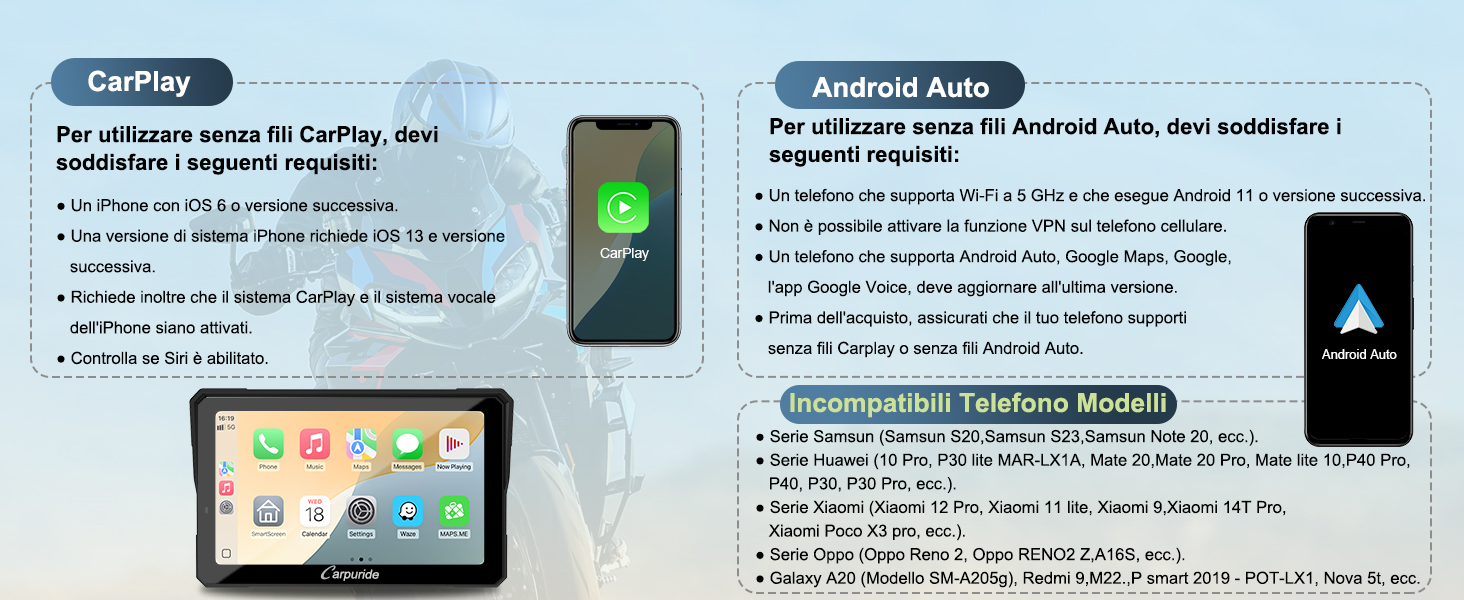
Figure 2: Mounting Bracket Installation
Power Connection Options
There are two ways to power your Carpuride W702T Pro:
- Direct Battery Connection: Connect the power line to the motorcycle battery. Ensure the output is 12V and 1A. The red wire connects to the positive terminal (+), and the black wire connects to the negative terminal (ground).
- USB Port Connection: Connect the USB cable to the motorcycle's USB port. Ensure the output is 5V, 3A or higher. If the motorcycle's USB port output is less than 5V and 3A, do NOT connect the CarPlay screen via USB, as insufficient voltage or current may cause the screen to shut down.

Figure 3: Power Connection Methods
TPMS Sensor Installation
The device includes two tire pressure sensors for real-time monitoring.
- Unscrew the valve cap from your tire.
- Rotate the anti-theft nut counter-clockwise onto the valve stem.
- Screw the TPMS sensor onto the valve stem.
- Tighten the anti-theft nut against the sensor using the provided wrench.
- Verify for air leaks with soapy water.

Figure 4: TPMS Sensor Installation Steps
Operating Instructions
Wireless CarPlay and Android Auto
The Carpuride W702T Pro supports wireless Apple CarPlay and Android Auto, allowing access to navigation, calls, music, and messages via voice assistants (Siri or Google Assistant).
Apple CarPlay Connection:
- Open Apple CarPlay on the device.
- On your iPhone, search and select the Wi-Fi network named "carpuride-xxxxxx" to connect.
- Enter the password "66666666" and click "Join".
- Connection successful.
- Access CarPlay.

Figure 5: Apple CarPlay Connection Steps
Android Auto Connection:
- Open Android Auto on the device.
- On your Android phone, use Wi-Fi to find "carpuride-xxxxxx".
- Enter the password "66666666".
- Click "Yes" to confirm.
- Connection successful.
- Access Android Auto.

Figure 6: Android Auto Connection Steps
Compatibility Requirements:
For Wireless CarPlay:
- iPhone 6 or later.
- iOS 13 or later.
- CarPlay and iPhone's voice system must be activated.
- Siri must be enabled.
For Wireless Android Auto:
- Phone supports 5 GHz Wi-Fi and runs Android 11 or later.
- VPN function cannot be activated on the mobile phone.
- Phone supports Android Auto, Google Maps, Google Voice, and must be updated to the latest version.
- Before purchasing, ensure your phone supports wireless CarPlay or wireless Android Auto.
Incompatible Phone Models:
- Samsung S20, S23, Note 20 series, etc.
- Huawei 10 Pro, P30 lite MAR-LX1A, Mate 20, Mate 20 Pro, Mate lite 10, P40 Pro, P30, P30 Pro, etc.
- Xiaomi 12 Pro, Xiaomi 11 lite, Xiaomi 9, Xiaomi 14T Pro, Xiaomi Poco X3 pro, etc.
- Oppo Reno 2, Oppo RENO2 Z, A16S, etc.
- Galaxy A20 (Model SM-A205G), Redmi 9, M22, P smart 2019 - POT-LX1, Nova 5t, etc.

Figure 7: CarPlay and Android Auto Compatibility
Dual Bluetooth and Intercom Function
The upgraded dual Bluetooth allows simultaneous connection of two Bluetooth headsets/helmets to the Carpuride screen. This enables music sharing and navigation instructions between two riders.
Single Person Connection Mode (BT Trans):
- Go to "Audio Output" and access the BT Trans interface. Select BT Trans, turn on your headset/helmet Bluetooth, and click on "Carpuride Moto BT search" to find and pair your headset or earphones.
- Clicking the "Disconnect" button and seeing "Connected" means the connection is successful.
- When using BT Trans output, ensure your phone is not connected to other Bluetooth headsets. If connected, disconnect and delete the pairing record from the phone's Bluetooth list.
Dual Person Connection Mode (BT Trans):
Connecting two Bluetooth headsets/helmets simultaneously to the Carpuride screen allows music sharing and navigation instructions between two riders. However, voice assistant commands and phone call audio can only be transmitted to Bluetooth 1. It is recommended that the main rider connects to Bluetooth 1.

Figure 8: Bluetooth Transmission Modes
How to Use the Intercom Function:
- First, click the audio output icon on the homepage, then select BT Trans mode, connecting Bluetooth 1 and Bluetooth 2 simultaneously.
- Second, click the intercom icon on the homepage to open intercom mode, allowing Bluetooth 1 and Bluetooth 2 to make Bluetooth calls.
Note: The effective Bluetooth distance is approximately 10m, primarily used for intercom between the main rider and co-riders. It is recommended for two people on the same motorcycle.

Figure 9: Music Sharing and Intercom Function
TPMS (Tire Pressure Monitoring System)
The integrated TPMS with two sensors monitors tire pressure and temperature in real-time, providing alerts for abnormal pressure to ensure safer riding. This is crucial for long-distance travel and varied terrains.

Figure 10: Real-time TPMS Display
Light Sensor, Compass, and Barometer
The device features a light sensor for automatic screen brightness adjustment, protecting your eyes and improving visibility in varying light conditions. The integrated compass and barometer provide directional information and atmospheric pressure readings, useful for outdoor exploration and altitude awareness.

Figure 11: Compass and Barometer Functions
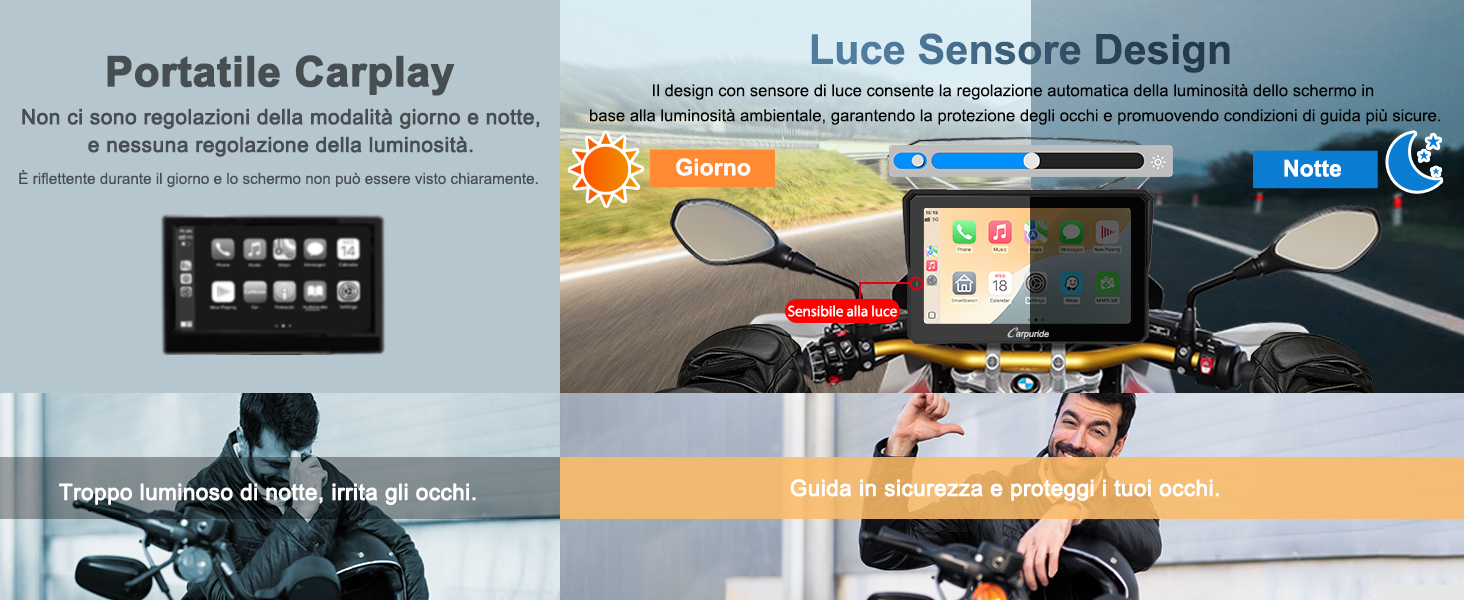
Figure 12: Light Sensor Design
Media Playback (TF Card)
The device supports TF cards up to 64GB, allowing you to enjoy your favorite music or videos during your journey.

Figure 13: TF Card Support for Media Playback
Maintenance
To ensure the longevity and optimal performance of your Carpuride W702T Pro, follow these maintenance guidelines:
- Cleaning: Use a soft, damp cloth to clean the screen and exterior. Avoid abrasive cleaners or solvents that could damage the device.
- Waterproof Protection: The device is IP67 waterproof. While it can withstand rain, avoid submerging it in water. Ensure all ports are securely closed when exposed to moisture.
- Temperature: Operate the device within the specified temperature range of -20 °C to 70 °C. Extreme temperatures can affect performance and battery life.
- Storage: When not in use for extended periods, store the device in a cool, dry place away from direct sunlight.
- TPMS Sensors: Periodically check the TPMS sensors for secure attachment and signs of wear. Replace if damaged.
Troubleshooting
If you encounter issues with your Carpuride W702T Pro, refer to the following common problems and solutions:
| Problem | Possible Cause | Solution |
|---|---|---|
| Device does not power on. | Incorrect power connection, insufficient power supply. | Check power cable connections. Ensure 12V/1A for battery or 5V/3A for USB. Verify motorcycle battery or USB port functionality. |
| CarPlay/Android Auto fails to connect. | Phone incompatibility, incorrect Wi-Fi password, VPN active, outdated phone OS. | Verify phone compatibility (iOS 13+/Android 11+, 5GHz Wi-Fi). Ensure correct Wi-Fi password. Disable VPN on phone. Update phone OS. Delete previous Bluetooth pairings on phone. |
| Bluetooth headset/intercom connection issues. | Headset not in pairing mode, interference, already connected to another device. | Ensure headset is in pairing mode. Disconnect headset from other devices. Try re-pairing. For intercom, ensure both headsets are connected to the Carpuride screen. |
| TPMS readings are inaccurate or not displayed. | Sensors not installed correctly, low sensor battery, sensor malfunction. | Check sensor installation. Ensure sensors are tightened. Replace sensor batteries if necessary. Contact support if issues persist. |
| Screen is difficult to see in direct sunlight. | Light sensor not functioning, brightness setting too low. | Ensure the light sensor is not obstructed. Manually adjust screen brightness if automatic adjustment is insufficient. The screen has a maximum brightness of 1000nit for good visibility. |
If you experience problems not listed here or if the suggested solutions do not resolve the issue, please contact customer support.
Warranty Information
The Carpuride W702T Pro Motorcycle CarPlay Screen comes with a 1-year product warranty from the date of purchase. This warranty covers manufacturing defects and malfunctions under normal use. It does not cover damage caused by misuse, accidents, unauthorized modifications, or improper installation.
Please retain your proof of purchase for warranty claims. For warranty service, contact Carpuride customer support.
Customer Support
For technical assistance, troubleshooting, or warranty inquiries, please contact Carpuride customer support through the official website or your retailer. When contacting support, please have your product model (W702T Pro) and proof of purchase ready.