
1. Product Overview
The Awei Y525 is a portable Bluetooth 5.3 speaker designed for wireless audio playback. It features True Wireless Stereo (TWS) functionality for pairing two speakers, Hifi sound, and integrated RGB lighting effects. The speaker supports multiple input methods including Bluetooth, USB, and TF card, making it suitable for various outdoor and indoor listening environments.
2. Package Contents
Please check the package for the following items:
- Awei Y525 Bluetooth Speaker
- Charging Cable (USB-C)
- User Manual
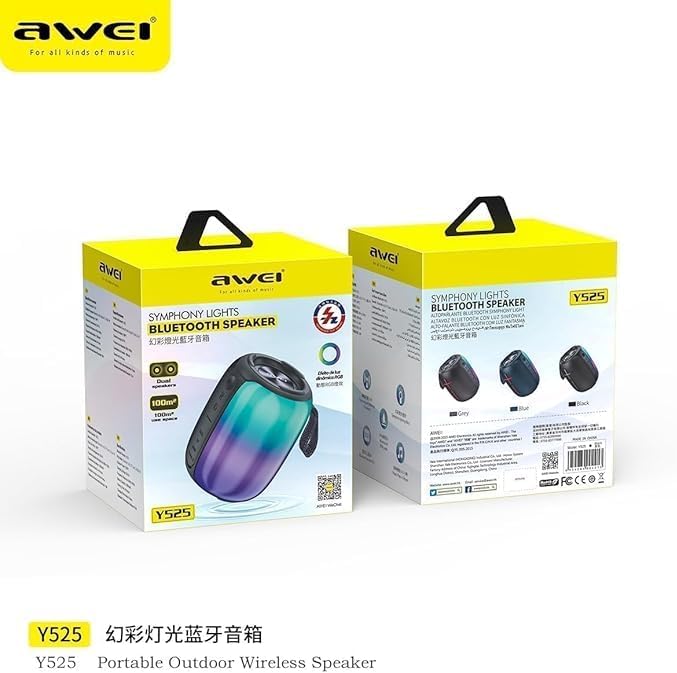
Image: Awei Y525 speaker packaging. The image displays two Awei Y525 speakers in their retail boxes, highlighting the product's branding and model number.
3. Controls and Indicators
Familiarize yourself with the speaker's controls and indicators:
- Power Button: Press and hold to power on/off. Short press for play/pause.
- Volume Up (+): Short press to increase volume. Long press for next track.
- Volume Down (-): Short press to decrease volume. Long press for previous track.
- Mode Button (M): Short press to switch between Bluetooth, USB, TF card, and AUX modes.
- RGB Light Button: Short press to cycle through light modes or turn off lights.
- Charging Port: USB-C port for charging.
- LED Indicator: Shows charging status and Bluetooth connection status.

Image: Awei Y525 speaker controls. This image displays several Awei Y525 speakers in various colors, providing a clear view of the control buttons and input ports on the side of the device.
4. Charging the Speaker
Before first use, fully charge the speaker.
- Connect the provided USB-C charging cable to the speaker's charging port.
- Connect the other end of the cable to a USB power adapter (not included) or a computer's USB port.
- The LED indicator will illuminate during charging and turn off when fully charged.
5. Setup and Pairing
5.1 Bluetooth Pairing
- Ensure the speaker is charged and powered on.
- The speaker will automatically enter Bluetooth pairing mode, indicated by a flashing LED light.
- On your device (smartphone, tablet, etc.), enable Bluetooth and search for available devices.
- Select "Awei Y525" from the list of devices.
- Once paired, the LED indicator will stop flashing and remain solid, and you will hear a confirmation tone.
5.2 True Wireless Stereo (TWS) Interconnection
To achieve a stereo sound experience, you can pair two Awei Y525 speakers together.
- Ensure both Awei Y525 speakers are powered on and not connected to any other Bluetooth device.
- On one of the speakers (this will be the primary speaker), double-press the Power button or a dedicated TWS button (if available, refer to specific model instructions if different).
- The speakers will search for each other and automatically pair. You will hear a confirmation tone when TWS pairing is successful.
- Once TWS paired, connect your device to the primary speaker via Bluetooth as described in section 5.1.

Image: TWS Interconnection. This image illustrates two Awei Y525 speakers positioned to demonstrate their True Wireless Stereo (TWS) interconnection capability for enhanced sound.
6. Operating the Speaker
6.1 Basic Audio Playback
- Play/Pause: Short press the Power button.
- Volume Control: Short press '+' to increase volume, short press '-' to decrease volume.
- Next/Previous Track: Long press '+' for the next track, long press '-' for the previous track.
6.2 RGB Light Modes
The speaker features dynamic RGB lighting effects.
- Short press the RGB Light button to cycle through different light modes.
- Continue pressing to turn off the lights.
6.3 Hands-Free Calling
When connected via Bluetooth, the speaker can be used for hands-free calls.
- Answer Call: Short press the Power button.
- End Call: Short press the Power button during a call.
- Reject Call: Long press the Power button.
6.4 Other Playback Modes (USB, TF Card, AUX)
Insert a USB drive or TF card into the respective port, or connect an audio device via an AUX cable. The speaker will automatically switch to the corresponding mode or you can manually switch using the Mode button.
7. Maintenance and Care
- Keep the speaker away from water and excessive moisture. The product is not waterproof.
- Avoid exposing the speaker to extreme temperatures.
- Clean the speaker with a soft, dry cloth. Do not use abrasive cleaners or solvents.
- Store the speaker in a cool, dry place when not in use for extended periods.
8. Troubleshooting
| Problem | Solution |
|---|---|
| Speaker does not power on. | Ensure the speaker is fully charged. Press and hold the Power button for a few seconds. |
| Cannot pair via Bluetooth. | Make sure the speaker is in pairing mode (flashing LED). Disable and re-enable Bluetooth on your device. Ensure no other devices are connected to the speaker. |
| No sound or low volume. | Check the volume levels on both the speaker and your connected device. Ensure the correct input mode is selected. |
| TWS pairing fails. | Ensure both speakers are charged and not connected to any other Bluetooth device. Try resetting both speakers and repeating the TWS pairing steps. |
| RGB lights not working. | Press the RGB Light button to cycle through modes or turn them on. |
9. Specifications
| Feature | Detail |
|---|---|
| Model Name | Y525 |
| Bluetooth Version | 5.3 |
| Wireless Communication Technology | Bluetooth |
| Speaker Type | Outdoor, Portable |
| Audio Output Mode | Stereo (with TWS) |
| Power Source | Battery Powered |
| Control Method | Touch |
| Item Weight | 500 Grams |
| Speaker Size | 17 Centimeters |
| Special Features | Anti-shocking, Lightweight, Volume Control, RGB Light Effects, TWS Function |
| Compatible Devices | Laptop, Smartphone, Tablet, Television |
| Is Waterproof | No |
10. Safety Information
- Do not disassemble, repair, or modify the speaker.
- Keep out of reach of children.
- Dispose of the product responsibly according to local regulations.
- Avoid listening at high volumes for extended periods to prevent hearing damage.
11. Warranty and Support
Specific warranty information and customer support details are typically provided with your purchase documentation or on the manufacturer's official website. Please refer to those resources for assistance.


