
Doro Leva 10
Doro Leva L10 Mobile Phone
User Manual
Model: Leva 10 | Brand: Doro
Introduction
The Doro Leva L10 is a user-friendly mobile phone designed for seniors, offering simplified communication with essential features. It boasts a large landscape screen, powerful sound, a built-in camera, and a dedicated assistance button with GPS location for enhanced safety. This manual provides detailed instructions on setting up, operating, maintaining, and troubleshooting your Doro Leva L10.

Figure 1: Doro Leva L10 mobile phone with its charging dock, showing both the front keypad and screen, and the textured back panel with camera and assistance button.
1. Setup
1.1 Unboxing and Package Contents
Before you begin, ensure all components are present in the package:
- Doro Leva L10 Mobile Phone
- Charging Dock
- USB Type-C Cable
- Power Adapter
- User Manual (this document)
1.2 Charging the Battery
The phone comes with a 1000mAh Lithium-ion battery. It is recommended to fully charge the phone before first use.
- Connect the USB Type-C cable to the charging dock.
- Connect the power adapter to the USB Type-C cable and plug it into a wall outlet.
- Place the Doro Leva L10 phone into the charging dock. Ensure it is seated correctly and the charging indicator appears on the screen.
- Alternatively, you can connect the USB Type-C cable directly to the phone's charging port.
A full charge typically takes a few hours. The battery offers long autonomy.
1.3 Inserting the SIM Card
The Doro Leva L10 requires a SIM card to make calls and send SMS messages. Refer to the phone's back panel for the SIM card slot location.

Figure 2: Rear view of the Doro Leva L10, highlighting the camera lens, flash, and the prominent assistance button. The speaker grille is also visible at the bottom.
- Power off the phone before inserting or removing the SIM card.
- Carefully remove the back cover of the phone.
- Locate the SIM card slot(s). Insert your SIM card(s) according to the diagram near the slot, ensuring the gold contacts face down.
- Replace the back cover securely.
1.4 Powering On/Off
- To power on: Press and hold the Power/End Call button (usually red) until the screen lights up.
- To power off: Press and hold the Power/End Call button, then follow the on-screen prompts to shut down.
2. Operating Instructions
2.1 Making Calls and Sending SMS
The Doro Leva L10 is designed for straightforward communication.
- Making a Call: Dial the number using the large, well-spaced keypad and press the Green Call button.
- Answering a Call: Press the Green Call button when the phone rings.
- Ending a Call: Press the Red End Call button.
- Sending SMS: Navigate to the 'Messages' menu, select 'New Message', enter the recipient's number and your message using the keypad, then send.
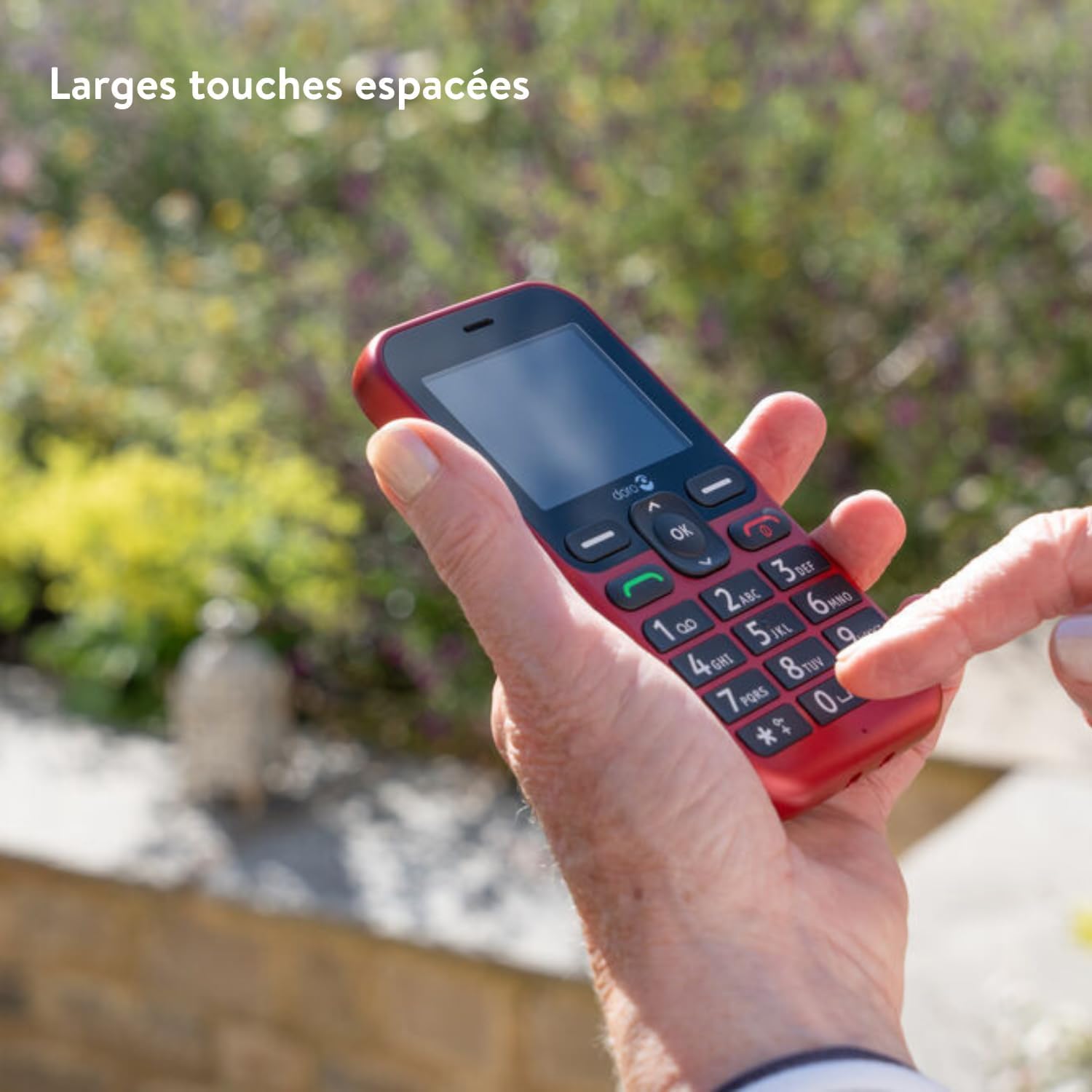
Figure 3: A hand demonstrating the ease of use with the Doro Leva L10's large, clearly spaced keypad buttons, designed for comfortable and accurate dialing.
2.2 Display and Readability
The phone features a 2.4-inch landscape screen with high contrast, ensuring optimal readability, especially for users with low visual acuity.

Figure 4: The Doro Leva L10 display, illustrating its high contrast and large text, making it easy to read for all users.
2.3 Assistance Button with GPS
For added security, the Doro Leva L10 includes a dedicated assistance button located on the back of the phone. When pressed, it alerts your trusted contacts via SMS, including your GPS location.
- Setting up Contacts: Access the 'Assistance' or 'SOS' settings in the phone's menu to add and manage your emergency contacts.
- Using the Button: In an emergency, press and hold the assistance button for a few seconds until the alert is activated.
2.4 Camera and Torch
The phone is equipped with a 2MP camera with flash for capturing memories and an integrated torch for convenience.
- Camera: Access the camera from the main menu. Use the navigation keys to frame your shot and the 'OK' button to capture.
- Torch: The torch function can typically be activated via a shortcut key or through the utilities menu.
2.5 Sound Features
The Doro Leva L10 offers powerful and clear sound, compatible with hearing aids (HAC). This ensures conversations are easily heard.
- Volume Adjustment: Use the side volume buttons during a call or when playing media to adjust the sound level.
- Hearing Aid Compatibility: The phone is designed to work seamlessly with most hearing aids, reducing interference.
3. Maintenance
3.1 Cleaning the Device
To keep your Doro Leva L10 in optimal condition, clean it regularly:
- Use a soft, lint-free cloth to wipe the screen and body.
- Avoid using harsh chemicals, abrasive cleaners, or aerosol sprays.
- Ensure no moisture enters openings.
3.2 Splash Resistance (IP54)
The Doro Leva L10 has an IP54 rating, meaning it is protected from dust ingress sufficient to prevent the product from operating normally and from water splashes from any direction. While it offers some protection, it is not waterproof and should not be submerged in water.
4. Troubleshooting
If you encounter issues with your Doro Leva L10, try the following solutions:
| Problem | Possible Cause | Solution |
|---|---|---|
| Phone does not power on | Low battery; Faulty battery/charger | Charge the phone for at least 30 minutes. Ensure charger and cable are working. |
| Cannot make/receive calls | No SIM card; SIM card not inserted correctly; No network signal | Check SIM card insertion. Move to an area with better network coverage. Contact your service provider. |
| Poor sound quality | Low volume; Speaker/microphone blocked | Adjust volume. Ensure speakers and microphone are clear of debris. |
| Assistance button not working | Contacts not set up; GPS signal weak | Verify emergency contacts in settings. Ensure phone has clear view of sky for GPS. |
If the problem persists, please contact Doro customer support.
5. Specifications
| Feature | Detail |
|---|---|
| Brand | Doro |
| Model Name | Leva 10 |
| Color | Graphite |
| Screen Size | 2.4 Inches |
| Screen Resolution | 320 x 240 |
| Camera Resolution | 2 Megapixels |
| Connectivity | 4G |
| Battery Composition | Lithium-ion (1000mAh) |
| Operating System | OxygenOS |
| Storage Capacity | 64 GB |
| Ingress Protection (IP) Rating | IP54 (Splash resistant) |
6. Warranty and Support
Doro products are designed for reliability. For information regarding your product's warranty, please refer to the warranty card included in your product packaging or visit the official Doro website.
For technical support, troubleshooting assistance beyond this manual, or service inquiries, please contact Doro customer support. Contact details can typically be found on the Doro website or on your purchase receipt.
Doro Official Website: www.doro.com
Related documentsLeva 10


Ask a question about this manual
Ask about setup, troubleshooting, compatibility, parts, safety, or missing instructions. Manuals+ will review the question and use this page’s manual context to help answer it.