
Mechkeys G23 Series
Mechkeys Incott G23 Series Gaming Mouse User Manual
Model: G23 Series
1. Introduction
Welcome to the user manual for your Mechkeys Incott G23 Series Gaming Mouse. This guide provides detailed instructions on setting up, operating, maintaining, and troubleshooting your new gaming mouse. The Incott G23 and G23 Pro models offer high-performance features including dual-mode connectivity (wireless 2.4GHz and wired), hot-swappable micro-movement switches, and advanced gaming-grade sensors for precise tracking and responsiveness.
2. Package Contents
Please verify that all items listed below are included in your package:
- Incott G23 Series Gaming Mouse (1 unit)
- USB-C Cord (1 unit)
- 1K USB Receiver (1 unit, included with G23 model only)
- Receiver Expander (1 unit, included with G23 model only)
- 8K Receiver (1 unit, included with G23 Pro model only)
- Mouse feet (pre-attached to the bottom of the mouse; remove blue protective film before use)

Image: The Incott G23 Series Gaming Mouse shown with its various accessories, including the USB-C cable, USB receiver, and receiver expander, highlighting the comprehensive package contents.
3. Product Overview
The Incott G23 Series Gaming Mouse is designed for optimal performance and comfort. Familiarize yourself with its key components:

Image: Top-down view of the Incott G23 Series Gaming Mouse, showcasing its ergonomic shape, scroll wheel, and primary click buttons.

Image: Side view of the Incott G23 Series Gaming Mouse, highlighting the side buttons and the comfortable grip design.

Image: Bottom view of the Incott G23 Series Gaming Mouse, showing the sensor, power switch, and hot-swappable switch compartments.
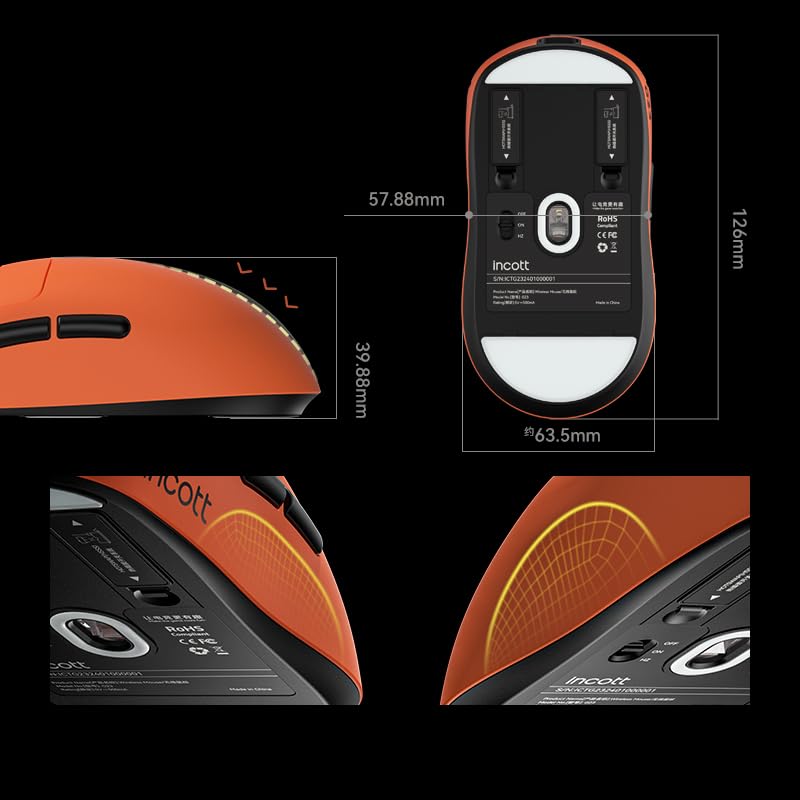
Image: Diagram illustrating the precise dimensions of the Incott G23 Series Gaming Mouse, including length, width, and height.
4. Setup
4.1. Charging the Mouse
Before first use, it is recommended to fully charge the mouse. Connect the supplied USB-C cable to the mouse's charging port and the other end to a USB power source (e.g., computer USB port, USB wall adapter). The mouse supports fast charging, achieving a full charge in approximately 50 minutes.
4.2. Connecting Wirelessly (2.4GHz)
- Locate the USB receiver (1K for G23, 8K for G23 Pro) from the package.
- Plug the USB receiver into an available USB port on your computer. For optimal signal, use the receiver expander if provided with your G23 model.
- Turn on the mouse using the power switch located on the bottom of the mouse.
- The mouse should automatically connect to the receiver. If not, refer to the troubleshooting section.
4.3. Connecting via Wired Mode
For a direct and stable connection, or when charging, you can use the mouse in wired mode:
- Connect the USB-C end of the cable to the mouse.
- Connect the USB-A end of the cable to an available USB port on your computer.
- The mouse will function immediately in wired mode and will charge simultaneously.
4.4. Installing/Replacing Hot-Swappable Switches
The Incott G23 Series features hot-swappable micro-movement switches, allowing for easy customization and replacement without soldering. This applies to the left and right click switches.
- Ensure the mouse is turned off.
- Carefully remove the mouse feet or access the switch compartments on the bottom of the mouse as indicated in the product overview image.
- Using the provided micro-switch clamp or a suitable tool, gently pull out the existing switch.
- Align the pins of the new switch with the corresponding holes in the socket and gently push it in until it is securely seated.
- Replace any covers or mouse feet that were removed.
The G23 series is compatible with 99% of micro-movement switches available in the market.
5. Operating Instructions
5.1. DPI Adjustment
The mouse features adjustable DPI (Dots Per Inch) settings to control cursor sensitivity. The G23 model supports up to 32000 DPI, while the G23 Pro supports up to 45000 DPI. Specific buttons or software may be used to cycle through DPI presets. Refer to the official product page or software for detailed DPI adjustment methods.
5.2. Polling Rate Settings
The Incott G23 Series supports various polling rates, including an ultra-fast 8000Hz in 2.4GHz wireless mode (G23 Pro includes 8K receiver, G23 requires separate purchase). Higher polling rates provide faster response times but may consume more battery. The default polling rate is 1000Hz, offering up to 143 hours of battery life.
5.3. Customizing Buttons and Settings
Advanced customization of mouse settings, including button assignments and other parameters, can typically be done through dedicated software or a web-based interface. For the Incott G23 Series, settings can be edited directly within your web browser. Please consult the official Mechkeys website for the specific URL and instructions to access the customization interface.
5.4. Battery Life and Management
The mouse is equipped with a 500mAh battery. Battery life varies depending on usage and polling rate. At 1000Hz polling rate, the mouse can last up to 143 hours. Higher polling rates will reduce battery duration. Recharge the mouse when the battery indicator shows low power or when performance degrades.
6. Maintenance and Care
- Cleaning: Use a soft, dry cloth to clean the mouse. For stubborn dirt, a slightly damp cloth can be used, but ensure no liquid enters the mouse. Avoid harsh chemicals or abrasive materials.
- Storage: When not in use for extended periods, store the mouse in a cool, dry place away from direct sunlight and extreme temperatures.
- Handling: Avoid dropping the mouse or subjecting it to strong impacts, as this can damage internal components.
7. Troubleshooting
If you encounter issues with your Incott G23 Series Gaming Mouse, please refer to the table below for common problems and their solutions:
| Problem | Possible Cause | Solution |
|---|---|---|
| Mouse not responding in wireless mode. | Low battery; Receiver not properly connected; Mouse not turned on; Interference. | Charge the mouse. Ensure the USB receiver is fully inserted into a working USB port. Turn on the mouse. Try a different USB port or move closer to the receiver. |
| Cursor movement is erratic or unresponsive. | Dirty sensor; Unsuitable surface; Low battery; Software/driver issue; Wireless interference. | Clean the optical sensor with a soft cloth. Use a mouse pad or a smooth, non-reflective surface. Charge the mouse. Restart your computer. Ensure no other wireless devices are causing interference. |
| Mouse not recognized in wired mode. | Faulty USB cable; Damaged USB port; Driver issue. | Try a different USB-C cable. Use a different USB port on your computer. Restart your computer. Check device manager for driver issues. |
| Hot-swapped switch not working. | Switch not fully seated; Faulty switch. | Ensure the switch is pushed firmly into the socket. Try a different switch to confirm if the issue is with the switch itself. |
8. Technical Specifications
| Feature | Specification |
|---|---|
| Brand | Mechkeys |
| Model | G23 Series |
| Connectivity | Wireless 2.4GHz, Wired (USB-C) |
| Sensor (G23) | PAW3395 |
| Sensor (G23 Pro) | PAW3950ES King |
| Max DPI (G23) | 32000 DPI |
| Max DPI (G23 Pro) | 45000 DPI |
| IPS (G23) | 650 IPS |
| IPS (G23 Pro) | 750 IPS |
| Acceleration | 50G |
| Polling Rate | Up to 8000Hz (wireless) |
| Battery Capacity | 500mAh |
| Battery Life (1000Hz) | Up to 143 hours |
| Charging Time | Approx. 50 minutes (fast charging) |
| Switches | Hot-swappable Micro-Movement Switches (Huano transparent blue pink dot) |
| Encoder | TTC Gold Dustproof |
| Weight | Approx. 65 grams |
| Dimensions (LxWxH) | 126x63.5x40mm |
| Coating | Skin-like Coating |
| Skates | PTFE |
9. Warranty and Support
For warranty information and technical support, please refer to the official Mechkeys website or contact their customer service. Keep your proof of purchase for any warranty claims.
Online Resources: Visit the official Mechkeys website for the latest drivers, firmware updates, and frequently asked questions.
Related documentsG23 Series

Ask a question about this manual
Ask about setup, troubleshooting, compatibility, parts, safety, or missing instructions. Manuals+ will review the question and use this page’s manual context to help answer it.