
Introduction
This manual provides essential information for setting up, operating, maintaining, and troubleshooting your Apple iPhone 16 Pro Max. Please read this guide thoroughly to ensure optimal use of your device.
1. Initial Setup
1.1 Powering On and Basic Configuration
- Power On: Press and hold the Side button until the Apple logo appears.
- Hello Screen: Swipe up from the bottom of the screen.
- Language and Region: Select your preferred language and region.
- Quick Start: If you have another iPhone or iPad, you can use Quick Start to set up your new device automatically. Bring your old device near your new iPhone and follow the on-screen instructions.
- Manual Setup: If not using Quick Start, tap "Set Up Manually."
- Wi-Fi Network: Connect to a Wi-Fi network.
- Data & Privacy: Review the Data & Privacy information.
- Face ID/Touch ID & Passcode: Set up Face ID (facial recognition) or Touch ID (fingerprint sensor) and create a passcode for security.
- Transfer Your Apps & Data: Choose how to transfer data from an old device (iCloud Backup, Mac/PC, Android) or set up as a new iPhone.
- Apple ID: Sign in with your Apple ID or create a new one. This is essential for App Store, iCloud, and other Apple services.
- Siri: Configure Siri, Apple's voice assistant.
- Screen Time: Set up Screen Time to monitor and manage device usage.
- App Analytics: Choose whether to share app analytics with Apple.
- True Tone Display: Enable or disable True Tone.
- Display Zoom: Select your preferred display zoom setting.
- Welcome: Tap "Get Started" to begin using your iPhone.
1.2 Inserting a SIM Card
Locate the SIM tray on the side of your iPhone. Use the SIM eject tool (or a small paperclip) to open the tray. Place your nano-SIM card into the tray with the gold contacts facing down and the clipped corner aligned. Gently push the tray back into the iPhone until it clicks into place.
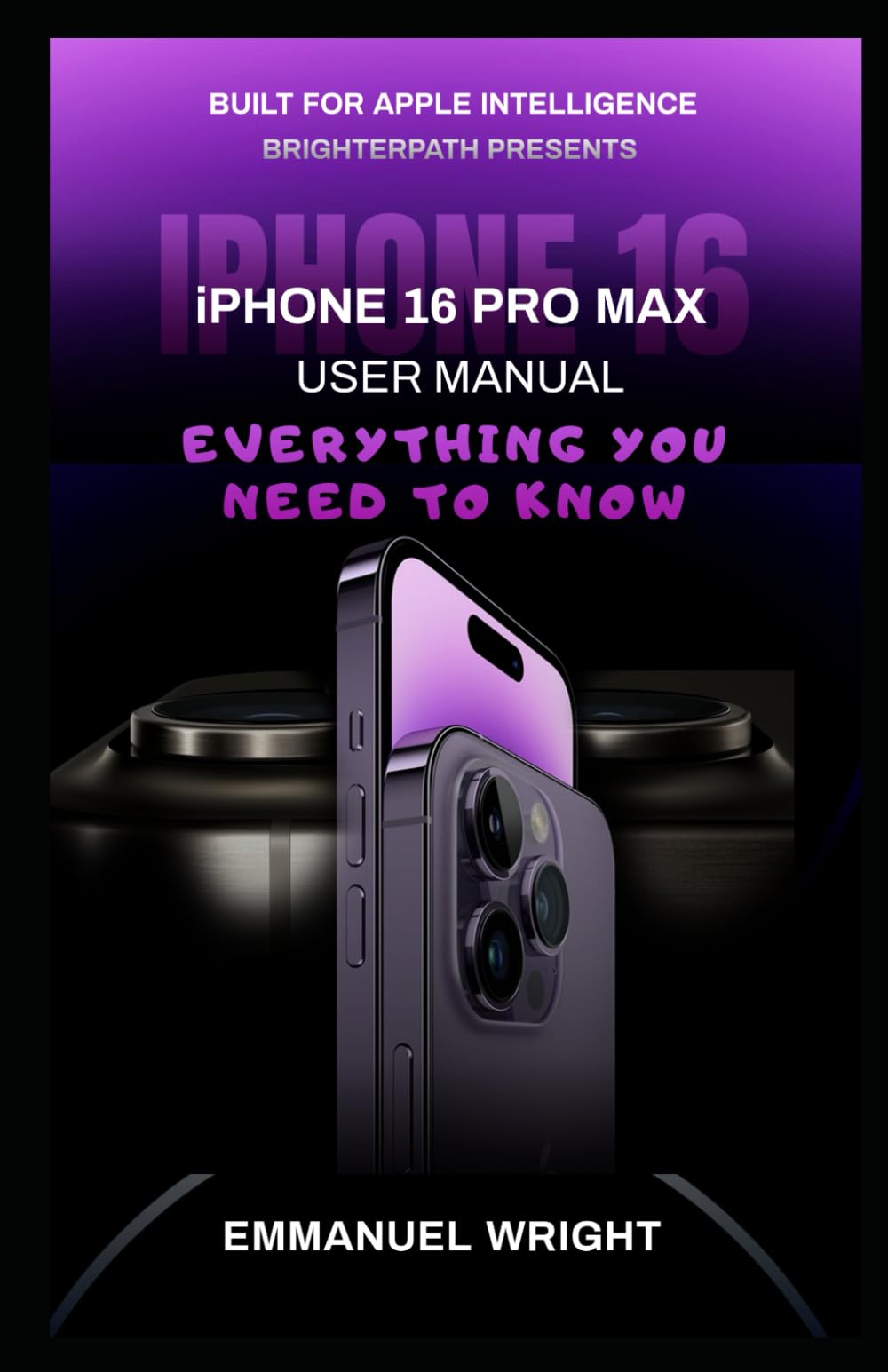
Image: Front view of the iPhone 16 Pro Max, illustrating the device's display. This image shows the general appearance of the device.
2. Operating Your iPhone 16 Pro Max
2.1 Basic Navigation and Gestures
- Home Screen: Swipe up from the bottom edge of the screen to go to the Home Screen.
- App Switcher: Swipe up from the bottom edge and pause in the middle of the screen to view open apps.
- Control Center: Swipe down from the top-right corner to access Control Center for quick settings.
- Notification Center: Swipe down from the top-center of the screen to view notifications.
- Spotlight Search: Swipe down on the Home Screen to access Spotlight Search.
2.2 Making Calls and Sending Messages
- Phone App: Tap the Phone icon to make calls. Use the Keypad, Recents, Contacts, or Favorites.
- Messages App: Tap the Messages icon to send and receive text messages (SMS/MMS) and iMessages.
- FaceTime: Use FaceTime for video and audio calls over Wi-Fi or cellular data.
2.3 Camera Features
The iPhone 16 Pro Max features an advanced camera system. Open the Camera app to access various modes:
- Photo: Standard photo mode.
- Portrait: Creates a depth-of-field effect.
- Video: Record high-quality videos.
- Cinematic Mode: Records videos with a shallow depth of field and smooth focus transitions.
- ProRes Video: For professional-grade video recording.
- Macro Photography: Capture extreme close-ups.
Image: Back view of the iPhone 16 Pro Max, highlighting the multi-lens camera system. This image shows the rear design and camera module.
2.4 Siri
Siri is your intelligent personal assistant. Activate Siri by saying "Hey Siri" or by pressing and holding the Side button. You can ask Siri to send messages, make calls, set reminders, get directions, and much more.
2.5 Customization
- Widgets: Add widgets to your Home Screen or Today View for quick access to information.
- Wallpapers: Change your wallpaper in Settings > Wallpaper.
- Shortcuts App: Automate tasks and create custom workflows.
3. Maintenance
3.1 Battery Optimization
To maximize battery life:
- Enable Low Power Mode (Settings > Battery).
- Adjust screen brightness or enable Auto-Brightness.
- Limit background app refresh (Settings > General > Background App Refresh).
- Turn off Location Services for apps that don't require it.
3.2 Software Updates
Keep your iPhone's software up to date for the latest features and security enhancements. Go to Settings > General > Software Update.
3.3 Storage Management
Monitor and manage your iPhone's storage in Settings > General > iPhone Storage. Delete unused apps, photos, and videos to free up space.
3.4 Cleaning Your Device
Use a soft, lint-free cloth to clean your iPhone. Avoid abrasive materials or harsh chemicals. For stubborn smudges, slightly dampen the cloth with water. Do not submerge your iPhone in cleaning solutions.
4. Troubleshooting Common Issues
4.1 Device Not Responding
If your iPhone is frozen or unresponsive, perform a force restart:
- Press and quickly release the Volume Up button.
- Press and quickly release the Volume Down button.
- Press and hold the Side button until the Apple logo appears.
4.2 App Crashing or Not Working
- Close and reopen the app.
- Check for app updates in the App Store.
- Restart your iPhone.
- Delete and reinstall the app.
4.3 Network Connectivity Issues
- Wi-Fi: Turn Wi-Fi off and on again in Control Center or Settings. Forget the network and reconnect.
- Cellular Data: Ensure cellular data is enabled. Check with your carrier for service outages.
- Airplane Mode: Toggle Airplane Mode on and off (Settings or Control Center).
- Reset Network Settings: Go to Settings > General > Transfer or Reset iPhone > Reset > Reset Network Settings. This will reset Wi-Fi passwords and cellular settings.
4.4 Factory Reset
As a last resort, you can erase all content and settings. Warning: This will delete all data on your iPhone. Ensure you have a backup before proceeding. Go to Settings > General > Transfer or Reset iPhone > Erase All Content and Settings.
5. Specifications
The following are illustrative specifications for the iPhone 16 Pro Max. For the most accurate and up-to-date technical details, please refer to Apple's official product page.
| Display | 6.7-inch Super Retina XDR display with ProMotion |
| Processor | A-series Bionic Chip (e.g., A18 Bionic) |
| Storage Options | 128GB, 256GB, 512GB, 1TB |
| Rear Camera System | Pro camera system with Main, Ultra Wide, and Telephoto lenses (e.g., 48MP Main, 12MP Ultra Wide, 12MP Telephoto) |
| Front Camera | TrueDepth front camera with Autofocus |
| Operating System | iOS (latest version at release) |
| Battery Life | Up to 29 hours video playback (approximate) |
| Connectivity | 5G, Wi-Fi 6E, Bluetooth 5.3, Ultra Wideband chip |
| Water Resistance | IP68 rating (maximum depth of 6 meters up to 30 minutes) |
| Security | Face ID |
Please note: These specifications are based on typical high-end iPhone models and are provided for illustrative purposes. Actual specifications may vary.
6. Warranty Information
Your iPhone 16 Pro Max is covered by Apple's standard one-year limited warranty, which covers manufacturing defects. This warranty does not cover accidental damage or unauthorized modifications. You may also have additional consumer rights under local laws.
To check your warranty status, go to Settings > General > About, and tap on "Limited Warranty" or "AppleCare+." You can also visit Apple's official website and enter your device's serial number.
Consider purchasing AppleCare+ for extended coverage and accidental damage protection.
7. Customer Support
For further assistance with your iPhone 16 Pro Max, please utilize the following resources:
- Apple Support Website: Visit support.apple.com for comprehensive articles, guides, and troubleshooting steps.
- Apple Store: Schedule an appointment at an Apple Store for in-person technical support.
- Apple Support App: Download the Apple Support app from the App Store for personalized support options.
- Contact Apple: Find contact numbers for Apple Support in your region on the official support website.


