1. Introduction
This user manual provides detailed instructions for the installation, operation, and maintenance of your GOWENIC 5G CPE 6 Router. Please read this manual thoroughly before using the device to ensure optimal performance and safe operation. This router is designed to provide high-speed 5G and WiFi6 connectivity for various environments, including homes, offices, and mobile setups.
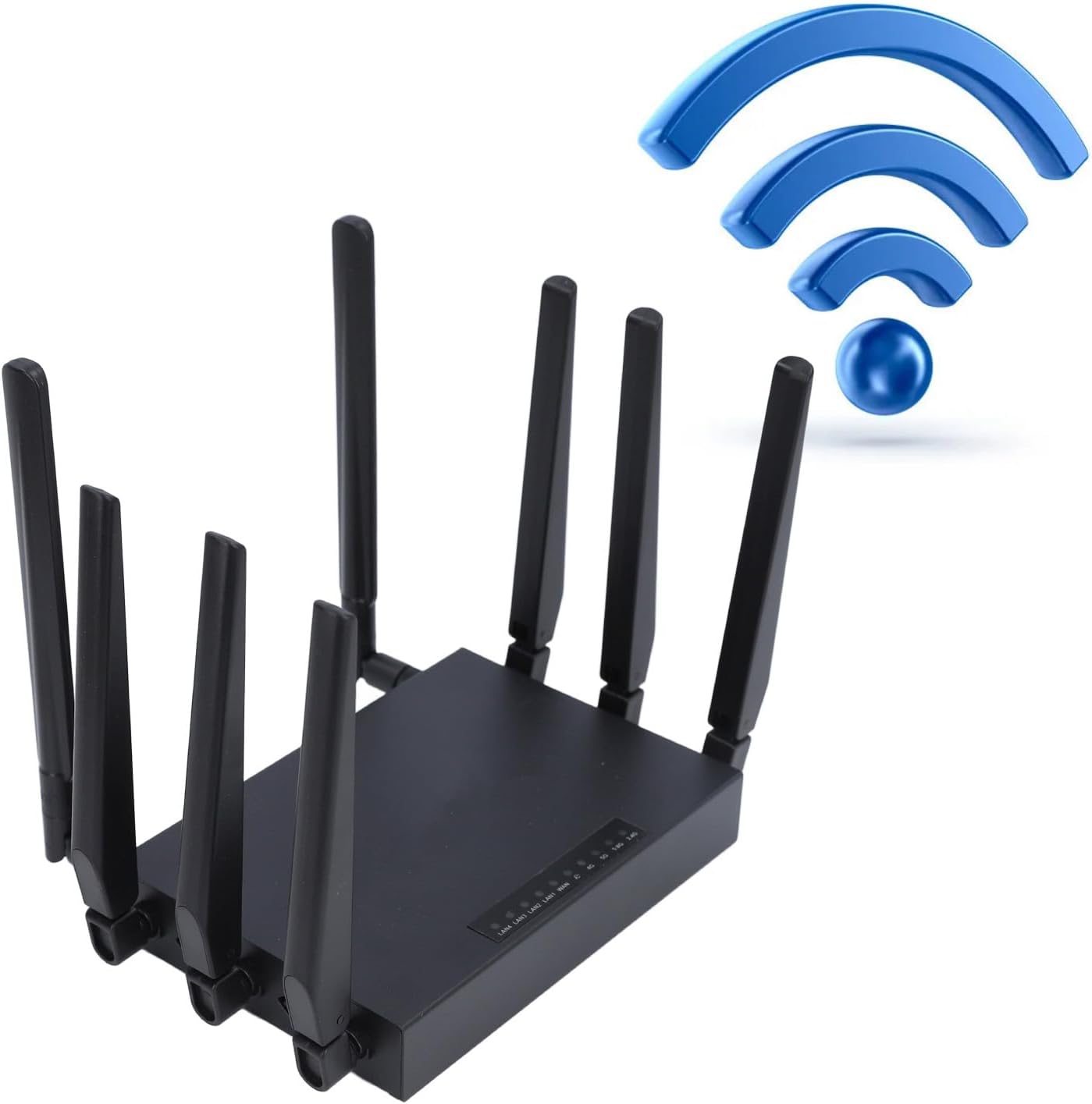
Figure 1: GOWENIC 5G CPE 6 Router. This image shows the router from an angled perspective, highlighting its eight external antennas and indicating wireless connectivity.
2. Product Overview
2.1 Key Features
- Dual Band WiFi6: Supports speeds up to 1201 Mbps on the 5 GHz band and 574 Mbps on the 2.4 GHz band, enabling simultaneous online gaming and HD video streaming.
- 8 High-Gain Antennas: Equipped with eight broadband cellular antennas for enhanced signal reception and coverage, boosting WiFi6 connectivity.
- Integrated SIM Card Slot: Offers plug-and-play 5G connectivity, ideal for various scenarios including homes, offices, RV travel, camping, and small businesses.
- Multi-User Support: Allows up to 20 users to share the 5G network simultaneously, catering to diverse internet needs.
- Robust Design: Features a new program architecture and selected core components for low power consumption, vertical design for effective heat dissipation, and a metal casing for interference shielding, ensuring stable and reliable network performance.
- Gigabit Ethernet Ports: Includes 1 WAN and 4 LAN 1000Mbps Gigabit Ethernet ports for flexible wired network connections.
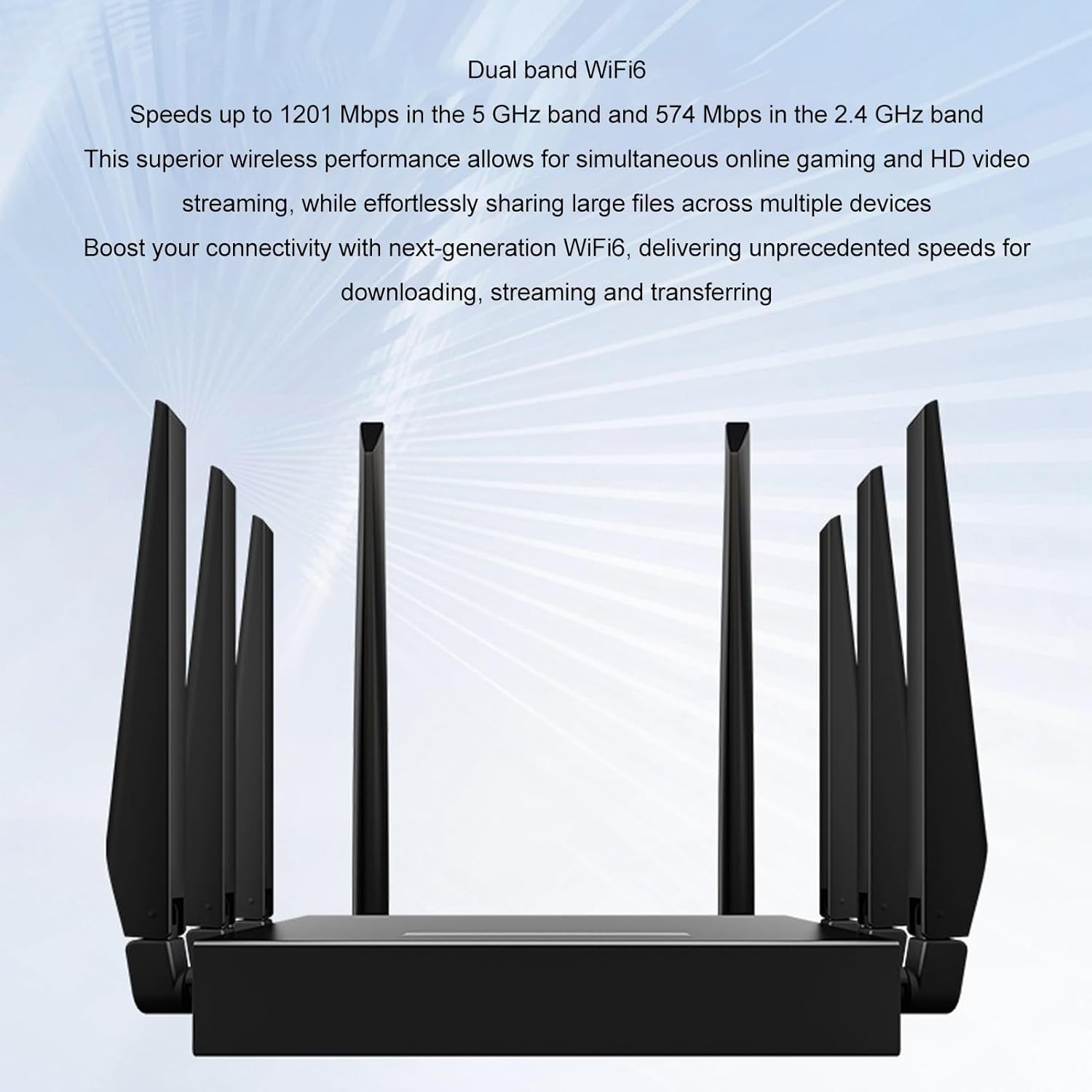
Figure 2: Dual Band WiFi6 Capabilities. This image highlights the router's support for both 5 GHz and 2.4 GHz bands, detailing the maximum speeds for each.

Figure 3: External Antennas for Signal Stability. This image shows the router's eight external antennas, emphasizing their role in providing strong and stable signal reception.

Figure 4: Metal Casing for Interference Shielding. This image illustrates the router's metal casing, designed to effectively block interference signals and ensure pure data transmission.
2.2 Package Contents
Upon unpacking, please verify that all items listed below are included in your package:
- 1 x GOWENIC 5G CPE 6 Router
- 2 x External Antennas (detachable)
- 1 x Network Cable
- 1 x Power Adapter (US Plug)
- 1 x Hook and Loop Fastener
- 1 x Instruction Manual (this document)
3. Setup Instructions
The GOWENIC 5G CPE 6 Router is designed for easy plug-and-play setup. Follow these steps to get your router operational:
3.1 SIM Card Insertion
- Locate the SIM card slot on the router.
- Insert a standard SIM card according to the direction indicated on the device. Ensure the SIM card is correctly oriented.
- If using a Micro or Nano SIM card, use a suitable SIM card adapter (not included) to convert it to a standard SIM card size before insertion.
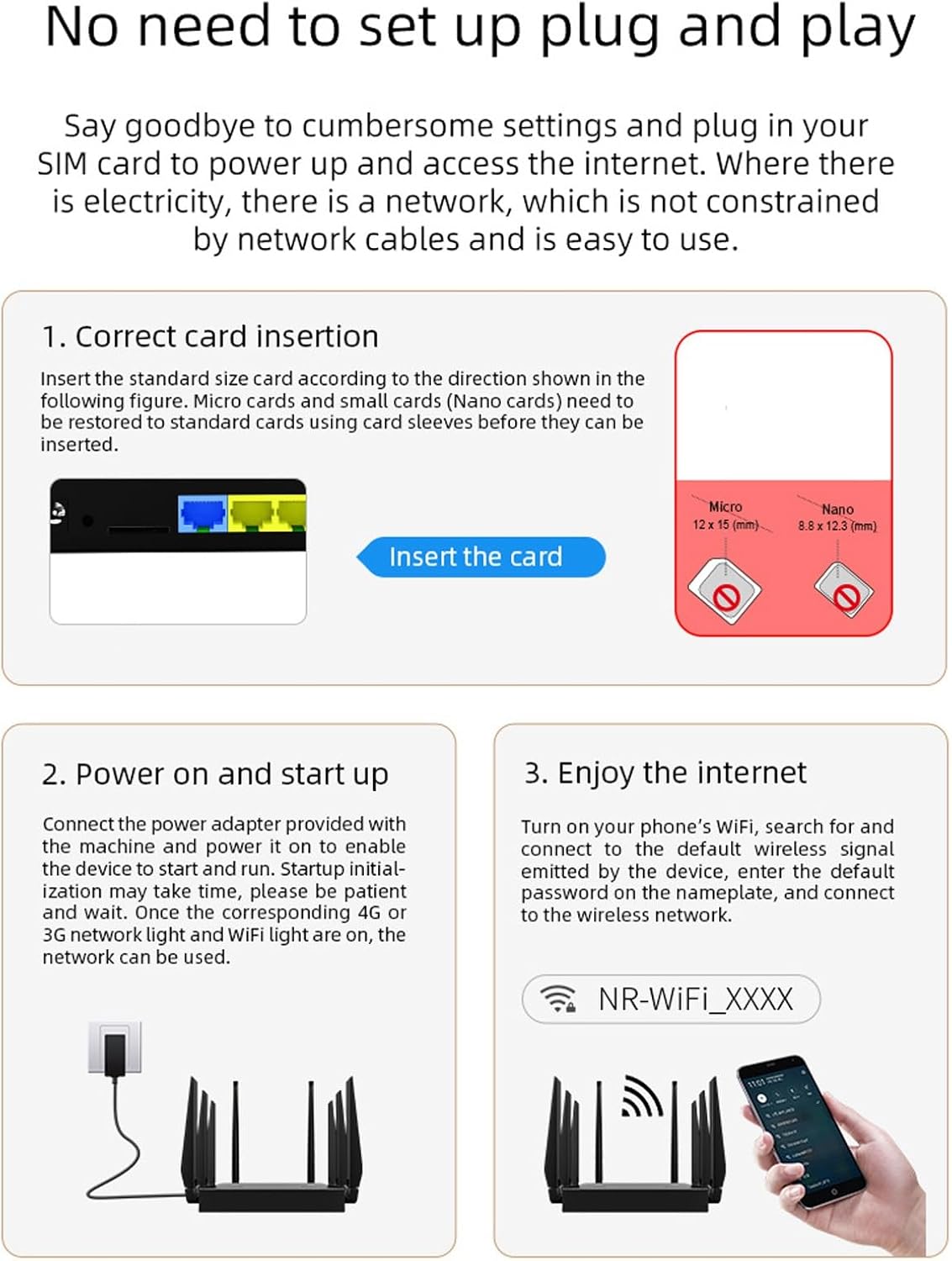
Figure 5: SIM Card Insertion and Initial Setup Steps. This diagram illustrates the correct method for inserting a standard SIM card, connecting the power adapter, and identifying the default WiFi network name.
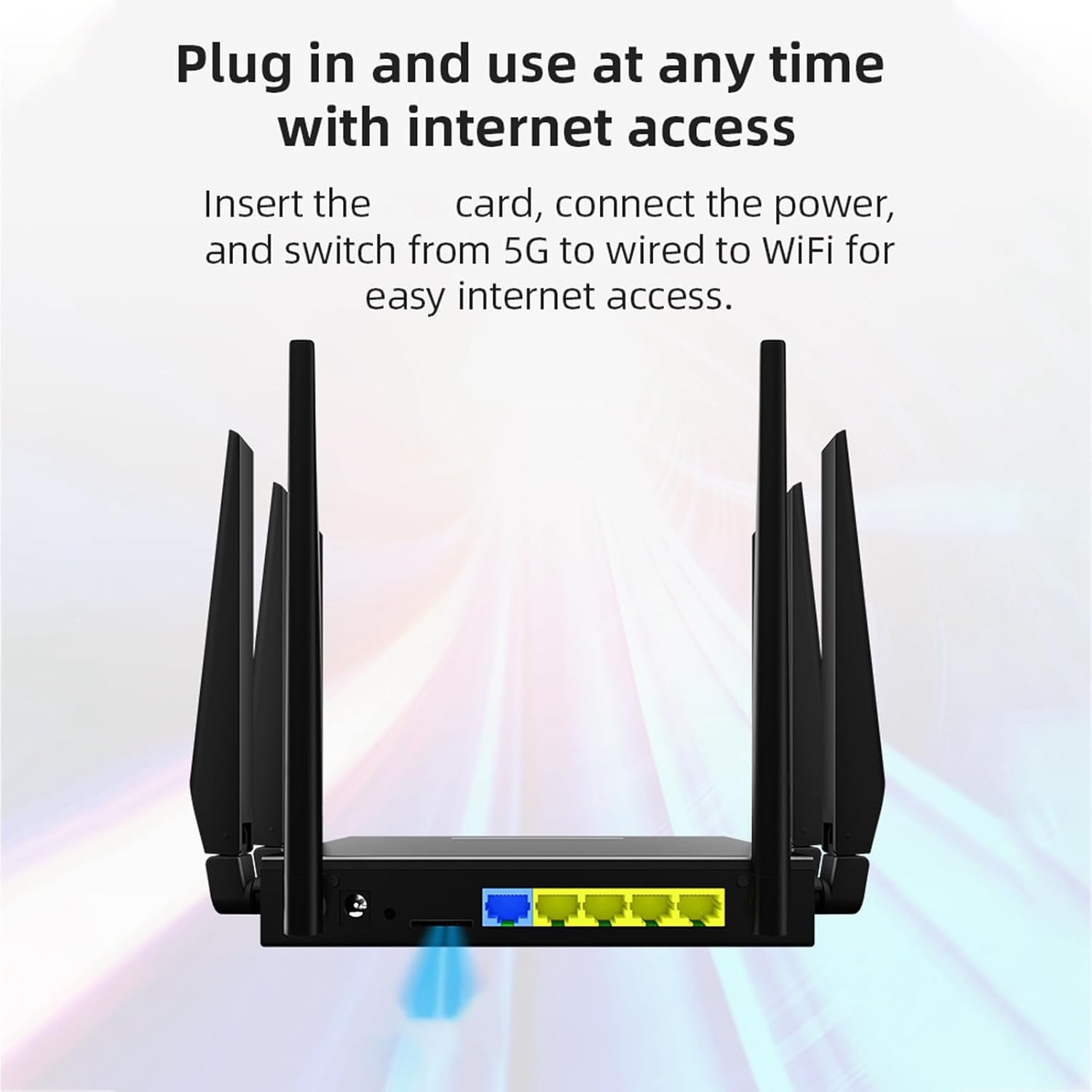
Figure 6: Plug and Use with SIM Card. This image shows the router's rear panel with a SIM card being inserted and the power cable connected, demonstrating the ease of setup for internet access.
3.2 Power On and Initial Connection
- Connect the provided power adapter to the router's power input and then plug it into an electrical outlet.
- The router will automatically power on and begin its startup sequence. This process may take a few moments.
- Observe the indicator lights on the router. Once the 4G or 5G network light and WiFi light are illuminated and stable, the network is ready for use.
- On your mobile phone or computer, search for available WiFi networks. The default network name (SSID) will typically be "NR-WiFi_XXXX" (where XXXX are unique characters).
- Connect to this default WiFi network. The default password can usually be found on a label on the router itself.
4. Operating Instructions
4.1 Wireless Connectivity (WiFi)
Once connected to the default WiFi network, you can begin browsing the internet. For security, it is recommended to change the default WiFi network name (SSID) and password through the router's web interface. Refer to the router's web interface guide for detailed instructions on configuration.
4.2 Wired Connectivity (Ethernet)
The router features one 1000Mbps WAN port and four 1000Mbps LAN ports. You can connect devices such as computers, gaming consoles, or other network devices directly to the LAN ports using an Ethernet cable for a stable wired connection.

Figure 7: WAN and LAN Ports. This image displays the router's rear panel, highlighting the WAN port (blue) and four LAN ports (yellow) for various wired connectivity options.
4.3 Device Sharing
The GOWENIC 5G CPE 6 Router supports simultaneous connection for up to 20 terminal devices, including mobile phones, computers, televisions, and smart home devices. This allows multiple users to enjoy high-speed internet without significant performance degradation.

Figure 8: Multi-Device Connectivity. This image illustrates the router's capability to connect simultaneously to various devices, including mobile phones, laptops, smart TVs, tablets, and cameras.
5. Maintenance
To ensure the longevity and stable performance of your GOWENIC 5G CPE 6 Router, consider the following maintenance guidelines:
- Placement: Position the router in a well-ventilated area to facilitate effective heat dissipation. Avoid placing it in enclosed spaces or near heat sources.
- Cleaning: Regularly clean the exterior of the router with a soft, dry cloth. Do not use liquid cleaners or aerosols.
- Firmware Updates: Check the manufacturer's website periodically for firmware updates. Keeping the firmware updated can improve performance, security, and add new features.
- Antenna Care: The external antennas are detachable. Ensure they are securely fastened. If you need to adjust their position, do so gently.

Figure 9: Detachable SMA Antennas. This image shows the router's SMA antenna connectors and two detachable antennas, indicating the possibility for expansion or replacement.
6. Troubleshooting
If you encounter issues with your GOWENIC 5G CPE 6 Router, please refer to the following common troubleshooting steps:
- No Internet Connection:
- Ensure the SIM card is correctly inserted and active with a data plan.
- Check the network indicator lights on the router. If the 4G/5G light is off or blinking, there might be a network issue or SIM card problem.
- Restart the router by unplugging the power adapter, waiting 10 seconds, and plugging it back in.
- Verify that your device is connected to the correct WiFi network and that the password is entered correctly.
- Slow WiFi Speed:
- Ensure the router is placed in a central location, away from obstructions and interference sources (e.g., microwaves, cordless phones).
- Check if too many devices are connected simultaneously.
- Consider changing the WiFi channel through the router's web interface to avoid congestion.
- Ensure your device supports WiFi6 for optimal performance.
- Cannot Access Router Settings:
- Ensure your device is connected to the router's WiFi or via an Ethernet cable.
- Verify the correct IP address for the router's web interface (usually printed on a label on the router).
- Try clearing your browser's cache or using a different browser.
- No Signal or Weak Signal:
- Ensure the external antennas are securely attached and oriented correctly.
- Relocate the router to an area with better cellular signal reception.
If problems persist, please contact GOWENIC customer support for further assistance.
7. Specifications
| Feature | Detail |
|---|---|
| Model Number | GOWENICq45i2g3vpt-13 |
| Frequency Band (WLAN) | 2.4GHz (2.400‑2.4835 GHz), 5GHz (5.150‑5.850 GHz) |
| Frequency Band (5G NR) | NR FDD: N1, N3, N8, N28; NR TDD: N41, N77, N78, N79 |
| Frequency Band (LTE) | LTE FDD: B1, B3, B5, B8; LTE TDD: B34, B38, B39, B40, B41 |
| Frequency Band (WCDMA) | B1, B8 |
| SIM Card Slot | Standard SIM Card (not Included) |
| Network Ports | 1 x 1000Mbps WAN, 4 x 1000Mbps LAN |
| 5G Antenna | 4x4 MIMO |
| Module | FCO6E |
| Encryption | WPA, WPA2 |
| Applicable Regions | Middle East, Asia, Africa |
| Item Weight | 2.04 pounds (approx. 0.925 kg) |
| Package Dimensions | 10.63 x 9.84 x 2.76 inches (approx. 27 x 25 x 7 cm) |
8. Warranty and Support
For warranty information and technical support, please refer to the warranty card included with your product or visit the official GOWENIC website. You may also contact GOWENIC customer service directly for assistance with product inquiries, troubleshooting, or service requests.
Manufacturer: GOWENIC
Model Name: GOWENICq45i2g3vpt-13
ASIN: B0DH587612


