
SEUNKWANG V20-1
EWEADN V20 Typewriter Keyboard Wireless User Manual
Model: V20-1
Product Overview
The EWEADN V20 Typewriter Keyboard is a versatile mechanical keyboard designed for a comfortable and efficient typing experience. It features a retro typewriter style with round keycaps, multiple connectivity options, and customizable backlighting. This manual provides detailed instructions for setting up, operating, and maintaining your keyboard.

This image displays the full layout of the EWEADN V20 keyboard, highlighting its unique round keycaps and overall retro aesthetic. The keyboard is shown in a pink color with rose gold accents.

This diagram illustrates the main features of the V20 keyboard, such as its electroplated keycaps, mechanical switches, ergonomic design, and multimedia knob. It also highlights the 19 lighting effects and full key anti-ghosting capability.
Setup
Package Contents
Before you begin, ensure all items are present in the package:
- EWEADN V20 Typewriter Keyboard
- USB Cable (Type-C)
- User Manual (this document)
Connection Modes
The V20 keyboard supports three connection modes: Bluetooth 5.0, 2.4Ghz Wireless, and USB-C Wired. It can connect to up to 5 devices simultaneously.

This image demonstrates the keyboard's ability to connect via Bluetooth, 2.4GHz wireless, and USB-C wired modes, showing its compatibility with various devices like laptops, phones, and tablets.
1. USB-C Wired Mode
- Connect the provided USB-C cable to the keyboard's Type-C port.
- Connect the other end of the cable to a USB port on your computer.
- Press and hold FN + 5 to switch to USB-C wired mode. The keyboard will be automatically recognized by your system.
2. 2.4Ghz Wireless Mode
- Locate the 2.4Ghz USB receiver, typically stored in a compartment on the keyboard's underside.
- Plug the USB receiver into an available USB port on your computer.
- Press and hold FN + 4 to switch to 2.4Ghz wireless mode. The keyboard should connect automatically.
3. Bluetooth Mode (BT1/BT2/BT3)
The keyboard supports up to three Bluetooth connections.
- Press and hold FN + 1 (for BT1), FN + 2 (for BT2), or FN + 3 (for BT3) for 3-5 seconds until the indicator light flashes rapidly, indicating pairing mode.
- On your device (computer, tablet, smartphone), enable Bluetooth and search for "EWEADN V20" or similar.
- Select the keyboard from the list of available devices to complete the pairing process. The indicator light will stop flashing once connected.
- To switch between paired Bluetooth devices, simply press FN + 1/2/3 (short press).
Battery Information
The EWEADN V20 keyboard is equipped with a 2000mAh Lithium Ion battery.
- Battery Capacity: 2000mAh
- Estimated Durability:
- With Backlight ON: Approximately 3 days
- With Backlight OFF: Approximately 15 days
To charge the keyboard, connect it via the USB-C cable to a power source (computer USB port or USB wall adapter). The indicator light will show charging status.
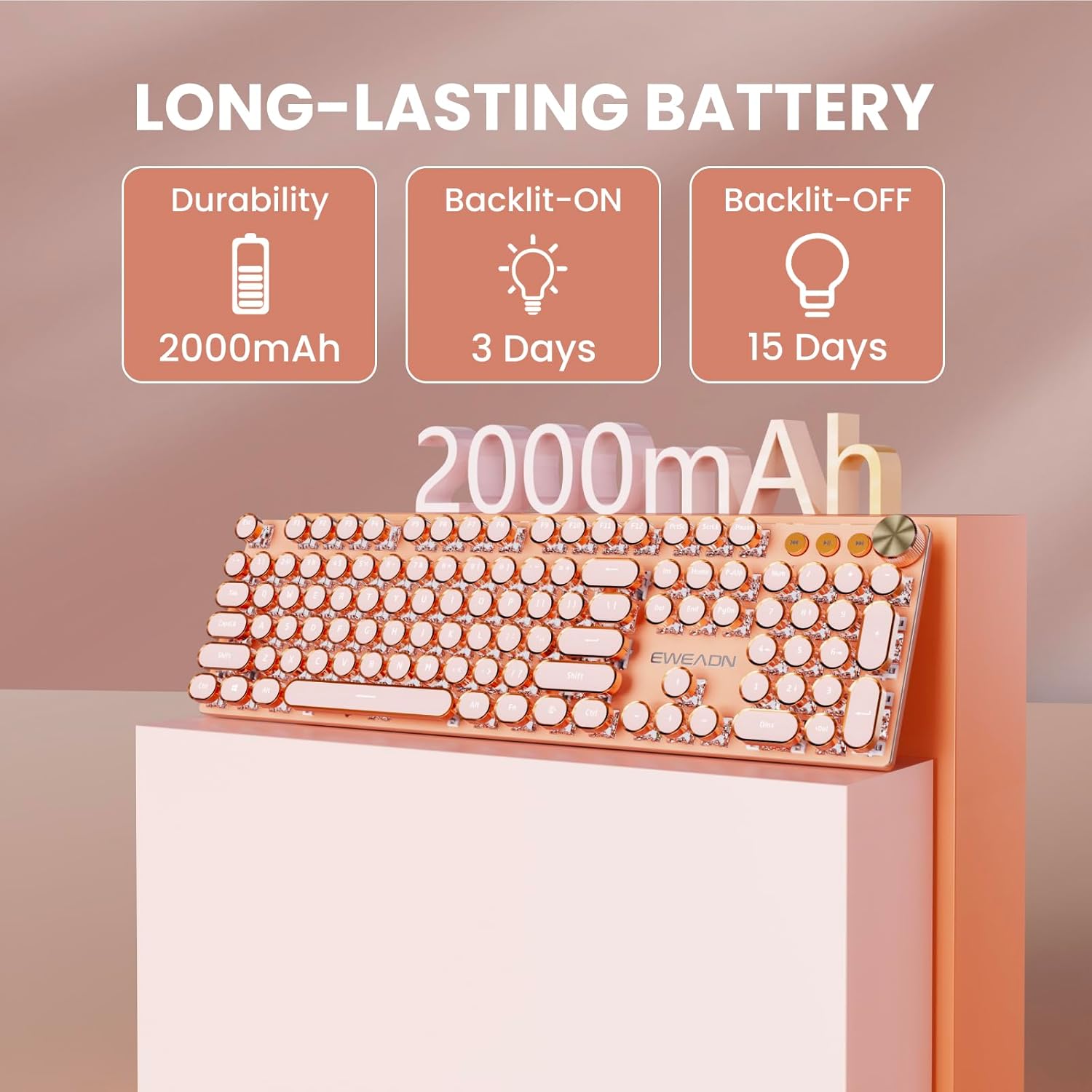
This image highlights the 2000mAh battery capacity and its estimated usage duration with and without backlighting enabled.
Operating Instructions
Key Functions and Layout
The V20 keyboard features a 104-key layout with anti-ghosting technology, ensuring accurate input even when multiple keys are pressed simultaneously. It uses mechanical pink switches for a smooth and responsive typing experience.

This image provides detailed specifications for the Pink Switches used in the keyboard, including travel distance, operating force, and durability.
Multimedia and Backlight Control
The keyboard includes a dedicated multimedia knob and function key combinations for controlling various features.
Multimedia Knob:
- Press FN + Knob: Switch between Light mode and Volume mode.
- Turn Knob (Volume Mode): Adjust system volume.
- Turn Knob (Light Mode): Adjust backlight brightness.
- Press Knob: Mute/Unmute audio (Volume Mode) or Change Light Effects (Light Mode).
Dedicated Multimedia Buttons:
- Buttons next to the knob allow quick adjustment for previous song, next song, and pause/play.
Backlight Control (FN Key Combinations):
- FN + INS: Switch between 19 different lighting effects.
- FN + ↑: Increase backlight brightness (5 levels).
- FN + ↓: Decrease backlight brightness (5 levels).
- FN + ←: Slow down lighting effect speed.
- FN + →: Speed up lighting effect speed.
- FN + 1~8: Choose specific game backlight modes.

This image details the function key combinations used to control the keyboard's 19 lighting effects, including brightness and speed adjustments.
System Compatibility
The V20 keyboard is widely compatible with various operating systems, including Windows 7/8/10/XP/Vista, Linux, and Mac OS systems.
- FN + W: Switch to Windows layout.
- FN + A: Switch to Mac layout.
- FN + ESC: Reset keyboard to default settings.
Maintenance
General Cleaning
To keep your keyboard in optimal condition:
- Use a soft, lint-free cloth to wipe down the keycaps and frame.
- For dust and debris between keys, use compressed air.
- Avoid using harsh chemicals or abrasive materials.
Keycap Removal and Switch Maintenance
The V20 keyboard features removable keycaps and mechanical switches, allowing for easy cleaning and potential switch replacement.
- Gently pull keycaps upwards to remove them. A keycap puller (not included) can assist.
- Once keycaps are removed, you can access the switches for cleaning or replacement.
- Ensure the keyboard is disconnected before performing any maintenance.
This video demonstrates the keyboard's features, including the removal of keycaps to show the mechanical switches underneath, and the various backlight effects. It also shows the keyboard in use, highlighting its typing experience.
Troubleshooting
If you encounter issues with your EWEADN V20 keyboard, please refer to the following common solutions:
| Problem | Possible Solution |
|---|---|
| Keyboard not connecting (Wireless/Bluetooth) |
|
| Backlight not working or dim |
|
| Keys not responding or ghosting |
|
If the issue persists, please contact customer support as detailed in the "Warranty & Support" section.
Specifications
| Feature | Detail |
|---|---|
| Brand | SEUNKWANG (EWEADN) |
| Model Number | V20-1 |
| Connectivity Technology | 2.4Ghz Wireless, Bluetooth 5.0, USB-C Wired |
| Number of Keys | 104 |
| Switch Type | Mechanical Pink Switch |
| Backlight | White Backlit (19 lighting effects) |
| Battery | 2000mAh Lithium Ion (included) |
| Compatible Devices | Laptop, PC, Gaming Console, Tablet, Smartphone |
| Operating Systems | Windows 7/8/10/XP/Vista, Linux, Mac OS |
| Material | Metal Panel, Electroplated Punk Keycaps |
| Item Weight | 2.09 pounds (approx. 0.95 kg) |
| Package Dimensions | 17.63 x 6.06 x 1.89 inches |
Warranty & Support
EWEADN is committed to providing excellent customer service and support for your V20 keyboard.
Customer Support Channels:
- Email Support: For any inquiries, troubleshooting assistance, or accessory reissues, please contact us at eweadnkeyboard@outlook.com.
- Amazon Store: You can also contact the seller directly through the Amazon platform.
- Find the SEUNKWANG store on Amazon.
- Navigate to the seller's page.
- Click the "Ask a question" option.
Our support team is available for pre-sales questions, troubleshooting, accessory requests, and returns/exchanges.
Ask a question about this manual
Ask about setup, troubleshooting, compatibility, parts, safety, or missing instructions. Manuals+ will review the question and use this page’s manual context to help answer it.