
Redragon K707 PRO
Redragon K707 PRO 80% Wireless Gasket RGB Gaming Keyboard User Manual
Model: K707 PRO
Introduction
This manual provides detailed instructions for the Redragon K707 PRO 80% Wireless Gasket RGB Gaming Keyboard. Please read this manual thoroughly before using the product to ensure proper operation and to maximize your user experience.

Image: The Redragon K707 PRO 80% Wireless Gasket RGB Gaming Keyboard, showcasing its compact TKL layout and vibrant keycaps.
Setup
Package Contents
Verify that all components are present:
- Redragon K707 PRO Keyboard
- USB-C to USB-A Cable
- 2.4GHz Wireless Dongle
- Keycap Puller
- Switch Puller
- User Manual (this document)
Charging the Keyboard
The K707 PRO features a built-in 4000mAh rechargeable battery. Before initial use, it is recommended to fully charge the keyboard.
- Connect the provided USB-C cable to the keyboard's USB-C port.
- Connect the other end of the cable to a powered USB port (e.g., computer, USB wall adapter).
- The keyboard's indicator light will show charging status and turn off when fully charged.
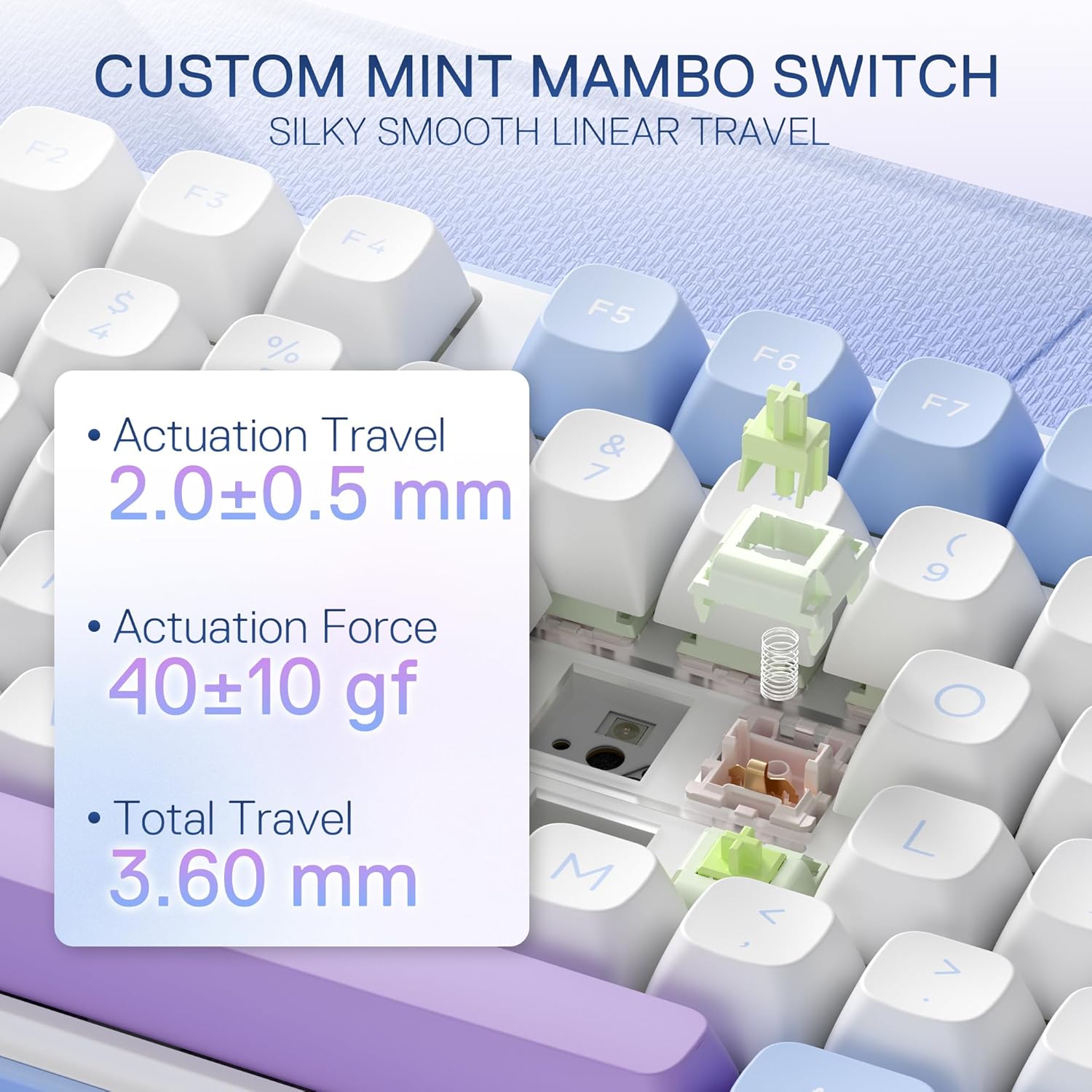
Image: The Redragon K707 PRO keyboard highlighting its 4000mAh battery capacity for extended wireless use.
Connection Modes
The K707 PRO supports three connection modes: USB-C wired, 2.4GHz wireless, and Bluetooth (BT 3.0/5.0).

Image: The Redragon K707 PRO keyboard demonstrating its tri-mode connection capability, linking to a laptop and a tablet simultaneously.
1. USB-C Wired Connection
- Connect the USB-C cable directly from the keyboard to your computer's USB port.
- The keyboard will be recognized automatically and is ready for use.
2. 2.4GHz Wireless Connection
- Locate the 2.4GHz wireless dongle (usually stored in a compartment on the keyboard).
- Plug the dongle into an available USB port on your computer.
- Turn on the keyboard. It should automatically connect to the dongle.
3. Bluetooth Connection (BT 3.0/5.0)
- Ensure the keyboard is powered on and in Bluetooth pairing mode (refer to the operating section for specific key combinations).
- On your device (PC, laptop, tablet), open Bluetooth settings and search for new devices.
- Select "Redragon K707 PRO" from the list of available devices to pair.
Operating Instructions
Keyboard Layout and Features
The K707 PRO features an 80% Tenkeyless (TKL) layout with 87 keys, providing a compact design while retaining essential keys for gaming and productivity.

Image: The Redragon K707 PRO keyboard illustrating its 80% TKL layout and the internal gasket design for enhanced typing feel.
Gasket Mount Design
The keyboard utilizes a gasket-mounted structure, which differs from traditional screw-fixed designs. This construction uses precision-locked covers with gaskets to reduce noise and enhance typing flexibility, resulting in a softer and cleaner typing experience.
Noise Dampening System
The K707 PRO incorporates five layers of noise dampening materials to minimize hollow sounds and provide a satisfying acoustic profile. These layers include 3.5mm PO foam, IXPE switch foam, PET sound pad, bottom socket foam, and a silicone bottom pad, along with the silicone gasket.

Image: An exploded diagram of the Redragon K707 PRO keyboard, detailing its five layers of noise dampening materials for improved acoustics.
Custom Mint Mambo Switches
The keyboard is equipped with custom Mint Mambo linear switches, pre-lubed for a smooth and creamy typing feel. These switches offer:
- Actuation Travel: 2.0 ± 0.5 mm
- Actuation Force: 40 ± 10 gf
- Total Travel: 3.60 mm
The hot-swap sockets are compatible with most 3-pin and 5-pin mechanical switches, allowing for easy customization.

Image: A detailed view of the Redragon K707 PRO's custom Mint Mambo linear switches, showing their actuation and total travel specifications.
PBT Round Keycaps
The K707 PRO features durable PBT round keycaps with a frosted granular feel. PBT material is known for its resistance to shine and wear over time, providing a consistent typing experience.

Image: The Redragon K707 PRO keyboard showcasing its innovative round PBT keycaps, designed for durability and a unique tactile feel.
RGB Lighting Control
The keyboard features customizable RGB backlighting. Specific key combinations (often involving the Function key, Fn) can be used to cycle through lighting modes, adjust brightness, and change colors. Refer to the keyboard's quick start guide or the software for detailed controls.
Pro Software Support
For advanced customization, including macro programming, key remapping, and detailed RGB lighting effects, download the dedicated software from the official Redragon website. The software supports both Windows and macOS operating systems.

Image: The Redragon K707 PRO keyboard's software demonstrating compatibility with both Windows and macOS operating systems.

Image: A visual representation of the Redragon K707 PRO's professional software interface, allowing users to design custom modes and effects.
Maintenance
Cleaning the Keyboard
To maintain optimal performance and appearance:
- Disconnect the keyboard from your computer before cleaning.
- Use a soft, lint-free cloth slightly dampened with water or a mild cleaning solution to wipe the keycaps and chassis.
- For dust and debris between keycaps, use compressed air or a small brush.
- Avoid using harsh chemicals or abrasive materials.
Hot-Swap Switch Replacement
The K707 PRO features hot-swappable sockets, allowing you to change switches without soldering.
- Use the provided keycap puller to carefully remove the desired keycap.
- Use the provided switch puller to gently grip the top and bottom clips of the switch and pull it straight up.
- Align the pins of the new switch with the holes on the PCB. Ensure the pins are straight to avoid bending.
- Press the new switch firmly into place until it clicks.
- Reattach the keycap.
Image: A visual guide demonstrating the process of removing and installing hot-swappable mechanical switches on the Redragon K707 PRO keyboard.
Troubleshooting
Keyboard Not Responding
- Wired Mode: Ensure the USB-C cable is securely connected to both the keyboard and the computer. Try a different USB port or cable.
- 2.4GHz Wireless Mode: Ensure the 2.4GHz dongle is properly inserted into a USB port and the keyboard is powered on. Try re-pairing by turning the keyboard off and on, or re-inserting the dongle.
- Bluetooth Mode: Verify the keyboard is in Bluetooth pairing mode and your device's Bluetooth is enabled. Remove the keyboard from your device's paired list and attempt to re-pair.
- Battery: Ensure the keyboard has sufficient charge. Connect it via USB-C to charge.
RGB Lighting Not Working or Incorrect
- Check the keyboard's manual or quick start guide for key combinations to control RGB lighting.
- Ensure the brightness is not set to minimum.
- If using the software, verify that the lighting settings are correctly configured and applied.
- Restart the keyboard and your computer.
Keys Not Registering
- For hot-swappable switches, ensure the switch is fully seated in its socket. Gently press down on the affected switch.
- Clean around the affected keycap to remove any debris.
- If a specific switch is faulty, consider replacing it with a spare switch (if available) or purchasing a new one.
Connectivity Issues (Lag, Disconnections)
- Wireless Modes: Ensure there are no significant obstructions between the keyboard/dongle and your device. Move closer to the receiver.
- Avoid interference from other 2.4GHz devices (e.g., Wi-Fi routers, cordless phones).
- Ensure the keyboard battery is adequately charged.
- Update your device's Bluetooth drivers if using Bluetooth connection.
Specifications
| Feature | Detail |
|---|---|
| Brand | Redragon |
| Model Number | K707 PRO |
| Keyboard Description | 80% TKL Wireless Gasket Gaming Keyboard |
| Connectivity Technology | USB-C, Bluetooth (BT 3.0/5.0), 2.4GHz Wireless |
| Switch Type | Custom Mint Mambo Linear Switch (Hot-Swappable) |
| Keycaps | PBT Round Keycaps |
| Noise Dampening | 5-Layer System (PO foam, IXPE switch foam, PET sound pad, bottom socket foam, silicone bottom pad) |
| Battery | 4000mAh Lithium Polymer |
| Compatible Devices | Gaming Console, Laptop, PC |
| Recommended Uses | Gaming |
| Item Weight | 2.64 pounds |
| Package Dimensions | 16.1 x 7.01 x 2.48 inches |
Warranty and Support
Warranty Information
Redragon products are covered by a limited warranty. Please refer to the warranty card included with your product or visit the official Redragon website for detailed warranty terms and conditions. Keep your proof of purchase for warranty claims.
Customer Support
If you encounter any issues or have questions not covered in this manual, please contact Redragon customer support through their official website or the contact information provided in your product packaging.
You can also refer to the official PDF user manual for additional information: Redragon K707 PRO User Manual (PDF)
Related documentsK707 PRO


Ask a question about this manual
Ask about setup, troubleshooting, compatibility, parts, safety, or missing instructions. Manuals+ will review the question and use this page’s manual context to help answer it.