
1. Introduction
The ATTACK SHARK X87 is a 75% layout gasket-mount mechanical keyboard designed for versatility and performance. It features a compact design, hot-swappable switches, triple connectivity modes (Bluetooth 5.0, 2.4GHz wireless, and USB-C wired), and customizable RGB backlighting. This manual provides instructions for setup, operation, and maintenance of your keyboard.
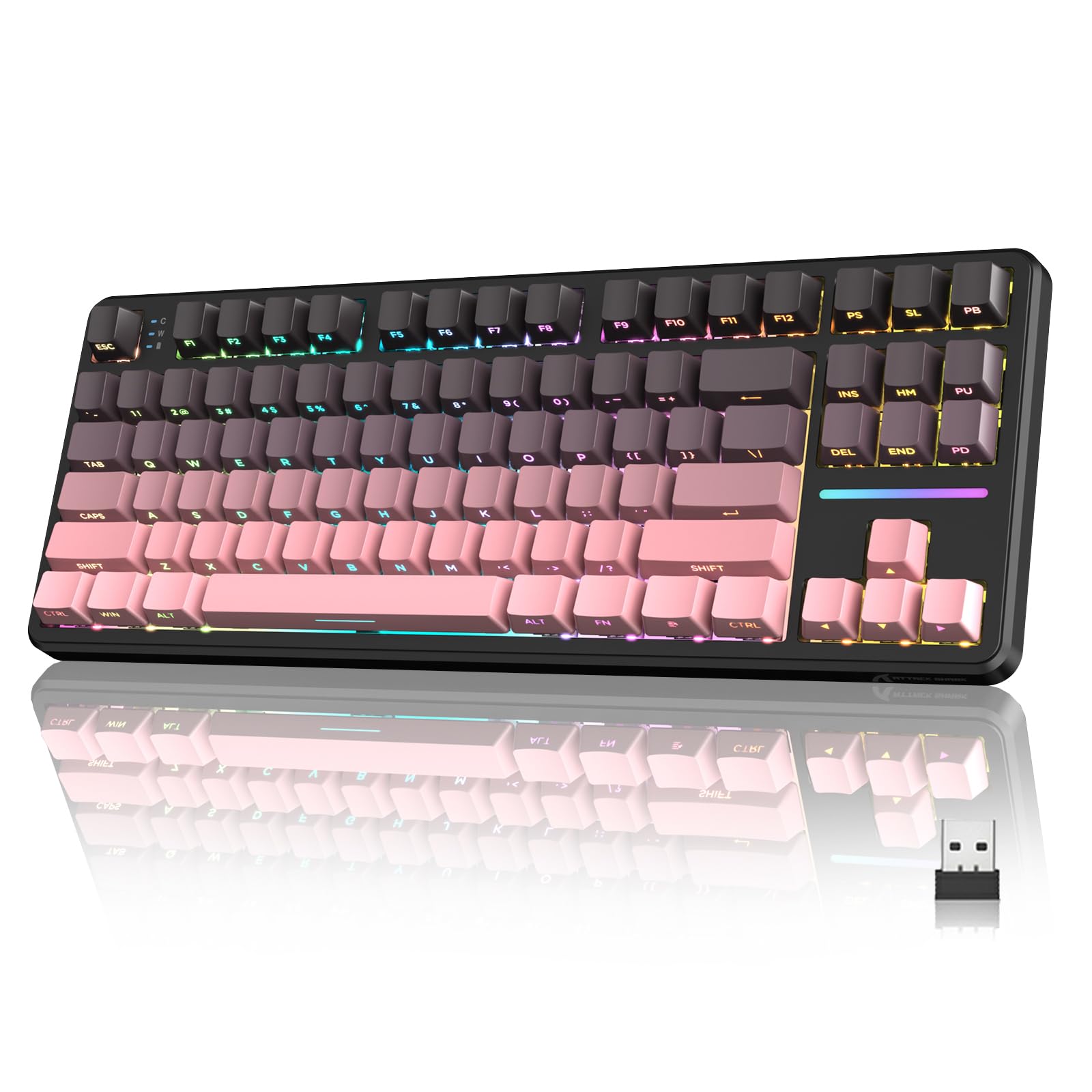
Figure 1: ATTACK SHARK X87 Wireless Mechanical Keyboard Overview
2. Package Contents
Please verify that all items are present in your package:
- ATTACK SHARK X87 Wireless Mechanical Keyboard
- USB-C Cable
- Keycap Puller
- 2x Spare Switches
- User Manual (this document)
3. Setup and Connection
The X87 keyboard supports three connection methods: Bluetooth 5.0, 2.4GHz wireless, and USB-C wired. It is compatible with Windows, Mac, and PC systems.
3.1 Initial Charging
Before first use, connect the keyboard to a USB power source using the provided USB-C cable to ensure it is fully charged. The battery indicator will show charging status.
3.2 Connection Modes
A switch located on the back of the keyboard allows selection between connection modes (BT/USB/2.4G) and operating systems (Mac/Win).
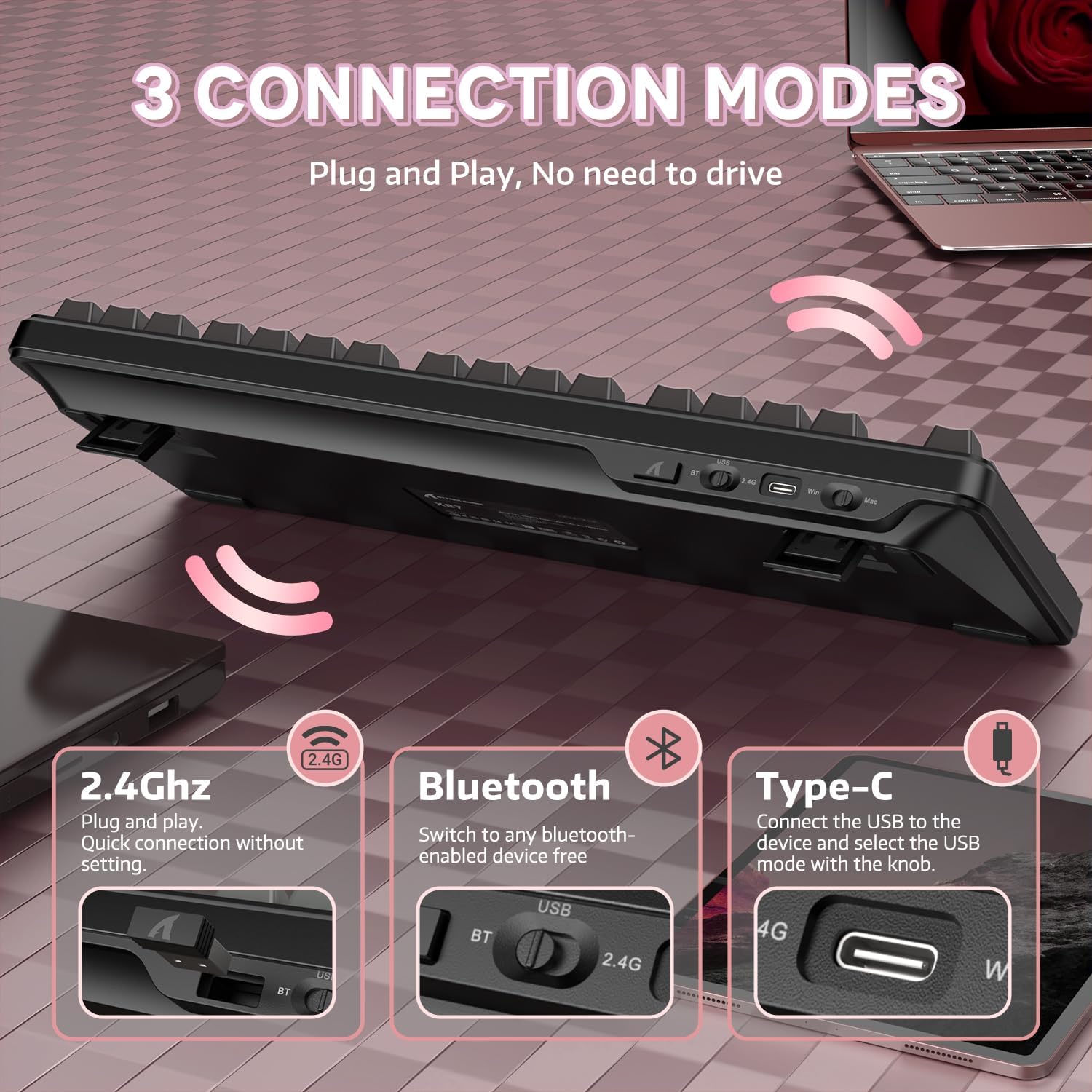
Figure 2: Keyboard with 2.4GHz, Bluetooth, and USB-C connection options highlighted.
- 2.4GHz Wireless Mode:
1. Set the switch on the back of the keyboard to '2.4G'.
2. Insert the 2.4GHz USB receiver into an available USB port on your computer.
3. The keyboard will automatically connect. - Bluetooth 5.0 Mode:
1. Set the switch on the back of the keyboard to 'BT'.
2. On your device (computer, laptop, smartphone, tablet), enable Bluetooth and search for new devices.
3. Select 'ATTACK SHARK X87' from the list of available devices to pair.
4. The keyboard can connect to up to five devices simultaneously. Use FN + key combinations to switch between paired devices. - USB-C Wired Mode:
1. Set the switch on the back of the keyboard to 'USB'.
2. Connect the keyboard to your computer using the provided USB-C cable.
3. The keyboard will function immediately without additional drivers.
4. Operating Instructions
The ATTACK SHARK X87 keyboard features standard key layouts and additional functions accessible via the Function (FN) key.
4.1 Function Key Combinations
The FN key, combined with other keys, activates various multimedia and system controls. Refer to the keyboard's keycap legends or the official software for a complete list of combinations.
- FN + F1-F12: Multimedia controls (e.g., volume, play/pause, track skip).
- FN + Backspace: Check battery level (see Section 6).
- FN + Key Combinations: Adjust RGB lighting effects (see Section 5).
5. RGB Backlighting
The keyboard features 15+ RGB lighting effects with over 16.8 million colors and 10 unique music rhythm lighting effects. Adjustments can be made directly on the keyboard or through the customization software.

Figure 3: RGB Backlighting Controls and Effects
- FN + Arrow Up/Down: Adjust backlight brightness.
- FN + Arrow Left/Right: Adjust backlight speed.
- FN + Enter: Switch light mode.
- FN + ESC: Restore to factory settings.
- FN + X: Light switch (turn RGB on/off).
6. Customization and Software
The ATTACK SHARK X87 keyboard is programmable via dedicated drivers, allowing for macro recording, key remapping, and custom backlighting. This enhances both gaming and work efficiency.

Figure 4: Customized Driver Software for Key Functions and Backlighting
For driver downloads and detailed instructions on customization, please visit the official ATTACK SHARK website or contact customer support.
7. Battery Management
The keyboard is equipped with a 4000mAh battery, providing extended usage in wireless modes. It features smart power-saving functions.

Figure 5: Battery Level Indication on the ATTACK SHARK X87 Keyboard
To check the current battery level, press FN + Backspace. The indicator lights will illuminate to show the approximate charge remaining.
8. Hot-Swappable Switches and Gasket Structure
The X87 keyboard features a hot-swappable PCB, allowing users to easily change switches without soldering. It supports both 3-pin and 5-pin mechanical switches. The keyboard comes with pre-lubed Strawberry switches for a smooth typing experience.

Figure 6: Hot-Swappable Switch Support (3-pin and 5-pin)
The keyboard also incorporates a gasket structure with five layers of sound-absorbing material, including PORON, to reduce noise and vibration, optimizing switch sound for a better typing experience.
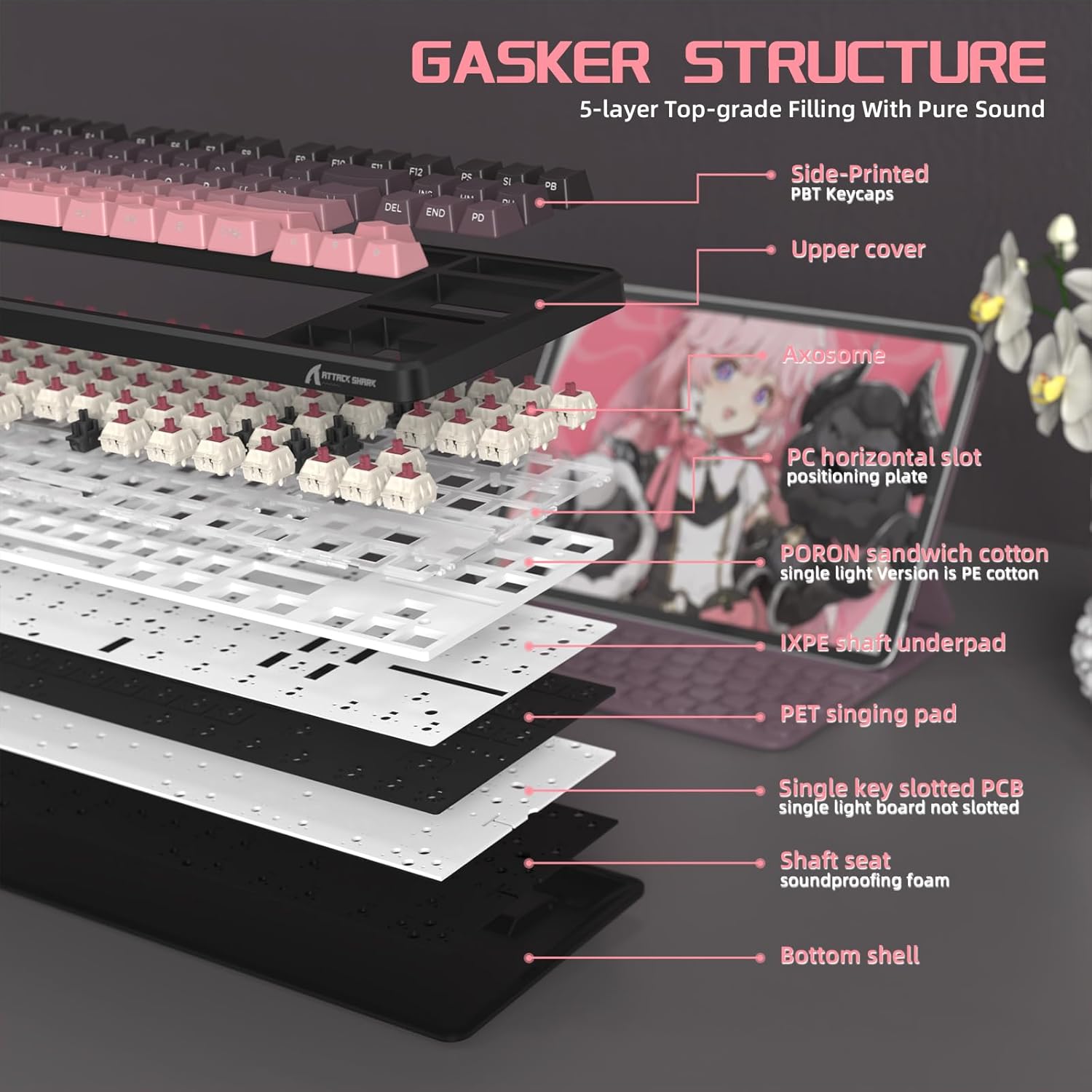
Figure 7: Exploded view of the keyboard's gasket structure and sound-absorbing layers.
8.1 PBT Keycaps
The keyboard is equipped with side-printed PBT keycaps with an OEM profile. PBT material is known for its durability and resistance to wear, friction, and solvents, ensuring a long-lasting aesthetic and feel.

Figure 8: Close-up of the side-printed PBT keycaps.
9. Official Product Videos
9.1 ATTACK SHARK X87 Wireless Mechanical Gaming Keyboard
Video 1: An overview of the ATTACK SHARK X87 Wireless Mechanical Gaming Keyboard, showcasing its design and features.
9.2 ATTACK SHARK X87 Side-Printed PBT Keycaps Mechanical Keyboard
Video 2: A closer look at the side-printed PBT keycaps and the mechanical switches of the ATTACK SHARK X87 keyboard.
9.3 ATTACK SHARK X87 Wireless Mechanical Keyboard
Video 3: Demonstrates the wireless capabilities and overall functionality of the ATTACK SHARK X87 Mechanical Keyboard.
10. Specifications
| Brand | ATTACK SHARK |
| Model Number | X87 |
| Connectivity Technology | 2.4GHz, BT5.0, USB-C |
| Keyboard Description | Mechanical |
| Compatible Devices | Gaming Console, Laptop, PC, Smartphone, Tablet |
| Special Features | Backlit, Ergonomic, Hot-Swappable, Programmable Keys, Rechargeable |
| Keyboard Backlighting | RGB |
| Material | Plastic |
| Item Weight | 2.42 pounds |
| Package Dimensions | 15.71 x 7.52 x 2.09 inches |
11. Troubleshooting
- Keyboard not responding: Ensure the keyboard is charged. Check the connection mode switch (2.4G/BT/USB) is set correctly. For wireless modes, ensure the receiver is properly inserted or Bluetooth is paired. Try a different USB port or cable for wired mode.
- RGB lighting not working: Ensure RGB is enabled (FN + X). Adjust brightness (FN + Arrow Up). If issues persist, try restoring factory settings (FN + ESC).
- Keys not registering: For hot-swappable switches, ensure switches are fully seated. If a specific key is not working, try replacing the switch with one of the spare switches provided.
- Connectivity issues: Ensure the keyboard is within range for wireless connections. Avoid interference from other wireless devices. For Bluetooth, try re-pairing the device.
12. Warranty and Support
For warranty information, technical support, or any questions regarding your ATTACK SHARK X87 keyboard, please contact ATTACK SHARK customer service through their official website or the retailer where the product was purchased. Please have your product model and purchase date available when contacting support.