1. Introduction
Welcome to the user manual for your UNIWA W999 Rugged Smartphone. This device is engineered for durability and high performance, featuring an IP68 certification for water and dust resistance, an Octa-Core processor, 8GB RAM, 128GB ROM, and a robust 4400mAh battery. Running on Android 13, it offers a secure and efficient mobile experience for demanding environments.

Figure 1: Front, back, and side view of the UNIWA W999 rugged smartphone, showcasing its robust design.
2. Setup
2.1 What's in the Box
- UNIWA W999 Rugged Smartphone
- Power Adapter
- USB Cable
- User Manual (this document)
2.2 SIM Card and SD Card Installation
- Locate the SIM/SD card tray on the side of the device.
- Use the provided SIM ejector tool to open the tray.
- Carefully place your Nano-SIM card(s) and/or microSD card into the designated slots. Ensure correct orientation.
- Gently push the tray back into the device until it clicks into place.
2.3 Initial Charging
Before first use, fully charge your UNIWA W999. Connect the provided USB cable to the phone's charging port and the power adapter. Plug the adapter into a wall outlet. The charging indicator will show the charging status.
2.4 Powering On and Initial Configuration
Press and hold the Power button (located on the side) until the screen lights up. Follow the on-screen prompts to complete the initial setup, including language selection, Wi-Fi connection, Google account setup, and security settings.
3. Operating Your Device
3.1 Basic Operations
- Power On/Off: Press and hold the Power button. Select 'Power off' or 'Restart'.
- Screen Lock/Unlock: Briefly press the Power button.
- Volume Control: Use the Volume Up and Volume Down buttons on the side of the device.
- Navigation: Use the on-screen navigation bar (Back, Home, Recent Apps) or gesture navigation if enabled.
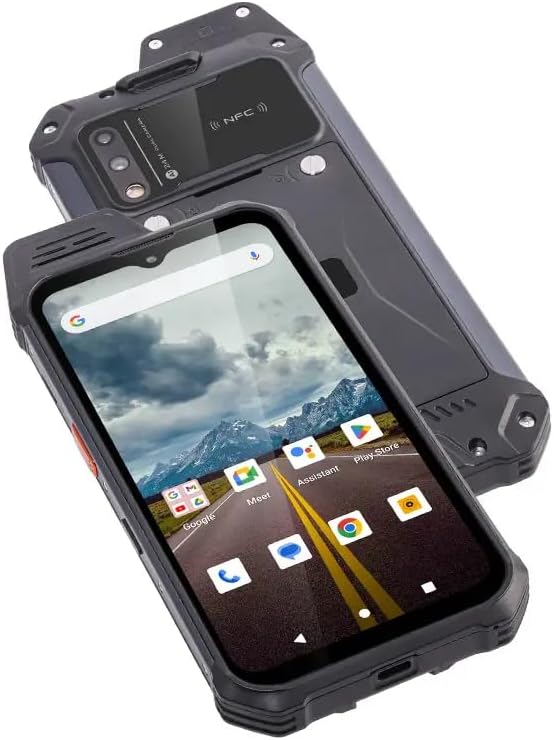
Figure 2: Angled view of the UNIWA W999, showing the display with app icons and its rugged construction.
3.2 Key Features
3.2.1 IP68 Water and Dust Resistance
The UNIWA W999 is IP68 certified, meaning it is protected against dust ingress and can withstand immersion in water up to 1.5 meters for 30 minutes. Ensure all port covers are securely closed before exposing the device to water or dust.

Figure 3: The UNIWA W999 demonstrating its IP68 waterproof capability.
3.2.2 NFC Support
The device supports Near Field Communication (NFC), allowing for contactless payments, quick pairing with compatible devices, and data transfer by simply tapping the phone against another NFC-enabled device or reader.
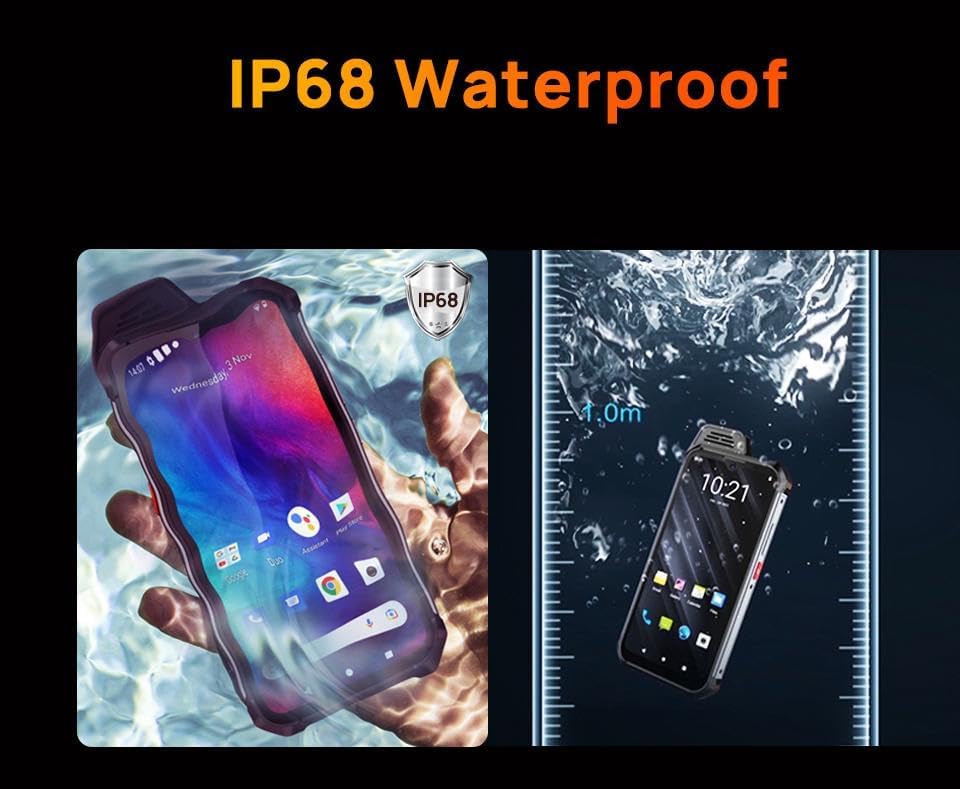
Figure 4: Using the UNIWA W999 for contactless payment via NFC.
3.2.3 Fingerprint Sensor
For enhanced security, the UNIWA W999 features a side-mounted fingerprint sensor. To set up: Go to Settings > Security > Fingerprint and follow the instructions to register your fingerprints. You can then use your fingerprint to unlock the device and authorize purchases.
3.2.4 Camera Functions
The UNIWA W999 is equipped with a 24MP rear dual camera and a 5MP front camera. Open the Camera app to capture photos and videos. Explore various modes such as Portrait, Panorama, and Night mode for different shooting scenarios.

Figure 5: Close-up view of the UNIWA W999's rear camera module and NFC area.
3.2.5 Performance and Connectivity
Powered by an Octa-Core MediaTek Helio G99 processor with 8GB RAM and 128GB ROM, the device ensures smooth multitasking and ample storage. It supports 2G, 3G, and 4G networks, Wi-Fi, and Bluetooth for comprehensive connectivity.

Figure 6: Overview of UNIWA W999's core features and specifications.
4. Maintenance
4.1 Cleaning the Device
To clean your UNIWA W999, use a soft, lint-free cloth. For stubborn dirt, slightly dampen the cloth with water. Avoid using harsh chemicals, solvents, or abrasive materials, as these can damage the device's rugged coating and seals.
4.2 Battery Care
To maximize battery life, avoid extreme temperatures. Do not fully discharge the battery frequently. For long-term storage, charge the battery to about 50% and store the device in a cool, dry place.
4.3 Software Updates
Regularly check for and install software updates to ensure optimal performance, security, and access to new features. Go to Settings > System > System update to check for available updates.
5. Troubleshooting
5.1 Device Not Turning On
- Ensure the battery is charged. Connect the charger and wait a few minutes before attempting to power on.
- Press and hold the Power button for at least 10-15 seconds to force a restart.
5.2 Screen Unresponsive
- Restart the device by holding the Power button.
- Clean the screen with a soft, dry cloth.
5.3 Connectivity Issues (Wi-Fi/Bluetooth/4G)
- Toggle Wi-Fi/Bluetooth/Mobile Data off and on again.
- Restart your router for Wi-Fi issues.
- Ensure your SIM card is properly inserted and your mobile plan is active.
- Reset network settings: Settings > System > Reset options > Reset Wi-Fi, mobile & Bluetooth.
5.4 Battery Draining Quickly
- Reduce screen brightness.
- Close unused apps running in the background.
- Disable features like Wi-Fi, Bluetooth, GPS when not in use.
- Check battery usage in Settings > Battery to identify power-hungry apps.
5.5 Factory Reset
If issues persist, a factory reset can resolve many software-related problems. Warning: This will erase all data on your phone. Back up important data before proceeding. Go to Settings > System > Reset options > Erase all data (factory reset) and follow the prompts.
6. Specifications
| Feature | Specification |
|---|---|
| Brand | OBA |
| Model Name | ATEX W888 (W999) |
| Operating System | Android 13.0 |
| Processor | MediaTek Helio (Octa-Core, 8 GHz) |
| RAM | 8 GB (Installed Flash Memory) / 64 GB (Installed RAM Capacity) |
| Internal Storage | 128 GB |
| Display Size | 6.4 inches |
| Display Type | AMOLED |
| Resolution | 2220 x 1080 |
| Battery Capacity | 4400 mAh |
| Connectivity | 4G, Wi-Fi, Bluetooth |
| Dimensions | 17.5 x 8.2 x 1.6 cm |
| Weight | 560 g |
| Special Features | IP68 Certified, Fingerprint Sensor, NFC |
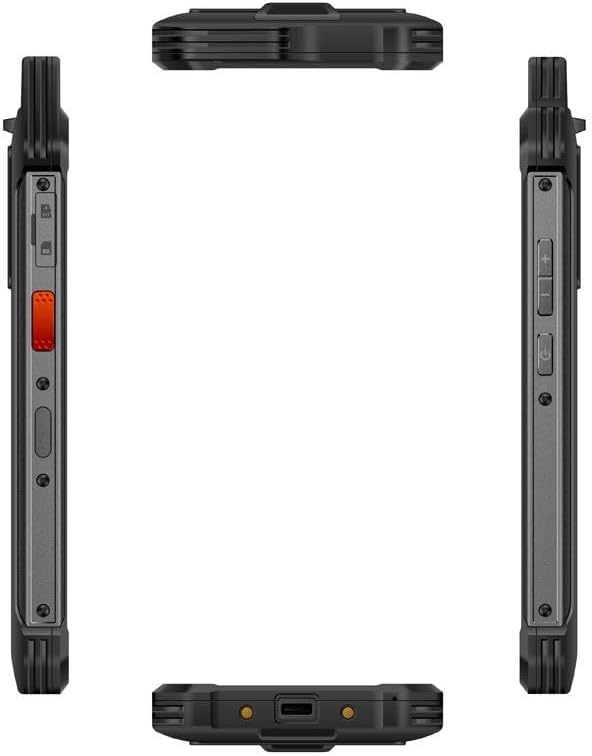
Figure 7: Various views of the UNIWA W999, highlighting its physical design and ports.
7. Warranty and Support
For warranty information and customer support, please refer to the documentation provided at the time of purchase or contact the seller directly. Keep your proof of purchase for any warranty claims.
For further assistance or technical inquiries, please reach out to the manufacturer's or seller's customer service channels.


