
InnoView INVPM609
InnoView 23.8 inch FHD 100Hz Dual Monitor User Manual
Model: INVPM609
Introduction
This manual provides essential information for the setup, operation, and maintenance of your InnoView 23.8 inch FHD 100Hz Dual Monitor. Please read this manual thoroughly before using the product to ensure optimal performance and longevity.
Description: A visual representation of the InnoView 23.8 inch FHD 100Hz Dual Monitor, showcasing its dual screens and key specifications like 100Hz refresh rate, 23.8 inch size, Windows/Mac compatibility without drivers, 100% sRGB, and Full HD resolution.

Product Overview
Key Features
- Dual 23.8-inch FHD Displays: Offers expanded screen real estate for enhanced multitasking.
- 100Hz Refresh Rate: Provides smooth visuals, reducing motion blur for various applications.
- 100% sRGB Color Coverage: Delivers accurate and vibrant colors, suitable for graphic design and media editing.
- Built-in Speakers: Integrated audio solution for convenience.
- 315° Adjustable & Foldable Design: Allows for flexible viewing angles and compact storage.
- Plug-and-Play Compatibility: No drivers required for macOS and Windows systems.
- Multiple Display Modes: Supports duplicate, extend, and splice modes.
- Eye Care Features: Includes DC Dimming and Blue Light Filter for reduced eye strain.
Package Contents
The following items are included with your InnoView 23.8 inch Dual Monitor:
- InnoView 23.8 inch Dual Monitor
- Type-C Cable (Signal Cable)
- Type-C Power Cord (Power supply only)
- Standard HDMI Cable
- DP to Type-C Cable
- 45W Power Adapter
Description: This image displays all the cables and accessories included with the InnoView 23.8 inch Dual Monitor: a Type-C signal cable, a Type-C power cord, a standard HDMI cable, a DP to Type-C cable, and a 45W power adapter.

Setup Instructions
Connecting to Your Device
The InnoView dual monitor supports various connection methods depending on your device and desired display mode.
Connection Method 1: Single USB-C (for compatible devices)
This method uses a single USB-C cable for both video signal and power, plus an additional power cable for stable operation.
Description: This image illustrates connecting the dual monitor to a laptop using a single Type-C cable (for signal) or a DP to Type-C cable, along with a separate power cable. This setup is ideal for simplified connectivity.

- Connect one end of the Type-C Cable (or DP to Type-C Cable) to your laptop's compatible USB-C port.
- Connect the other end of the Type-C Cable to the monitor's signal input port.
- Connect the Type-C Power Cord to the monitor's power input port and the 45W Power Adapter to a power outlet.
Connection Method 2: HDMI + USB-C (Recommended for Mac Extended Mode)
This method uses HDMI for video and USB-C for additional signal or power, particularly recommended for Mac devices to enable extended display mode.
Description: This image shows connecting a laptop to the dual monitor using an HDMI cable and either a Type-C or DP to Type-C cable, plus a power cable. This configuration is recommended for Mac users to achieve extended display mode.

- Connect one end of the Standard HDMI Cable to your laptop's HDMI port.
- Connect the other end of the Standard HDMI Cable to the monitor's HDMI input port.
- Connect one end of the Type-C Cable (or DP to Type-C Cable) to your laptop's compatible USB-C port.
- Connect the other end of the Type-C Cable to the monitor's signal input port.
- Connect the Type-C Power Cord to the monitor's power input port and the 45W Power Adapter to a power outlet.
Connection Method 3: HDMI + Power (No Extended Display Mode)
This method uses HDMI for video and a separate power connection. Note that extended display mode may not be available with this setup.
Description: This image depicts connecting a laptop to the dual monitor using an HDMI cable and a separate power cable. This setup does not support extended display mode.

- Connect one end of the Standard HDMI Cable to your laptop's HDMI port.
- Connect the other end of the Standard HDMI Cable to the monitor's HDMI input port.
- Connect the Type-C Power Cord to the monitor's power input port and the 45W Power Adapter to a power outlet.
Important Note: Always ensure the monitor is powered by the original power adapter provided in the package for stable operation.
Operating Instructions
Adjusting the Monitor
The monitor features a 180° adjustable stand and a 315° foldable screen design. Adjust the viewing angle to your preference. The foldable design allows for compact storage.
Display Modes
The InnoView dual monitor supports multiple display modes for various applications.
Description: This image illustrates four different display modes: Copy Mode (both screens show the same content), Splice Mode (screens combine into one large display), Extended Mode (screens show different content), and Shared Mode (top and bottom screens show same content, top flipped).

- Copy Mode: The upper and lower screens display identical content.
- Splice Mode: Combines the upper and lower screens into a single, larger overall screen.
- Extended Mode: Both screens display different content, extending your desktop workspace. For Mac devices, refer to Connection Method 2 for optimal extended mode functionality.
- Shared Mode: The top and bottom screens display the same content, with the top screen flipped for easy viewing by others.
System Compatibility
The monitor is compatible with both macOS and Windows systems. No additional drivers are typically needed for basic plug-and-play functionality.
Maintenance
Cleaning the Monitor
To clean the monitor screens, gently wipe them with a soft, lint-free cloth. For stubborn marks, dampen the cloth slightly with water or a non-abrasive screen cleaner. Avoid using harsh chemicals or abrasive materials.
Storage
When not in use, the monitor can be folded for compact storage. Store in a cool, dry place away from direct sunlight and extreme temperatures.
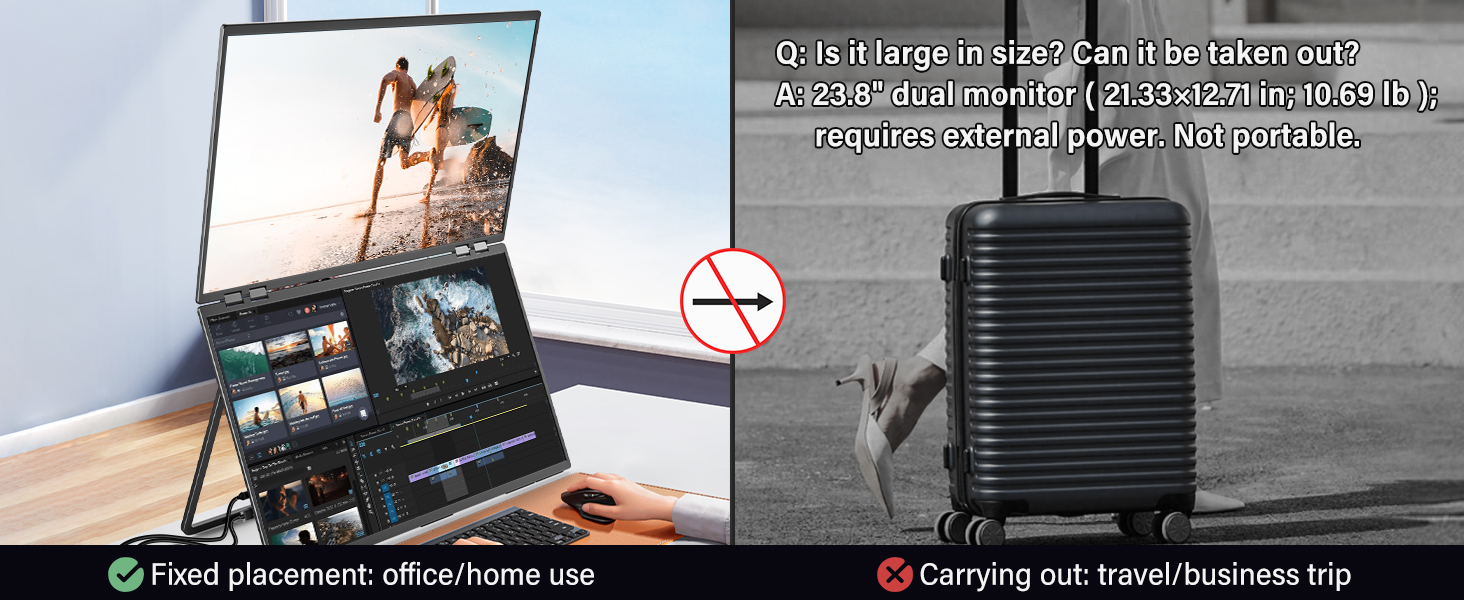
Note: This 23.8 inch dual monitor is designed for fixed placement in office or home environments and is not intended for frequent travel or carrying around due to its size and weight.
Description: This image contrasts the intended use of the 23.8-inch dual monitor. It shows the monitor in a fixed office/home setup as correct usage, and explicitly states it is not portable for travel, showing a suitcase with a red cross.

Troubleshooting
Common Issues and Solutions
- No Display/Black Screen:
- Ensure all cables (power and signal) are securely connected.
- Verify the power adapter is correctly plugged into a working outlet.
- Check if your device's display output is enabled and configured correctly.
- Try a different signal cable (HDMI, Type-C, DP to Type-C) if available.
- Flickering Screen or Intermittent Signal:
- Ensure the monitor is receiving adequate power from the provided 45W adapter.
- Check for loose cable connections.
- Reduce the refresh rate in your device's display settings if experiencing instability.
- Update your graphics drivers.
- Incorrect Resolution or Aspect Ratio:
- Adjust the display settings on your connected device (Windows Display Settings or macOS System Preferences).
- Ensure the monitor's native resolution (1920x1080) is selected.
- Colors Appear Incorrect:
- Check your device's display calibration settings.
- Ensure the monitor's color profile is set to 100% sRGB if color accuracy is critical.
- Extended Mode Not Working on Mac:
- Ensure you are using Connection Method 2 (HDMI + USB-C/DP to Type-C + Power) as recommended for Mac devices.
- Verify your Mac's display settings are configured for extended desktop.
Specifications
| Feature | Detail |
|---|---|
| Model Number | INVPM609 |
| Screen Size | 23.8 Inches (x2) |
| Resolution | 1920 x 1080 Pixels (FHD 1080p) |
| Refresh Rate | 100Hz |
| Aspect Ratio | 16:10 |
| Color Gamut | 100% sRGB |
| Screen Surface | Matte |
| Product Dimensions (folded) | 21.33 x 12.71 x 0.65 inches |
| Item Weight | 12.72 pounds |
| Manufacturer | InnoView |
Description: This image illustrates the folded dimensions of the 23.8-inch dual monitor (21.33 x 12.71 inches) and compares its weight (11.2 pounds) to a cat weighing 12 pounds, providing a visual reference for its size and relative weight.
Warranty and Support
Warranty Information
Your InnoView 23.8 inch Dual Monitor comes with an 18-month warranty from the date of purchase. This warranty covers manufacturing defects and ensures your product performs as expected.
Description: This image displays warranty information, highlighting an 18-month warranty, a 30-day money-back guarantee, and 60-day free returns.

Return Policy
A 30-day return policy is available for this product. Please refer to your retailer's specific return guidelines for details.
Customer Support
For any questions, technical assistance, or warranty claims, please contact InnoView customer support. Contact information can typically be found on the official InnoView website or through your purchase platform.
Related documentsINVPM609


Ask a question about this manual
Ask about setup, troubleshooting, compatibility, parts, safety, or missing instructions. Manuals+ will review the question and use this page’s manual context to help answer it.