
BoxWave USB Expansion Adapter
BoxWave USB Expansion Adapter User Manual
Model: USB Expansion Adapter
Introduction
The BoxWave USB Expansion Adapter is an On-The-Go (OTG) Host Adapter designed to enhance the productivity of your USB Type-C compatible device, such as the Tranya M10B. This adapter allows you to connect various USB peripherals, including thumb drives, mice, and keyboards, to expand functionality and storage.
This manual provides detailed instructions for setting up, operating, and maintaining your USB Expansion Adapter, along with troubleshooting tips and product specifications.
Product Overview
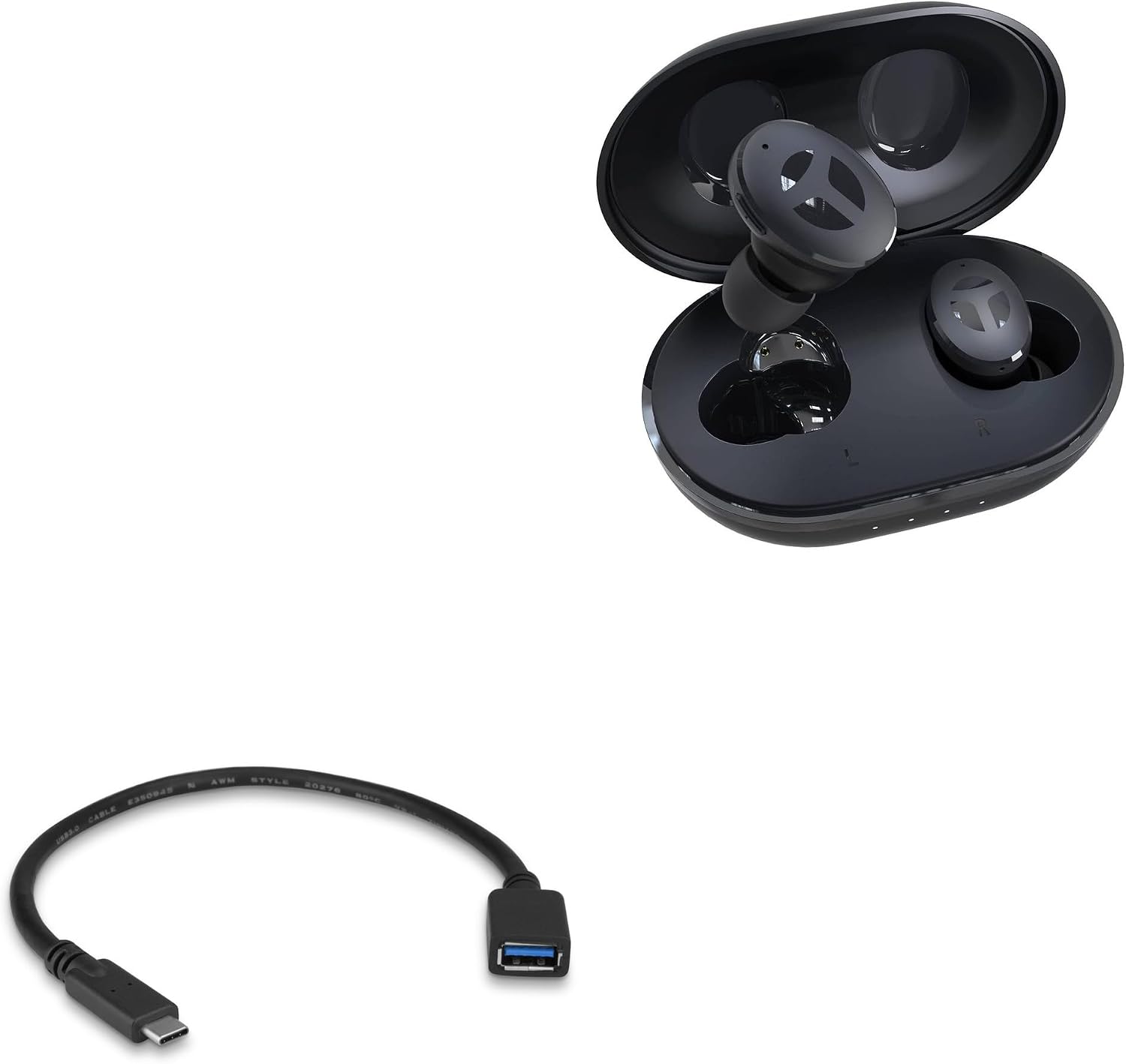
Image: The BoxWave USB Expansion Adapter shown connected to a device, with Tranya M10B earbuds and their charging case in the background, illustrating compatibility.

Image: A detailed view of the USB Expansion Adapter, highlighting its USB-C male connector and standard USB-A female port.

Image: A close-up of the USB-A female port, showing the blue internal tab indicating USB 3.0 compatibility (though product description states USB 2.0 standard).

Image: A close-up of the reversible USB-C male connector, which plugs into the host device.
The BoxWave USB Expansion Adapter features a USB Type-C male connector on one end and a standard USB Type-A female port on the other. This design allows for direct connection of various USB devices to your compatible smartphone or tablet.
Setup
- Verify Device Compatibility: Ensure your device has a USB Type-C port and supports USB On-The-Go (OTG) functionality. Most modern smartphones and tablets with USB-C ports support OTG.
- Connect the Adapter: Insert the USB Type-C male connector of the BoxWave USB Expansion Adapter firmly into the USB Type-C port on your device.
- Connect Peripherals: Plug your desired USB peripheral (e.g., USB flash drive, mouse, keyboard) into the USB Type-A female port of the adapter.
- Automatic Recognition: Your device should automatically detect the connected peripheral. For storage devices, a notification may appear, allowing you to browse files. For input devices like mice or keyboards, they should become immediately functional.
Note: The Tranya M10B device is not included with the adapter and is shown for compatibility illustration only.
Operating Instructions
Using with USB Storage Devices:
- Connect a USB flash drive or external hard drive to the adapter.
- Access the device's file manager application. The connected storage device will typically appear as an external storage option.
- You can now transfer files (photos, videos, documents) between your device and the USB storage.
- To safely remove the storage device, always unmount it through your device's settings (usually under Storage or Connected Devices) before physically disconnecting.
Using with USB Input Devices (Mouse/Keyboard):
- Connect a USB mouse or keyboard to the adapter.
- For a mouse, a cursor will appear on your device's screen, allowing for precise navigation.
- For a keyboard, you can use it for faster typing in messaging apps, documents, or web browsers.
- No special drivers are typically required; the device's operating system will handle the input.
The adapter supports USB 2.0 standard for data transfer, ensuring efficient file operations.
Maintenance
- Cleaning: Use a soft, dry cloth to wipe the adapter. Avoid using liquid cleaners or abrasive materials.
- Storage: Store the adapter in a cool, dry place away from direct sunlight and extreme temperatures.
- Handling: Avoid bending or twisting the cable excessively. Do not force connectors into ports.
Troubleshooting
| Problem | Possible Cause | Solution |
|---|---|---|
| Adapter not recognized by device. |
|
|
| Peripheral (e.g., USB drive) not detected. |
|
|
| Slow data transfer speeds. |
|
|
Specifications
- Product Name: BoxWave USB Expansion Adapter
- Model: USB Expansion Adapter (Generic)
- Connector 1: USB Type-C Male
- Connector 2: USB Type-A Female
- Data Transfer Standard: USB 2.0
- Compatibility: Devices with USB Type-C port supporting OTG functionality (e.g., Tranya M10B)
- Weight: 0.3 ounces (approx.)
- Manufacturer: BoxWave
- Country of Origin: China
Warranty and Support
BoxWave products are designed for quality and reliability. For specific warranty information, please refer to the packaging or the official BoxWave website.
For technical support or inquiries, please contact BoxWave customer service. Limited third-party technical support for Tranya M10B compatibility (up to 3 inquiries via electronic messaging) is included with purchase, as stated by the seller. This support is not affiliated with or endorsed by Tranya.
Contact Information: Please visit the BoxWave official website for the most current support contact details.
Ask a question about this manual
Ask about setup, troubleshooting, compatibility, parts, safety, or missing instructions. Manuals+ will review the question and use this page’s manual context to help answer it.