
1. Introduction
The hohem iSteady X3 is a portable, foldable 3-axis gimbal stabilizer designed for smartphones, enhancing your mobile videography and photography experience. It features advanced stabilization, a detachable remote control, a magnetic fill light, and a built-in extendable rod and tripod, making it ideal for travel, vlogging, and TikTok content creation.

Image: The hohem iSteady X3 Gimbal Stabilizer with its key components and accessories.
2. Setup Guide
2.1 Unfolding the Gimbal
Gently unfold the iSteady X3 from its compact, folded state. Ensure all joints click into place securely before use.

Image: The iSteady X3 in its compact, folded configuration.
2.2 Charging the Device
Before first use, fully charge the iSteady X3. Connect the provided USB cable to the charging port on the gimbal and a power source. A full charge takes approximately 2 hours and provides up to 11 hours of continuous operation.
2.3 Mounting Your Smartphone
Extend the phone clamp and securely place your smartphone in the center. Ensure the phone is balanced as much as possible before powering on the gimbal for optimal performance.

Image: A smartphone properly mounted on the iSteady X3 gimbal.
2.4 Powering On/Off
Press and hold the power button for 3 seconds to power on or off the gimbal. The indicator lights will confirm the status.
2.5 Connecting to the Hohem Joy App
Download the 'Hohem Joy' app from your smartphone's app store. Enable Bluetooth on your phone and open the app. Follow the in-app instructions to connect your iSteady X3. The app unlocks advanced features like AI tracking and various shooting modes.
3. Operating the Gimbal
3.1 3-Axis Stabilization (iSteady 8.0)
The iSteady X3 utilizes a 3-axis stabilization system with the iSteady 8.0 algorithm to ensure smooth and stable footage, even during movement. This technology compensates for shakes and jitters, providing professional-looking results.

Image: Visual representation of the iSteady 8.0 3-axis stabilization.
3.2 Detachable Remote Control
The iSteady X3 features an innovative detachable remote control, allowing you to operate your phone camera from up to 10 meters (32.8 feet) away. The remote can be used handheld or attached to the gimbal handle, where it also charges.

Image: The detachable remote control for flexible operation.
3.3 Magnetic Fill Light
Enhance your lighting with the magnetic fill light. It offers cold (6500K), warm (2700K), and neutral (5000K) light options, with a maximum brightness of 120 lux at 0.5 meters. The side wheel allows for precise brightness control from 4% to 100%.

Image: The adjustable fill light in action, providing illumination.

Image: Demonstrating the three color temperature options of the fill light.
3.4 Built-in Extendable Rod & Tripod
The iSteady X3 integrates a 205mm extendable rod for wider shots and a built-in tripod for stable, hands-free recording. Simply pull out the rod or extend the tripod legs as needed.

Image: The iSteady X3 with its extendable rod for versatile shooting angles.
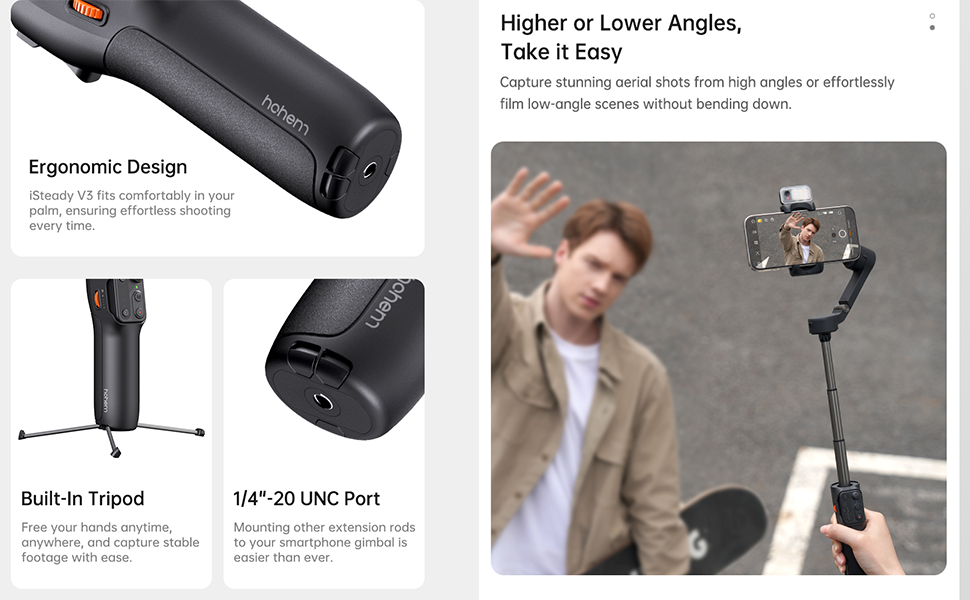
Image: Features including ergonomic design, built-in tripod, and 1/4"-20 UNC port.
3.5 Hohem Joy App Features
- AI Tracking: Person & Object Tracking for automatic subject following.
- Creative Studio: Discover tailored shooting techniques and camera movements.
- Moment Mode: Record movies with templates like Inception, Dolly Zoom, and Panorama with a single tap.

Image: AI Tracking for active lifestyles, featuring both face and object tracking.
4. Maintenance
To ensure the longevity and optimal performance of your hohem iSteady X3, follow these maintenance guidelines:
- Cleaning: Use a soft, dry cloth to wipe the gimbal body. Avoid using harsh chemicals or abrasive materials.
- Storage: Store the gimbal in a cool, dry place, away from direct sunlight and extreme temperatures. When not in use for extended periods, ensure it is fully charged before storage and recharge every 3 months to preserve battery health.
- Handling: Avoid dropping or subjecting the gimbal to strong impacts, as this can damage the internal components and stabilization system.
- Water Exposure: The iSteady X3 is not waterproof. Avoid exposure to water or high humidity.
5. Troubleshooting
If you encounter issues with your hohem iSteady X3, refer to the following common troubleshooting steps:
- Gimbal Not Powering On: Ensure the battery is sufficiently charged. Connect the gimbal to a power source and try again.
- Unstable Footage/Vibrations:
- Ensure your smartphone is securely mounted and balanced in the clamp.
- Check for any obstructions preventing the gimbal's motors from moving freely.
- Recalibrate the gimbal via the Hohem Joy app if available.
- Bluetooth Connection Issues:
- Ensure Bluetooth is enabled on your smartphone and the gimbal is powered on.
- Restart both your smartphone and the gimbal.
- Forget the device in your phone's Bluetooth settings and attempt to pair again.
- Remote Control Not Responding: Ensure the remote control is properly seated in its charging slot on the gimbal (if applicable) or has sufficient battery. Re-pair the remote if necessary.
- App Features Not Working: Ensure the Hohem Joy app is updated to the latest version. Check app permissions on your smartphone.
For persistent issues, please contact hohem customer support.
6. Specifications
| Feature | Detail |
|---|---|
| Model Number | hohem iSteady X3 |
| Package Dimensions | 7.28 x 4.8 x 2.64 inches |
| Item Weight | 1.36 pounds |
| Batteries | 1 Lithium Ion batteries required (included) |
| Manufacturer | hohem |
| Color | Grey |
| Compatible Devices | Samsung Galaxy S21/S21 Ultra S23 Ultra, iPhone 16 15 14 13 12 11 Pro Max, OnePlus 12 11 10 9, Huawei P60 50 40 30 20 Pro (and other compatible smartphones) |
| UPC | 777192165038, 195221001469 |
7. Warranty and Support
hohem products are designed for reliability and performance. For specific warranty details, please refer to the warranty card included with your product or visit the official hohem website. Keep your proof of purchase for warranty claims.
For technical support, product inquiries, or service requests, please contact hohem customer service through their official channels. You can often find contact information on the hohem website or within the Hohem Joy app.
Additional protection plans may be available for purchase to extend coverage beyond the standard warranty period. Please check with your retailer for details.


