
CHUWI Hi10 Max
CHUWI Hi10 Max 2-in-1 Windows Tablet User Manual
Model: Hi10 Max
1. Introduction
This manual provides essential information for setting up, operating, and maintaining your CHUWI Hi10 Max 2-in-1 Windows Tablet. Please read this guide thoroughly to ensure proper use and to maximize your device's performance and longevity.
The CHUWI Hi10 Max is a versatile 2-in-1 device featuring a 12.96-inch 3K touchscreen, powered by an Intel N150 processor, 12GB LPDDR5 RAM, and a 512GB SSD. It runs on Windows 11 and includes a detachable magnetic keyboard for enhanced productivity.
2. Package Contents
Verify that all items are present in your product package:
- CHUWI Hi10 Max Tablet
- Detachable Magnetic Keyboard
- Magnetic Bracket (Stand)
- Charger Set
- Multi-language User Manual (This document)

Image: CHUWI Hi10 Max Tablet, detachable keyboard, and magnetic stand.
3. Product Overview
3.1 Key Features
- Display: 12.96-inch IPS Touchscreen, 2880x1920 (3K) resolution, 3:2 aspect ratio.
- Processor: 12th Gen Intel N150 (4 Cores/4 Threads, up to 3.6GHz).
- Memory: 12GB LPDDR5 RAM.
- Storage: 512GB SSD, expandable up to 2TB.
- Operating System: Windows 11 Home.
- Cameras: 8MP Rear Camera with autofocus, 5MP Front Camera.
- Connectivity: Wi-Fi 6 (802.11ax), Bluetooth 5.2.
- Ports: Dual full-featured USB-C, USB 3.2 Gen1, Micro HDMI, 3.5mm Headphone Jack.
- Battery: 4800mAh, supports PD fast charging.
- Design: 9mm thin, 0.78 lbs (tablet only), Metal Unibody.
- Accessories: Detachable magnetic backlit keyboard, supports MPP stylus (stylus sold separately).
3.2 Device Layout
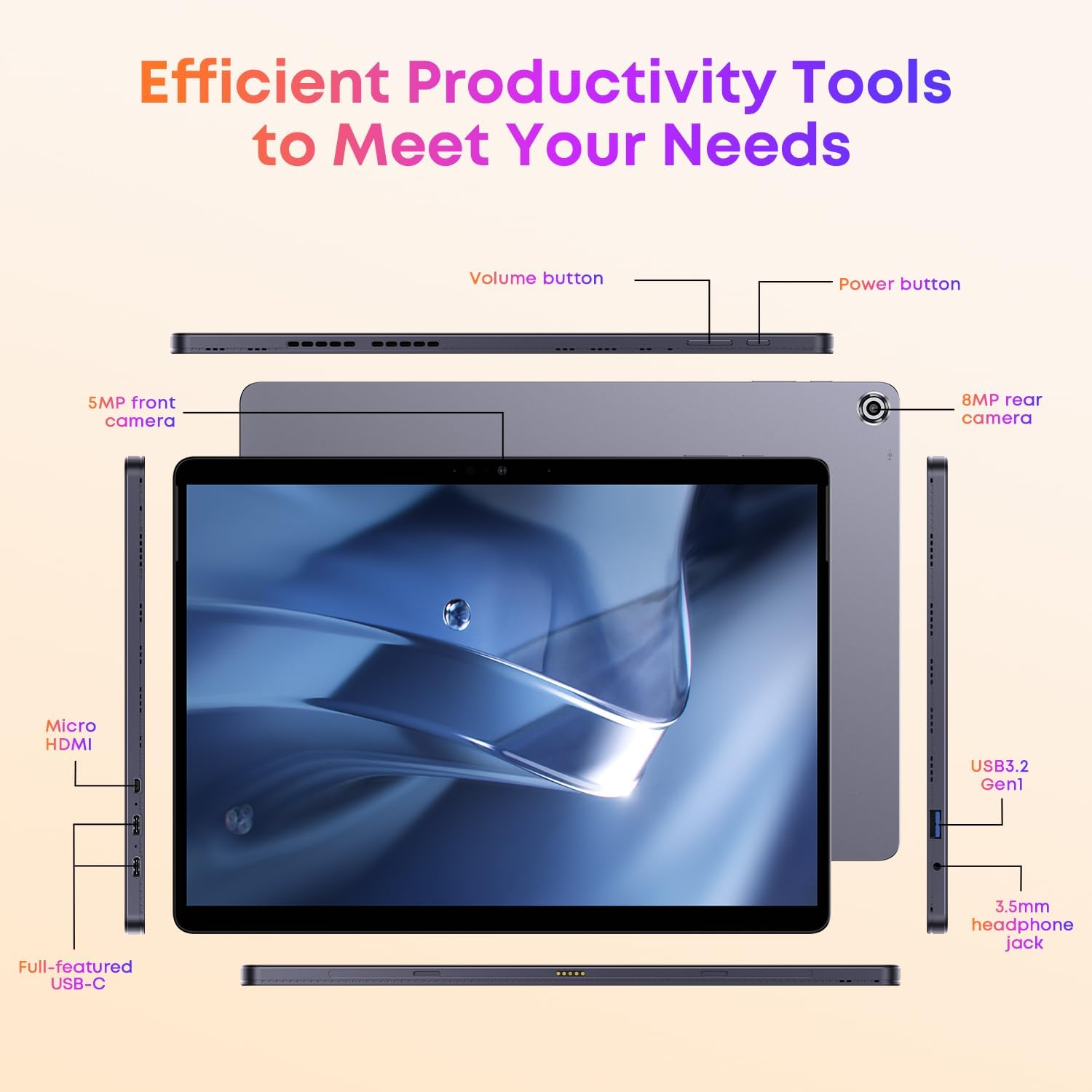
Image: Overview of the CHUWI Hi10 Max tablet's ports and buttons.
Refer to the image above for the location of the following components:
- Power Button: Located on the top edge. Press and hold to power on/off or sleep/wake.
- Volume Buttons: Located on the top edge, next to the power button, to adjust audio volume.
- 5MP Front Camera: Located on the top bezel when held horizontally, for video calls and selfies.
- 8MP Rear Camera: Located on the back panel, for capturing photos and videos.
- Full-featured USB-C Ports (x2): Located on the left and right sides. Supports charging, data transfer, and video output.
- USB 3.2 Gen1 Port: Located on the right side, for connecting USB devices.
- Micro HDMI Port: Located on the left side, for connecting to external displays.
- 3.5mm Headphone Jack: Located on the right side, for audio output.
- Keyboard Connector: Magnetic pins on the bottom edge for attaching the detachable keyboard.
4. Setup
4.1 Initial Charging
Before first use, fully charge your CHUWI Hi10 Max tablet. Connect the provided charger to one of the USB-C ports on the tablet and plug it into a power outlet. The charging indicator will illuminate.
4.2 Powering On/Off
- To Power On: Press and hold the Power Button until the screen lights up.
- To Power Off: Press and hold the Power Button, then select "Shut down" from the on-screen options. Alternatively, go to Start Menu > Power > Shut down.
- Sleep/Wake: Briefly press the Power Button to put the tablet to sleep or wake it up.
4.3 Attaching the Detachable Keyboard
Align the magnetic connector on the keyboard with the corresponding pins on the bottom edge of the tablet. The keyboard will snap into place magnetically. No Bluetooth pairing is required for the keyboard to function.

Image: CHUWI Hi10 Max tablet with the detachable keyboard connected.
4.4 Initial Windows 11 Setup
Upon first power-on, you will be guided through the Windows 11 setup process. Follow the on-screen instructions to:
- Select your region and keyboard layout.
- Connect to a Wi-Fi network.
- Sign in with your Microsoft account or create a new one.
- Set up a PIN for quick login.
- Adjust privacy settings.
5. Operating Your Tablet
5.1 Touchscreen Navigation
The 12.96-inch touchscreen supports multi-touch gestures:
- Tap: Select an item or open an application.
- Tap and Hold: Access context menus or drag items.
- Swipe: Scroll through content or navigate between screens.
- Pinch-to-Zoom: Zoom in or out on images and web pages.
5.2 Using the Detachable Keyboard and Touchpad
Once attached, the keyboard functions like a standard laptop keyboard. The integrated touchpad allows for precise cursor control and supports multi-touch gestures similar to the touchscreen.

Image: User operating the CHUWI Hi10 Max with its full-size detachable keyboard.
The keyboard is backlit, which can be toggled on or off using a dedicated function key (refer to keyboard markings).
5.3 Connecting to Networks (Wi-Fi & Bluetooth)
- Wi-Fi: Go to Settings > Network & internet > Wi-Fi. Turn Wi-Fi on, select your desired network, and enter the password if required. The tablet supports Wi-Fi 6 for faster and more stable connections.
- Bluetooth: Go to Settings > Bluetooth & devices. Turn Bluetooth on, and the tablet will search for nearby devices. Select the device you wish to pair with and follow any on-screen prompts.

Image: Visual representation of Wi-Fi 6 and Bluetooth 5.2 capabilities.
5.4 Using External Displays (Micro HDMI & USB-C)
Connect your tablet to an external monitor or TV using the Micro HDMI port or one of the full-featured USB-C ports. You may need an appropriate adapter for USB-C video output. Once connected, Windows will automatically detect the display. You can configure display settings (duplicate, extend, second screen only) in Display Settings.
5.5 Camera Operation
The tablet features a 5MP front camera and an 8MP rear camera. Open the "Camera" application in Windows to take photos or record videos. The rear camera includes autofocus for clearer images.
5.6 Stylus Support
The CHUWI Hi10 Max supports an MPP (Microsoft Pen Protocol) stylus for note-taking, drawing, and precise interaction. A stylus is not included and must be purchased separately.
6. Maintenance
6.1 Cleaning the Device
- Use a soft, lint-free cloth to clean the screen and body of the tablet.
- For stubborn smudges, slightly dampen the cloth with water or a screen-cleaning solution. Avoid harsh chemicals.
- Ensure the device is powered off and unplugged before cleaning.
6.2 Battery Care
- Avoid exposing the tablet to extreme temperatures.
- For optimal battery longevity, try to keep the charge level between 20% and 80% when possible.
- Use only the provided charger or a compatible PD fast charger.
6.3 Software Updates
Regularly check for and install Windows updates to ensure your system has the latest security patches and performance improvements. Go to Settings > Windows Update to check for updates.
6.4 Storage Management
Periodically review your installed applications and files to free up storage space. You can expand storage using an M.2 2280 SSD (up to 2TB) if needed.
7. Troubleshooting
If you encounter issues with your CHUWI Hi10 Max, refer to the following common solutions:
| Problem | Solution |
|---|---|
| Device does not power on. | Ensure the battery is charged. Connect the charger and wait a few minutes before attempting to power on again. |
| Screen is unresponsive. | Restart the tablet. If the issue persists, ensure the screen is clean and free of debris. |
| Keyboard is not working. | Ensure the keyboard is securely attached to the magnetic connector. Detach and reattach it. |
| Wi-Fi connection issues. | Restart your Wi-Fi router and the tablet. Check Wi-Fi settings to ensure the correct network is selected and the password is entered accurately. |
| Slow performance. | Close unnecessary applications. Check for Windows updates. Ensure sufficient free storage space. |
| Battery drains quickly. | Adjust screen brightness. Close background applications. Check power settings in Windows. |
7.1 Factory Reset
If persistent issues occur, you may consider performing a factory reset. This will erase all data on your tablet and reinstall Windows. Backup all important data before proceeding.
- Go to Settings > System > Recovery.
- Under "Recovery options," click "Reset PC."
- Choose "Remove everything" to fully reset the device.
- Follow the on-screen instructions to complete the reset.
8. Specifications
| Feature | Detail |
|---|---|
| Brand | CHUWI |
| Model Name | Hi10 Max Set |
| Operating System | Windows 11 |
| Screen Size | 12.96 Inches |
| Screen Resolution | 2880 x 1920 Pixels (3K) |
| Processor | Intel N150 (up to 3.6 GHz) |
| RAM | 12GB LPDDR5 |
| Hard Drive | 512 GB SSD |
| Graphics Coprocessor | Intel UHD Graphics |
| Wireless Type | 802.11ax (Wi-Fi 6) |
| Bluetooth | Bluetooth 5.2 |
| Average Battery Life | 6 Hours |
| Item Weight | 1.72 pounds (tablet only) |
| Product Dimensions (LxWxH) | 11.3 x 8.2 x 0.35 inches |
| Rear Webcam Resolution | 8 MP |
| Front Webcam Resolution | 5 MP |
| Power Source | Battery Powered |
| Batteries | 1 Lithium Ion battery (included) |
9. Warranty and Support
For warranty information and technical support, please refer to the documentation included with your purchase or visit the official CHUWI website. Keep your proof of purchase for warranty claims.
For further assistance, you may also contact CHUWI customer service through their official channels.
Related documentsHi10 Max


Ask a question about this manual
Ask about setup, troubleshooting, compatibility, parts, safety, or missing instructions. Manuals+ will review the question and use this page’s manual context to help answer it.