
1. Product Overview
The JREN Tablet for Kids, Model JR-J10, is a 10.1-inch tablet designed for children. It operates on Android 14 and features an Octa-Core processor, 8GB RAM (4 real + 4 virtual), and 64GB of internal storage, expandable up to 1TB. The tablet is equipped with Google GMS certification, providing access to the Google Play Store and Google Kids Space. It includes a durable, kid-proof EVA case with a built-in stand and handle, along with front and rear cameras.

Image 1.1: JREN Tablet for Kids with its protective case, showcasing the display.
2. What's in the Box
- 10.1 Inch Kids Tablet
- Kid-proof EVA Case with Built-in Stand
- USB Type-C Cable
- Charger
- User Guide
3. Product Features
- Operating System: Android 14 with Google GMS certification.
- Processor: Octa-Core processor (2 GHz).
- Memory: 8GB RAM (4 real + 4 virtual).
- Storage: 64GB internal storage, expandable up to 1TB via microSD card.
- Display: 10.1-inch HD touchscreen with 1280 x 800 pixel resolution and eye-care mode.
- Cameras: 2MP front camera, 5MP rear camera.
- Connectivity: WiFi (802.11ac) and Bluetooth.
- Battery: 6000mAh, providing up to 12 hours of continuous use.
- Case: Kid-proof EVA case with ergonomic handle and built-in stand.

Image 3.1: Visual representation of the tablet's long-lasting battery performance.
4. Setup Guide
4.1 Initial Power On
- Ensure the tablet is fully charged before first use. Connect the provided USB Type-C cable to the tablet's charging port and the charger to a power outlet.
- Press and hold the power button located on the side of the tablet for 3-5 seconds until the screen lights up.
- Follow the on-screen prompts to select your language, connect to a Wi-Fi network, and set up your Google account.
4.2 Wi-Fi Connection
- From the home screen, tap the 'Settings' icon.
- Select 'Network & internet' > 'Wi-Fi'.
- Toggle Wi-Fi 'On'. The tablet will scan for available networks.
- Select your desired Wi-Fi network and enter the password if prompted. Tap 'Connect'.
5. Operating Instructions
5.1 Basic Navigation
- Touch Screen: Tap to select, swipe to scroll, pinch to zoom.
- Home Button: Returns to the home screen.
- Back Button: Returns to the previous screen.
- Recent Apps Button: Displays recently used applications.
- Volume Buttons: Adjust the audio volume.
- Power Button: Press to turn the screen on/off, press and hold to power off or restart.
5.2 Using Google Kids Space
The tablet comes pre-installed with Google Kids Space, offering a curated library of age-appropriate content including educational games, videos, and stories. Access it from the home screen or app drawer.

Image 5.1: Google Kids Space interface on the JREN Tablet.
6. Parental Controls
The JREN Tablet integrates with Google Family Link, allowing parents to manage screen time, app downloads, and content filtering from their own device. This ensures a safe and controlled learning and entertainment environment for children.
- Screen Time Limits: Set daily limits for tablet usage.
- App Management: Approve or block app downloads from the Google Play Store.
- Content Filtering: Control access to websites and content within apps.
- Activity Reports: Monitor your child's activity on the tablet.
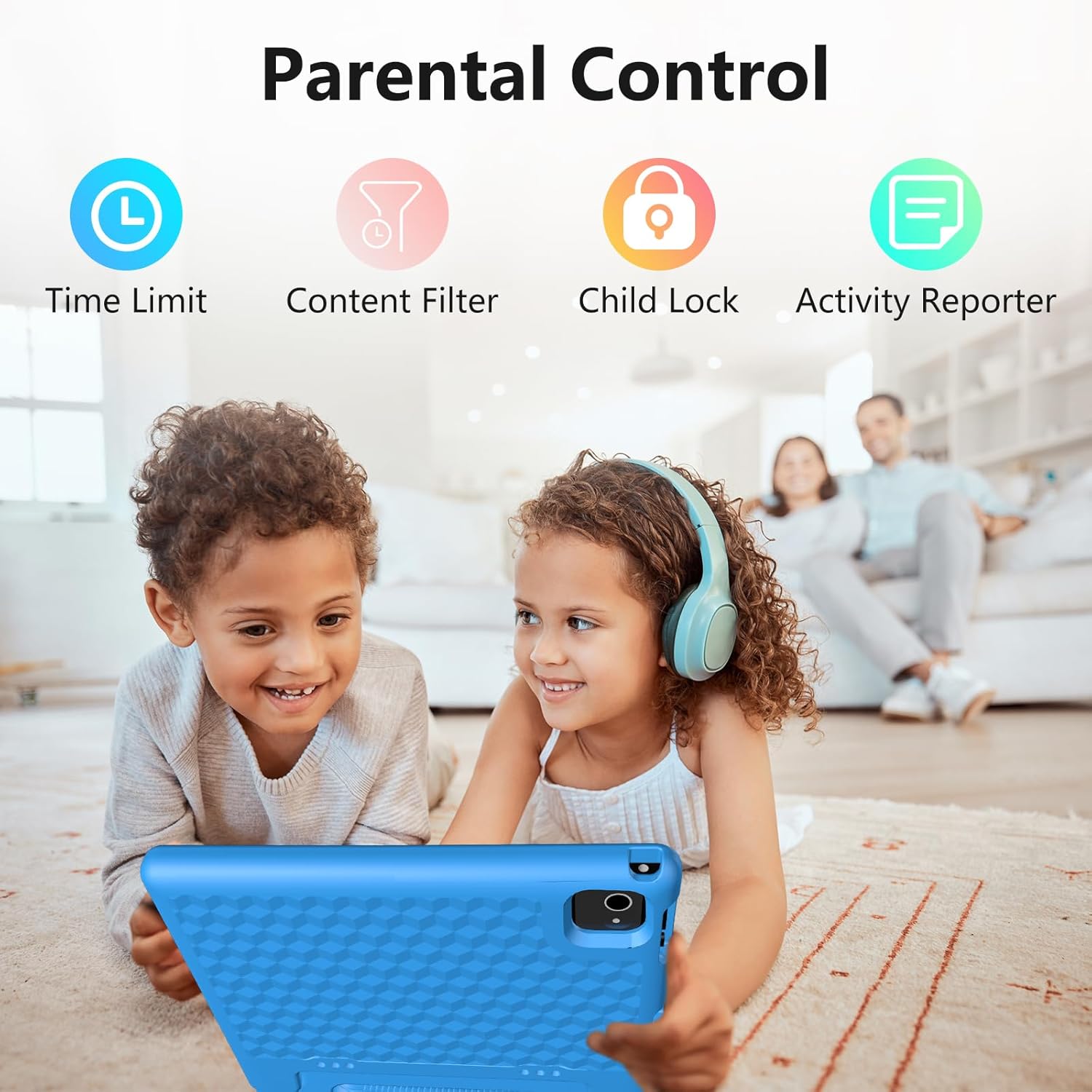
Image 6.1: Overview of parental control features.
7. Media Integration
7.1 Product Images

Image 7.1: The tablet's durable case with its integrated stand for hands-free viewing.
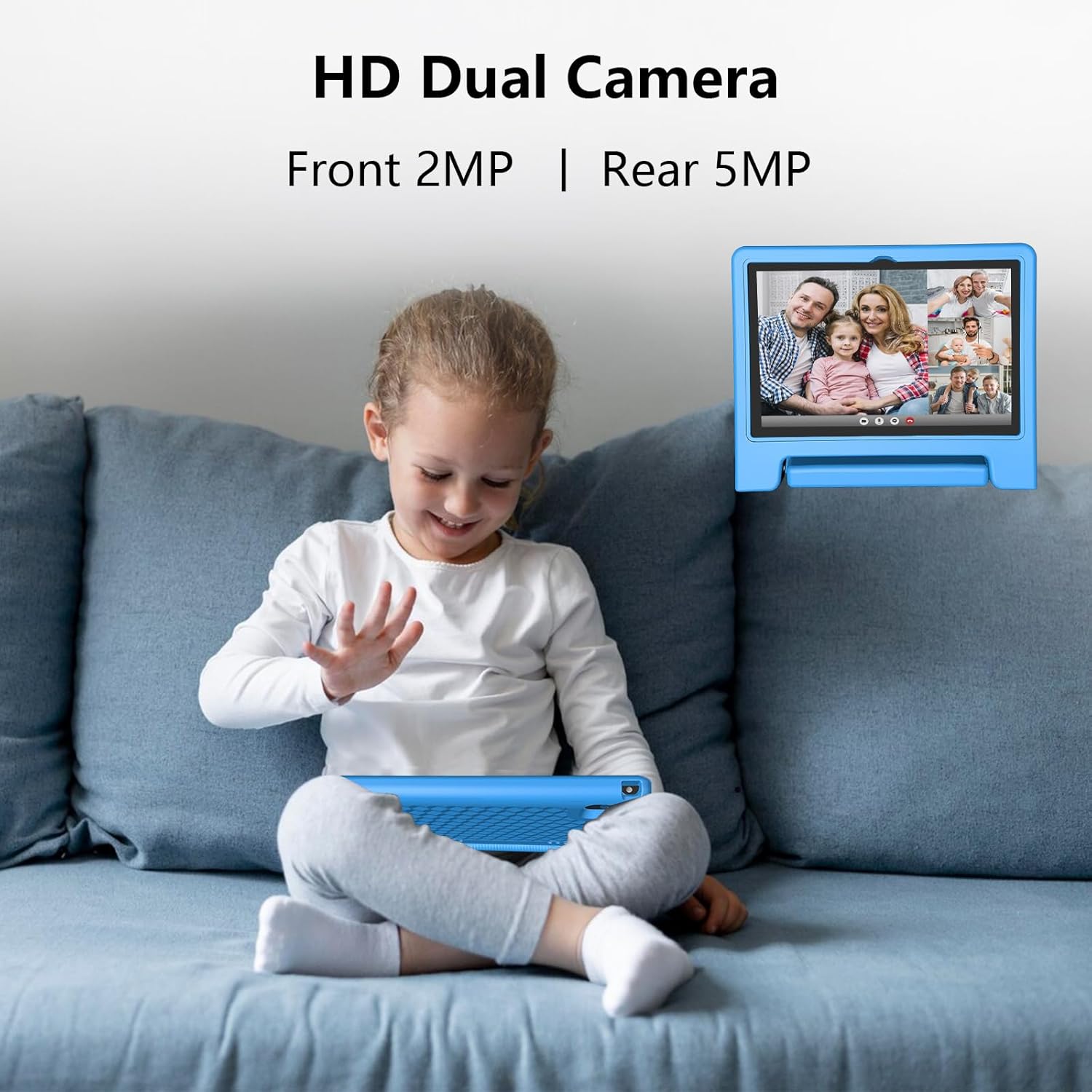
Image 7.2: Detail of the HD dual cameras (2MP front, 5MP rear) for photos and video calls.
7.2 Official Product Videos
Video 7.1: An overview of the JREN 10-inch kids Android tablet, highlighting its features and suitability as a gift. This video demonstrates the tablet's design and basic functionality.
8. Maintenance
- Cleaning: Use a soft, lint-free cloth to clean the screen and tablet body. Avoid abrasive cleaners or solvents.
- Software Updates: Regularly check for and install system updates to ensure optimal performance and security. Go to 'Settings' > 'System' > 'System update'.
- Battery Care: To prolong battery life, avoid fully discharging the tablet frequently. Charge it when the battery level is low.
- Storage Management: Periodically clear unnecessary files and apps to free up storage space and maintain performance.
9. Troubleshooting
- Tablet Not Turning On: Ensure the tablet is charged. Connect it to the charger and wait a few minutes before attempting to power it on again.
- Wi-Fi Connection Issues: Check if other devices can connect to the Wi-Fi network. Restart your router and the tablet. Re-enter the Wi-Fi password in settings.
- Apps Crashing/Freezing: Close and reopen the app. If the issue persists, clear the app's cache (Settings > Apps > [App Name] > Storage > Clear cache). Restart the tablet if necessary.
- Slow Performance: Close unused apps. Clear cache and unnecessary files. Consider performing a factory reset if performance issues continue (backup data first).
10. Specifications
| Feature | Specification |
|---|---|
| Standing Screen Display Size | 10.1 Inches |
| Screen Resolution | 1280 x 800 pixels |
| Processor | 2 GHz Octa-Core (Allwinner) |
| RAM | 8 GB (4 real + 4 virtual) |
| Hard Drive / Flash Memory Size | 64 GB |
| Operating System | Android 14 |
| Wireless Type | 802.11ac |
| Average Battery Life | 10-12 Hours (6000mAh) |
| Item Weight | 1.56 pounds |
| Product Dimensions | 10.5 x 10.5 x 0.6 inches |
| Color | Blue |
11. Warranty and Support
The JREN Tablet for Kids comes with a 2-year worry-free guarantee. For warranty registration and customer support, please visit the official JREN website or contact support directly.
- Warranty Registration: Visit www.jren.us
- Customer Service: support@jren.us
