
1. Introduction
This manual provides essential information for setting up, operating, and maintaining your COOPERS YQ10S Android 14 Tablet. Designed for performance and versatility, this 10-inch tablet features an Android 14 operating system, a 1.8Ghz quad-core processor, 8GB RAM, 64GB internal storage (expandable up to 1TB), and a 1280x800 IPS touch screen. Please read this manual thoroughly to ensure proper use and to maximize your tablet's capabilities.
2. Package Contents
Verify that all items are present in your product package:
- COOPERS YQ10S Android 14 Tablet
- Protective Case
- Type-C Charging Cable
- User Manual (this document)

Image: The COOPERS YQ10S Android 14 Tablet shown with its protective case, as typically found in the package.
3. Product Overview
Familiarize yourself with the physical components of your tablet.
3.1 Front View
- 10.1-inch IPS Touch Screen: Main display for all interactions.
- Front Camera: Located at the top bezel, used for video calls and selfies.

Image: The tablet's 10.1-inch screen, highlighting its 1280x800 resolution for clear visuals.
3.2 Side and Rear Views
- Power Button: To turn the tablet on/off or put it to sleep.
- Volume Buttons: To adjust audio levels.
- USB Type-C Port: For charging and data transfer.
- MicroSD Card Slot: For expandable storage up to 1TB.
- Rear Camera (8MP): For taking photos and videos.
- Dual Speakers: For audio output.
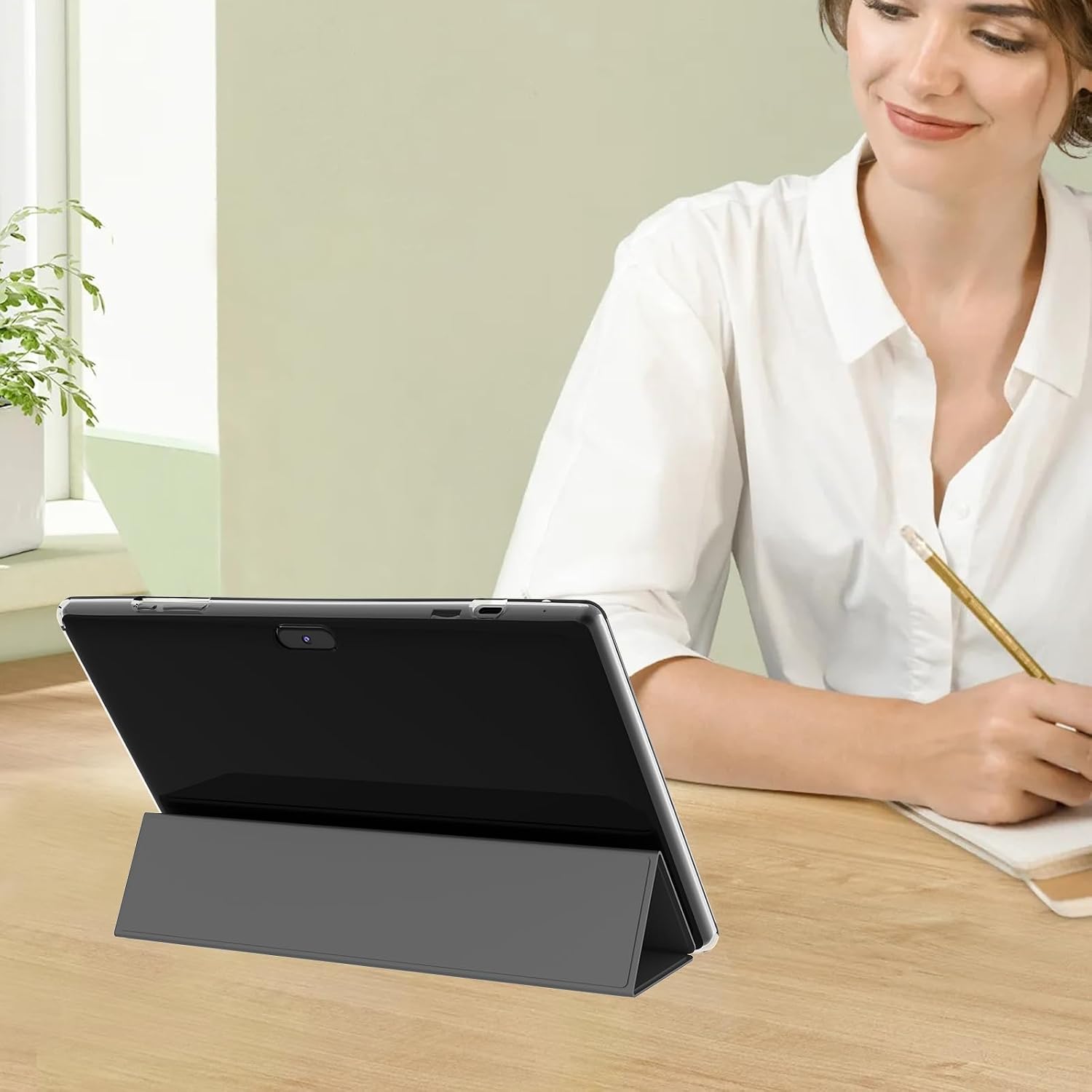
Image: The tablet positioned in its protective case, revealing the rear camera and general form factor.
4. Setup
4.1 Charging the Tablet
Before first use, fully charge the tablet. Connect the provided Type-C cable to the tablet's charging port and the other end to a compatible USB power adapter (not included) or a computer. The battery indicator on the screen will show charging status.

Image: A visual representation of the tablet's 6000mAh battery being charged.
4.2 Powering On/Off
- To Power On: Press and hold the Power button until the screen lights up.
- To Power Off: Press and hold the Power button, then select "Power off" from the options on the screen.
- To Sleep/Wake: Briefly press the Power button.
4.3 Initial Setup
Upon first power-on, follow the on-screen prompts to:
- Select your language.
- Connect to a Wi-Fi network.
- Sign in with your Google account or create a new one.
- Set up screen lock and other security features.
5. Operating the Tablet
5.1 Navigating Android 14
The COOPERS YQ10S runs on Android 14, offering an intuitive user experience. Swipe gestures, notifications, and app permissions are managed through the system settings. Explore the settings menu to customize your tablet to your preferences.

Image: The tablet showcasing a high-resolution image, demonstrating its display quality and performance for media consumption.
5.2 Wi-Fi and Bluetooth Connectivity
Your tablet supports 2.4G/5G Wi-Fi 6 for fast and stable internet connections, and Bluetooth 5.0 for connecting wireless accessories.
- Wi-Fi: Go to Settings > Network & internet > Wi-Fi to connect to available networks.
- Bluetooth: Go to Settings > Connected devices > Bluetooth to pair with Bluetooth devices.
5.3 Camera Usage
The tablet features an 8MP rear camera and a front camera. Open the Camera app to take photos, record videos, or engage in video calls.

Image: A user engaged in a video conference call on the tablet, demonstrating its communication capabilities.
5.4 Expanding Storage
The tablet comes with 64GB of internal storage and supports a MicroSD (TF) card up to 1TB for additional storage. Insert the MicroSD card into the designated slot on the side of the tablet.
5.5 Eye Protection Mode
The 10-inch IPS display incorporates low blue light technology and automatic brightness adjustment to protect your vision during extended use. This feature can be managed in the display settings.

Image: A close-up of the tablet screen during a video call, illustrating the visual clarity and comfort provided by the display's eye protection features.
6. Maintenance
- Cleaning: Use a soft, lint-free cloth to clean the screen and body. Avoid abrasive cleaners or solvents.
- Storage: Store the tablet in a cool, dry place away from direct sunlight and extreme temperatures.
- Battery Care: To prolong battery life, avoid fully discharging the tablet frequently. Charge it regularly.
- Software Updates: Regularly check for and install system updates to ensure optimal performance and security.
7. Troubleshooting
7.1 Tablet Does Not Power On
- Ensure the tablet is sufficiently charged. Connect it to a power source for at least 30 minutes.
- Press and hold the Power button for 10-15 seconds to perform a forced restart.
7.2 Slow Performance
- Close unnecessary background applications.
- Clear cache data from apps in Settings > Apps > [App Name] > Storage & cache.
- Ensure sufficient free storage space. Consider moving files to a MicroSD card or deleting unused apps.
- Restart the tablet.
7.3 Wi-Fi Connectivity Issues
- Toggle Wi-Fi off and on in Settings > Network & internet > Wi-Fi.
- Restart your Wi-Fi router.
- Forget the network and reconnect.
8. Specifications
| Feature | Detail |
|---|---|
| Model Name | YQ10S |
| Operating System | Android 14 |
| Processor | 1.8 GHz Quad-core (ARM) |
| RAM | 8GB (2GB fixed + 6GB virtual) |
| Internal Storage | 64GB |
| Expandable Storage | Up to 1TB via MicroSD (TF) card |
| Screen Size | 10.1 Inches |
| Screen Resolution | 1280 x 800 IPS |
| Rear Camera | 8 MP |
| Battery Capacity | 6000mAH (up to 8 hours average life) |
| Wireless Type | 802.11ax (Wi-Fi 6, 2.4G/5G) |
| Bluetooth | Bluetooth 5.0 |
| Color | Black |
| Item Weight | 2.07 pounds |
| Product Dimensions | 9.5 x 0.3 x 6.5 inches |
9. Warranty and Support
Your COOPERS YQ10S Tablet comes with a standard manufacturer's warranty. Please refer to the warranty card included in your package for specific terms and conditions. For technical support, troubleshooting assistance, or warranty claims, please contact COOPERS customer service through the retailer where you purchased the product or visit the official COOPERS support website.
Keep your purchase receipt as proof of purchase for warranty purposes.


