
1. Introduction
Thank you for choosing the AWEI H19 Smart Watch. This manual provides detailed instructions on how to set up, operate, and maintain your device. Please read this manual carefully to ensure proper use and to fully utilize all features of your smart watch.

Image 1.1: The AWEI H19 Smart Watch, featuring a round display and black strap.
2. Product Overview and Key Features
The AWEI H19 Smart Watch is designed to enhance your daily life with its advanced features and user-friendly interface. Key functionalities include:
- 1.39-inch HD Dial: Enjoy clear visuals and personalize your watch face with custom images or cloud-based options.
- Bluetooth Calling: Make and answer calls directly from your wrist.
- 100+ Sports Modes: Track various activities including running, walking, hiking, cycling, and more.
- Health Monitoring: Features like sedentary reminders and female physiological cycle tracking.
- Long Battery Life: Up to 30 days standby time and 4-7 days of daily use on a single charge.
- Music Control: Manage music playback on your connected smartphone.
- IP68 Waterproof Rating: Designed to withstand splashes, sweat, and rain.

Image 2.1: The AWEI H19 Smart Watch display, showcasing time, heart rate, battery, and step count.
3. Getting Started: Setup
3.1 Charging the Device
Before first use, fully charge your AWEI H19 Smart Watch. The watch has a 300mAh battery capacity and typically takes 2-3 hours to fully charge.
- Connect the magnetic charging cable to the charging contacts on the back of the watch.
- Plug the USB end of the cable into a standard USB power adapter (5V/1A recommended) or a computer's USB port.
- The watch display will indicate charging status.
3.2 Pairing with Your Smartphone
To access all smart features, you need to pair your AWEI H19 Smart Watch with your smartphone via Bluetooth.
- Download the companion app (refer to the watch's packaging or on-screen QR code for the app name) from your phone's app store (Google Play Store for Android, Apple App Store for iOS).
- Ensure Bluetooth is enabled on your smartphone.
- Open the companion app and follow the on-screen instructions to create an account or log in.
- In the app, navigate to the device pairing section and select "Add Device" or similar.
- The app will search for available devices. Select "AWEI H19" from the list.
- Confirm the pairing request on both your phone and the watch if prompted.
- Once paired, the watch will synchronize time and data with your phone.
4. Operating Instructions
4.1 Basic Navigation
The AWEI H19 Smart Watch features a 1.39-inch touch-control OLED display and physical buttons for navigation.
- Touch Screen: Swipe left/right, up/down to navigate through menus and features. Tap to select.
- Side Button(s): Typically, a short press returns to the previous screen or main dial, a long press may access power options or a specific function. Refer to the watch's on-screen prompts for specific button functions.
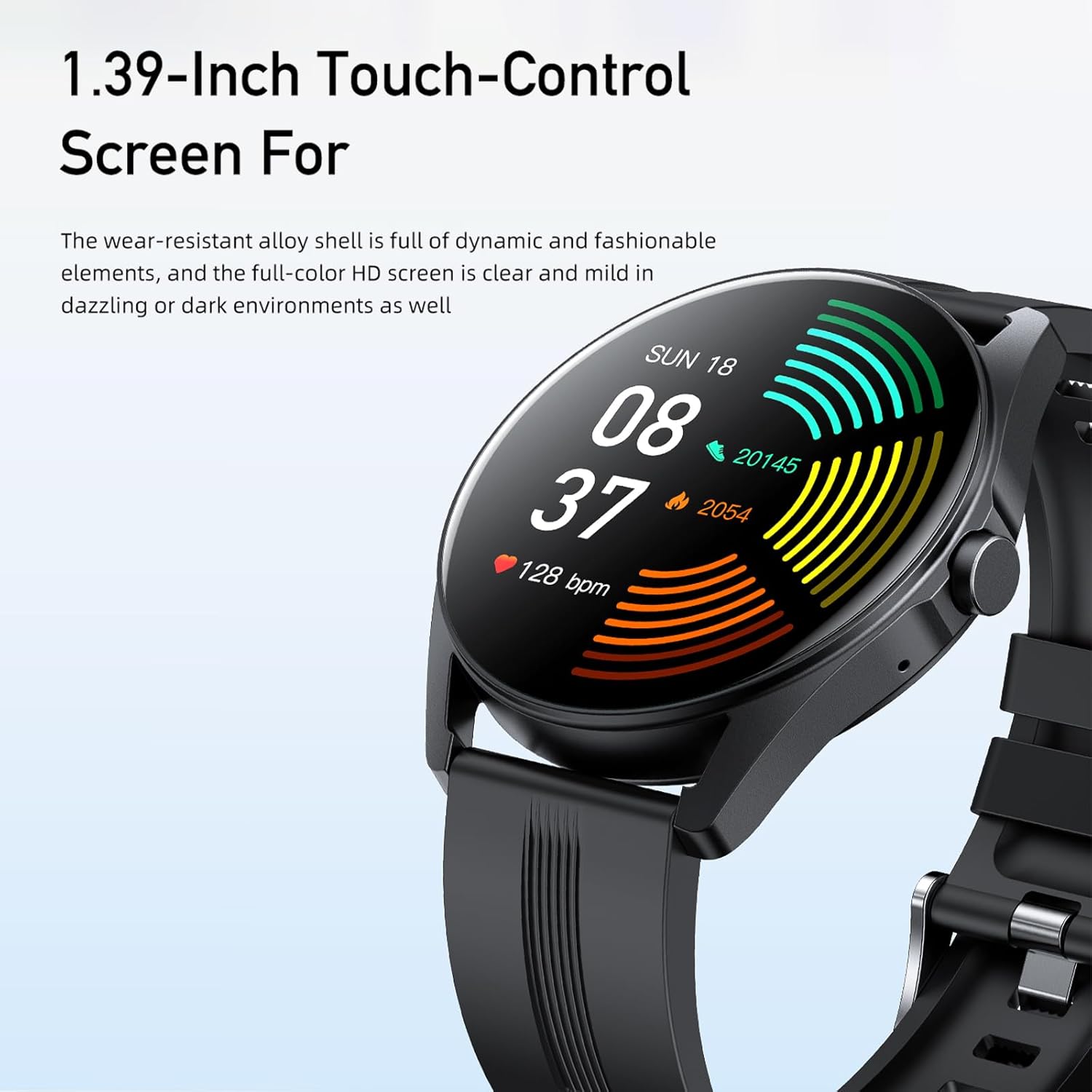
Image 4.1: The 1.39-inch HD touch-control screen of the AWEI H19 Smart Watch, displaying various health metrics.
4.2 Making and Answering Bluetooth Calls
The AWEI H19 Smart Watch supports one-touch Bluetooth calling, allowing you to manage calls directly from your wrist.
- Answering Calls: When an incoming call is received on your paired phone, the watch will display the caller ID. Tap the green answer icon on the watch screen to answer the call.
- Making Calls: Access the call function on your watch (usually through a dedicated icon or by swiping to the call menu). You can dial numbers directly or select contacts from your synchronized phonebook.
- Ending Calls: Tap the red hang-up icon on the watch screen to end a call.

Image 4.2: A user interacting with the AWEI H19 Smart Watch to manage a Bluetooth call.
4.3 Using Sports Modes
The watch offers over 100 sports modes to track your physical activities. Each mode provides specific data relevant to the activity.
- From the main dial, swipe to find the "Sports" or "Workout" icon and tap to enter.
- Browse through the list of available sports modes (e.g., Running, Walking, Cycling, Swimming, Yoga).
- Select your desired activity. The watch will typically start a countdown before beginning to record data.
- During the activity, the watch displays real-time data such as duration, calories burned, heart rate, and distance (if applicable).
- To pause or end an activity, swipe or press the side button as indicated on the screen.
- Your exercise data will be saved and synchronized with the companion app for detailed analysis.

Image 4.3: The AWEI H19 Smart Watch tracking a user's exercise data during a workout, with icons representing multiple sports modes.
4.4 Health Monitoring and Reminders
The AWEI H19 includes features to help you monitor your health and maintain a balanced lifestyle.
- Sedentary Reminder: The watch can remind you to move if you've been inactive for too long. Configure this feature in the companion app.
- Female Physiological Cycle Tracking: For female users, this feature helps track menstrual cycles. Enable and set up in the companion app.
- Wrist-Flip Display: Raise your wrist to automatically wake the screen and view the time or notifications.

Image 4.4: Two AWEI H19 Smart Watches demonstrating the female physiological cycle tracking and sedentary reminder features.
4.5 Customizing Watch Faces
Personalize your watch by choosing from various watch faces or uploading your own photos.
- On the Watch: Long-press the main watch face to enter the watch face selection menu. Swipe left/right to browse pre-installed faces and tap to select.
- Via App: Open the companion app, navigate to the "Dial Market" or "Watch Face" section. Here you can find more cloud-based watch faces or upload a custom photo from your phone's gallery.
4.6 Music Control
Control music playback on your paired smartphone directly from your watch.
- Ensure music is playing on your phone.
- Access the "Music Control" feature on your watch (usually by swiping or finding the music icon).
- You can play/pause, skip tracks (next/previous), and adjust volume.
5. Maintenance
Proper care will extend the life and performance of your AWEI H19 Smart Watch.
- Cleaning: Wipe the watch screen and strap regularly with a soft, dry, lint-free cloth. For stubborn dirt, a slightly damp cloth can be used, then dry thoroughly.
- Water Resistance: The watch has an IP68 waterproof rating, meaning it is resistant to dust and can withstand immersion in water up to 1.5 meters for 30 minutes. It is suitable for daily use, hand washing, and light rain. Avoid hot water, steam, or prolonged immersion in water. Do not operate buttons underwater.
- Avoid Chemicals: Do not use harsh chemicals, cleaning solvents, or strong detergents to clean the watch, as they may damage the finish or internal components.
- Storage: Store the watch in a cool, dry place when not in use. Avoid extreme temperatures.

Image 5.1: The AWEI H19 Smart Watch demonstrating its IP68 waterproof capability with water droplets on the screen.
6. Troubleshooting
If you encounter issues with your AWEI H19 Smart Watch, try the following solutions:
| Problem | Possible Solution |
|---|---|
| Watch does not turn on | Ensure the watch is fully charged. Connect it to the charger for at least 30 minutes. |
| Cannot pair with smartphone |
|
| Call function not working |
|
| Inaccurate activity tracking |
|
| Short battery life |
|
7. Specifications
| Feature | Detail |
|---|---|
| Model | H19 |
| Brand | Awei |
| Display Size | 1.39 Inches |
| Display Type | OLED |
| Battery Capacity | 300 mAh |
| Charging Time | Approximately 2-3 Hours |
| Battery Life (Daily Use) | 4-7 Days |
| Battery Life (Standby) | Up to 30 Days |
| Connectivity | Bluetooth |
| Waterproof Rating | IP68 |
| Sports Modes | 100+ |
| GPS | No |
| Compatible Devices | Smartphone |
| Human Interface Input | Buttons, Touchscreen |
8. Warranty and Support
The AWEI H19 Smart Watch comes with a one-year warranty from the date of purchase. This warranty covers manufacturing defects under normal use.
For any questions, technical support, or warranty claims, please contact AWEI customer service. You can typically find contact information on the product packaging, the official AWEI website, or through the retailer where you purchased the device. Customer service aims to respond and assist within 12 hours.
Please retain your proof of purchase for warranty validation.
