
1. Important Safety Information
Please read all safety and operating instructions before using your new VIZIO TV. Keep these instructions for future reference. Always follow basic safety precautions to reduce the risk of fire, electric shock, and injury to persons.
- Do not expose this appliance to rain or moisture.
- Do not block any ventilation openings. Install in accordance with the manufacturer's instructions.
- Do not install near any heat sources such as radiators, heat registers, stoves, or other apparatus (including amplifiers) that produce heat.
- Protect the power cord from being walked on or pinched, particularly at plugs, convenience receptacles, and the point where they exit from the apparatus.
- Only use attachments/accessories specified by the manufacturer.
- Unplug this apparatus during lightning storms or when unused for long periods of time.
2. What's in the Box
Verify that all components are present before proceeding with setup.
- VIZIO 50 Inch V Series 4K UHD LED Smart TV
- VIZIO Voice Remote
- Power Cable
- TV Stands (2) and Screws
- User Manual (this document)
3. Setup
3.1 Attaching the TV Stands
To attach the included stands:
- Carefully place the TV face-down on a soft, clean surface to prevent screen damage.
- Align each stand with the corresponding slots on the bottom of the TV.
- Secure each stand with the provided screws. Ensure they are tightened firmly.

Image: Front view of the VIZIO 50 Inch V Series Smart TV, showcasing the display and attached stand feet.
3.2 Connecting Power
Plug the power cable into the AC IN port on the back of the TV, then plug the other end into a wall outlet.
3.3 Connecting External Devices
The VIZIO V-Series TV offers multiple connectivity options for your devices.
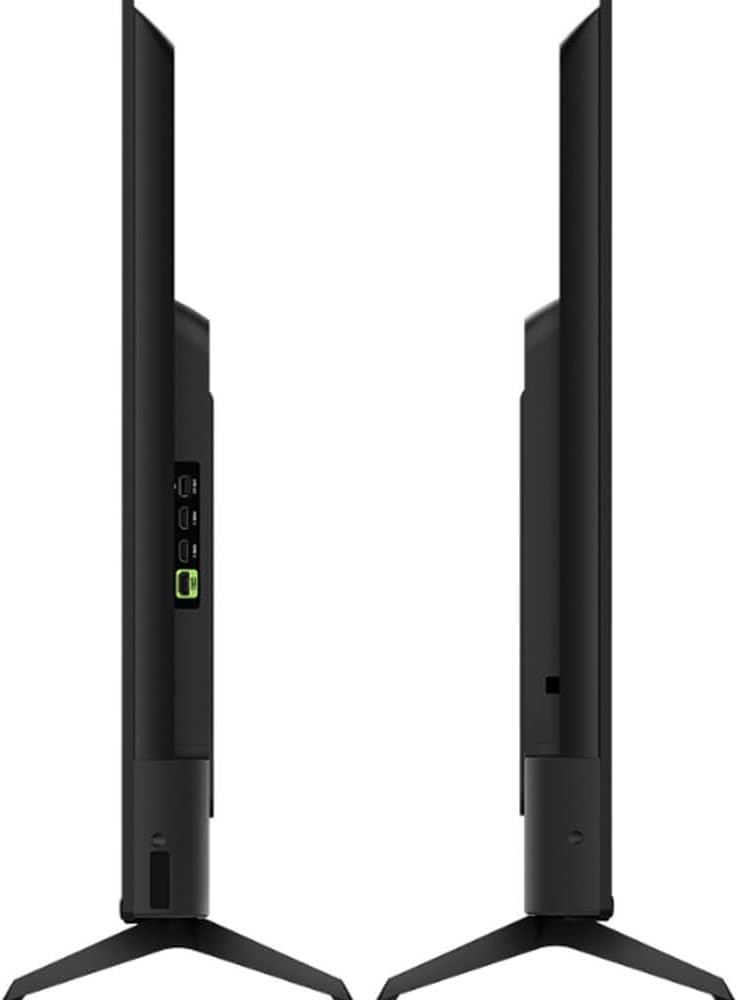
Image: Detailed view of the VIZIO TV's input panel, showing ports for USB 2.0, HDMI (including HDMI 1 eARC), Antenna, and Optical Audio Out (S/PDIF).
- HDMI (High-Definition Multimedia Interface): Connect Blu-ray players, game consoles, cable/satellite boxes, and other HDMI-enabled devices. This TV features three HDMI ports, including one HDMI 1 (eARC) port for enhanced audio return channel functionality.
- USB 2.0: Connect USB storage devices to view photos, play music, or update firmware.
- Antenna/Cable In: Connect an antenna for over-the-air broadcasts or a coaxial cable for cable TV services.
- Audio Out (Optical/S/PDIF): Connect to a soundbar or home theater system for digital audio output.
3.4 Initial Setup Wizard
Upon first power-on, the TV will guide you through an initial setup process. This includes:
- Language selection.
- Network connection (Wi-Fi 6 Dual-Band).
- Channel scanning (for antenna/cable).
- Accepting terms and conditions for Smart TV features.
4. Operating Your VIZIO Smart TV
4.1 VIZIO Voice Remote
The included VIZIO Voice Remote allows for easy navigation and control of your TV. Use the dedicated voice button to issue commands for searching content, changing settings, and more.
4.2 SmartCast Interface

Image: The VIZIO SmartCast home screen, showing a variety of pre-installed streaming applications and content recommendations.
Your VIZIO Smart TV features the SmartCast platform, providing access to a wide range of streaming services and content. Navigate using the remote's directional pad and select apps like Netflix, Hulu, YouTube, Disney Plus, and more directly from the home screen.
4.3 Input Selection
Press the 'Input' button on your remote to cycle through connected devices (HDMI 1, HDMI 2, HDMI 3, TV/Antenna, SmartCast).
4.4 Picture and Sound Settings
Access the TV's menu to adjust picture modes (e.g., Standard, Vivid, Calibrated), brightness, contrast, and color settings. Sound settings allow for adjustments to bass, treble, and audio output options, including enabling DTS Virtual X for immersive audio.
5. Advanced Features
5.1 Connectivity
- Wi-Fi 6 Dual-Band: Provides faster and more reliable wireless internet connectivity for seamless streaming and online activities.
- Bluetooth: Connect compatible Bluetooth devices such as headphones or soundbars wirelessly.
- HDMI (eARC): HDMI 1 supports eARC (enhanced Audio Return Channel), allowing for high-quality audio transmission from the TV to a compatible sound system with a single HDMI cable.
5.2 Audio and Video Enhancements
- 4K UHD Resolution: Delivers four times the resolution of Full HD for incredibly sharp and detailed images.
- Dolby Vision HDR/HDR10+: Supports advanced High Dynamic Range formats for brighter highlights, deeper blacks, and a wider range of colors.
- DTS Virtual X: Creates an immersive audio experience by simulating multi-dimensional sound without the need for additional speakers.
- VRR (Variable Refresh Rate): Optimizes refresh rates for smoother gaming experiences by reducing screen tearing and stuttering.
- Quantum Color & Next-Generation Color: Enhances color accuracy and vibrancy for a more lifelike picture.
- IQ Active Processor: VIZIO's intelligent processor optimizes picture performance for stunning 4K clarity, vibrant color, and cinematic contrast.
6. Maintenance
6.1 Cleaning the Screen
To clean the screen, gently wipe it with a soft, lint-free cloth. For stubborn marks, lightly dampen the cloth with water or a specialized screen cleaner. Do not use harsh chemicals or abrasive materials.
6.2 Cleaning the TV Body
Wipe the TV's frame and back panel with a soft, dry cloth. Avoid spraying liquids directly onto the TV.
7. Troubleshooting
If you encounter issues with your VIZIO TV, refer to the following common solutions:
- No Power: Ensure the power cable is securely connected to both the TV and a working electrical outlet. Try a different outlet.
- No Picture/Black Screen: Verify the correct input source is selected. Check all cable connections to external devices. Try restarting the TV by unplugging it for 30 seconds and plugging it back in.
- No Sound: Check the TV's volume and mute settings. Ensure external audio systems (soundbars, receivers) are powered on and correctly configured. Verify audio cables are properly connected.
- Network Connection Issues: Restart your Wi-Fi router and modem. Re-enter your Wi-Fi password in the TV's network settings. Ensure the TV is within range of your Wi-Fi signal.
- Remote Not Responding: Replace the batteries in the remote control. Ensure there are no obstructions between the remote and the TV's IR sensor.
For further assistance, visit the VIZIO support website or contact customer service.
8. Specifications
| Feature | Specification |
|---|---|
| Brand | VIZIO |
| Model Number | V4K50M-0810 (CCCR-VQD50M) |
| Screen Size | 50 Inches |
| Display Technology | LED |
| Resolution | 4K UHD (3840 x 2160) |
| Refresh Rate | 60 Hz (with VRR support) |
| HDR Support | Dolby Vision, HDR10+ |
| Audio Technology | DTS Virtual X |
| Connectivity | Wi-Fi 6 Dual-Band, Bluetooth, 3x HDMI (1x eARC), 1x USB 2.0, Antenna, Optical Audio Out (S/PDIF) |
| Processor | IQ Active Processor |
| Weight | 19 Pounds |
| Color | Black |
| Supported Internet Services | Disney Plus, Free Sat/Free View, Hulu, Netflix, YouTube |
9. Warranty and Support
For warranty information and customer support, please refer to the official VIZIO website or the warranty card included with your product. You can also find frequently asked questions and troubleshooting guides online.
VIZIO Support Website: www.vizio.com/support


