
1. Product Overview
The Machenike Machcreator Mini Desktop, Model 4762H, is a compact and powerful computing solution designed for various applications, from business to everyday use. It features a 13th Gen Intel Core i7-13620H processor, 16GB DDR5 RAM, and a 512GB PCIe M.2 SSD, providing high-speed performance and efficient multitasking capabilities. This mini PC supports 4K dual monitor output and comes pre-installed with Windows 11 Pro.
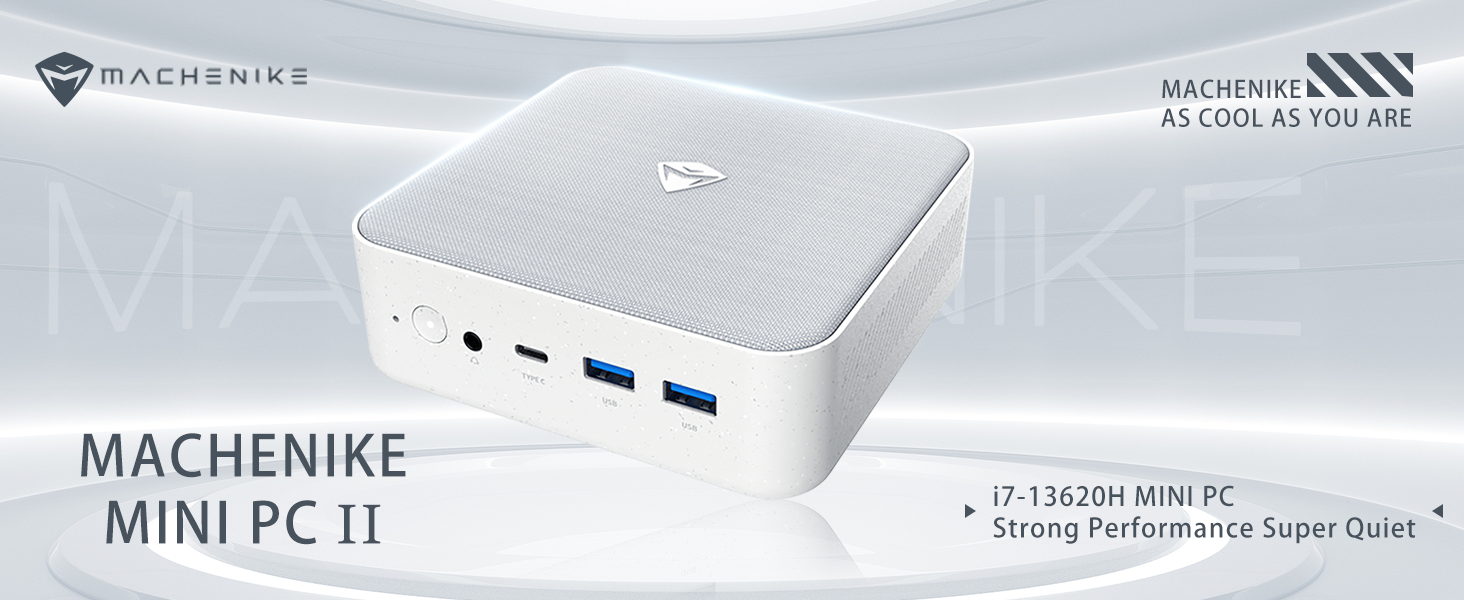
Image: Overview of the Intel Core i7 processor, highlighting 10 Cores, 16 Threads, 4.90 GHz Max Turbo Frequency, and 24 MB L3 Cache.
Key Features:
- Processor: Intel Core i7-13620H (10 Cores, 16 Threads, up to 4.9 GHz)
- Memory: 16GB DDR5 SODIMM RAM (expandable up to 64GB)
- Storage: 512GB PCIe M.2 Solid State Drive (supports dual M.2 expansion)
- Operating System: Windows 11 Pro
- Graphics: Integrated Intel UHD Graphics, supporting 4K dual monitor output via HDMI 2.0 and DisplayPort 1.4
- Connectivity: Wi-Fi 6, Bluetooth, 2 x RJ45 Ethernet, USB 3.2 Gen2 Type-A, USB Type-C
- Cooling System: Twin turbine cooling fan with deluxe all-copper radiator
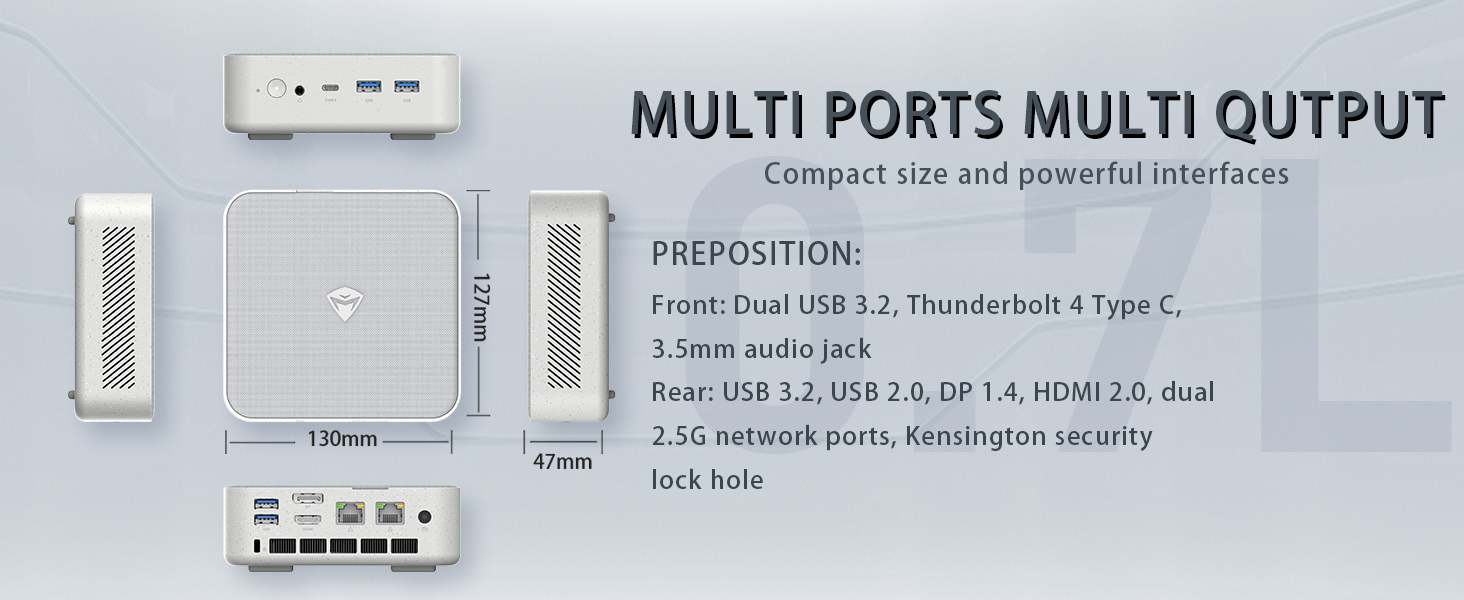
Image: Illustration of PCIe 4.0 SSD and memory slots, indicating support for up to 64GB DDR5 RAM and up to 4TB PCIe SSD expansion.
2. Setup Guide
2.1 Unpacking the Device
Carefully remove all components from the packaging. Ensure the following items are present:
- Machenike Machcreator Mini Desktop (Model 4762H)
- Power Adapter
- User Manual (this document)
- (Optional) VESA Mount Kit
2.2 Connecting Peripherals
Before powering on, connect your essential peripherals:
- Display: Connect your monitor(s) to the HDMI 2.0 or DisplayPort 1.4 ports on the rear of the mini PC. The USB Type-C port also supports video output.
- Keyboard and Mouse: Connect your USB keyboard and mouse to any of the available USB 3.2 Gen2 Type-A ports.
- Network: For a wired connection, connect an Ethernet cable to one of the RJ45 ports. For wireless, ensure your Wi-Fi network is available.
- Power: Connect the power adapter to the DC-in port on the mini PC, then plug the adapter into a power outlet.
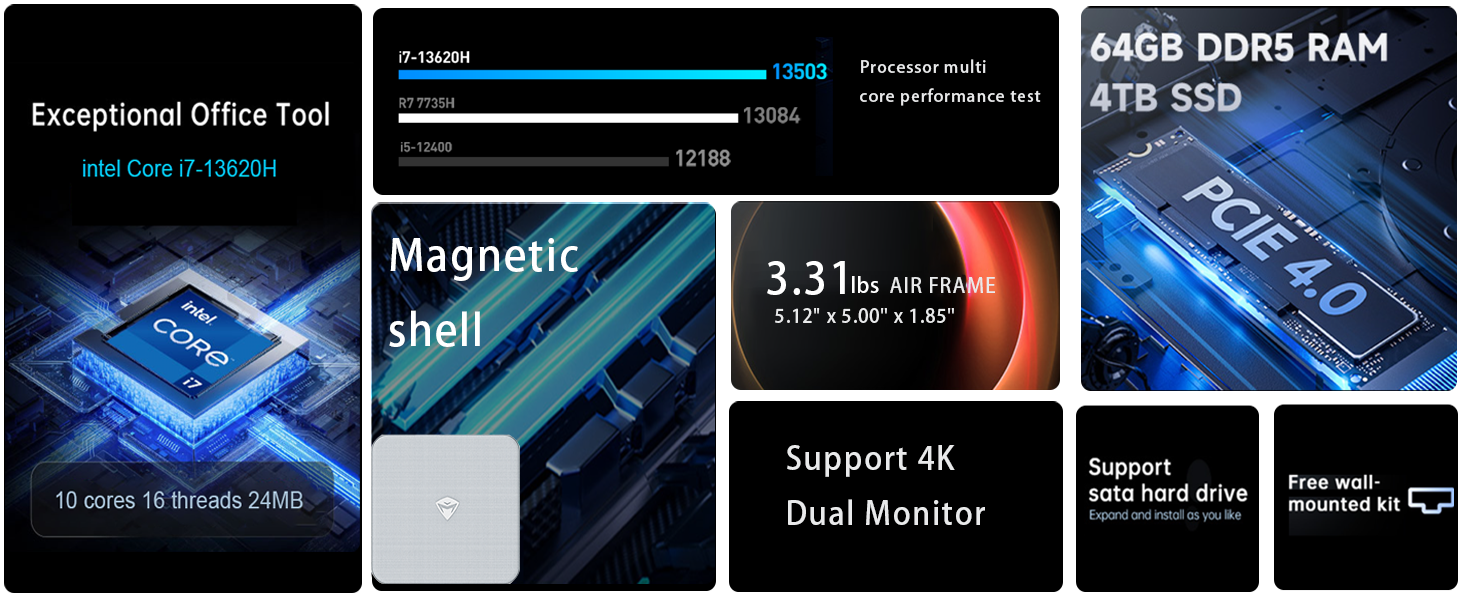
Image: Detailed view of the mini PC's front and rear ports, including USB 3.2 Gen2 Type-A, USB Type-C, 3.5mm Audio Jack, HDMI 2.0, DisplayPort 1.4, and RJ45 Ethernet ports. Dimensions are also shown.
2.3 Initial Boot-up and Windows 11 Pro Setup
- Press the power button located on the front of the mini PC.
- The system will boot into the Windows 11 Pro setup wizard. Follow the on-screen instructions to configure your language, region, network, and user account.
- Once setup is complete, your mini PC is ready for use.
3. Operating Instructions
3.1 Power On/Off
- Power On: Press the power button once.
- Shut Down: Click the Start button in Windows, then select Power > Shut down.
- Restart: Click the Start button in Windows, then select Power > Restart.
- Sleep: Click the Start button in Windows, then select Power > Sleep.
3.2 Display Configuration
The mini PC supports up to two 4K displays simultaneously. To configure display settings:
- Right-click on the desktop and select "Display settings".
- Here you can detect multiple displays, arrange them, change resolution, and adjust scaling.
3.3 Network Connectivity
- Wi-Fi: Click the network icon in the taskbar, select your Wi-Fi network, enter the password, and connect.
- Ethernet: If an Ethernet cable is connected, the system should automatically establish a wired network connection.
3.4 Cooling System Modes
The mini PC features an advanced cooling system with adjustable modes via the BIOS to optimize performance and noise levels. These modes include:
- Silence Mode: Prioritizes quiet operation, suitable for light tasks.
- Balance Mode: Offers a good balance between performance and noise.
- Performance Mode: Maximizes performance (up to 65W power release), ideal for demanding applications.
To change these settings, access the BIOS during startup (typically by pressing Del or F2 repeatedly after powering on) and navigate to the relevant power or performance settings.
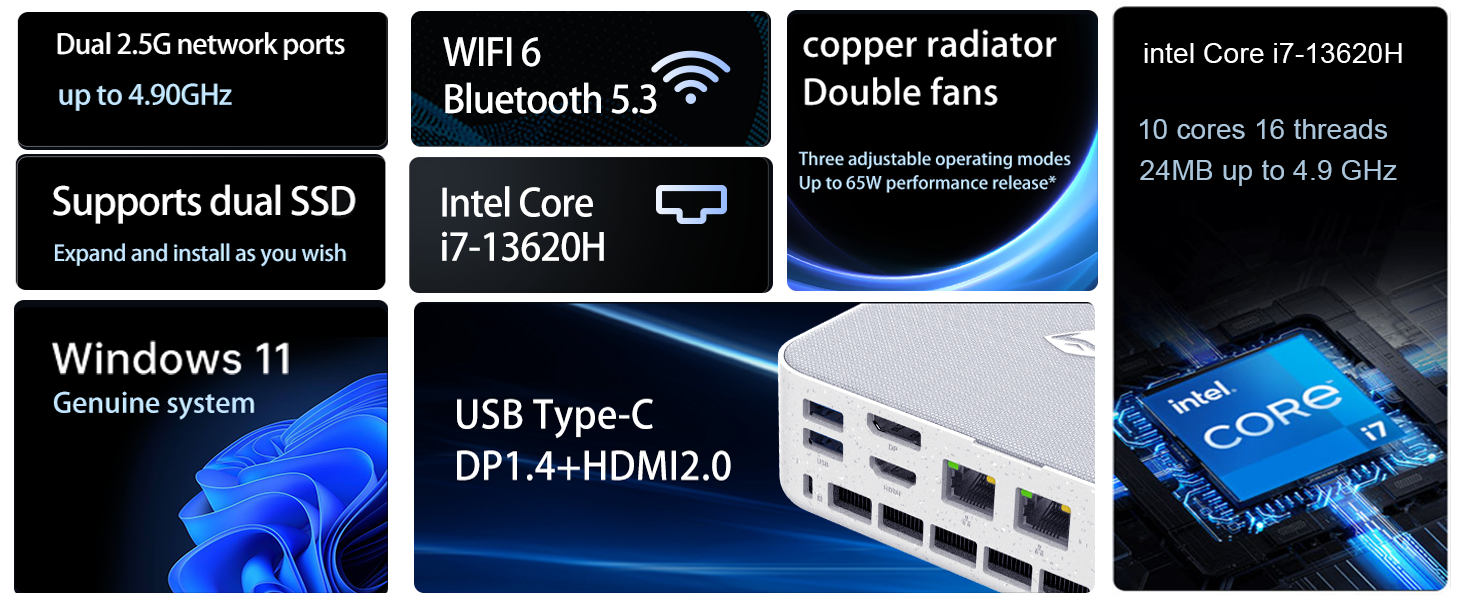
Image: Illustration of the twin turbine cooling fan and deluxe all-copper radiator, explaining how it prevents slowdowns due to overheating and offers silence, balance, and performance modes.
4. Maintenance
4.1 Cleaning the Device
To ensure optimal performance and longevity, regularly clean your mini PC:
- Power off the device and disconnect it from the power outlet.
- Use a soft, dry cloth to wipe the exterior.
- Use compressed air to gently clear dust from ventilation openings. Do not insert any objects into the vents.
4.2 Software Updates
Keep your Windows 11 Pro operating system and drivers updated to ensure security and performance:
- Windows Updates: Go to Start > Settings > Windows Update and check for updates.
- Driver Updates: Visit the Machenike official website for the latest drivers for your specific model.
4.3 Storage and Memory Expansion
The Machenike Machcreator Mini Desktop supports upgrades for both RAM and storage:
- RAM: The device has 2 SODIMM slots and supports up to 64GB DDR5 RAM.
- Storage: It supports dual PCIe M.2 SSDs, allowing for significant storage expansion up to 4TB.
Note: Opening the device for upgrades may void your warranty. Consult a qualified technician or refer to specific upgrade guides from Machenike if available.
5. Troubleshooting
This section addresses common issues you might encounter. For more complex problems, please contact customer support.
5.1 No Power
- Ensure the power adapter is securely connected to both the mini PC and a working power outlet.
- Verify the power outlet is functional by plugging in another device.
- Check the power adapter for any visible damage.
5.2 No Display Output
- Confirm that the monitor is powered on and the correct input source is selected.
- Ensure the HDMI or DisplayPort cable is securely connected to both the mini PC and the monitor.
- Try a different display cable or monitor if available.
- If using multiple displays, try connecting only one display at a time.
5.3 Network Connectivity Issues
- Wired (Ethernet): Check if the Ethernet cable is properly connected to both the mini PC and the router/modem. Verify router/modem status.
- Wireless (Wi-Fi): Ensure Wi-Fi is enabled in Windows settings. Restart your router/modem. Check if other devices can connect to the Wi-Fi network.
- Run Windows Network Troubleshooter (Start > Settings > Network & internet > Advanced network settings > Network troubleshooter).
6. Specifications
Detailed technical specifications for the Machenike Machcreator Mini Desktop, Model 4762H:
| Feature | Specification |
|---|---|
| Brand | Machenike |
| Model Number | 4762H |
| Operating System | Windows 11 Pro |
| CPU Model | Intel Core i7-13620H |
| CPU Speed | Up to 4.9 GHz (Max Turbo Frequency) |
| RAM Memory Installed Size | 16 GB DDR5 (Expandable to 64 GB) |
| Memory Clock Speed | 4800 MHz |
| Memory Slots Available | 2 |
| Memory Storage Capacity | 512 GB PCIe M.2 SSD (Supports dual M.2, up to 4TB) |
| Graphics Coprocessor | Intel UHD Graphics (Integrated) |
| Video Output Interface | HDMI 2.0, DisplayPort 1.4, USB Type-C |
| Display Resolution Maximum | 3840x2160 (4K) |
| Hardware Interface | 3.5mm Audio, Bluetooth, DisplayPort, Ethernet (2x RJ45), HDMI, USB, USB Type C |
| Wireless Connectivity | Wi-Fi 6 (802.11ax), Bluetooth |
| Item Dimensions (LxWxH) | 5.12 x 5 x 1.85 inches |
| Item Weight | 49.8 Pounds (Note: This weight may be a data entry error; actual weight for a mini PC is typically much less.) |
| UPC | 193200587317 |
7. Warranty and Support
7.1 Warranty Information
Machenike products typically come with a limited manufacturer's warranty. Please refer to the warranty card included with your purchase or visit the official Machenike website for detailed warranty terms and conditions specific to your region and product model. Keep your proof of purchase for warranty claims.
7.2 Customer Support
For technical assistance, troubleshooting beyond this manual, or warranty inquiries, please contact Machenike customer support:
- Online Support: Visit the official Machenike website (www.machenike.com - example link, actual link may vary) and navigate to the support section.
- Email Support: Refer to your product documentation for the specific support email address.
- Phone Support: Check the Machenike website for regional phone support numbers.
When contacting support, please have your product model number (4762H) and serial number ready.