
1. Product Overview
The GeekTale Fingerprint Deadbolt (Model RD02) is a smart lock designed for keyless entry, offering multiple unlock methods including fingerprint, Bluetooth app, and traditional backup keys. It features quick fingerprint recognition and app-based user management.
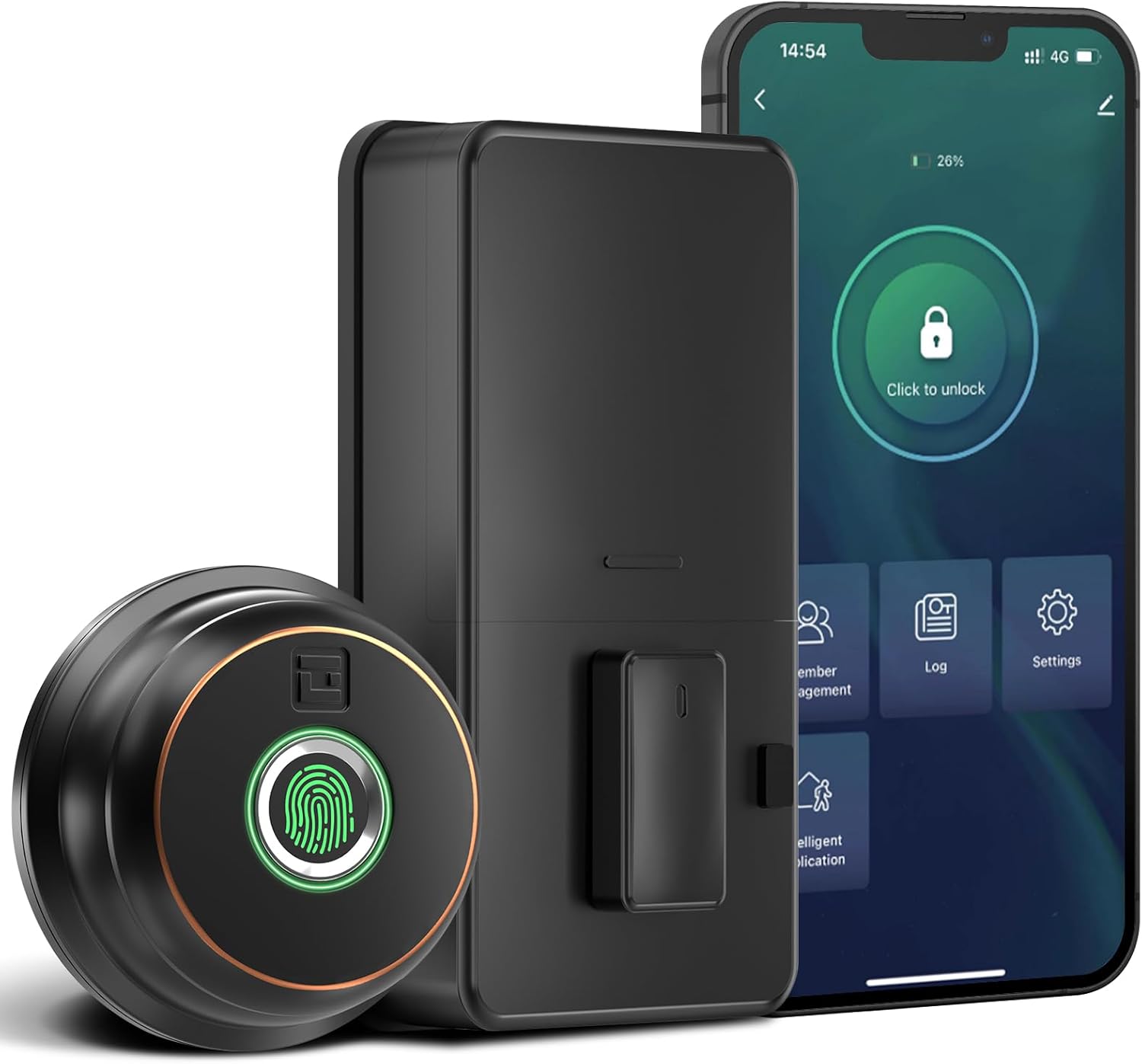
Image: Overview of the GeekTale Fingerprint Deadbolt, showing the exterior unit with fingerprint sensor, the interior unit, and a smartphone displaying the control app.
Key Features:
- 3-in-1 Unlock Ways: Fingerprint, Bluetooth App, and Backup Keys.
- Fast Fingerprint Recognition: 360° Fingerprint ID for 0.3-second unlock.
- Smart App Control: Manage up to 50 users, set auto-lock times (5-60s), view unlock records, and monitor battery level.
- Remote Control (with Gateway): Requires separate purchase of a gateway for remote unlock and notifications.
- Durable Construction: Outdoor lock made of aluminum alloy.
2. Package Contents
Verify that all components are present before beginning installation.
- Exterior Fingerprint Unit
- Interior Deadbolt Unit
- Mounting Plate
- Deadbolt Latch
- Strike Plate
- Screws (various sizes)
- Backup Keys
- Installation Template
3. Installation Guide
This section provides step-by-step instructions for installing your GeekTale Fingerprint Deadbolt. A screwdriver is the primary tool required. The lock is designed to fit most standard US doors.
3.1 Door Compatibility Check
Ensure your door meets the following specifications:
- Backset: 2-3/4" (70mm) or 2-3/8" (60mm)
- Door Hole Diameter: 2-1/8" (54mm)
- Door Thickness: 1-3/8" to 2-1/8" (35mm to 54mm)

Image: Diagram illustrating door measurements for backset, door hole diameter, and door thickness, crucial for proper installation.
3.2 Installation Steps
- Prepare the Door: If replacing an existing deadbolt, remove it. Use the provided template to mark and drill holes if installing on a new door.
- Install the Latch: Insert the deadbolt latch into the door edge. Ensure the "UP" arrow on the latch is facing upwards. Secure with screws.
- Install Exterior Unit: Route the cable from the exterior unit through the door hole. Align the spindle with the latch mechanism.
- Install Interior Mounting Plate: Secure the mounting plate to the door using screws, ensuring the cable passes through the plate.
- Connect Cables: Connect the cable from the exterior unit to the interior unit.
- Install Interior Unit: Attach the interior unit to the mounting plate. Ensure the thumb turn operates smoothly.
- Insert Batteries: Open the battery cover on the interior unit and insert 4 AA batteries (not included).
- Test Operation: Manually test the deadbolt with the thumb turn.

Image: Exploded view of the deadbolt components, illustrating how the exterior and interior units connect through the door.
3.3 Spindle Orientation for Right/Left Opened Doors
The spindle on the exterior knob should be in the horizontal position for both right-opened and left-opened doors. When installing the interior lock, ensure the knob is oriented correctly:
- For right-opened doors, the interior knob should be in a vertical state.
- For left-opened doors, the interior knob should be in a horizontal state.

Image: Visual guide for correctly orienting the spindle and interior knob based on door opening direction.
4. Operating Instructions
Learn how to use your smart deadbolt effectively.
4.1 Initial Setup and App Pairing
- Download the App: Search for "GeekTale" in your smartphone's app store and download the official application.
- Create Account: Register for a new account or log in if you already have one.
- Add Device: Follow the in-app instructions to add your new deadbolt. Ensure Bluetooth is enabled on your phone and you are within range of the lock.
- Administrator Fingerprint: The first fingerprint registered will typically be the administrator.
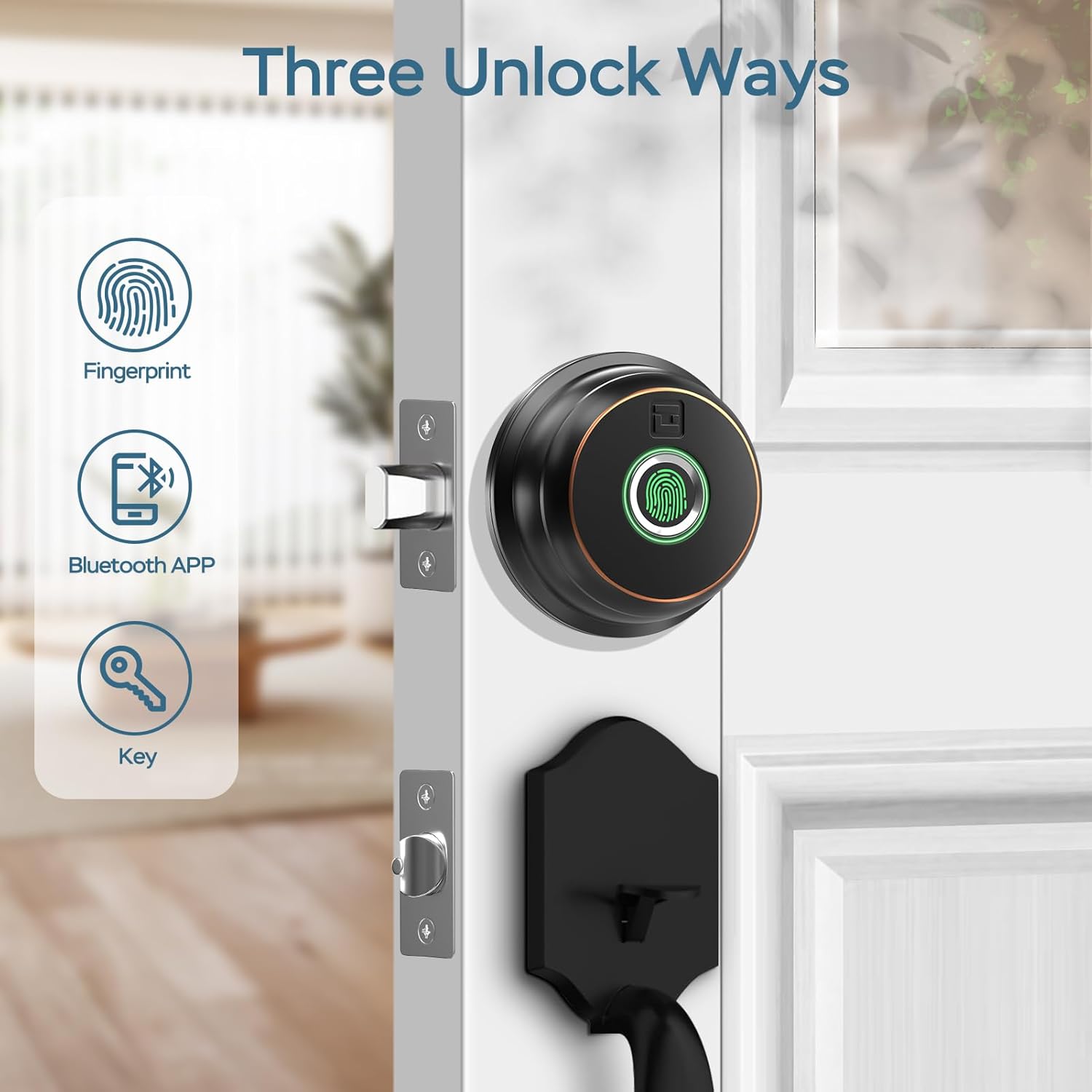
Image: Illustration of the three primary unlock methods: fingerprint, Bluetooth app, and physical key.
4.2 Unlocking and Locking
- Fingerprint Unlock: Place a registered finger on the fingerprint sensor. The lock will unlock in approximately 0.3 seconds.
- App Unlock: Open the GeekTale app, ensure Bluetooth connection, and tap the unlock icon.
- Key Unlock: Use the provided backup keys in the emergency keyhole.
- Auto-Lock: Configure auto-lock duration (5-60 seconds) via the app. The lock will automatically engage after the set time.
- One-Touch Locking: Touch the fingerprint sensor with any finger to instantly lock the deadbolt.

Image: A woman carrying groceries, demonstrating the convenience of the auto-lock feature after entering her home.
4.3 App Features
- User Management: Add or delete up to 50 users (fingerprints).
- Access Log: Review a history of unlock events, including method and user.
- Auto-Lock Settings: Adjust the automatic locking delay.
- Mute Mode: Silence lock sounds for quiet operation.
- Share E-Key: Grant temporary or permanent access to others via the app.
- Battery Status: Monitor the current battery level of the lock.

Image: Screenshot of the GeekTale app interface, highlighting options for member management, access logs, and settings.
4.4 Remote Access (Gateway Required)
For remote control and notifications, a GeekTale Gateway (sold separately) is required. This allows you to:
- Unlock/lock the door from anywhere.
- Receive instant notifications when the lock is opened.
- Integrate with voice assistants like Alexa and Google Assistant.

Image: Depiction of the smart deadbolt, a gateway device, and a smartphone, illustrating remote unlock capabilities.
5. Maintenance
Proper maintenance ensures the longevity and optimal performance of your deadbolt.
- Battery Replacement: The lock requires 4 AA batteries. Replace them when the low battery alert is issued by the app or the lock itself.
- Emergency Power: In case of complete battery depletion, the lock features a USB-C port for emergency power using a power bank.
- Cleaning: Wipe the exterior unit and fingerprint sensor with a soft, dry cloth. Avoid abrasive cleaners or solvents.
- Keyhole Maintenance: Periodically check the keyhole for obstructions. Do not lubricate with oil-based products; use graphite powder if lubrication is needed.

Image: Illustration of the deadbolt's battery compartment and the USB-C port for emergency power, along with icons for low battery alert and emergency charge.
6. Troubleshooting
Common issues and their solutions.
| Problem | Possible Cause | Solution |
|---|---|---|
| Lock does not respond. | Dead batteries. | Replace batteries. Use emergency USB-C power if needed. |
| Fingerprint not recognized. | Fingerprint not registered, dirty sensor, or incorrect placement. | Ensure finger is clean and dry. Re-register fingerprint if necessary. Place finger flat on sensor. |
| App cannot connect to lock. | Bluetooth off, out of range, or app issue. | Ensure Bluetooth is on. Move closer to the lock. Restart the app or your phone. |
| Auto-lock not working. | Auto-lock feature disabled or incorrect setting. | Check auto-lock settings in the app and ensure it is enabled with a desired delay. |
| Lock is loose after installation. | Screws not tightened sufficiently. | Re-tighten all mounting screws. Ensure the mounting plate is flush against the door. |
7. Specifications
| Feature | Detail |
|---|---|
| Model Name | RD02 |
| Brand | GeekTale |
| Unlock Methods | Fingerprint, Bluetooth App, Backup Key |
| Fingerprint Capacity | Up to 50 |
| Recognition Speed | 0.3 seconds |
| Connectivity | Bluetooth |
| Material | Aluminum (exterior) |
| Power Source | 4 x AA Batteries (not included) |
| Emergency Power | USB-C Port |
| Door Thickness | 1-3/8" to 2-1/8" (35mm to 54mm) |
| Backset | Adjustable 2-3/8" (60mm) or 2-3/4" (70mm) |
| Dimensions (L x W x H) | 2.76 x 1.18 x 3.93 inches (Exterior unit) |
| Weight | 1.63 pounds (0.74 kg) |
8. Warranty and Support
GeekTale provides localized after-sales customer service. For any product-related issues or inquiries, please contact customer support through the designated after-sales channels. Refer to your purchase documentation for specific warranty terms and contact information.
Contact Support: Please refer to the contact information provided with your product packaging or visit the official GeekTale website for support options.
