
CREALITY FALCON CR-Laser Falcon
Creality Falcon 5W Laser Engraver Machine
Model: CR-Laser Falcon
Comprehensive Instruction Manual
1. Introduction
The Creality Falcon 5W Laser Engraver Machine is designed for precise cutting and engraving tasks, offering a working speed of up to 10,000mm/min. This machine is suitable for various applications, from small business projects to personal crafting. It is capable of processing materials such as wood, acrylic, and leather with high efficiency and accuracy.
Key features include a 500mm x 500mm honeycomb working panel for enhanced airflow and material protection, a 0.06mm ultra-fine compression spot for detailed engravings, and a spacious 15.7" × 16.3" work area. The device is pre-assembled for quick setup and is compatible with popular software like LaserGRBL and LightBurn on Windows and macOS. Safety features include an emergency stop button and an active stop function that detects tilt or drops.
2. Safety Information
WARNING: This is a Class 4 laser product. Direct exposure to the laser beam can cause severe eye damage and skin burns. Always wear appropriate laser safety goggles (OD6+) when operating the machine. Never look directly into the laser beam or at its reflection.
- Ensure the work area is well-ventilated to dissipate smoke and fumes generated during engraving.
- Keep flammable materials away from the laser engraver.
- Do not leave the machine unattended during operation.
- Familiarize yourself with the emergency stop button location and function.
- Avoid operating the machine on unstable or uneven surfaces. The active stop function will trigger if the machine is tilted or dropped.
- Keep children and pets away from the operating area.
3. Setup Guide
The Creality Falcon 5W Laser Engraver is designed for quick assembly, typically taking 5-10 minutes.
3.1 Unboxing and Component Identification
Carefully open the packaging and remove all components. Verify that all parts listed in the packing list are present.
Video Description: This video demonstrates the unboxing process and identification of all components included with the Creality Falcon 5W Laser Engraver Machine. It shows how to carefully remove the main frame, laser module, power supply, cables, honeycomb bed, and other accessories from the packaging.
3.2 Assembly Steps
- Place the Frame: Remove the main frame from the packaging and place it on a stable, flat surface.
- Install Laser Module: Attach the laser module to the gantry. Secure it using the provided screws or knobs. Ensure the module is firmly in place.
- Connect Cables: Connect the laser module cable to the designated port on the main control unit. Connect the power cable to the power adapter, and then connect the power adapter to the machine.
- Position Honeycomb Bed: Place the honeycomb working panel on your desktop. Ensure the front and back are correctly oriented, leaving a small gap on the desktop as indicated in the diagram for proper airflow. Then, place the laser engraver frame over the honeycomb bed.
- Power On: Plug the power adapter into a suitable power outlet. The machine is now ready for initial operation.

Image Description: The Creality Falcon 5W Laser Engraver is shown partially assembled within its protective foam packaging, highlighting its 'pre-assembled for easy start' design. A USB cable is also visible, indicating connectivity options.
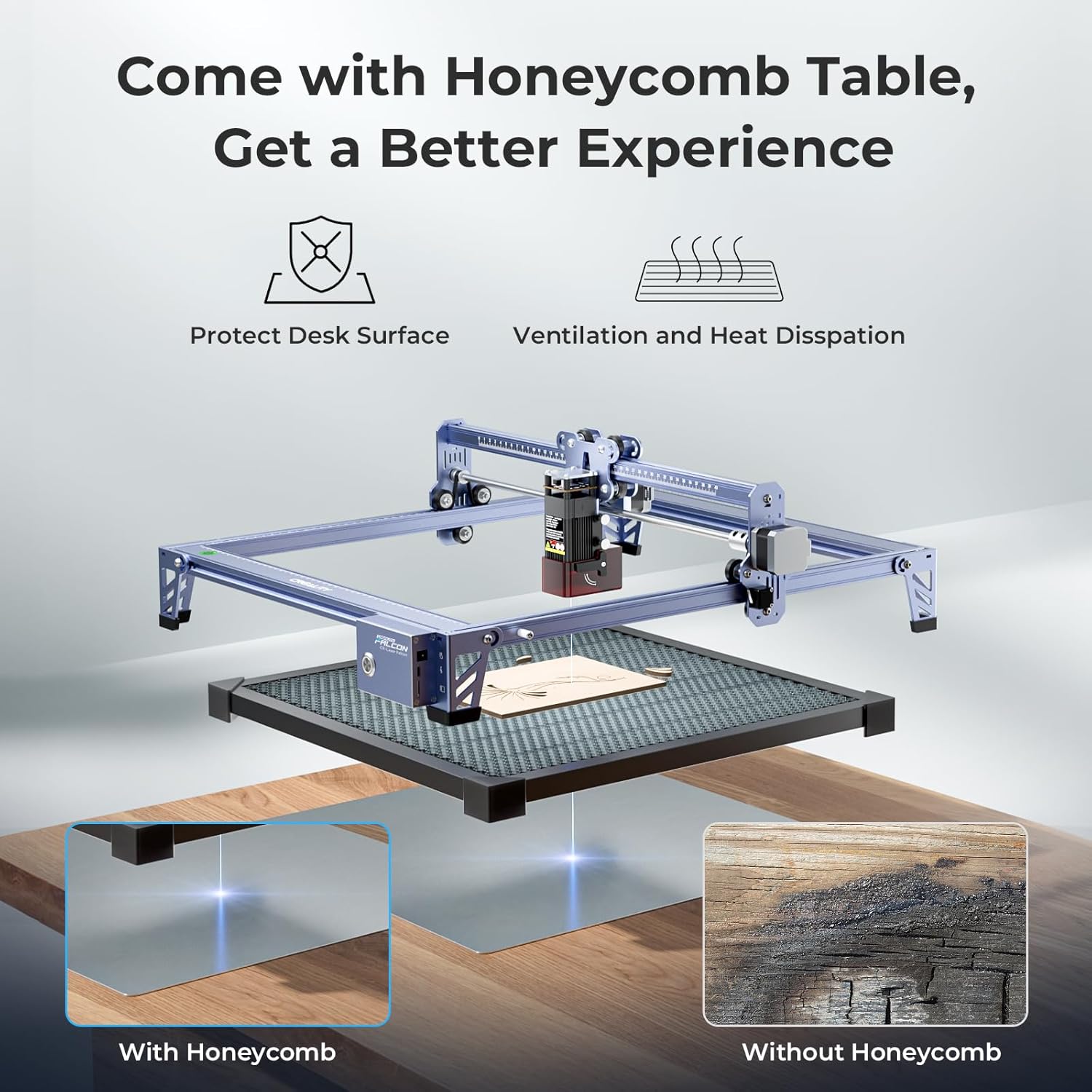
Image Description: This image illustrates the benefits of using the honeycomb table with the laser engraver. It shows how the honeycomb structure protects the desk surface from burns and improves ventilation for better heat dissipation, leading to cleaner engravings compared to not using one.
4. Operating Instructions
4.1 Software Compatibility
The Creality Falcon 5W Laser Engraver is compatible with popular laser engraving software:
- LaserGRBL: An open-source software suitable for Windows users.
- LightBurn: A paid software offering advanced features, compatible with Windows and macOS. A free trial is often available.
Supported file formats include SVG, PNG, DXF, TIF, BMP, PDF, and NG.

Image Description: The image displays the Creality Falcon laser engraver connected to both a laptop and a desktop computer, illustrating its wide compatibility with operating systems like Windows and macOS, and software such as LaserGRBL and LightBurn. Various file format icons are also shown.
4.2 Quick Focus Adjustment
Accurate focus is crucial for optimal engraving and cutting results. Follow these steps to adjust the laser focus:
- Step 1: Pull down the original focus lever located on the side of the laser module.
- Step 2: Slide the laser module along the gantry until the focus lever gently touches the surface of your material.
- Step 3: Once the lever is in contact with the material, uplift it back into its original position. The laser is now correctly focused.

Image Description: A detailed diagram illustrates the three-step process for quick focus adjustment on the laser module. It shows pulling down a lever, sliding the module until the lever touches the material, and then uplifting the lever to set the correct focal distance.
4.3 Engraving and Cutting Process
- Prepare Material: Place your material (e.g., wood, acrylic) securely on the honeycomb working panel.
- Adjust Focus: Perform the quick focus adjustment as described in Section 4.2.
- Load Design: Open your chosen software (LaserGRBL or LightBurn) and load your design file.
- Set Parameters: Adjust engraving or cutting parameters (speed, power, passes) according to your material and desired outcome. Refer to software documentation for detailed settings.
- Preview Area: Use the software's preview function to ensure the design is positioned correctly on your material.
- Start Operation: Initiate the engraving or cutting process from the software. Monitor the machine during operation.
Video Description: This video demonstrates the Creality Falcon 5W laser engraver in action, showing the laser module moving across a piece of wood to engrave a design. It highlights the precision and speed of the engraving process.

Image Description: This image provides a close-up view comparing the high precision of the Creality Falcon's 0.06mm laser spot engraving with that of other lasers. The Falcon's output shows finer detail and clarity, particularly visible in the texture of engraved feathers.

Image Description: An illustration comparing the efficiency of the Creality Falcon's 10,000mm/min working speed against a slower 6,000mm/min speed. It demonstrates that the Falcon can complete a significantly larger workload in the same amount of time, showcasing its productivity.
5. Maintenance
- Clean the Laser Lens: Regularly inspect and clean the laser lens with a soft, lint-free cloth and lens cleaning solution to ensure optimal beam quality.
- Clean the Honeycomb Bed: Remove debris and residue from the honeycomb working panel to maintain proper airflow and prevent material scorching.
- Inspect Belts and Rails: Periodically check the tension of the drive belts and clean the guide rails to ensure smooth and accurate movement of the laser module.
- Replace Air Filter: If your model includes an air assist system with a filter, replace it as recommended to maintain effective smoke and dust absorption.
6. Troubleshooting
| Problem | Possible Cause | Solution |
|---|---|---|
| Laser not firing or weak output | Incorrect focus, dirty lens, low power setting, loose cable. | Adjust focus, clean lens, increase power setting in software, check cable connections. |
| Engraving is blurry or inconsistent | Incorrect focus, material not flat, loose belts, high speed. | Re-adjust focus, ensure material is flat, check belt tension, reduce engraving speed. |
| Machine stops unexpectedly | Active stop function triggered (tilt/drop), power interruption, software error. | Check machine stability, verify power connection, restart software and machine. |
| Software not connecting to machine | Incorrect port selection, driver issues, USB cable fault. | Verify COM port in software, install/update drivers, try a different USB cable. |
7. Specifications
| Feature | Detail |
|---|---|
| Model Number | CR-Laser Falcon |
| Laser Power Output | 5W (5000mW) |
| Working Area | 15.7" × 16.3" (approximately 400mm x 414mm) |
| Laser Spot Size | 0.06mm |
| Engraving Speed | Up to 10,000mm/min |
| Repositioning Accuracy | Under 0.007 inches |
| Software Compatibility | LaserGRBL, LightBurn |
| Operating Systems | Windows, macOS |
| Supported File Formats | SVG, PNG, DXF, TIF, BMP, PDF, NG |
| Safety Features | Emergency Stop Button, Active Stop Function (tilt/drop detection) |
| Item Weight | 24.6 pounds |
| Package Dimensions | 27 x 24.5 x 10.6 inches |
8. Warranty and Support
For warranty information, technical support, or service inquiries, please refer to the official Creality Falcon website or contact their customer service directly. Details can often be found on the product packaging or through the brand's official online store.
You can visit the official Creality Falcon store for additional resources and support: Creality Falcon Store
Related documentsCR-Laser Falcon


Ask a question about this manual
Ask about setup, troubleshooting, compatibility, parts, safety, or missing instructions. Manuals+ will review the question and use this page’s manual context to help answer it.