
Introduction
The BITFUNX RGBS/SCART/VGA to Component Adapter is designed to convert various analog video signals (RGBS/SCART, VGA) into YPBPR (Component) video output. This converter is ideal for connecting retro game consoles and other legacy video sources to modern displays or older CRT televisions that support component input, ensuring high-quality video and audio transmission with minimal lag.
Safety Information
- Keep the device away from water, moisture, and excessive heat.
- Do not attempt to disassemble or modify the device. This may void the warranty and cause damage.
- Use only the specified power supply (USB-C 5V) when required, especially for VGA input.
- Ensure all connections are secure before powering on the devices.
- This product is not designed for use with modified game consoles.
Package Contents
- RGBS/VGA to YPBPR Converter (x1)
- Type-C Cable (x1)

Figure 1: Package Contents and Device Dimensions. The image displays the converter unit and the included USB-C cable, along with measurements of 89mm length, 85mm width, and 27mm height.
Product Overview
The converter features multiple input options and a standard component output, along with individual color adjustment knobs for fine-tuning the video signal.
Key Features:
- Input Signals: RGBS (SCART), VGA (RGBHV).
- Output Signal: Component YPBPR (YUV).
- Supported Resolutions: 480i, 480p, 576i, 576p, 720p, 1080i, and 1080p.
- Color Adjustment: Individual knobs for R (Red), G (Green), and B (Blue) single channel color adjustment.
- Audio Support: Stereo audio left and right channel input via SCART. For VGA input, an external 3.5mm audio cable is required.

Figure 2: Front view of the converter, highlighting the component output, VGA input, SCART input, USB-C power input, and the R, G, B adjustment knobs.

Figure 3: Detailed view of the component (YPBPR) and stereo audio output ports on the converter.

Figure 4: Detailed view of the VGA input, 3.5mm audio input, and USB-C 5V power input ports on the converter.
Setup and Connection
Follow these steps to connect your devices to the BITFUNX converter:
- Connect Input Source:
- For SCART (RGBS) Input: Connect your game console's SCART cable to the "SCART IN" port on the converter. Ensure the SCART cable also carries audio for automatic audio output.
- For VGA (RGBHV) Input: Connect your VGA source to the "VGA IN" port. Note: When using VGA input, an external USB-C 5V power supply (not included) must be connected to the "USB-C 5V IN" port, and a 3.5mm audio cable (not included) must be connected from your source to the "AUDIO IN" port for sound.
- Connect Component Output: Connect a component (YPBPR) cable from the "OUT" ports (Y, PB/CB, PR/CR) on the converter to the corresponding component input ports on your television or monitor.
- Connect Audio Output: Connect RCA audio cables from the "AUDIO L" and "AUDIO R" output ports on the converter to your audio receiver or TV's audio input. If using SCART input, audio will be automatically passed through. If using VGA input, ensure a 3.5mm audio cable is connected to the "AUDIO IN" port as mentioned above.
- Power On: Power on your game console or video source, and then power on your display device. Select the correct component input on your TV/monitor.

Figure 5: Comprehensive connection diagram illustrating how different retro consoles and PCs can connect to the converter and output to various display types.
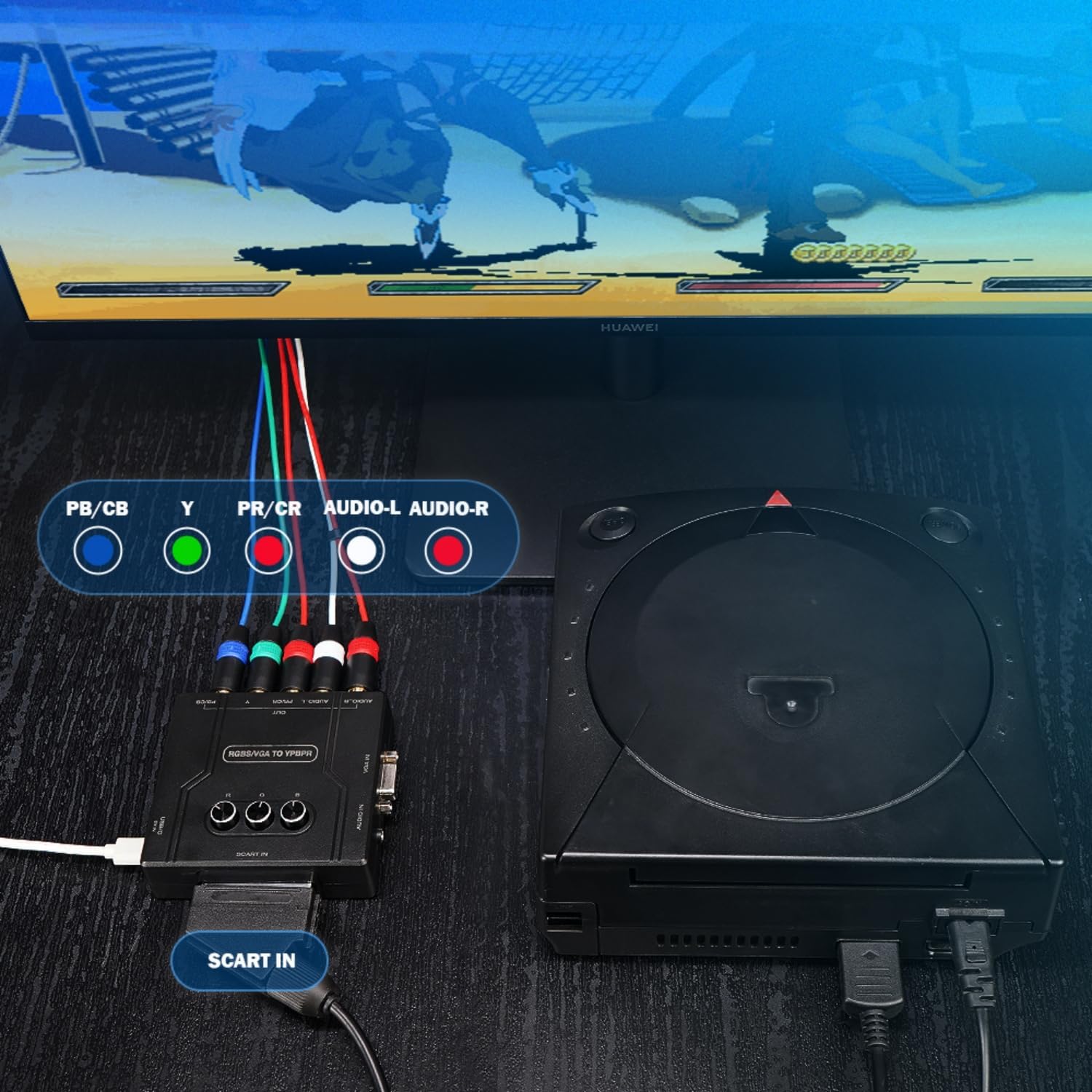
Figure 6: Example setup with a Dreamcast console connected to the converter via SCART, and the converter outputting component video to a monitor.

Figure 7: Example setup with a PlayStation 2 console connected to the converter via SCART, and the converter outputting component video to a monitor.
Operating Instructions
Once connected, the converter operates automatically. The primary function is to convert the input signal to component video. You can fine-tune the color output using the adjustment knobs:
- R (Red) Knob: Adjusts the intensity of the red color channel.
- G (Green) Knob: Adjusts the intensity of the green color channel.
- B (Blue) Knob: Adjusts the intensity of the blue color channel.
Rotate these knobs clockwise to increase the color intensity and counter-clockwise to decrease it. Adjust them as needed to achieve optimal color balance on your display.
Video: Official product video demonstrating the RGBS/SCART/VGA to YPBPR Component Converter in action, showcasing its functionality and compatibility with various systems.
Troubleshooting
| Problem | Possible Cause / Solution |
|---|---|
| No video output or distorted image. |
|
| No audio output (VGA input). |
|
| Incorrect colors or color tint. |
|
Specifications
| Feature | Detail |
|---|---|
| Model Number | RGBS/SCART/VGA to YPBPR Converter |
| Brand | BITFUNX |
| Input Ports | SCART, VGA, 3.5mm Audio In, USB-C 5V In |
| Output Ports | Component (YPBPR), RCA Audio L/R |
| Supported Resolutions | 480i, 480p, 576i, 576p, 720p, 1080i, 1080p |
| Color Adjustment | Individual R, G, B knobs |
| Power Supply | USB-C 5V (required for VGA input) |
| Item Weight | 4.1 ounces |
| Package Dimensions | 5.51 x 5.24 x 1.54 inches |
| Manufacturer | BITFUNX |
| Country of Origin | China |
Maintenance
To ensure the longevity and optimal performance of your converter:
- Clean the device with a soft, dry cloth. Do not use liquid cleaners or aerosols.
- Store the converter in a cool, dry place away from direct sunlight and extreme temperatures.
- Avoid placing heavy objects on the device or subjecting it to strong impacts.
Warranty and Support
For warranty information or technical support, please refer to the product's packaging or contact BITFUNX customer service directly. Keep your purchase receipt for any warranty claims.