
Introduction to Your iPhone 16
Welcome to your new iPhone 16. This manual is designed to help you understand and effectively use your device, whether you are a new iPhone user or looking to master advanced features. Follow these instructions to get the most out of your iPhone 16.
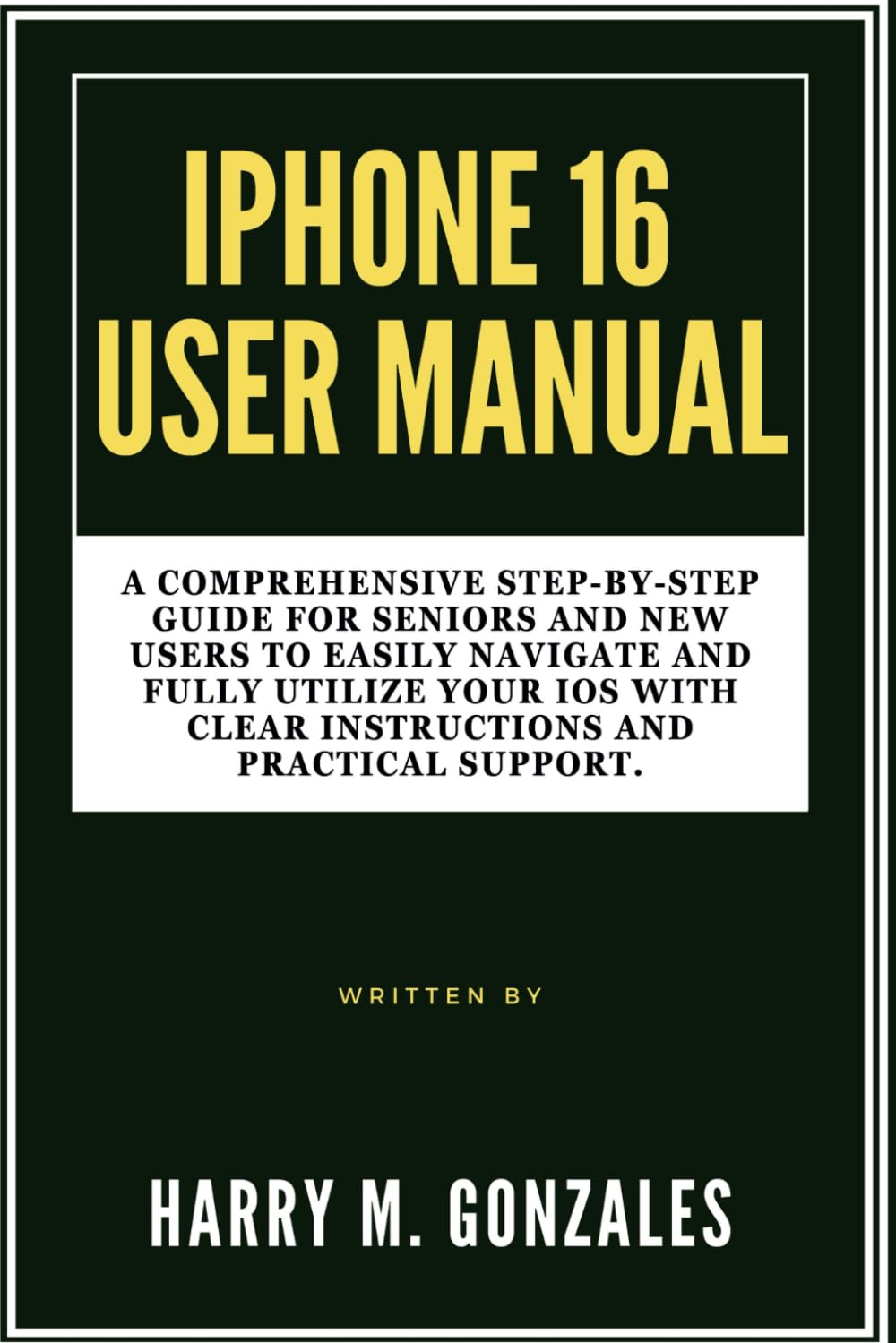
Image: Front cover of the iPhone 16 User Manual, providing a visual reference for the guide.
Setup: Getting Started with Your iPhone 16
Setting up your iPhone 16 is a straightforward process. This section guides you through the initial steps to activate and personalize your device.
- Power On: Press and hold the side button until the Apple logo appears.
- Initial Configuration: Follow the on-screen instructions to select your language, region, and connect to a Wi-Fi network.
- Data Transfer: Choose to restore from an iCloud or computer backup, or set up as a new iPhone.
- Apple ID: Sign in with your Apple ID or create a new one. This is essential for accessing the App Store, iCloud, and other Apple services.
- Face ID/Touch ID & Passcode: Set up Face ID (facial recognition) or Touch ID (fingerprint sensor) and create a strong passcode for security.
- Siri & Analytics: Configure Siri and decide whether to share analytics data with Apple.
- Software Updates: Ensure your iPhone is running the latest iOS version for optimal performance and security.
Operating Your iPhone 16
This section covers the essential functions and features of your iPhone 16, helping you navigate its interface and utilize its capabilities.
Customization and Organization
Personalize your iPhone 16 to suit your preferences and organize your apps for easy access.
- Change Wallpaper: Go to Settings > Wallpaper to choose a new background for your Lock Screen and Home Screen.
- Organize Apps: Tap and hold an app icon until it jiggles, then drag it to rearrange, create folders, or delete.
- Widgets: Add widgets to your Home Screen or Today View for quick information at a glance.
Calls and Messages
Learn how to communicate effectively using your iPhone 16.
- Making Calls: Open the Phone app, tap Keypad, enter the number, and tap the green call button.
- Sending Messages: Open the Messages app, tap the new message icon, enter a contact or number, and type your message.
- FaceTime: Use FaceTime for video or audio calls with other Apple device users.
Camera Functions
Capture stunning photos and videos with your iPhone 16 camera.
- Taking Photos: Open the Camera app, select Photo mode, and tap the shutter button.
- Recording Videos: Switch to Video mode in the Camera app and tap the record button.
- Editing: Use the built-in Photos app to crop, adjust colors, and apply filters to your media.
Internet and Apps
Connect to the internet and explore the vast world of applications.
- Wi-Fi Connection: Go to Settings > Wi-Fi and select your network.
- Browsing: Use the Safari app to browse the web safely.
- App Store: Download new applications from the App Store to enhance your iPhone's functionality.
Contacts and Calendar Management
Keep your contacts organized and manage your schedule efficiently.
- Add Contacts: Open the Contacts app, tap the '+' icon, and fill in the contact details.
- Calendar Events: Use the Calendar app to create events, set reminders, and manage your schedule.
Optimizing Settings
Adjust various settings to improve your iPhone's performance, privacy, and battery life.
- Notifications: Customize app notifications in Settings > Notifications.
- Battery Life: Monitor battery usage and enable Low Power Mode in Settings > Battery.
- Privacy: Review and adjust privacy settings for location services, photos, and more in Settings > Privacy & Security.
Maintenance: Keeping Your iPhone 16 in Top Condition
Regular maintenance ensures your iPhone 16 remains functional and secure.
- Software Updates: Always install the latest iOS updates to benefit from new features, security patches, and performance improvements. Go to Settings > General > Software Update.
- Backup Data: Regularly back up your iPhone to iCloud or your computer to prevent data loss.
- Clean Your Device: Use a soft, lint-free cloth to gently clean your screen and device exterior. Avoid harsh chemicals.
- Manage Storage: Periodically check your storage usage (Settings > General > iPhone Storage) and delete unnecessary apps or files.
Troubleshooting Common Issues
This section provides solutions for common problems you might encounter with your iPhone 16.
- Device Unresponsive: If your iPhone is frozen, perform a force restart. For iPhone 8 or later: Press and quickly release the Volume Up button. Press and quickly release the Volume Down button. Then, press and hold the side button until you see the Apple logo.
- App Crashing: Close the app by swiping up from the bottom of the screen (or double-clicking the Home button on older models) to open the App Switcher, then swipe the app up to close it. Reopen the app. If the issue persists, try reinstalling the app.
- Wi-Fi/Cellular Connectivity Issues: Try toggling Wi-Fi or Cellular Data off and on in Control Center or Settings. If the problem continues, reset network settings (Settings > General > Transfer or Reset iPhone > Reset > Reset Network Settings).
- Battery Draining Quickly: Check battery usage in Settings > Battery to identify apps consuming the most power. Enable Low Power Mode or adjust background app refresh settings.
- Storage Full: Delete unused apps, photos, and videos. Offload apps you don't use frequently (Settings > General > iPhone Storage).
Specifications
Key specifications related to this user manual and the iPhone 16 it describes.
| ASIN | B0DFHMMS4X |
| Publisher | Independently published |
| Publication date | August 28, 2024 |
| Language | English |
| Print length | 118 pages |
| ISBN-13 | 979-8337641362 |
| Item Weight | 8.2 ounces |
| Dimensions | 6 x 0.27 x 9 inches |

Image: Back cover of the iPhone 16 User Manual, showing the ISBN barcode 9798337641362.
Warranty and Support
This manual provides guidance for the iPhone 16. For specific warranty information and official support regarding the iPhone 16 device, please refer to Apple's official website or contact Apple Support directly.
- Apple Official Support: Visit support.apple.com/iphone for comprehensive support articles, troubleshooting guides, and contact options.
- Warranty Information: Details regarding your iPhone 16's limited warranty can be found on Apple's official website or within the device's settings under Settings > General > About > Limited Warranty.


