
1. Introduction
Welcome to the AUHIFVAX V88 Drone user manual. This guide provides essential information for the safe and effective operation of your new 8K 5G GPS professional HD aerial photography quadcopter. Please read this manual thoroughly before first use and retain it for future reference.
1.1 Safety Guidelines
- Read Instructions: Always read the entire manual before operating the drone.
- Age Restriction: This product is intended for adult use.
- Flight Environment: Operate in open, clear areas, away from people, animals, buildings, and power lines. Avoid flying in strong winds or adverse weather conditions.
- Battery Safety: Use only the provided charger and battery. Do not overcharge or puncture batteries.
- Propeller Safety: Keep hands and face clear of rotating propellers. Ensure propellers are correctly installed before flight.
- Line of Sight: Maintain visual line of sight with the drone at all times during flight.
- Local Regulations: Adhere to all local laws and regulations regarding drone operation.
2. Package Contents
Verify that all items listed below are included in your package:
- 1 x AUHIFVAX V88 RC Quadcopter
- 1 x Remote Control
- 1 x 3.7V 2200mAh Li-polymer Battery
- 1 x USB Charging Cable
- 4 x Spare Propellers
- 1 x Screwdriver
- 2 x User Manual (this document and potentially a quick start guide)
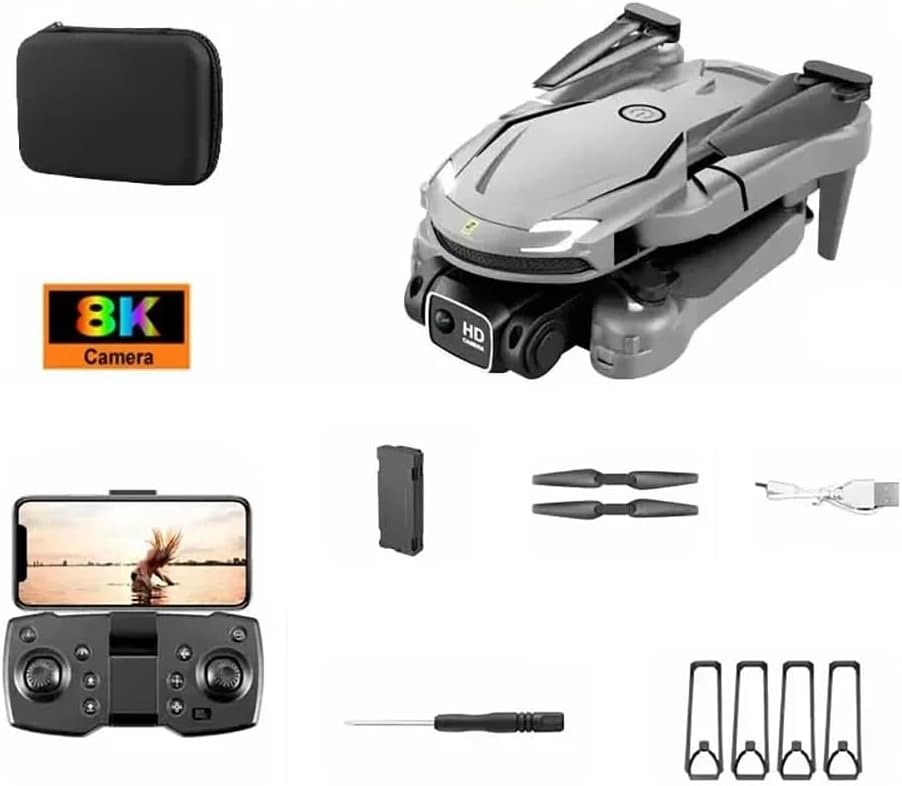
Image 2.1: Contents of the AUHIFVAX V88 Drone package, including the drone, remote control, battery, charging cable, spare propellers, and screwdriver.
3. Product Overview
3.1 Drone Components
Familiarize yourself with the main components of your V88 Drone:
- Foldable Arms: For compact storage and transport.
- Propellers: Generate lift for flight.
- 8K HD Dual Camera: Captures high-resolution photos and videos.
- Battery Compartment: Houses the drone's power source.
- LED Indicator Lights: Provide status information.
- Optical Flow Sensor: Assists with stable hovering.

Image 3.1: The AUHIFVAX V88 Drone, highlighting its sleek design and dual camera system.
3.2 Remote Control Layout
Understand the functions of each button and joystick on the remote control:

Image 3.2: Detailed diagram of the remote control, indicating functions such as speed switching, one-click takeoff/landing, throttle, direction lever, headless mode, power switch, and fine tuning.
- Left Joystick (Throttle/Yaw): Controls altitude and rotation.
- Right Joystick (Direction): Controls forward, backward, left, and right movement.
- One-Click Takeoff/Landing Button: Initiates automatic takeoff or landing.
- Speed Switching Button: Toggles between different flight speeds.
- Headless Mode Button: Simplifies flight orientation.
- 360° Roll Button: Executes a stunt roll.
- Power Switch: Turns the remote control on/off.
- Phone Holder: Secures your smartphone for FPV (First Person View) and app control.
4. Setup
4.1 Battery Installation and Charging
- Drone Battery: Insert the 3.7V 2200mAh Li-polymer battery into the drone's battery compartment until it clicks into place.
- Charging: Connect the drone battery to the USB charging cable, then plug the USB cable into a 5V/1A USB power adapter (not included). The indicator light on the cable will show charging status. Charging typically takes 60-90 minutes.
- Remote Control Batteries: Open the battery compartment on the back of the remote control and insert 3x AAA batteries (not included), ensuring correct polarity.
4.2 Propeller Attachment
Ensure propellers are securely attached. Match propellers marked 'A' with motor shafts marked 'A', and 'B' with 'B'. Use the provided screwdriver to fasten them.
4.3 App Download and Connection
- Download App: Scan the QR code in the quick start guide or search for the designated app (e.g., 'V88 Drone' or similar) on your smartphone's app store.
- Connect Wi-Fi: Turn on the drone. On your smartphone, go to Wi-Fi settings and connect to the drone's Wi-Fi network (e.g., 'V88-XXXXXX').
- Launch App: Open the drone app. You should see the camera's live feed, indicating a successful connection.
5. Operating Instructions
5.1 Powering On/Off
- Drone: Press and hold the power button on the drone until the indicator lights turn on.
- Remote Control: Slide the power switch to the 'ON' position.
- Power Off: Reverse the steps to power off both the drone and remote control after use.
5.2 Pairing and Calibration
- Pairing: Turn on the drone, then the remote control. Push the left joystick (throttle) all the way up, then all the way down. The drone's lights will stop flashing, indicating successful pairing.
- Gyro Calibration: Place the drone on a flat surface. Push both joysticks down and to the right simultaneously. The drone's lights will flash rapidly and then become solid, indicating successful calibration.
5.3 GPS Functionality
The V88 Drone features integrated GPS for enhanced stability and intelligent flight modes. Ensure you have a clear view of the sky for optimal GPS signal acquisition before flight.
- GPS Lock: After powering on, place the drone outdoors. Wait for the GPS indicator (usually flashing slowly) to become solid, indicating a sufficient number of satellites have been acquired.
- Return-to-Home (RTH): In GPS mode, the drone can automatically return to its takeoff point with the press of a button on the remote control or via the app.
5.4 Flight Controls
Refer to the remote control diagram (Image 3.2) for button locations.
- Takeoff: Press the One-Click Takeoff button or push both joysticks outwards and downwards to start the motors, then gently push the left joystick up.
- Landing: Press the One-Click Landing button or gently pull the left joystick down.
- Altitude: Left joystick up/down.
- Forward/Backward: Right joystick up/down.
- Left/Right Sideways Flight: Right joystick left/right.
- Rotation (Yaw): Left joystick left/right.
- Speed Adjustment: Use the Speed Switching button to cycle through low, medium, and high speeds.
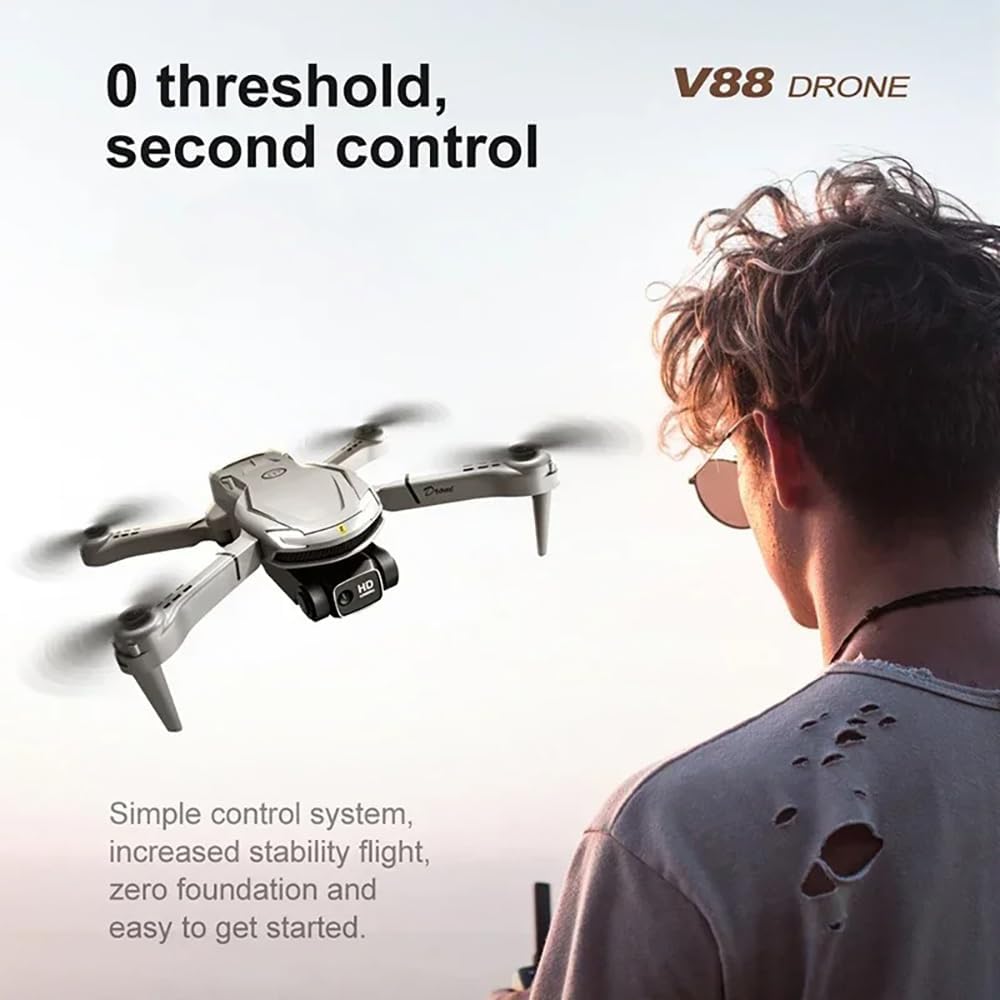
Image 5.1: A user operating the AUHIFVAX V88 Drone with the remote control, demonstrating the ease of control.
5.5 8K HD Camera Operation
The V88 Drone is equipped with an 8K ultra HD camera for capturing high-quality aerial footage.
- Live View: Connect your smartphone to the drone's Wi-Fi and open the app to view the live camera feed.
- Photo/Video: Use the dedicated buttons on the remote control or the app interface to take photos or start/stop video recording.
- Storage: Photos and videos are typically saved to your smartphone's gallery or an inserted SD card (if supported by the drone).
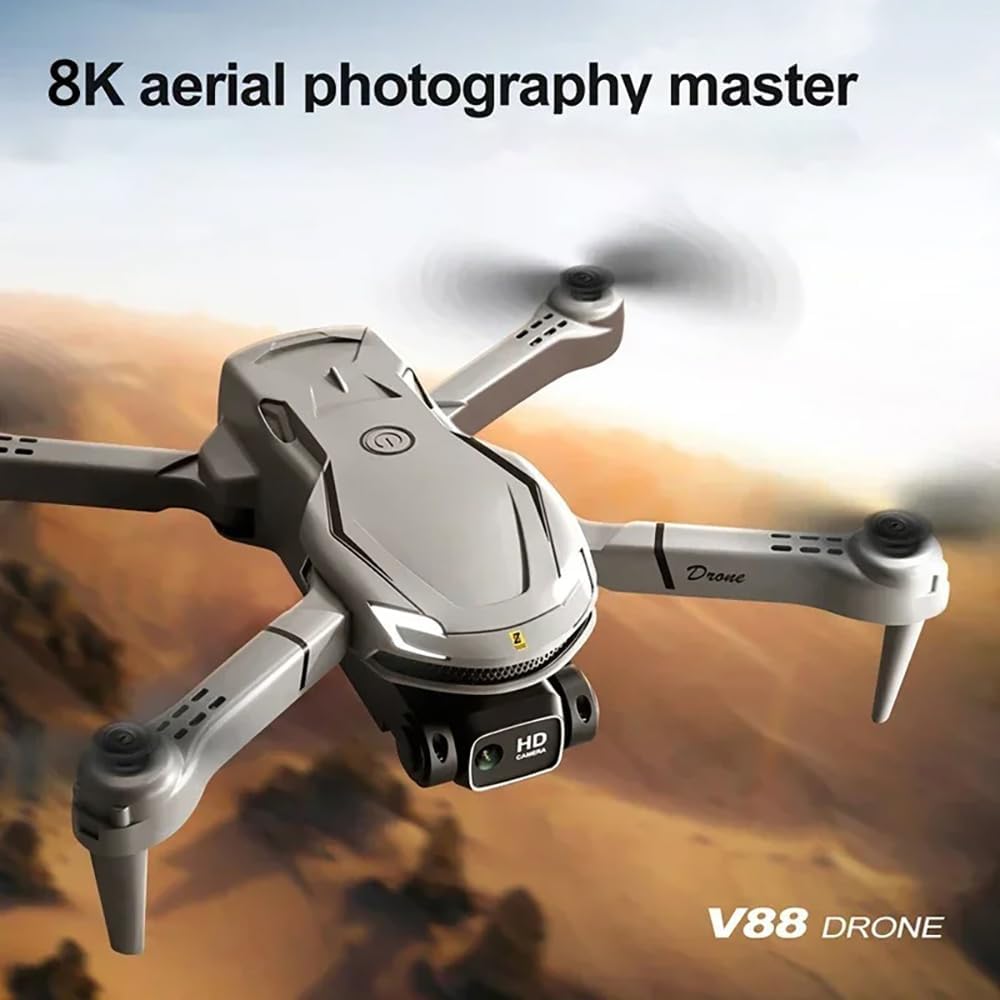
Image 5.2: The AUHIFVAX V88 Drone in flight, showcasing its capability as an 8K aerial photography master.
5.6 Special Flight Modes
- Intelligent Hovering: The drone uses air pressure calculation to maintain flight altitude in real-time, reducing the need for constant throttle adjustments. This feature enhances stability and ease of control.

Image 5.3: The AUHIFVAX V88 Drone demonstrating its intelligent hovering capability, maintaining a stable position without manual throttle input.
- 360° Stunt Roll: Press the 360° Roll button on the remote control, then push the right joystick in any direction to perform an aerial flip. Ensure sufficient altitude and clear surroundings before attempting.

Image 5.4: The AUHIFVAX V88 Drone executing a 360-degree stunt roll during flight.
6. Maintenance
6.1 Cleaning
- Wipe the drone and remote control with a soft, dry cloth after each use.
- Avoid using water or chemical cleaners, as they can damage electronic components.
- Regularly check propellers for dirt, debris, or damage. Clean or replace as necessary.
6.2 Storage
- Store the drone and its accessories in a cool, dry place, away from direct sunlight and extreme temperatures.
- Remove batteries from both the drone and remote control if storing for extended periods to prevent leakage.
- Fold the drone arms for compact storage.
7. Troubleshooting
If you encounter issues with your V88 Drone, refer to the table below for common problems and solutions:
| Problem | Possible Cause | Solution |
|---|---|---|
| Drone does not power on | Low battery; Battery not installed correctly | Charge drone battery; Reinstall battery securely |
| Remote control does not respond | Low remote control batteries; Not paired | Replace AAA batteries; Perform pairing procedure (Section 5.2) |
| Drone drifts during flight | Gyro not calibrated; Uneven surface during takeoff | Perform gyro calibration (Section 5.2); Take off from a flat surface |
| Poor camera feed or no image | Wi-Fi not connected; App not open; Weak signal | Reconnect to drone's Wi-Fi; Relaunch app; Fly closer to drone |
| Drone loses GPS signal | Flying indoors; Obstructions; Bad weather | Fly outdoors in clear conditions; Avoid areas with tall buildings or interference |
| Propellers not spinning | Obstruction; Propellers not installed correctly; Motor issue | Check for obstructions; Reinstall propellers; Contact support if motor is faulty |
8. Specifications
Technical details for the AUHIFVAX V88 Drone:
| Feature | Detail |
|---|---|
| Brand | AUHIFVAX |
| Model Name | V88 |
| Special Features | High Definition Camera, Integrated GPS |
| Age Range (Description) | Adult |
| Color | Grey |
| Video Capture Resolution | 8K |
| Connectivity Technology | APP Controller, Remote Control, Wi-Fi Connection |
| Skill Level | All |
| Item Weight | 550 Grams |
| Battery | 3.7V 2200mAh Li-polymer |
9. Warranty and Support
AUHIFVAX products are manufactured to high-quality standards. For information regarding warranty coverage, please refer to the warranty card included in your product packaging or contact your retailer. For technical support or inquiries, please reach out to the customer service department of your purchase point.