
1. Introduction
The TIMBOOTECH Wireless HDMI Transmitter and Receiver system provides a solution for wireless video and audio transmission. This system features built-in screens and control buttons for real-time monitoring of pairing status, connected receivers, and channel selection, ensuring optimal signal quality. It supports up to four receivers simultaneously and offers an extended transmission range of up to 1000 feet (300 meters). Additional features include an HDMI loop-out port and an integrated cooling fan for enhanced performance and reliability.
This device is suitable for various applications, including home entertainment, business presentations, indoor and outdoor filming, live broadcasts, concerts, and gaming setups. It operates on dual-band 2.4GHz and 5.8GHz frequencies, providing stable, interference-free performance with an ultra-low latency of 0.06 seconds.
2. Package Contents
Please verify that all items listed below are included in your package:
- 1 x Wireless HDMI Transmitter (TX)
- 2 x Wireless HDMI Receiver (RX)
- 2 x HDMI Cable
- 2 x USB-C Power Cable
- 1 x Mini HDMI Adapter
- 1 x Micro HDMI Adapter
- 2 x Cold Shoe Mount
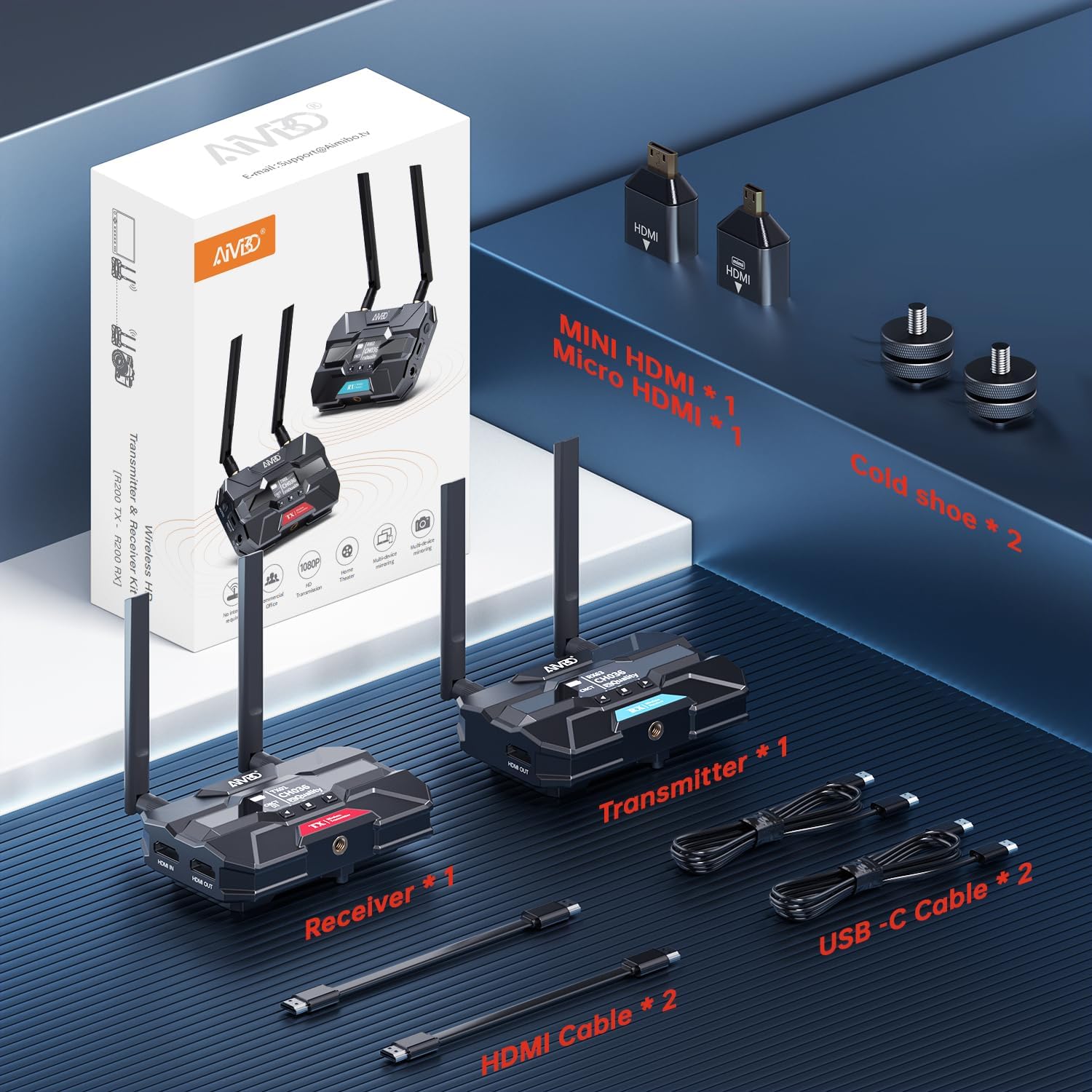
Image: Contents of the TIMBOOTECH Wireless HDMI system package, showing the transmitter, receiver, various cables (HDMI, USB-C), and adapters (Mini HDMI, Micro HDMI), along with cold shoe mounts.
3. Product Overview
The TIMBOOTECH Wireless HDMI system consists of a Transmitter (TX) and Receiver (RX) units, each equipped with essential features for reliable operation.
Transmitter (TX) Unit
- OLED Display: Shows current status, channel, and signal quality.
- Control Buttons: For navigation and settings adjustment.
- HDMI IN Port: Connects to your video source (e.g., camera, laptop).
- HDMI OUT (Loop-Out) Port: Connects to a local monitor for simultaneous viewing.
- DC 12V Power Input: Primary power connection.
- USB-C Power Input: Alternative power connection.
- Cooling Fan: Prevents overheating during extended use.
- Antennas: For wireless signal transmission.
Receiver (RX) Unit
- OLED Display: Shows current status, channel, and signal quality.
- Control Buttons: For navigation and settings adjustment.
- HDMI OUT Port: Connects to your display device (e.g., TV, projector).
- DC 12V Power Input: Primary power connection.
- USB-C Power Input: Alternative power connection.
- Cooling Fan: Prevents overheating during extended use.
- Antennas: For wireless signal reception.

Image: A close-up view of the TIMBOOTECH Wireless HDMI Transmitter (red label) and Receiver (blue label) units, highlighting their OLED screens, control buttons, and antennas.

Image: A collage illustrating key features of the TIMBOOTECH Wireless HDMI system, including its triple power options, integrated OLED screen, 5.8G chip, cooling fan, and camera mount compatibility.
4. Setup Instructions
Follow these steps to set up your TIMBOOTECH Wireless HDMI system:
- Connect the Transmitter (TX):
- Connect your HDMI video source (e.g., camera, laptop, Blu-ray player) to the HDMI IN port on the Transmitter using an HDMI cable.
- (Optional) If you wish to view the source on a local display, connect an HDMI cable from the HDMI OUT (Loop-Out) port on the Transmitter to your local TV or monitor.
- Connect the Receiver (RX):
- Connect an HDMI cable from the HDMI OUT port on each Receiver to your desired display device (e.g., TV, monitor, projector).
- Power On the Devices:
- Connect the provided DC 12V power adapters to the DC 12V input ports on both the Transmitter and all Receiver units, then plug them into a power outlet. Alternatively, you can use the USB-C power cables for power. (Note: For optimal performance, especially over long distances, using the DC 12V power adapter is recommended.)
- Press the power button on each unit to turn them on.
- Verify Connection:
- Once powered on, the OLED screens on both the Transmitter and Receiver(s) will display their status. They should automatically pair. Look for indicators like "CNCT" (Connected) and matching channel numbers (e.g., TX CH036, RX CH036).
- If pairing does not occur automatically, refer to the "Operating Instructions" section for manual channel selection.

Image: A visual representation of the wireless HDMI setup, demonstrating how the Transmitter (TX) connects to a primary TV and TV Stick via loop-out, while a Receiver (RX) transmits the signal to a second TV in another room.
5. Operating Instructions
5.1 Power On/Off
- To power on, press the POWER button on each unit.
- To power off, press and hold the POWER button until the unit shuts down.
5.2 Monitoring Status via OLED Screen
The built-in OLED screen provides real-time information:
- TX/RX Indicator: Identifies the unit as Transmitter or Receiver.
- Channel Number (CH): Displays the current operating channel. Ensure TX and RX units are on the same channel for connection.
- Connection Status (CNCT): Indicates if the unit is connected to its counterpart.
- Signal Quality: Shows the strength and quality of the wireless signal.
5.3 Channel Selection
If you experience interference or connection issues, you can manually change the operating channel:
- On both the Transmitter and Receiver units, use the control buttons (usually up/down or menu buttons) to navigate to the channel selection option.
- Select a new channel. Ensure both the TX and all RX units are set to the same channel for proper communication.
- The system will attempt to re-establish connection on the new channel.
5.4 Using HDMI Loop-Out
The Transmitter's HDMI OUT (Loop-Out) port allows you to connect a local display while simultaneously transmitting the signal wirelessly to one or more Receivers. This is useful for monitoring the source content directly at the transmission point.
5.5 Multi-Receiver Setup
The system supports connecting a single Transmitter to up to four Receivers simultaneously. To add more Receivers:
- Ensure the additional Receiver(s) are powered on.
- Verify that the channel displayed on the new Receiver matches the channel of the active Transmitter. If not, adjust the channel on the Receiver.
- The new Receiver should automatically connect to the Transmitter.

Image: A stadium setting with multiple screens, illustrating the capability of the TIMBOOTECH system to transmit to up to four receivers over a range of 1000 feet, ideal for large-scale events.
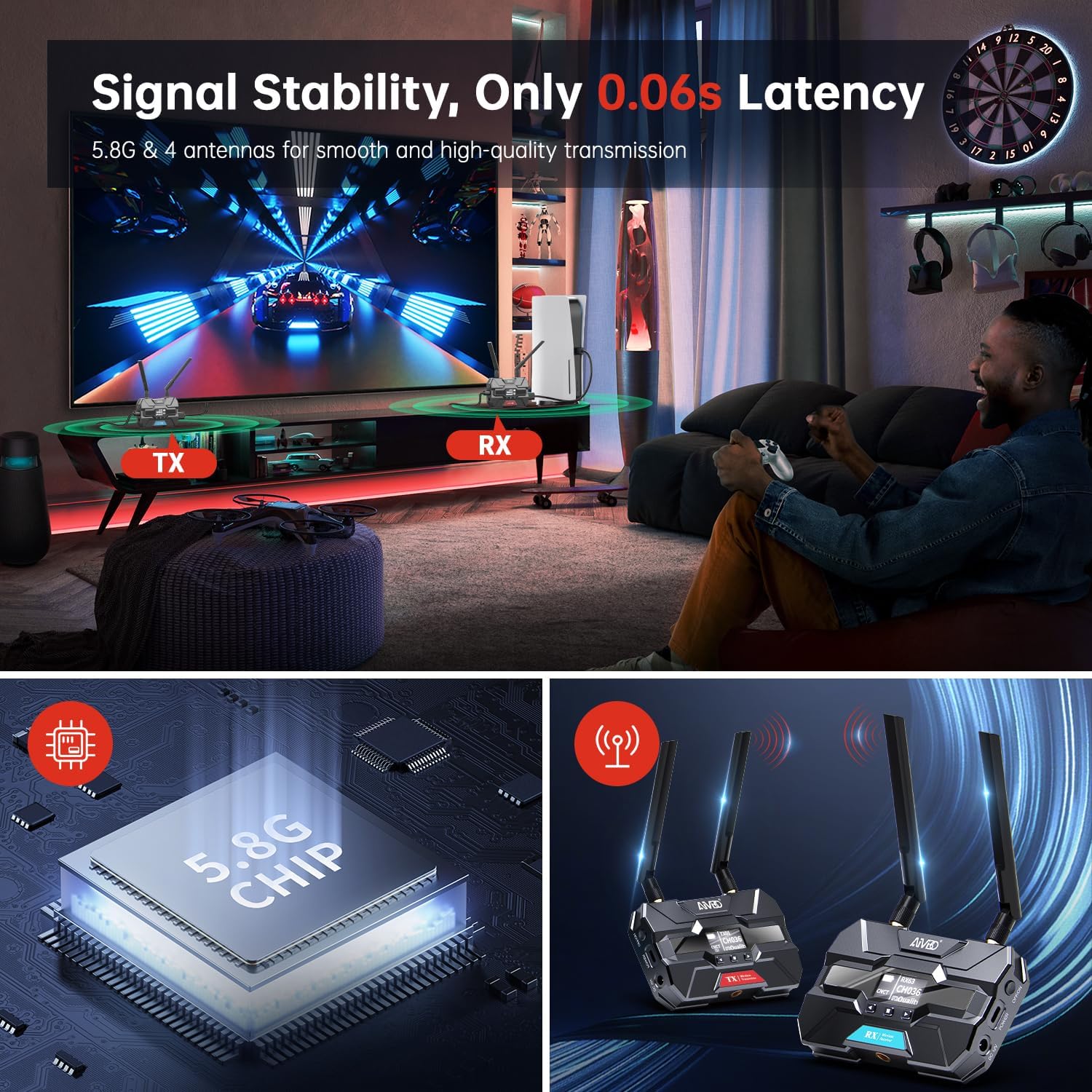
Image: A gaming environment demonstrating the TIMBOOTECH Wireless HDMI system's stable signal and ultra-low latency (0.06s), crucial for responsive gaming experiences.
6. Maintenance
- Cleaning: Use a soft, dry cloth to clean the exterior of the units. Do not use liquid cleaners or solvents.
- Cooling Fan: The built-in cooling fan helps maintain optimal operating temperature. Ensure the fan vents are not obstructed to allow proper airflow.
- Storage: When not in use for extended periods, store the devices in a cool, dry place away from direct sunlight and extreme temperatures.
7. Troubleshooting
If you encounter issues with your TIMBOOTECH Wireless HDMI system, please refer to the following troubleshooting tips:
| Problem | Possible Cause | Solution |
|---|---|---|
| No signal on display |
|
|
| Poor signal quality, flickering, or dropped connection |
|
|
| Units not pairing |
|
|
| Overheating |
|
|
8. Specifications
- Model Number: c6e2f051-b1a5-4eb1-920e-7e082da52f8c
- Transmission Range: Up to 1000 ft (300 m)
- Latency: 0.06 seconds
- Wireless Frequency: Dual-band 2.4GHz and 5.8GHz
- Maximum Receivers: 4 (one Transmitter to four Receivers)
- Connectivity Technology: HDMI
- Connector Type: HDMI
- Special Feature: Built-in Cooling Fan, OLED Display, HDMI Loop-Out
- Compatible Devices: Televisions, Monitors, Projectors, Cameras, Laptops, Blu-ray players, Set-top boxes, PCs, DSLRs, Satellites, DVDs
- Power Input: DC 12V (recommended), USB-C
- Manufacturer: TIMBOOTECH
9. Warranty & Support
For warranty information and technical support, please refer to the documentation provided with your purchase or contact TIMBOOTECH customer service through their official channels. Keep your purchase receipt for warranty claims.


