
1. Introduction
This manual provides comprehensive instructions for the installation, operation, and maintenance of your Leadfan Android 12 Car Stereo. This unit is specifically designed for Mazda 3 models manufactured between 2009 and 2013, offering an upgraded in-car entertainment and navigation experience with features like Wireless CarPlay, Android Auto, GPS, Bluetooth, and Wi-Fi connectivity.
Please read this manual thoroughly before installation and use to ensure proper function and to prevent damage to the unit or your vehicle.
2. Safety Information
- Professional Installation Recommended: Due to the complexity of car electrical systems, professional installation is highly recommended.
- Power Supply: Ensure the unit is connected to a 12V DC power supply with a negative ground.
- Wiring: Incorrect wiring can cause damage to the unit or vehicle. Follow the wiring diagram carefully.
- Driving Safety: Do not operate the unit in a way that distracts you from driving. Always prioritize road safety.
- Temperature: Avoid exposing the unit to extreme temperatures or direct sunlight for extended periods.
- Moisture: Keep the unit dry. Exposure to moisture can cause malfunction or damage.
3. Package Contents
Verify that all items listed below are included in your package:
- 1x Leadfan Car Touch Screen Radio
- 1x GPS Antenna
- 1x Backup Camera
- 1x CAN Bus Decoder
- 1x Rear View Input Cable
- 1x RCA Cable Set
- 2x USB Cables
- 1x Power Cable
- 1x Original USB Cable
- 1x User Manual (this document)

Figure 3.1: Illustration of the car stereo's dimensions and the complete list of included accessories, such as the main unit, GPS antenna, backup camera, various cables (RCA, USB, power), CAN Bus, and user manual.
4. Product Overview
The Leadfan Android 12 Car Stereo is an advanced multimedia system designed to integrate seamlessly into your Mazda 3 (2009-2013). It features a 9-inch IPS touchscreen, runs on Android 12, and includes 2GB RAM with 32GB ROM for smooth performance and ample storage.

Figure 4.1: The main unit displaying the Android 12 interface with various application icons. Below the main unit, smaller images illustrate Wireless CarPlay, Android Auto, the GPS antenna, and the waterproof backup camera.

Figure 4.2: An installed view of the car stereo in a Mazda 3 dashboard, emphasizing its core specifications and functionalities.
Key Features:
- Android 12 Operating System
- 2GB RAM + 32GB ROM
- 9-inch IPS HD Touchscreen
- Wireless Apple CarPlay & Android Auto
- Built-in GPS Navigation (Online & Offline Maps)
- Wi-Fi Connectivity
- Bluetooth 5.1 for Hands-Free Calling & Audio Streaming
- Mirror Link Functionality (iOS Wireless, Android Wireless/Wired)
- Steering Wheel Control (SWC) Support
- FM Radio Tuner
- Backup Camera Input (1080P support)
- Split Screen Functionality

Figure 4.3: Visual representation of the primary functions available on the car stereo.
5. Installation
This section outlines the general steps for installing the Leadfan Android 12 Car Stereo in a Mazda 3 (2009-2013). Ensure your vehicle's ignition is off and the battery is disconnected before beginning installation.
5.1 Pre-Installation Check
- Vehicle Compatibility: Confirm your Mazda 3 model year is between 2009 and 2013.
- Center Console Shape: Carefully compare the shape and size of your vehicle's center console with the product images to ensure a proper fit. This unit is designed for specific console configurations.
- Existing Audio System: Note that this unit does not support subwoofers or BOSE/SONY amplifier systems.
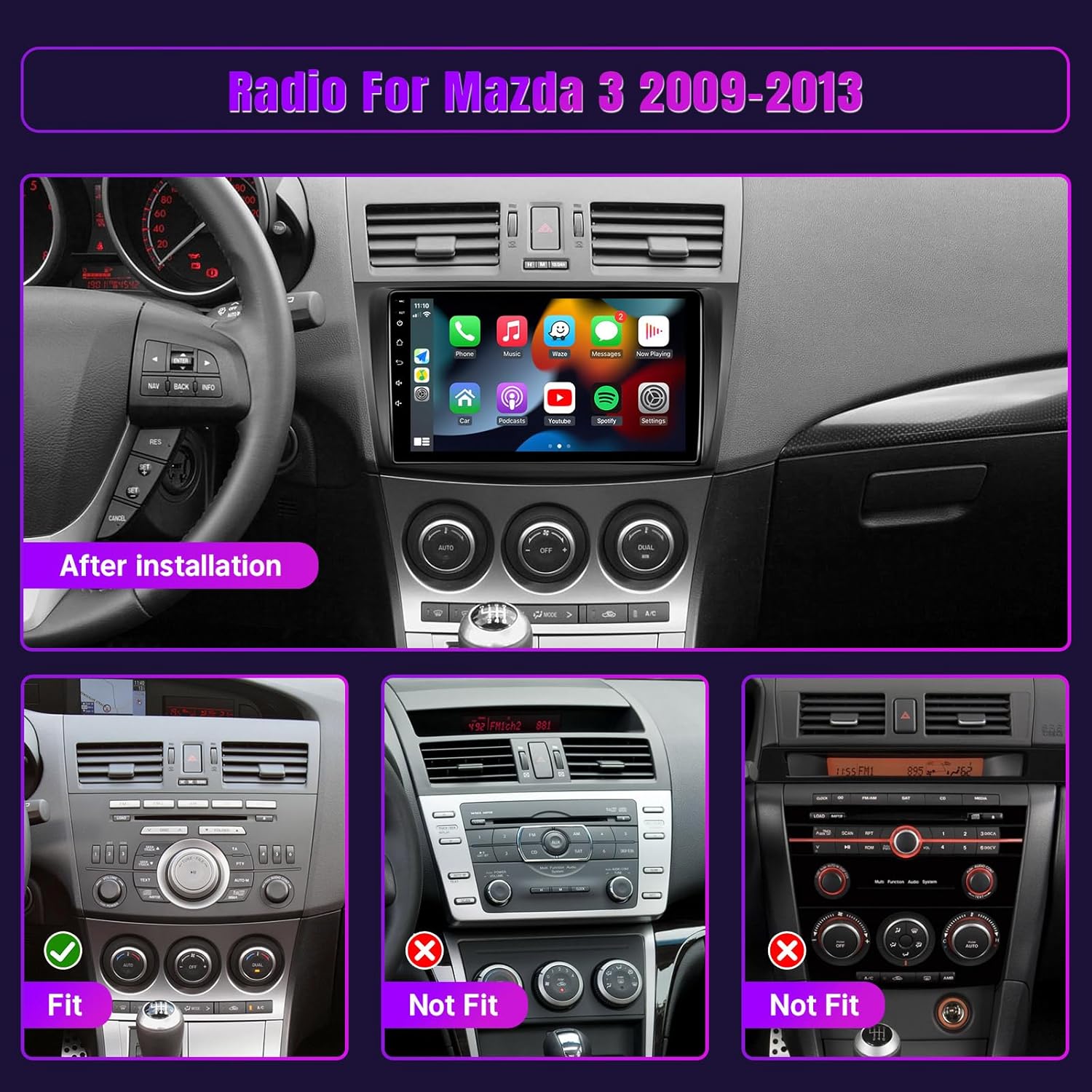
Figure 5.1: Visual guide for checking compatibility with your Mazda 3 dashboard. The top image shows the stereo installed in a compatible dashboard. The bottom row illustrates 'Fit' and 'Not Fit' examples based on the original radio unit's design.

Figure 5.2: Further visual comparison of compatible (2009-2013) and incompatible (2004-2009) Mazda 3 center console designs. Pay close attention to the circled areas indicating the specific fitment requirements.
5.2 Wiring Connections
The included wiring harness is designed for plug-and-play installation. Refer to the provided wiring diagram in the separate user manual for detailed connections. Key connections include:
- Power Cable: Connect to vehicle's power supply.
- RCA Cables: For audio/video input/output.
- USB Cables: For external USB devices and wired Android Auto.
- GPS Antenna: Connect and position in a location with clear sky view.
- Backup Camera Input: Connect the included backup camera.
- CAN Bus: Connect for vehicle data integration (e.g., steering wheel controls).
5.3 Physical Installation
- Carefully remove the original car radio and trim panels.
- Connect all necessary wiring harnesses to the new Leadfan unit.
- Mount the GPS antenna in an optimal location, typically on the dashboard with a clear view of the sky.
- Install the backup camera (if applicable) and route its cable to the main unit.
- Secure the Leadfan car stereo into the dashboard opening.
- Reinstall all trim panels.
- Reconnect the vehicle's battery and test the unit.
6. Setup
After successful installation, perform the initial setup steps.
6.1 Initial Power-On
Turn on your vehicle's ignition. The unit should power on automatically and display the Leadfan logo, followed by the Android 12 home screen.
6.2 Basic Settings
- Language: Navigate to Settings > System > Languages & input to select your preferred language.
- Date & Time: Set the correct date and time, or enable automatic synchronization via GPS or network.
- Wi-Fi Connection: Go to Settings > Network & internet > Wi-Fi to connect to an available Wi-Fi network or mobile hotspot. This is essential for online maps, app downloads, and some features of Wireless CarPlay/Android Auto.
7. Operating Instructions
This section details how to use the various functions of your Leadfan Android 12 Car Stereo.
7.1 Touchscreen Interface & Split Screen
The unit features a responsive 9-inch IPS touchscreen. Navigate by tapping, swiping, and pinching. The split-screen function allows two applications to run simultaneously, with each side independently operable. To activate, long-press an app icon and drag it to one side of the screen, then select another app for the other side.

Figure 7.1: The touchscreen displaying two applications simultaneously in split-screen mode, demonstrating the independent operation of each section.
7.2 Bluetooth 5.1
Connect your smartphone via Bluetooth for hands-free calling and audio streaming.
- Enable Bluetooth on your smartphone and on the car stereo (via the Bluetooth app).
- Search for available devices on your phone and select the car stereo's Bluetooth name.
- Confirm the pairing code on both devices.
- Once paired, you can make/receive calls and play music from your phone through the car stereo.

Figure 7.2: The Bluetooth application interface, illustrating hands-free calling functionality.
7.3 Wireless CarPlay & Android Auto
Access your smartphone's features safely while driving.
- For Wireless CarPlay/Android Auto: Ensure your phone's Wi-Fi and Bluetooth are enabled. Connect your phone to the car stereo via Bluetooth first. The system will then prompt you to enable CarPlay/Android Auto.
- For Wired Android Auto: Connect your Android phone to the car stereo using a USB cable.
- Once connected, the CarPlay or Android Auto interface will appear on the screen, allowing access to navigation, music, messages, and voice assistants (Siri/Google Assistant).

Figure 7.3: Demonstrates the Apple CarPlay and Android Auto interfaces, highlighting voice control capabilities for navigation, communication, and media playback.
7.4 GPS Navigation & Wi-Fi
The unit supports both online and offline navigation. Connect to Wi-Fi to download maps, update software, and access online services.
- GPS Navigation: Open the pre-installed navigation app (e.g., Google Maps, Waze). For offline maps, download them via Wi-Fi beforehand.
- Wi-Fi Connection: Connect to your phone's hotspot or a public Wi-Fi network via Settings > Network & internet > Wi-Fi. This enables app downloads from the Play Store and real-time traffic updates for navigation.

Figure 7.4: The top section illustrates Wi-Fi connectivity, enabling access to apps like YouTube and Spotify. The bottom section displays GPS navigation with both online and offline map functionalities.
7.5 Mirror Link
Mirror your smartphone's screen onto the car stereo display.
- iOS Devices: Connect wirelessly via Wi-Fi.
- Android Devices: Connect wirelessly via Wi-Fi or wired via USB.
- Follow the on-screen instructions in the 'Mirror Link' app on the stereo to establish the connection.
7.6 FM Radio
Access local radio stations.
- Open the 'FM Radio' application.
- Use the scan function to automatically find and save available stations, or manually tune to a specific frequency.

Figure 7.5: The FM Radio application interface, displaying frequency tuning and audio controls.
7.7 Steering Wheel Controls (SWC)
Configure your vehicle's steering wheel buttons to control the car stereo.
- Ensure the CAN Bus is correctly connected during installation.
- Go to the 'Steering Wheel Control' or 'SWC Learning' section in the unit's settings.
- Follow the on-screen prompts to assign functions (e.g., volume up/down, track skip) to your steering wheel buttons.

Figure 7.6: This image collage illustrates the Bluetooth 5.1 chip, the FM radio interface, the steering wheel control learning function, and the 1080P backup camera view.
7.8 Backup Camera
The unit automatically displays the rear view when the vehicle is in reverse gear.
- Ensure the backup camera is correctly installed and connected to the 'Reverse Input' on the stereo.
- When shifting into reverse, the screen will automatically switch to the camera feed, providing a 170° wide-angle view with IP68 waterproof and night vision capabilities.

Figure 7.7: The backup camera display, showing parking assistance lines for safe maneuvering.
7.9 EQ Settings
Adjust audio equalization to customize your listening experience.
- Access the 'EQ' or 'Sound Settings' application.
- Adjust the frequency bands to enhance bass, treble, or mid-range frequencies according to your preference.

Figure 7.8: The Equalizer settings screen, allowing users to fine-tune audio output.
8. Maintenance
Proper care ensures the longevity and optimal performance of your car stereo.
- Cleaning the Screen: Use a soft, lint-free cloth to gently wipe the touchscreen. For stubborn smudges, slightly dampen the cloth with water or a screen-safe cleaner. Avoid harsh chemicals or abrasive materials.
- Software Updates: Periodically check for software updates via the system settings (if available) to ensure optimal performance and access to new features. A stable Wi-Fi connection is required for updates.
- Environmental Conditions: Avoid exposing the unit to extreme heat or cold, as this can affect its electronic components.
9. Troubleshooting
Refer to the following table for common issues and their solutions.
| Problem | Possible Cause | Solution |
|---|---|---|
| Unit does not power on. | Incorrect power wiring; Blown fuse; Loose connection. | Check power cable connections; Inspect vehicle's fuse box; Ensure all harnesses are securely connected. |
| No sound output. | Speaker wires disconnected; Volume too low; Mute function active. | Verify speaker wiring; Increase volume; Check if unit is muted. |
| GPS signal lost or inaccurate. | GPS antenna improperly placed or disconnected. | Ensure GPS antenna has a clear view of the sky and is securely connected. |
| Bluetooth connection issues. | Bluetooth not enabled; Device not paired; Interference. | Ensure Bluetooth is active on both devices; Re-pair the device; Move away from sources of interference. |
| Backup camera not displaying. | Camera not connected; Reverse trigger wire not connected. | Check camera and reverse input connections; Verify reverse trigger wire is correctly wired. |
| Steering Wheel Controls not working. | CAN Bus not connected; SWC learning not performed. | Ensure CAN Bus is connected; Perform SWC learning in settings. |
10. Specifications
Technical specifications for the Leadfan Android 12 Car Stereo.
| Feature | Detail |
|---|---|
| Operating System | Android 12 |
| RAM | 2GB |
| ROM | 32GB |
| Screen Size | 9 Inches |
| Display Type | IPS Touchscreen |
| Connectivity | Bluetooth 5.1, Wi-Fi, USB |
| Special Features | Wireless Apple CarPlay, Wireless Android Auto, GPS Navigation, Mirror Link, Steering Wheel Control, Backup Camera Input |
| Audio Output Mode | Stereo |
| Mounting Type | Dashboard Mount |
| Item Weight | 3.05 pounds |
| Package Dimensions | 11.97 x 11.1 x 4.21 inches |
11. Warranty and Support
Leadfan is committed to providing quality products and customer service.
11.1 Warranty Information
- 30-Day Free Return: You may return the product within 30 days of purchase for a full refund.
- 12-Month Replacement: The product is covered by a 12-month replacement warranty for quality-related issues.
11.2 Technical Support
Leadfan offers lifetime technical support for this product. If you encounter any issues or have questions, please contact our customer service team. We aim to respond to inquiries within 24 hours.

Figure 11.1: Overview of customer support and warranty benefits provided with your purchase.


